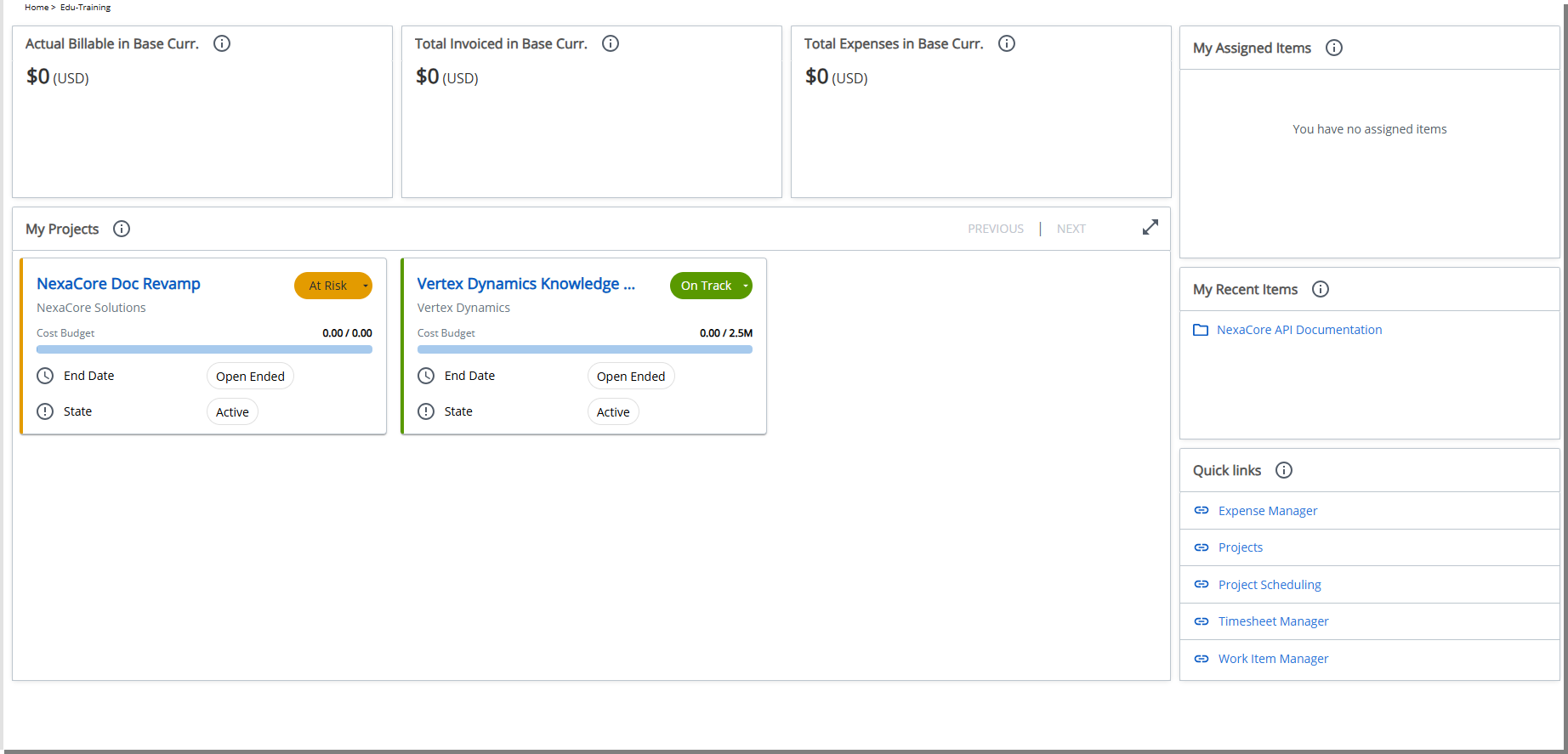
From the Homepage Templates page, you can create templates from scratch, add widgets, define layouts, and assign them to users or groups. The built-in drag-and-drop designer makes it easy to arrange Widgets such as reports, quick links, and dashboards, ensuring that each user sees the information most relevant to their role.
If you prefer not to start from scratch, you can also use out-of-the-box homepage templates. These preconfigured templates can be copied and customized to match your organization’s needs—helping you save time while maintaining consistency across teams and user groups.
The purpose of this article is to guide you through the process of designing a custom homepage template. You will learn how to create, configure, and assign homepage templates so that users see personalized, role-specific dashboards tailored to their needs.
- From the Icon Bar click Setup
 .
. - From the Navigation Menu click Homepage Templates.
- Click Create Template.
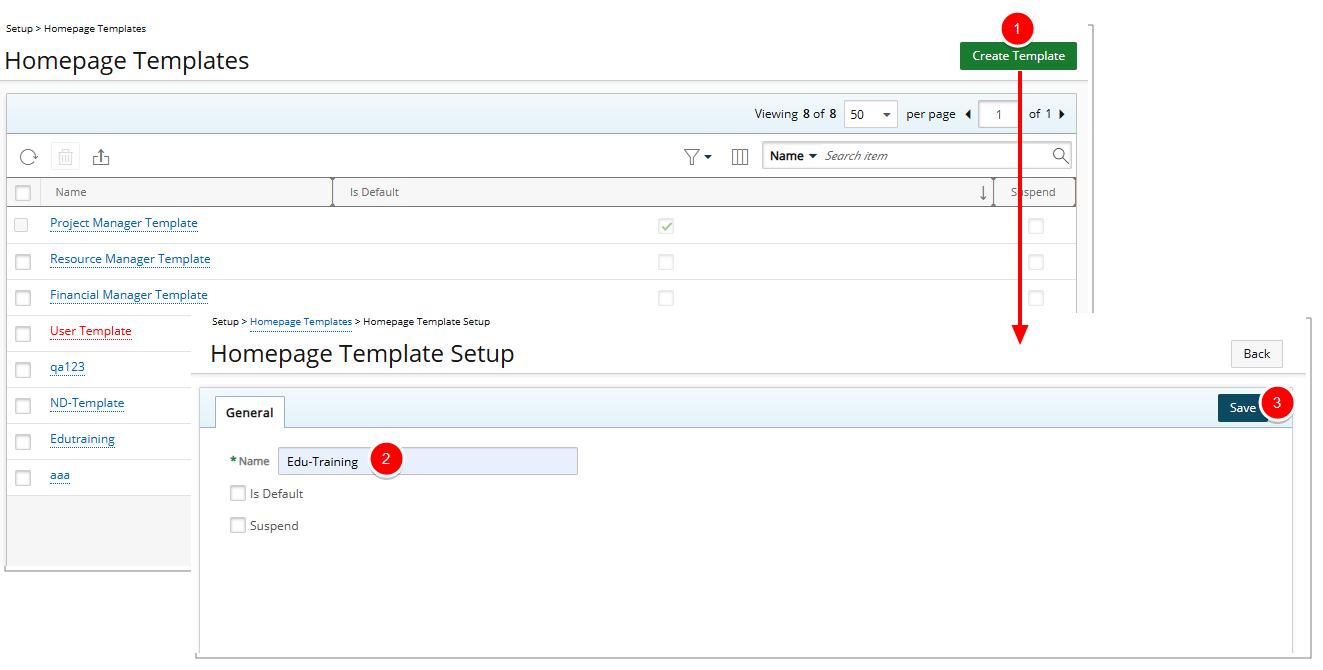
- Name your Template.
- Is Default: Select this checkbox to designate this template as the organization’s default homepage. Only one Template can be set as Default.
Note: The system uses a set hierarchy to determine which homepage template is applied. Learn more in Homepage Assignment and Precedence.
- Click Save, and instantly unlock the Designer tab. This is your creative workspace — a drag-and-drop canvas where you can arrange content using a clean, snap-to-grid layout.
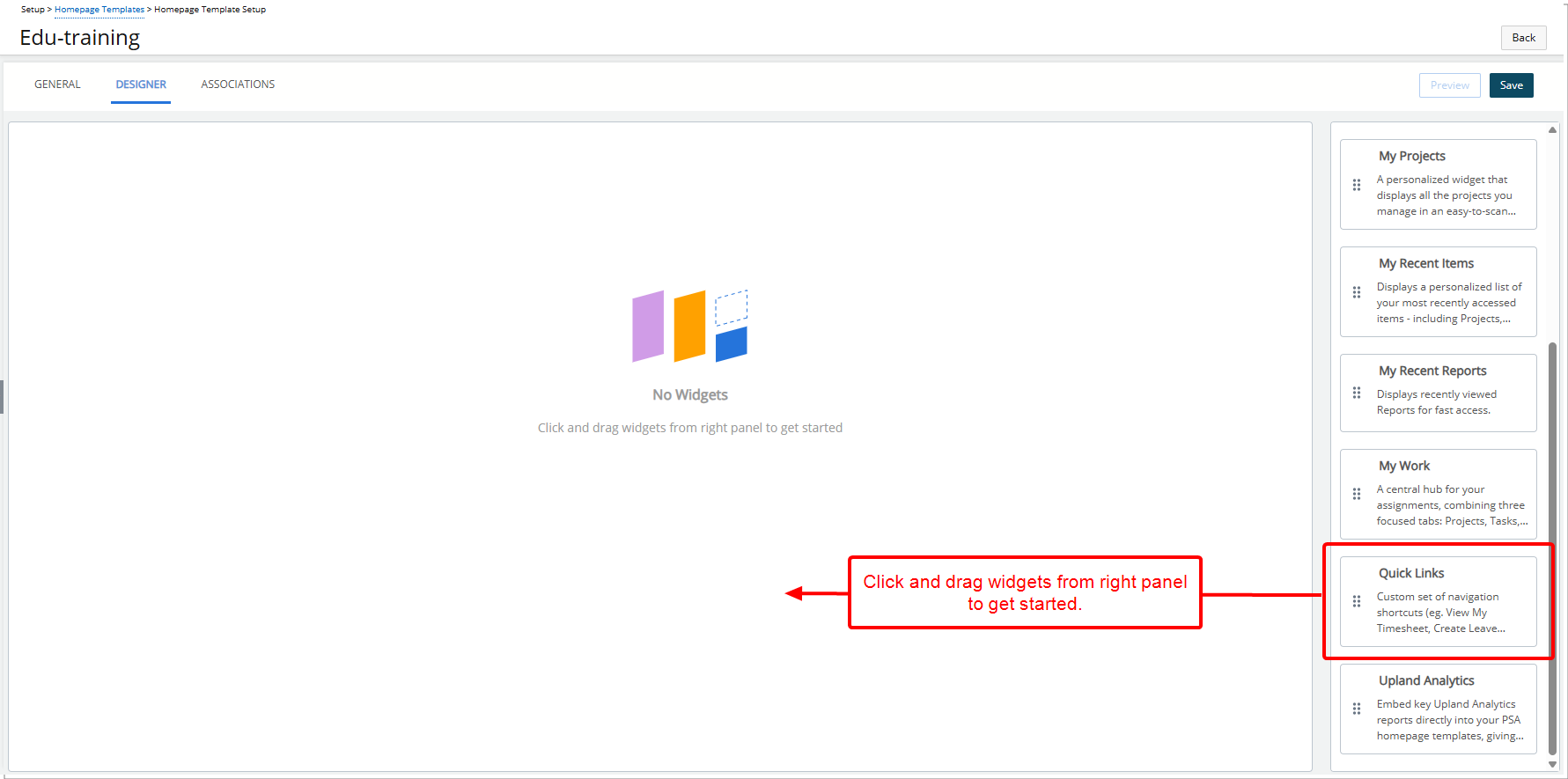
Note: When a Widget is dragged onto the canvas, it is placed in the first available empty space in the top-left corner.
- The right-hand sidebar houses your available Widgets. Maybe you start with Quick Links, dragging it onto the page and adding shortcuts to Expense Manager, My Timesheets, or even an external site like the PSA Help Center. Or perhaps you drop in the Upland Analytics widget, search for a report you have already built, and pin it directly onto the Homepage so users see live project data every time they log in.
- Every widget can be resized and moved, letting you fine-tune the layout until it’s perfect. For more information on each Widget refer to Widget Library Overview.
- Click Preview to open a modal window that displays the Homepage exactly as an end user would see it. Preview mode shows all configured widgets, including their order, size, layout, and any KPIs or filters using placeholder data. The preview does not alter the Designer state. To make changes, close the preview window, return to the Designer, update the layout or widget configuration, and click Preview again to immediately review the updated design without saving.
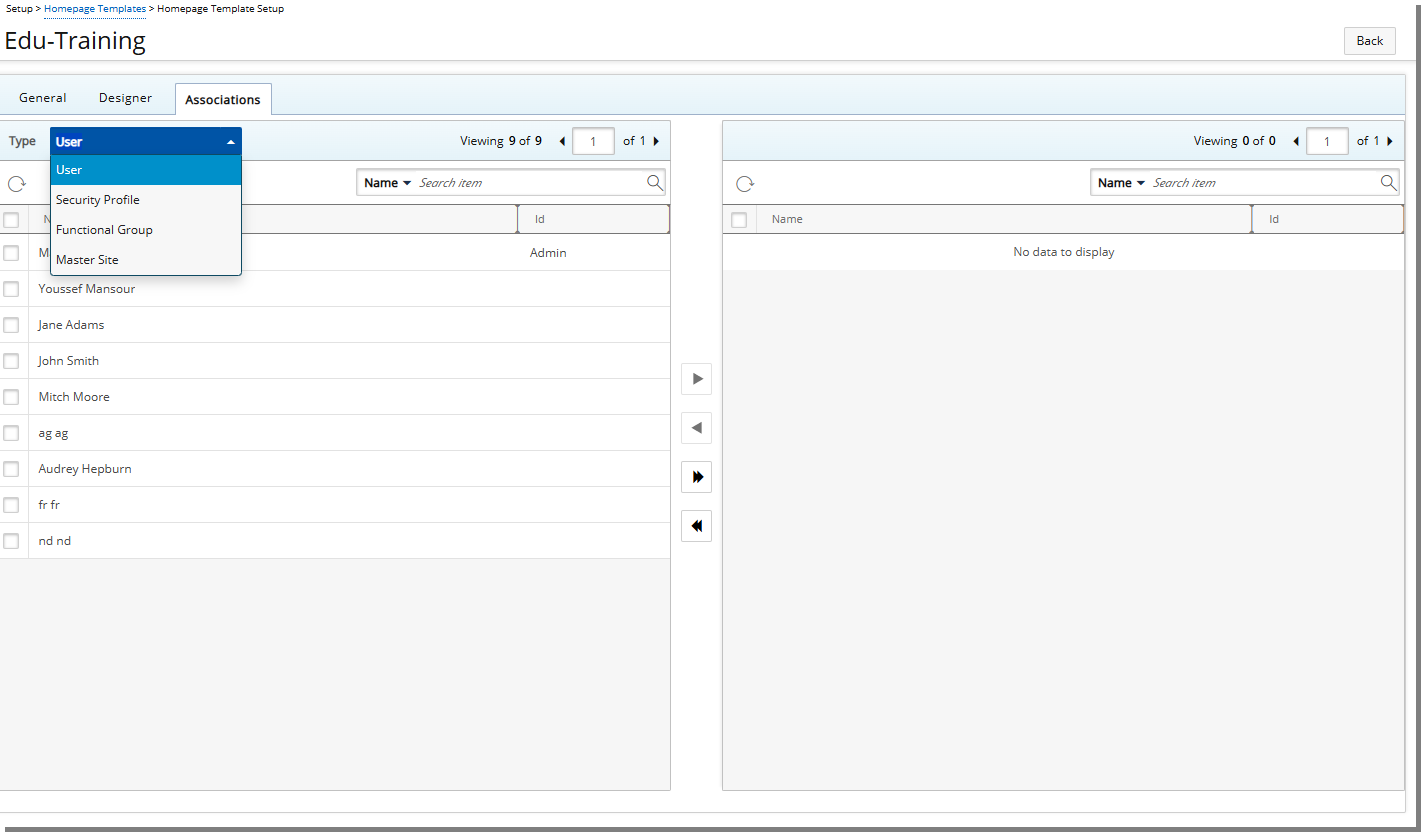
- Once your design is complete, the Associations tab lets you decide exactly who will see it. You can assign your template to individual Users, Security profiles, Functional Groups, Master Sites, or a combination of these.
- Once published, users will see the tailored, role-specific dashboard each time they open their Homepage
 . The dashboard presents all Widgets as interactive Tiles, giving them a consistent view of the information that matters most.