When the Project Detailed Auditing option, available under Setup > Work tier within the Audit Trail settings is turned on, changes made to the Project within the Project Details page (General, Options and UDF tabs) can be tracked and available on the History page to indicate what, when and by whom it was made.
This article details how to enable the auditing of Project Details.
Example: Adam, the system administrator is tasked to setup the system so that Project information changes can be exported to Excel for auditing purposes. He can now easily setup the system to track the changes made to the Project Details page (General, Options and UDF tabs) by selecting the Project Detailed Auditing option.
Note: The Document audit entries can be viewed by clicking Tools>Audit Trail; for more information, see Setting Up the Audit Trail.
Caution: Calculated User Defined Field changes are not audited in Project Detailed Auditing.
- From the Icon Bar click Setup
 .
. - From the Navigation Menu click Organization.
- From the menu click System.
- From the System page click the Security button to access the Security setup page.
- From the Security page click the Audit Trail button to open the Audit Setup page.
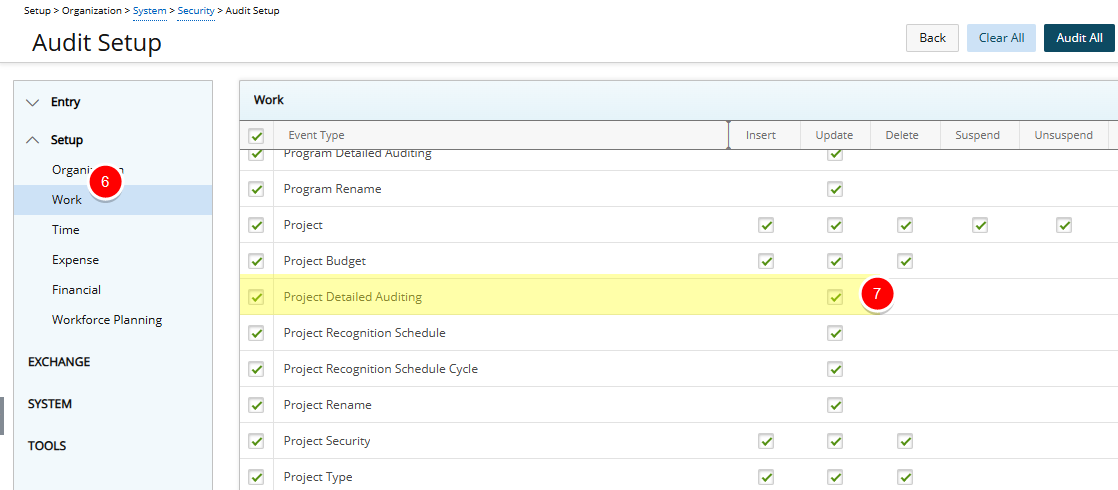
- From the navigation, click Work located under the Setup category.
- Select the Update box for Project Detailed Auditing Event Type.
- Click Save Changes to save the changes you have made.
- Click Back to return to the Security page.