Enable the Summary Section on the Project Work Plan
You can display a Summary section at the top of the Project Work Plan by selecting Show Summary when creating or editing a Project Work Plan View. After selecting Show Summary, choose which KPIs you want to include in the collapsible Summary section.
The KPIs you select will appear within the Summary section whenever the corresponding View is applied to the Project Work Plan.
Note: The pages and formats shown in this article may differ from what you see in your environment. Your organization’s configuration or the rights assigned to you may result in a different experience.
- From the Icon Bar click Project List
 .
. - From the Project List page, select the Project you wish to edit by following one of these steps:
- Click the Project context menu button
 to expand it. From the available options click Edit.
OR - Click the name of the Project you wish to access.
Tip: Use the search capability for an efficient way of finding the specific project. For further details refer to Searching for a Project within the Project List page.
- Click the Project context menu button
- From the Project Edit page, hover your mouse over the Planners tab and select Work Plan from the available options.
- Click the View box.
- Select Manage from the available options.
- From the available Scheduling View List page, click the View you wish to manage.
Note:
- The new Show Summary option will be available when editing the details of a View, if the Budget License is granted.
- The Show Summary option, is available only for the Project Work Plan and is cleared by default.
- From the Scheduling View Edit page select Show Summary.
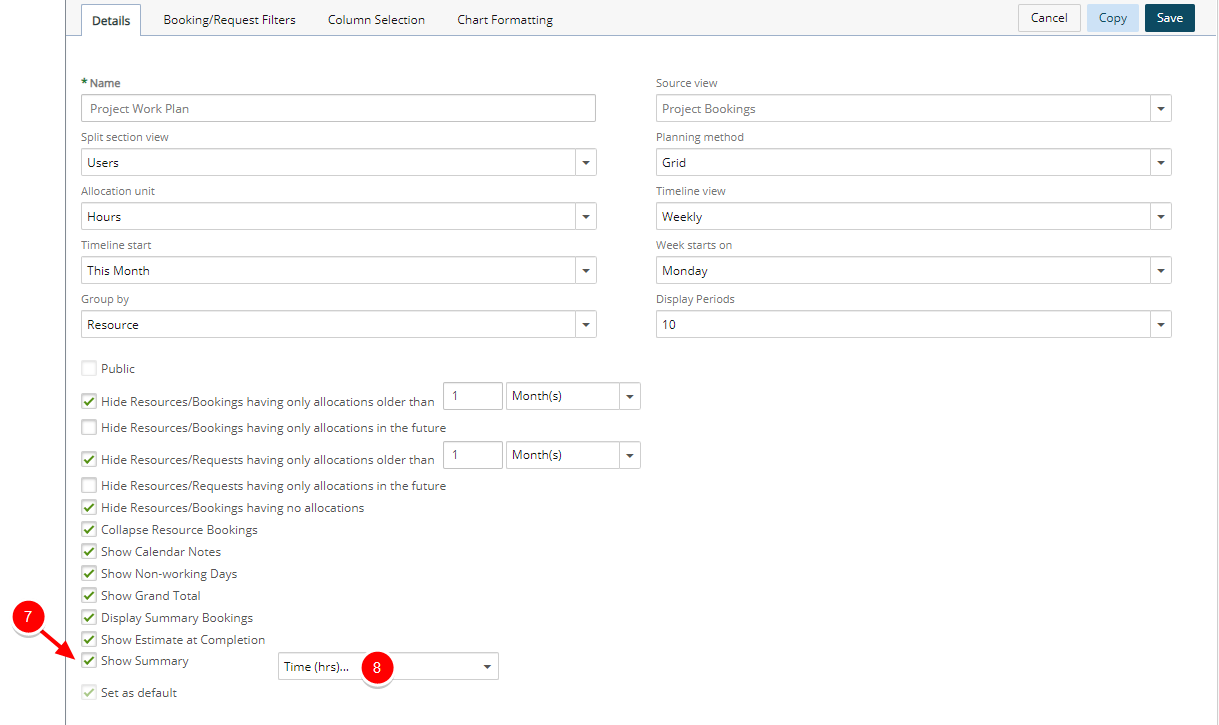
- Then choose the KPIs you wish to display:
- Click Save to apply your changes.
- Click Back to return to the previous page.
Impact of Your Change:
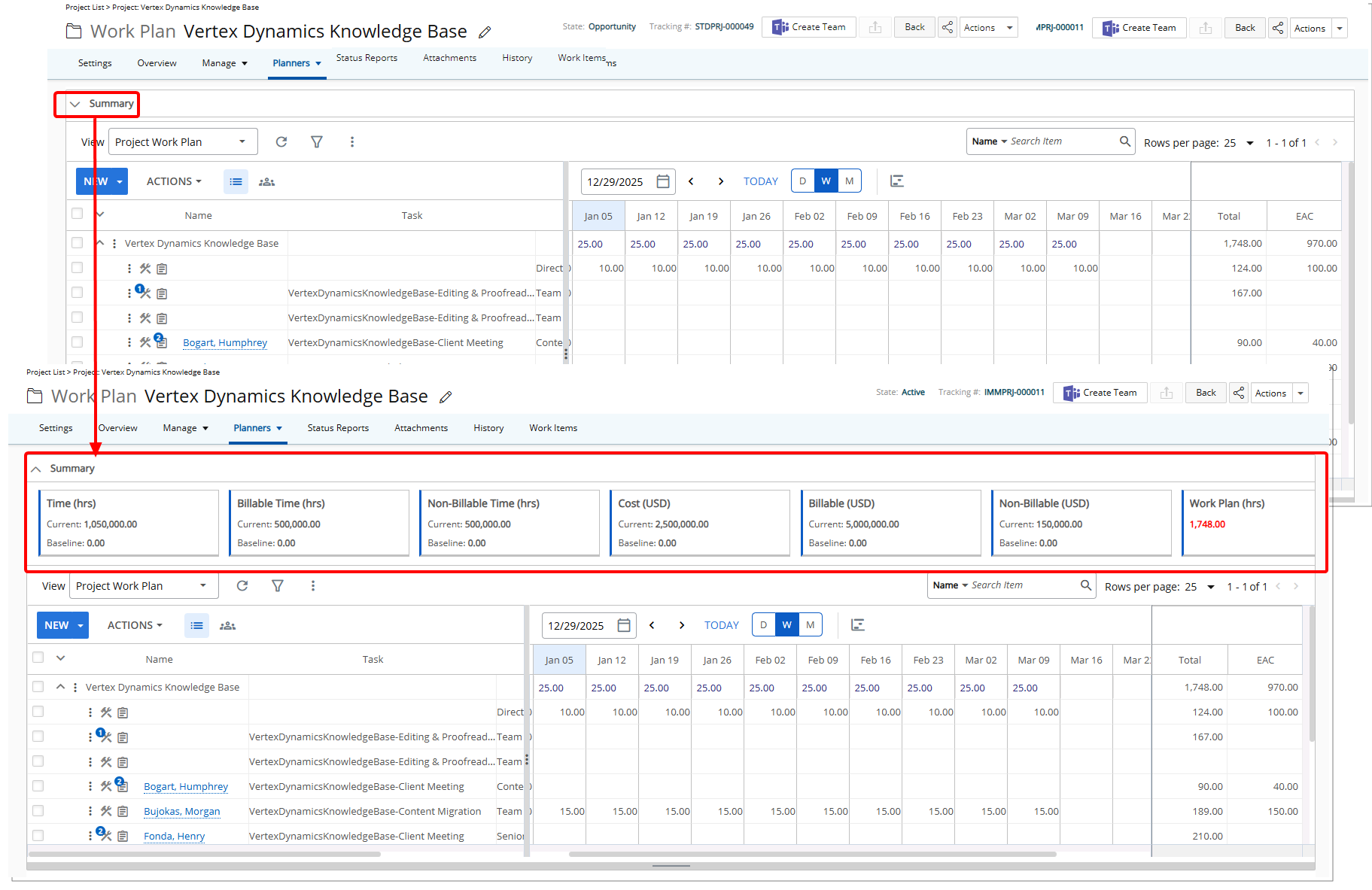
From the Project Work Plan, select the down arrow ( ) to expand and display the Summary section.
At the recommended screen resolution (1920 × 1080), approximately seven KPIs are visible at one time. If more KPIs are available, scroll to view the remaining items.
All numeric fields, including hours and currency values, are displayed in decimal format to ensure consistency.
Note:
- The Summary section is collapsed by default.
- If Budget License is granted but the Billing or Cost licenses are not enabled, then the Display Budgets option will be available when editing the details of a View, however the Budget Summary section will only contain the parts that are licensed.