You may need to Shift a Booking when schedules change, timelines are adjusted, or work needs to be moved to a different date.
Shifting a booking allows you to move an existing booking from one date to another while preserving the original allocation and Resource Assignment. This helps keep the Work Plan up to date and ensures work is scheduled on the correct dates.
Example: A project manager assigns a designer to work on a Task scheduled for this week. Due to a dependency delay, the task cannot start as planned. The project manager shifts the booking to a later date using the Shift Booking dialog box, moving the entire booking to reflect the updated schedule without changing the assigned resource or effort.
You can shift a booking in two ways:
- Using the Actions context menu
- Using the Booking Bar context menu
Depending on your organizational role and rights granted to you, you can access the Work Plan through one of any or one of the following avenues, each of which are illustrated in the Accessing the Work Plans article.
For this article, the steps are demonstrated using the Project Work Plan as the example.
Note: The pages and formats shown in this article may differ from what you see in your environment. Your organization’s configuration or the rights assigned to you may result in a different experience.
- From the Icon Bar click Project List
 .
. - From the Project List page, select the Project you wish to edit by following one of these steps:
- Click the Project context menu button
 to expand it. From the available options click Edit.
OR - Click the name of the Project you wish to access.
Tip: Use the search capability for an efficient way of finding the specific project. For further details refer to Searching for a Project within the Project List page.
- Click the Project context menu button
- From the Project Edit page, hover your mouse over the Planners tab and select Work Plan from the available options.
- Start the shift action using one of the following methods:
 Option 1: Use the Actions Context Menu
- Select the box(es) of the Booking(s) or Resource(s) to shift.
- Click Actions to access the context menu.
- Select Shift.
- Option 2: Use the Booking Bar Context menu
- Click the Context menu
 located against the Booking bar you wish to shift.
 - Select Shift from the available options.
- Click the Context menu
-
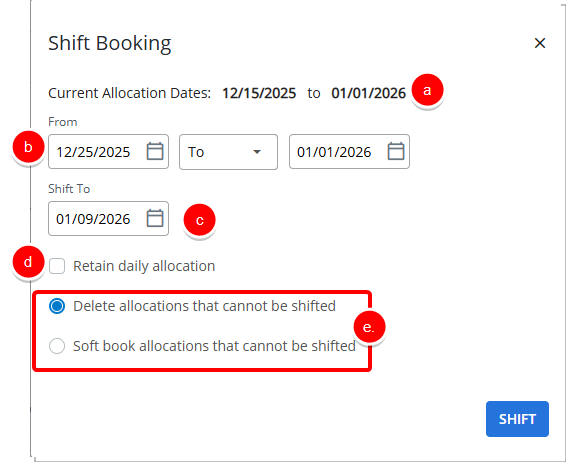
From the Shift Booking dialog box:
- View the Current Allocation Dates as reference.
- From: Click on the Calendar button and choose a date where you want the Shift to begin, if different from the default date.
Note: Defaults to the Allocation Start date.
- Shift To: Click on the Calendar button and choose a date where you want to shift the allocation.
Note: Defaults to the Allocation End date.
- Retain daily allocation (default selection): Keeps the existing daily booking allocation.
- Then choose one of the following options:
- Delete allocations that cannot be shifted (default selection): Removes any allocations that cannot be shifted.
- Soft book allocations that cannot be shifted: Converts any allocations that cannot be shifted to Soft Booked allocations.
Note: If a user does not have sufficient availability on a given day and overallocation is not permitted (the Allow overallocation option is not enabled for the user AND the signed-in user does not have the Can over allocate permission in their Security Profile), the system behaves as follows:
- If Retain Daily Allocation is selected, the system allocates the hours on the next available day.
- If Retain Daily Allocation is not selected, the system allocates the maximum available hours on the current day and schedules the remaining hours on the next available day.
- Once your choices are made click Shift.
Note: When attempting to Shift the system will trigger error messages if this action would cause Hard Bookings to extend beyond the resource's On/Off-boarding and Hire/Termination dates.
- Upon the Work Plan refreshing, view your changes. Move your mouse pointer over the Booking Bar to view the Allocation Details.
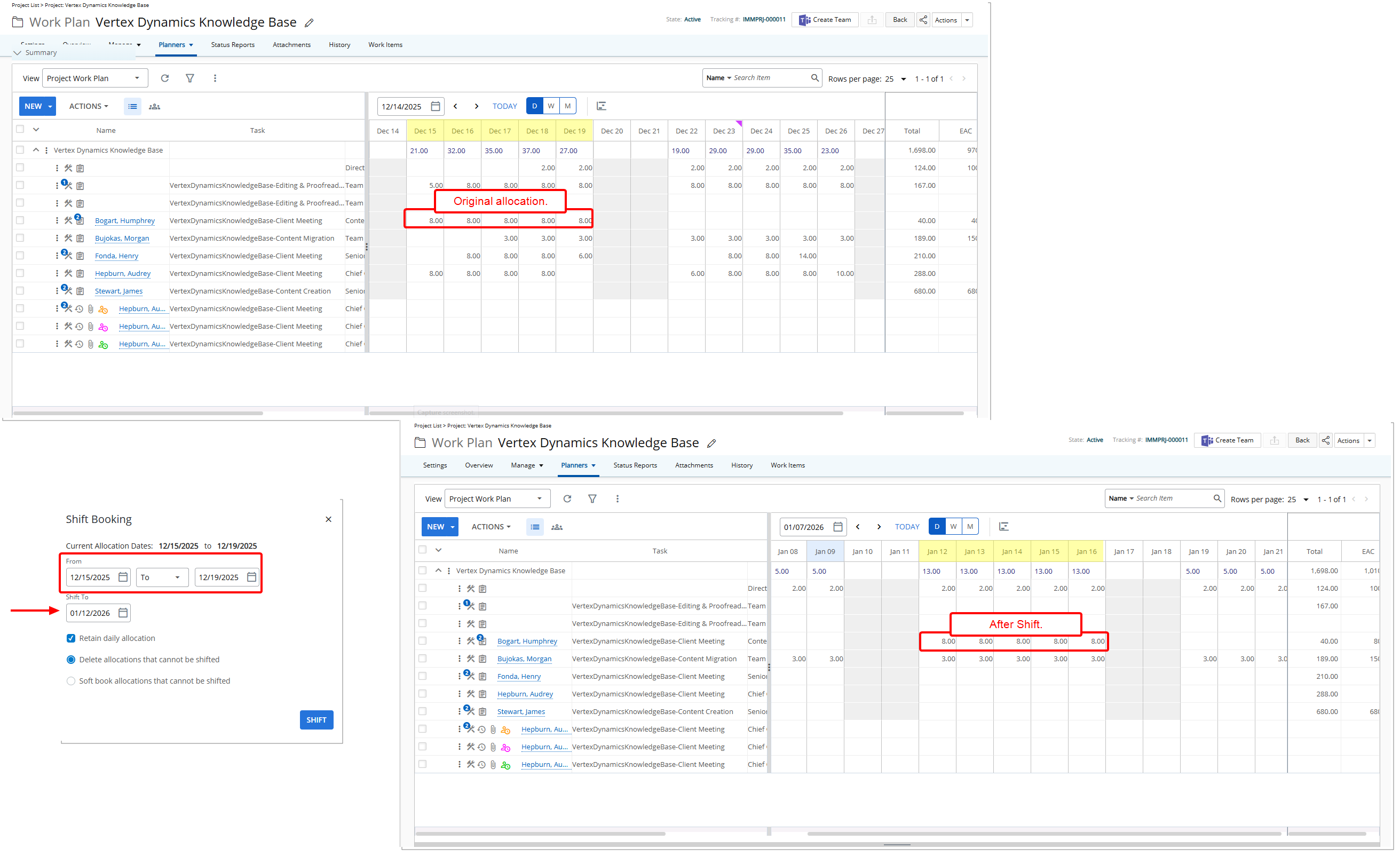
Shift one or multiple bookings without specifying the exact Start and End dates of each allocation
You can shift one or multiple bookings without being forced to specify the exact Start and End dates of each allocation. The system will automatically determine the minimum and maximum applicable dates for each booking and apply the shift correctly. Validations related to the overall Project, Task, User, and Resource dates remain intact to prevent scheduling outside allowable boundaries.
Scenarios and Examples
- Multiple Bookings with Open Dates: You can select multiple bookings starting on different dates and shift them together without encountering errors.
- Shifting Outside Earliest or Latest Booking: A booking with allocation dates from Dec 8–10 can now be shifted starting from Dec 5 without error; the system applies only the relevant booking dates.
- Validation Preserved: Attempts to shift outside the hiring dates, project start/end dates, or task boundaries are still prevented.
Example: Audrey the project manager selects three bookings for a project with varying Start dates. She can define any shift period within project constraints, and the system automatically applies the correct dates for each booking