This article covers copying User Defined Fields Values of a project to a new one, along with its relevant Tasks.
The Task names in the newly created Project adhere to the following format: NewlyCreatedProjectCode + <separator> + SourceTaskName.
These newly created Task names remain unaffected by any selected option for Default Task Name (Setup > Organization > System Setup > Task Preferences).
Note:
- When copying a Project, the Task names in the newly created Project adhere to the following format: NewlyCreatedProjectCode + <separator> + SourceTaskName. These newly created Task names remain unaffected by any selected option for Default Task Name (Setup > Organization > System Setup > Task Preferences).
- The Name Separator is defined in Setup > Organization > System Setup > Task Preferences.
- From the Icon Bar click Project List
 .
. - View the Project List page, and proceed to search for the existing project which you wish to copy.
Tip: Use the search capability for an efficient way of finding the specific project. For further details refer to Searching for a Project within the Project List page.
- You can copy a project either by clicking the Copy
 button or by clicking the Copy option located within the Project context menu. For more information see steps 3.a and 3.b.
 Click the Copy icon
- Select the box to the left of the Project you wish to copy.
Note: Only one Project can be copied at a given time. If multiple Projects are selected the Copy button remains unavailable.
- Upon selecting a Project, the Project Copy button becomes available. Click it to copy the project.
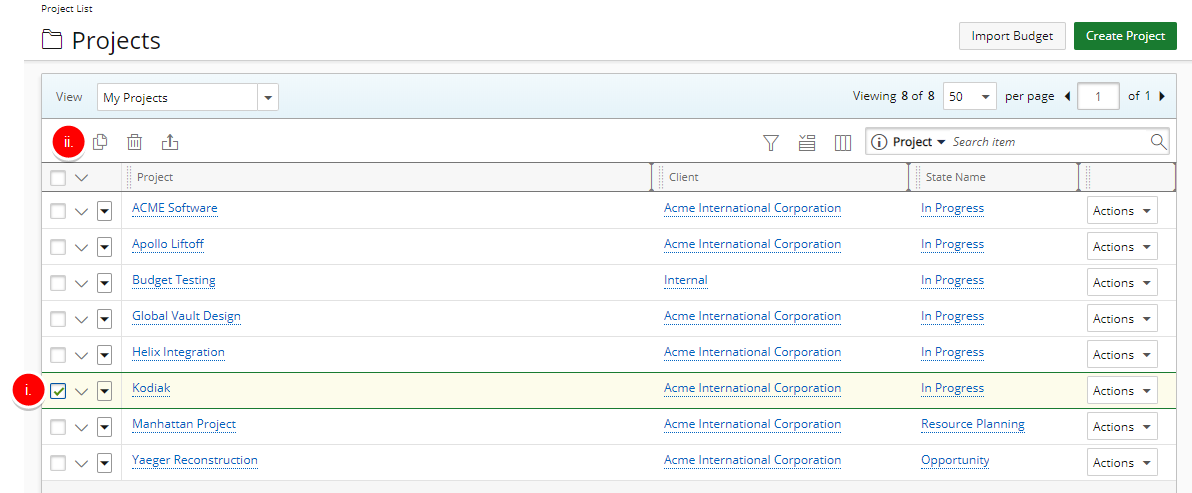
- Select the box to the left of the Project you wish to copy.
- Click Copy Option
- Click the Project context menu button to expand it.
- From the available options click Copy.
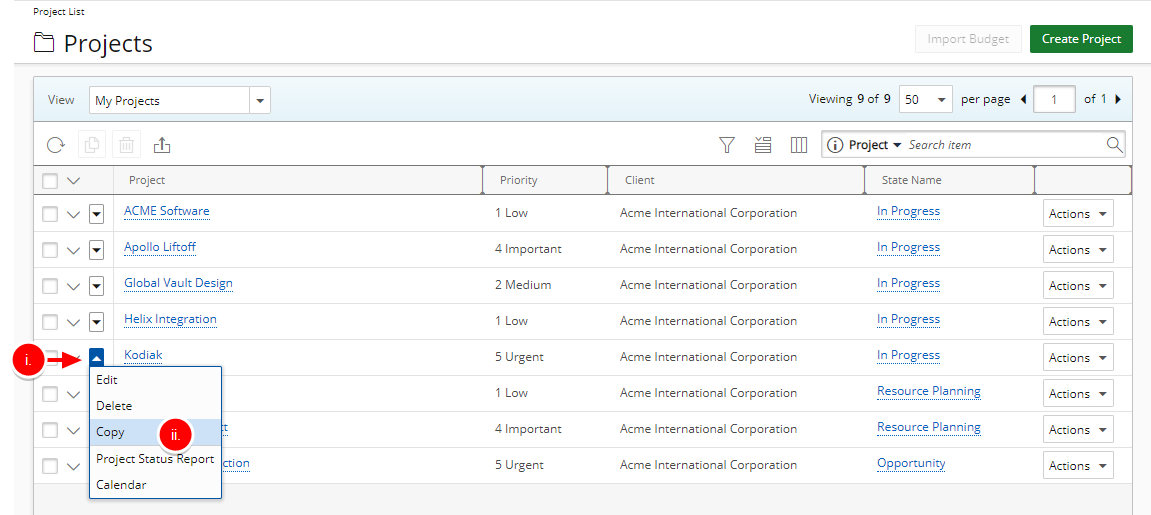
- In the Project Copy dialog box, select Copy into new Project.
- Make the desired changes in the respective boxes:
- Project Name *: Enter the project name.
- Project Code *: Enter a prefix, no longer than 32 characters, that is to be assigned to all tasks associated with the project.
- Project Id: Enter a unique identifier assigned to the project (optional).
- Client *: Click the browse button to select the client, from the Client List page, to be associated with the project.
- Project Manager: Click the browse button to select the manager, from the User List page, to be assigned to the project.
- Start date *: Click the calendar icon to select the date that work on the project is to begin.
- End date *: Click the calendar icon to select the date of the last day of work on the project: if set up by the administrator, the system automatically suspends all project-related tasks after the end date is reached.

- Within the Copy Options section, select the following options:
- Tasks
- Task UDFs
- Project UDFs
- Click Copy.
Tip: Click Copy and Edit to immediately edit the newly created project. For more information click here.