Downloading a Budget Import Template in Excel format
The Budget Import Template provides a structured Excel format that allows you to prepare budget data for bulk upload into the application. Before importing, you can download a customizable template that lets you select specific projects and define which budget fields to include. This helps ensure that the data you import aligns with your project budgeting structure and streamlines the setup process for multiple budgets.
Note: To ensure optimal performance and minimize the risk of timeouts or errors, it is recommended that Budget Import file be limited to 200 rows or fewer. If your dataset exceeds this, consider splitting the file into smaller batches before importing.
Caution: Importing multiple Baselines through the Budget Import functionality is not currently supported. If your Budget Import Template includes Baseline values, these will overwrite any existing baselines and automatically become the Active Baseline. As a result, all previously stored baselines will be deleted during the import process, and the imported baseline will be set as the new Active Baseline by default.
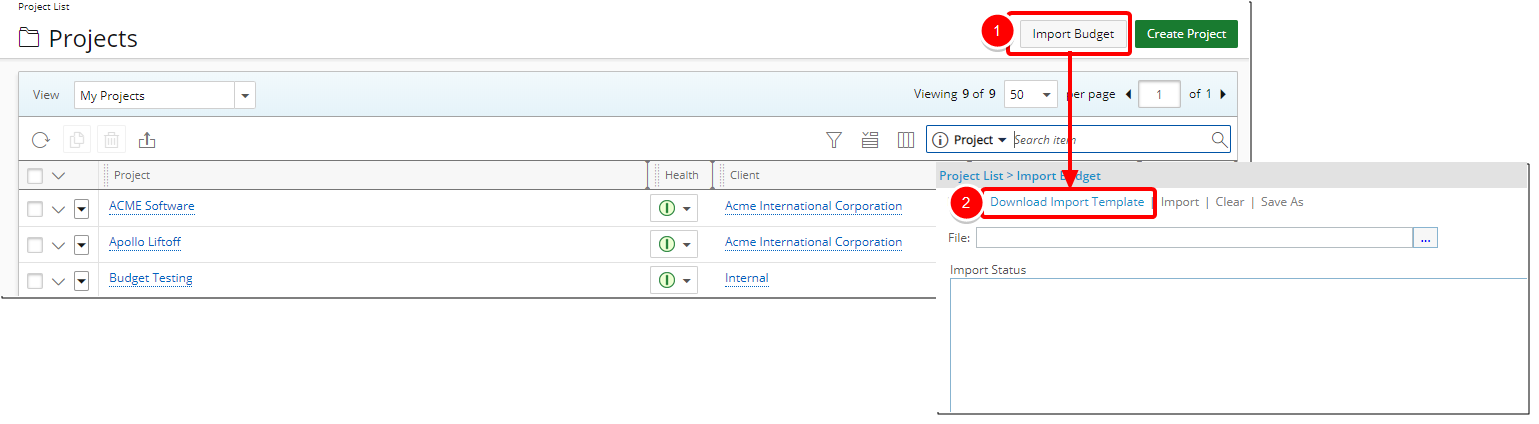
- From the Icon Bar click Project List
 .
. - Upon the Project List page displaying, click the Import Budget button to open the Import Budget page.
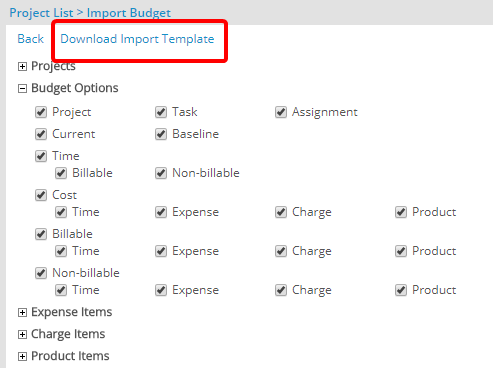
- Click Download Import Template link to open the Import Template Options page.
- Click the expand button (
 ) located against the following options to select the required projects, budget options, and items:
- Projects: allows users to select the projects for the budgets being imported.
Note: The users can add or remove any project within their scope. The selected project’s tasks and assignments are automatically added to the Excel Import Template.
- Budget Options: allows users to select the object types (project, task and assignment) and budget types for the budgets being imported.
Note: All options are selected by default; however, the Billable, Non-Billable, Cost, Time, Expense, Charge and Product options are not displayed if the required licences are not ordered.
- Expense Items: allows users to select the expense items for the budgets being imported.
- Charge Items: allows users to select the charge items for the budgets being imported.
- Product Items: allows users to select the product items for the budgets being imported.
Note: The Expense Items, Charge Items and Product Items are displayed only when the Expense, Charge and Product options are selected for a budget type in Budgets Options and the required licenses are ordered.
- Projects: allows users to select the projects for the budgets being imported.
- Upon selecting the required options, click the Download Import Template link to download the template with the selected options.
- Click Save to save the Excel import budget as an XML document.
- Click Back to close the Import Template Options page.
Note: The Excel template contains the fields for creating the project, task and assignment budgets; for more information, see the Budget Excel Import Template Fields table.