AI Assist in Qvidian for Office & Web
Qvidian's AI Assist feature allows users to revise and rewrite existing RFP answers to better match questions. Now, this functionality is also available in Qvidian for Office and Qvidian for Web. Create and share your own prompts in addition to the suggested AI Assist prompts that are already available in sliced RFPs. Clean up content in RFPs, proposals, and presentations directly from your Qvidian for Office (e.g. Word, Excel, PowerPoint) or Qvidian for Web browser session.
Tip: Content managers can also use AI Assist as a tool to edit content records in the library.
Using AI Assist in Qvidian for Office & Web
To use Qvidian's AI Assist features in Word, Excel, PowerPoint, or an Office browser session, you must have Qvidian for Office installed and/or Qvidian for Web loaded.
Note: Ensure that the correct AI Assist and/or Qvidian for Office & Web permissions for your environment are enabled. For more information, see AI Assist Permissions.
Searching for & using generated content
Use AI Assist to answer questions in Qvidian for Office and Web. Automatically create a custom answer to individual questions in Word, Excel, and Qvidian for Web or use FirstPass to answer multiple questions directly in Word or Excel.
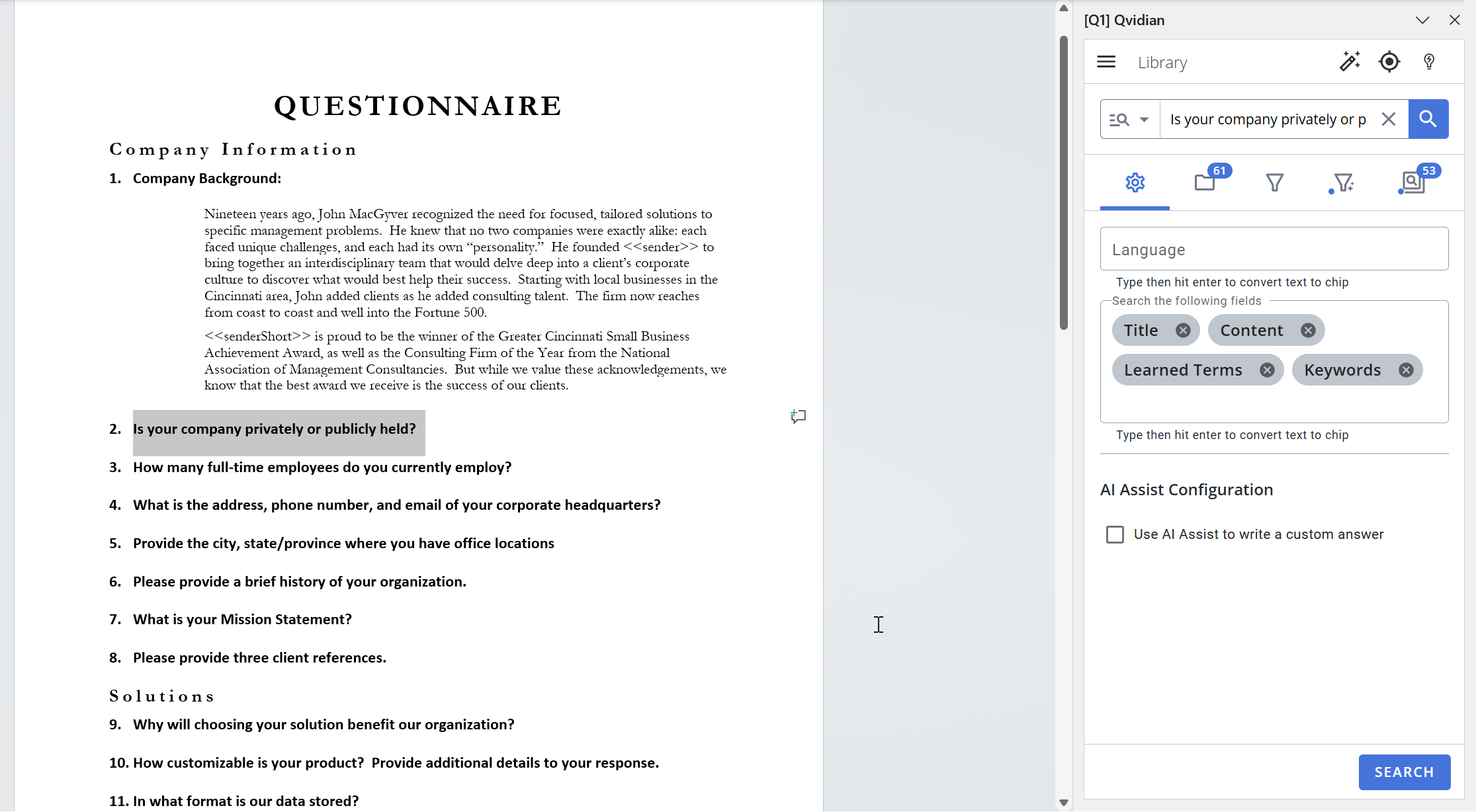
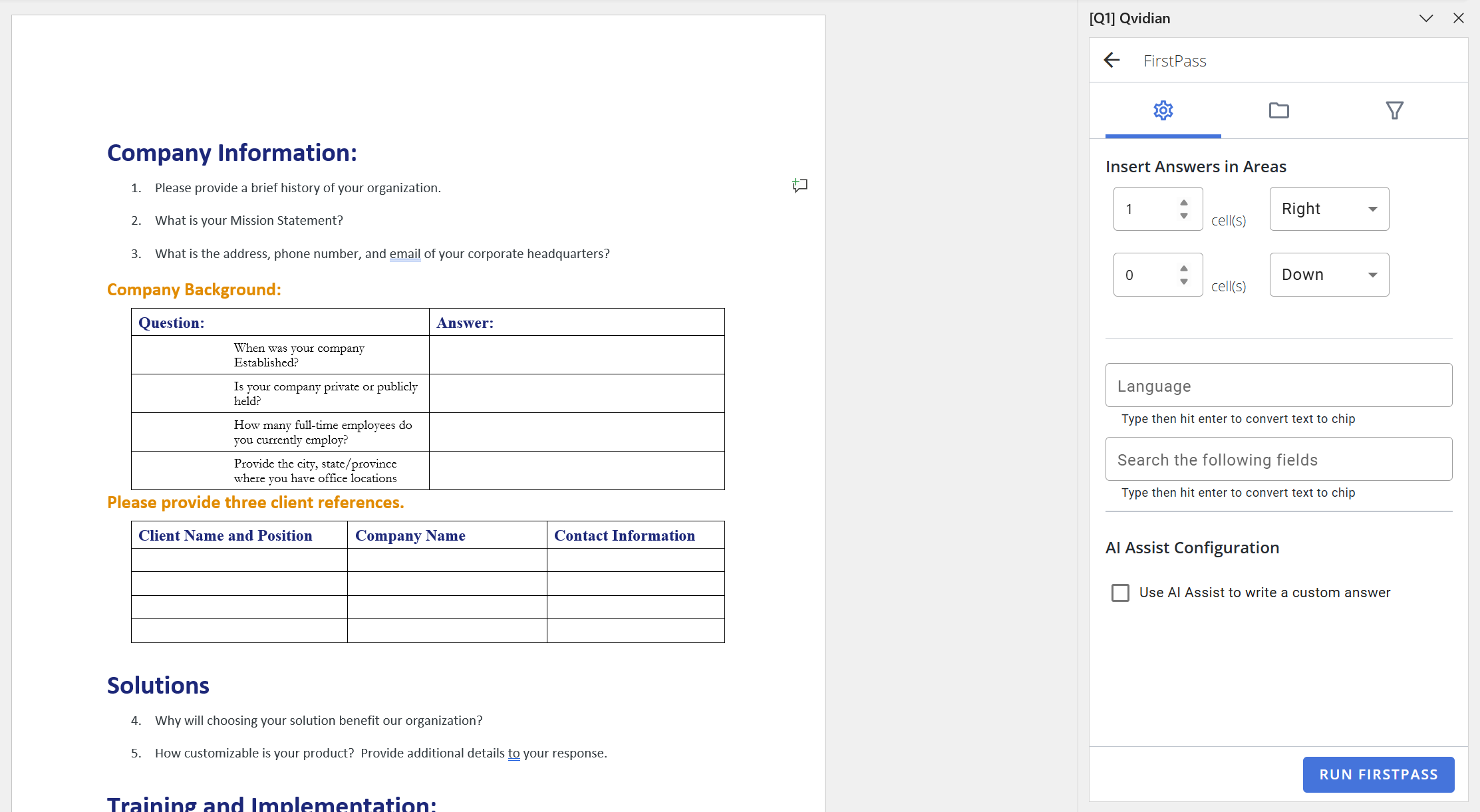
Qvidian for Office when running a search (Left) and in FirstPass (Right)
- Do one of the following:
- Set up your search in either Qvidian for Office or Qvidian for Web.
- Initiate FirstPass in either Qvidian for Office or Qvidian for Web.
- Select the Use AI Assist to write a custom answer checkbox to use generated content.
- Enter any rules for how the AI generated answer is written in the AI Assist Rules text area (e.g. word length, character length, language, etc.).
- Click Search or Run FirstPass.
Tip: The system will remember and display previously used rules that can be selected from by clicking the dropdown menu icon,  .
.
Note: Answers are not automatically inserted into Qvidian for Office and Web. Instead, like AutoFill, your top "N" search results are displayed with the AI generated answer appearing at the top.
Tip: Click View Source Content to open a new tab that displays all the sources used to generate the AI Assist response. This functionality is not available in FirstPass.
Caution: As of the January 2026 release, AI Assist in FirstPass does not have the ability to show users what content was used in the answer.
Revising & rewriting responses contextually
Once logged into your Qvidian for Office or Qvidian for Web session you can revise existing RFP answers.
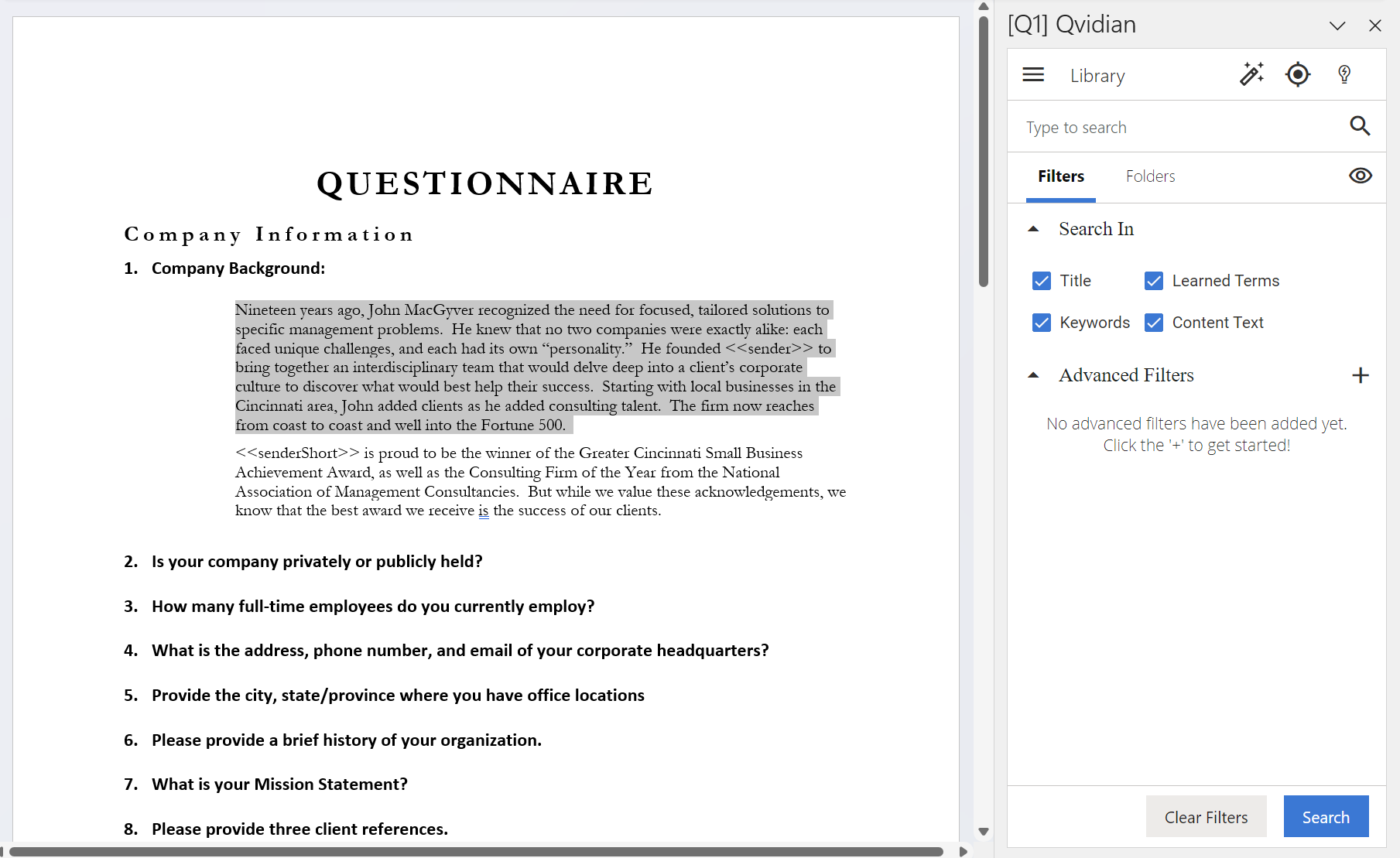
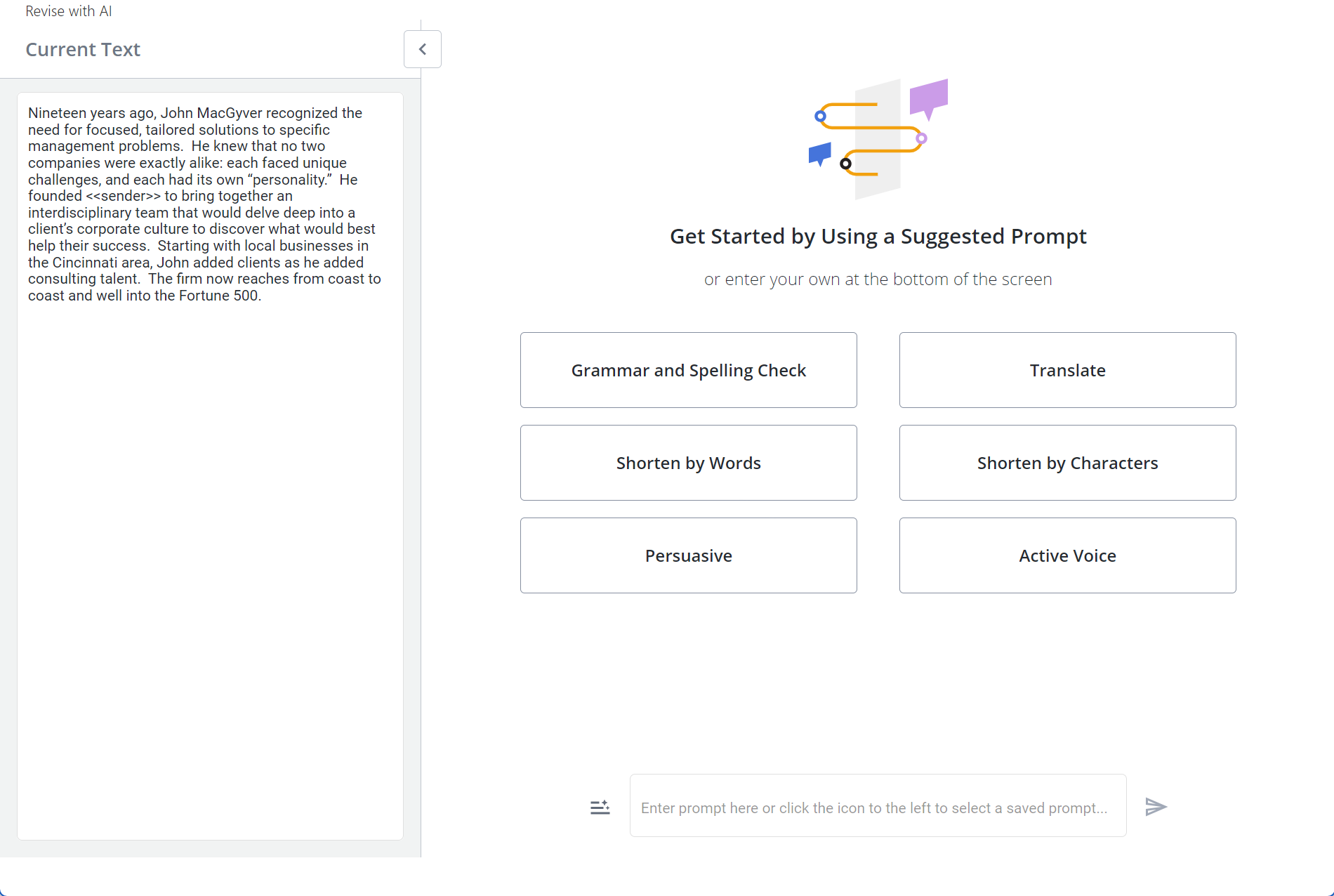
Example of an RFP slice in Qvidian for Office being revised with AI Assist. The left image shows the selected answer text. The right image shows an answer being revised. Click image to enlarge.
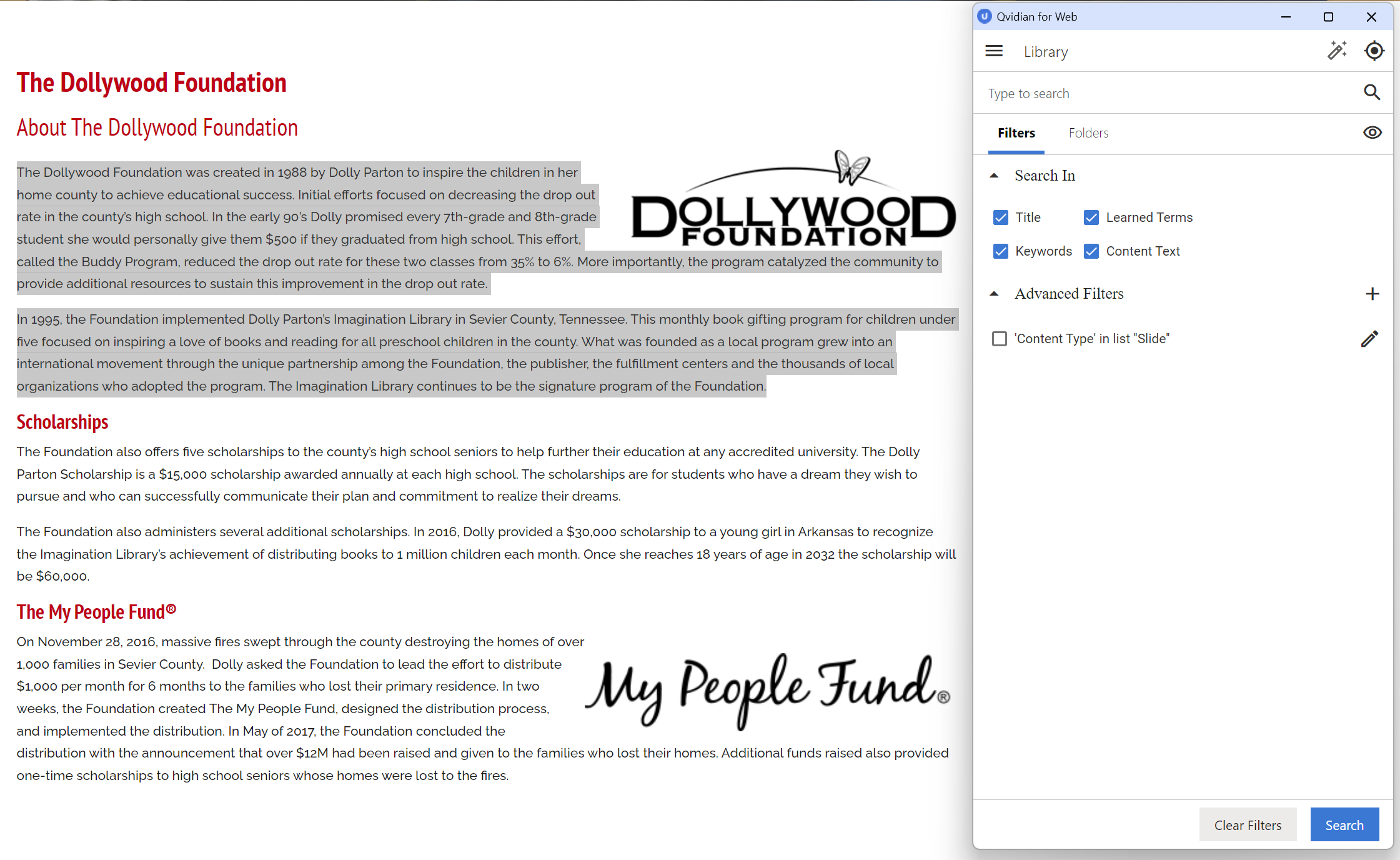
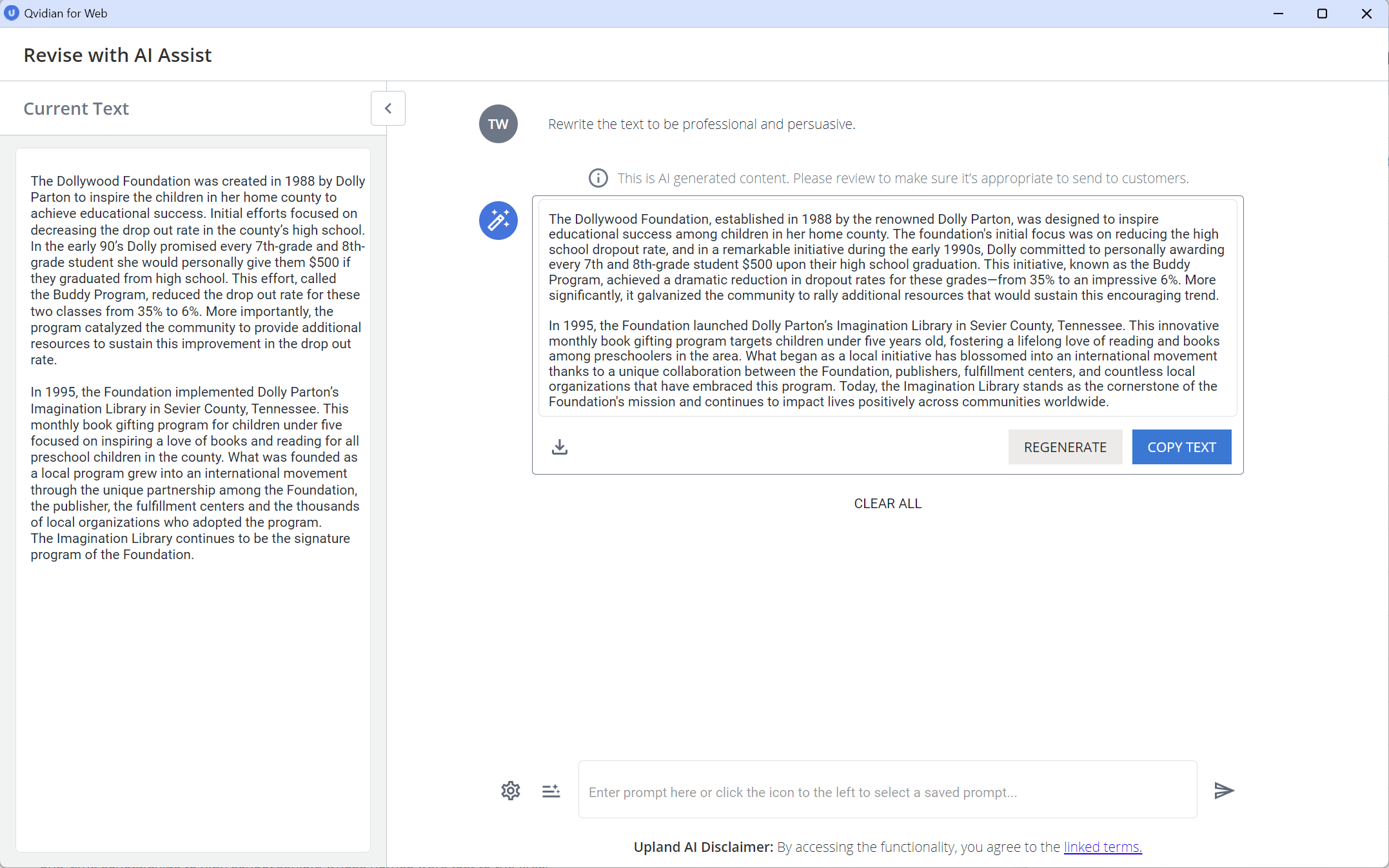
Example of browser text in Qvidian for Web being revised with AI Assist. The left image shows the selected browser text. The right image shows the text being revised. Click image to enlarge.
- Select the information want to revise.
- Qvidian for Office
- Word: Select the text.
- Excel: Select the cell. Only 1 cell can be selected at a time.
- PowerPoint: Select the text within the slide.
- Qvidian for Web: Select the text from the browser.
Note: The Revise selected text with AI Assist
 icon only appears when answer text/cells have been selected in Qvidian for Office or browser text has been selected in Qvidian for Web.
 - Qvidian for Office
- Click the Revise selected text with AI Assist icon, located at the top of the Qvidian for Office and/or Qvidian for Web panel. The "Revise with AI Assist" page will be displayed.
- The selected text of the slice(s) is displayed in panel on the left side. In the center, a selection of the 6 most recently used prompts is displayed for easy selection. You can also enter your own prompt or select a previously saved one at the bottom of the page.
Tip: Click the Collapse < icon to hide the current text panel on the left. Click the Expand > icon to display it again.
 Using suggested prompts
The suggested prompts can be included in the selection of the 6 most recently used prompt cards, which are displayed in the center of the "Revise with AI Assist" page.
- Select one of the following suggested prompts by clicking its card. The AI-generated content will be displayed.
- Active Voice: Rewrites the text in an active voice.
- Grammar and Spelling Check: Reviews the text and lists any spelling or grammar errors, then separately rewrites the text using those suggestions.
- Persuasive: Rewrites the text to be professional and persuasive.
- Shorten by Characters: Rewrites the text to be X characters or less, while preserving the relevant details and any numbering/paragraphs (where "X" is 1000 characters by default, but can be updated to your desired number of characters).
- Shorten by Words: Rewrites the text to be X words or less, while preserving the relevant details and any numbering/paragraphs (where "X" is 200 characters by default, but can be updated to your desired number of characters).
- Translate: Translates the text to X language, while preserving any numbering/paragraphs ((where "X" is French by default, but can be updated to your desired language).
- Do any of the following with the AI-generated content:
- Copy: Click the Copy
 icon to copy the response to your clipboard.
 - Download: Click the Download
 icon to download the response as a document file. Enter the File Name into the "Download Response" dialog and click Download.
 - Regenerate: Click Regenerate to rewrite the generated content.
- Accept: Click Accept to use the AI-generated revision in your RFP answer, overwriting the original content in the answer slice. The first style used in your original content will be maintained. Once an answer is accepted, a Revised Content
 icon appears in the upper right corner of slices or cells that contain the revised content. The AI Assist revisions will appear in the "Activity" and "Versions" areas of the Project RFP page.
 - Add to My Prompts List: Hover over the prompt and click the Add to My Prompts List
 icon to add this to your list of saved prompts.
 - Delete: Hover over the prompt and click the Delete
 icon on a prompt to remove that prompt and generated content from the thread.
 - Clear All: Click Clear All to delete the entire thread (prompt, generated content, etc.).
Note: When using Qvidian for Web, the Copy Text button is displayed instead of Accept. This copies the text to your clipboard, allowing you to paste it into your RFP.
- Copy: Click the Copy
Creating new prompts
You can enter a new prompt if none of the suggested prompts suit your needs.
- Enter your prompt into the text box at the bottom of the page.
- Click the Submit
 icon. The AI-generated content will be displayed.
 - Do any of the following with the AI-generated content:
- Copy: Click the Copy icon to copy the response to your clipboard.
- Download: Click the Download icon to download the response as a document file. Enter the File Name into the "Download Response" dialog and click Download.
- Regenerate: Click Regenerate to rewrite the generated content.
- Accept: Click Accept to use the AI-generated revision in your RFP answer, overwriting the original content in the answer slice. The first style used in your original content will be maintained. Once an answer is accepted, a Revised Content icon appears in the upper right corner of slices or cells that contain the revised content. The AI Assist revisions will appear in the "Activity" and "Versions" areas of the Project RFP page.
- Add to My Prompts List: Hover over the prompt and click the Add to My Prompts List icon to add this to your list of saved prompts.
- Delete: Hover over the prompt and click the Delete icon on a prompt to remove that prompt and generated content from the thread.
- Clear All: Click Clear All to delete the entire thread (prompt, generated content, etc.).
Note: When using Qvidian for Web, the Copy Text button is displayed instead of Accept. This copies the text to your clipboard, allowing you to paste it into your RFP.
Note: When a new prompt is saved, it will automatically appear at the top of the list of recently used prompts.
- Copy: Click the Copy
Saving and sharing prompts
You can save and share prompts with others.
Note: The "Allow user to share AI Assist Prompts with other users/roles (by role membership)" permission must be enabled to share prompts with others.
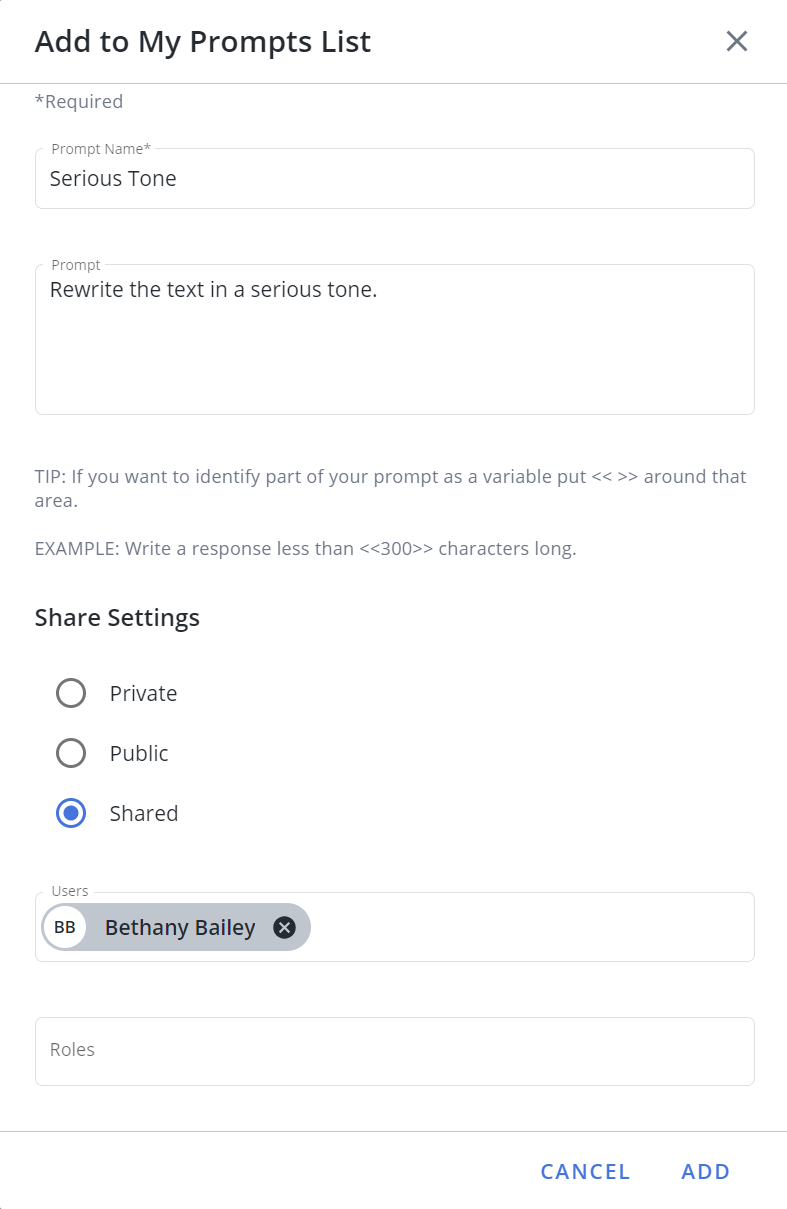
Example of the Add to My Prompts List dialog where "Shared" was selected as the "Share Settings" option. Click image to enlarge.
- Enter your prompt into the text box at the bottom of the page and click the Submit icon.
- Click the Add to My Prompts List icon. The "Add to My Prompts List" dialog will be displayed.
- Enter a Prompt Name.
- (Optional) Update the Prompt if needed.
- Choose one of the following Share Settings:
- Private: This option makes the saved prompt only visible to you and appears under the "My" prompts area.
- Public: This option makes the saved prompt visible to all users in your organization.
- Shared: This option allows you to share the prompt with users and/or roles that share the same role membership. To share Prompts with users and/or roles that do NOT share the same role membership, the "Share to All Roles/Users - User is not limited to Roles they are in when sharing Workspace Templates, Saved Searches, etc." permission must also be enabled.
- Click Add.
Using saved prompts
AI Assist can save prompts for reuse. System-generated prompts are indicated by the System  icon. Shared prompts are indicated by the Shared
  icon. Your prompts are indicated by the My icon.
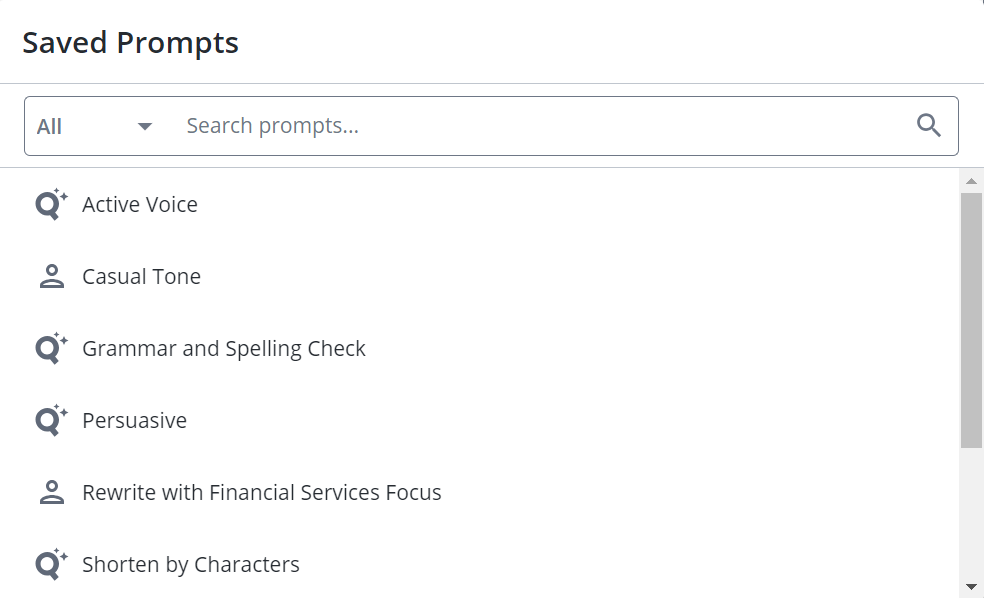
Example of the Saved Prompts dialog. Click image to enlarge.
- Click the Saved Prompts
 icon to the left of the text box. The "Saved Prompts" dialog will appear.
 - To search for a prompt, enter text and click the Search
 icon.
icon. - To filter prompts, select All, System, or My from the dropdown menu.
- Select the desired prompt.
- Do any of the following with the AI-generated content:
- Copy: Click the Copy icon to copy the response to your clipboard.
- Download: Click the Download icon to download the response as a document file. Enter the File Name into the "Download Response" dialog and click Download.
- Regenerate: Click Regenerate to rewrite the generated content.
- Accept: Click Accept to use the AI-generated revision in your RFP answer, overwriting the original content in the answer slice. The first style used in your original content will be maintained. Once an answer is accepted, a Revised Content icon appears in the upper right corner of slices or cells that contain the revised content. The AI Assist revisions will appear in the "Activity" and "Versions" areas of the Project RFP page.
- Add to My Prompts List: Hover over the prompt and click the Add to My Prompts List icon to add this to your list of saved prompts.
- Delete: Hover over the prompt and click the Delete icon on a prompt to remove that prompt and generated content from the thread.
- Clear All: Click Clear All to delete the entire thread (prompt, generated content, etc.).
Note: When using Qvidian for Web, the Copy Text button is displayed instead of Accept. This copies the text to your clipboard, allowing you to paste it into your RFP.
- Copy: Click the Copy
Managing content records with AI Assist
Revising text in the library
Content managers can also use AI Assist as a tool to edit content records in the library.
- Navigate to the library and locate the desired content record.
- Edit the content record using Microsoft Word, Excel, PowerPoint, or Office for the Web.
- Select the text you want to revise and click the Revise selected text with AI Assist icon.
- Revise the text as desired. Once the revision is accepted, the updated text will be saved to the library content record.