AI Assist in Search Mode
AI Assist can be used to write custom answers to RFP questions when in Search Mode, like AI Assist in AutoFill.
Note: The "Allow users to use AI Assist in Search Mode in Projects" permission must be enabled at the User or Role level to use AI Assist in Project Search Mode. This permission is off by default.
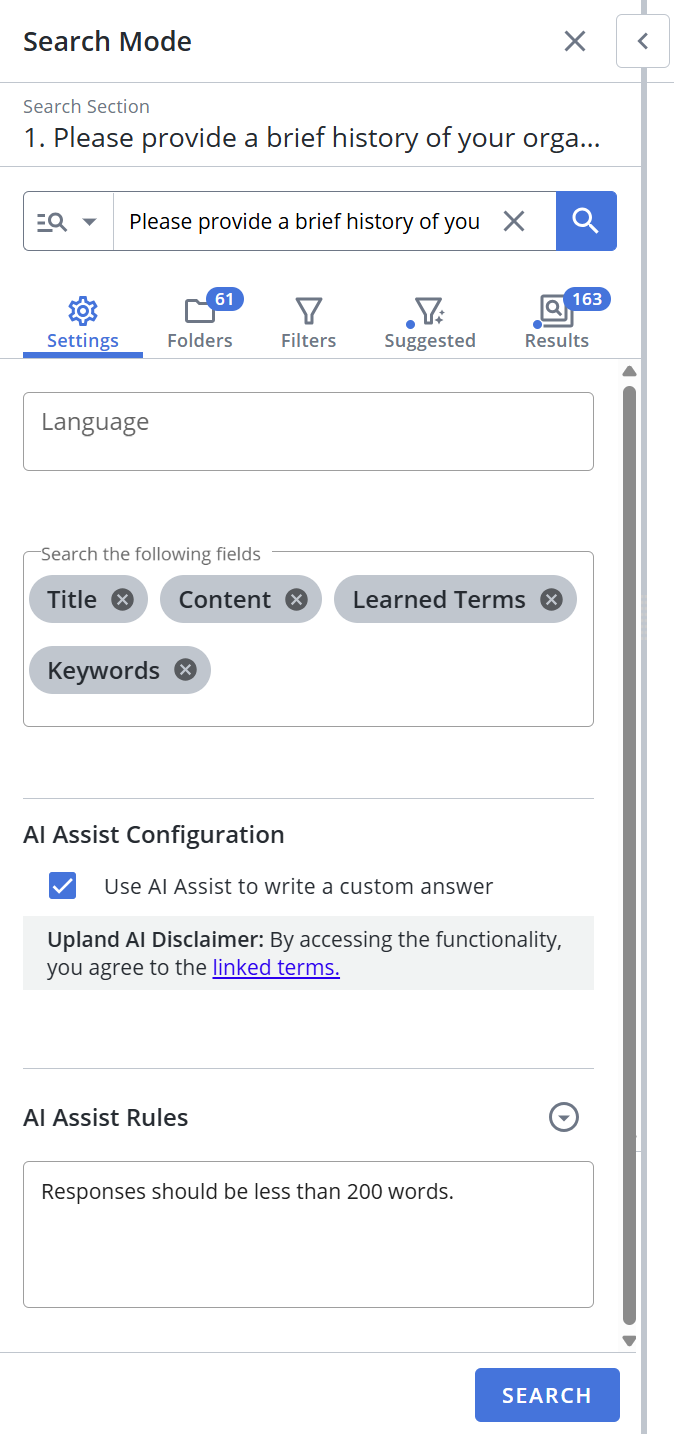
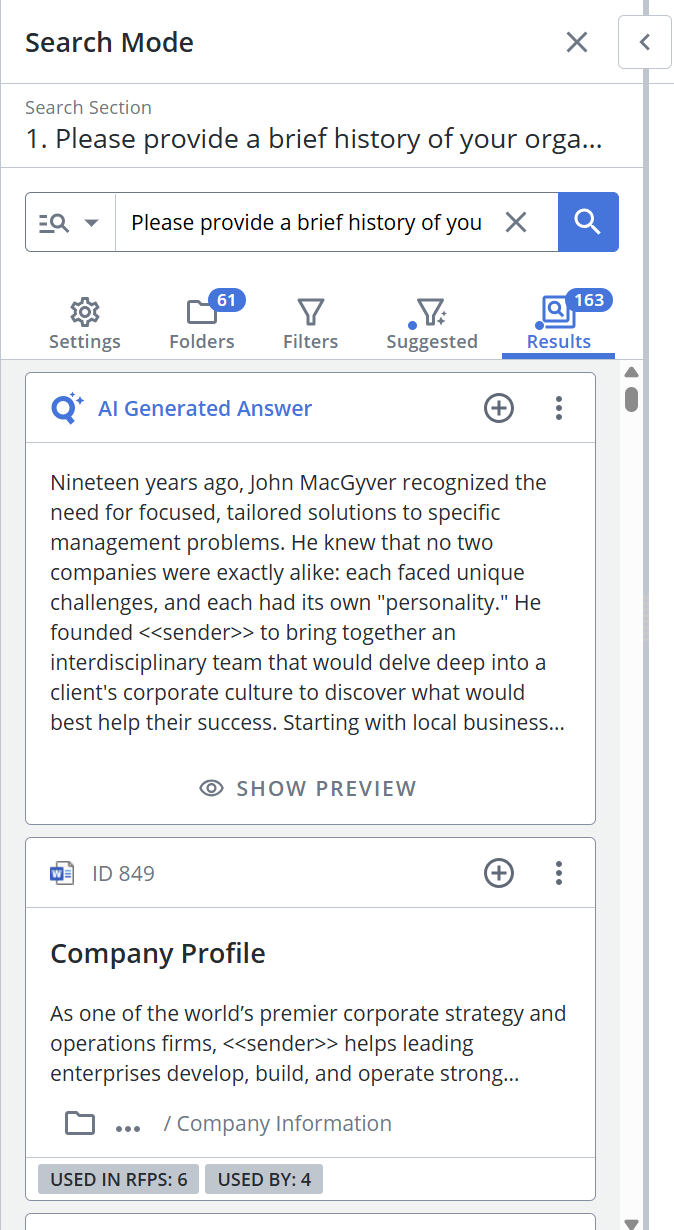
Project Search Mode "Settings" tab (left) and "Results" tab when "Allow users to use AI Assist in Search Mode in Projects" enabled (right).
- Open your desired Project RFP and click the Search Mode
 icon to open the Search Mode panel.
 - Left-click anywhere on a slice or cell with content in it. Qvidian automatically searches the library for the slice’s text and displays the most relevant answers in the Search Panel.
- On the Settings tab:
- Select the Use AI Assist to write a custom answer checkbox.
- Enter any rules for how the AI generated answer is written in the AI Assist Rules text area to override any applied Tone and Terms.
- Refine results by adjusting the folder and filter criteria.
- Found content can be dragged and dropped directly from the Search Mode panel onto the RFP to add the answer, or the insert icon can be clicked.
- On the Results tab:
- Preview: Click the Show Preview icon to or select Preview from the More Options
 menu.
menu. - Download: Select Download from the More Options menu. All file types can be downloaded. Word files can be downloaded or inserted directly into the Project.
- View Sources in Library: Select View Sources in Library from the More Options menu to open the library in a new tab and display all the sources that have been used to generate the AI Assist response.
- Preview: Click the Show Preview icon to or select Preview from the More Options
Tip: To view and apply suggested filters, see Search Mode Filters.