My Preferences
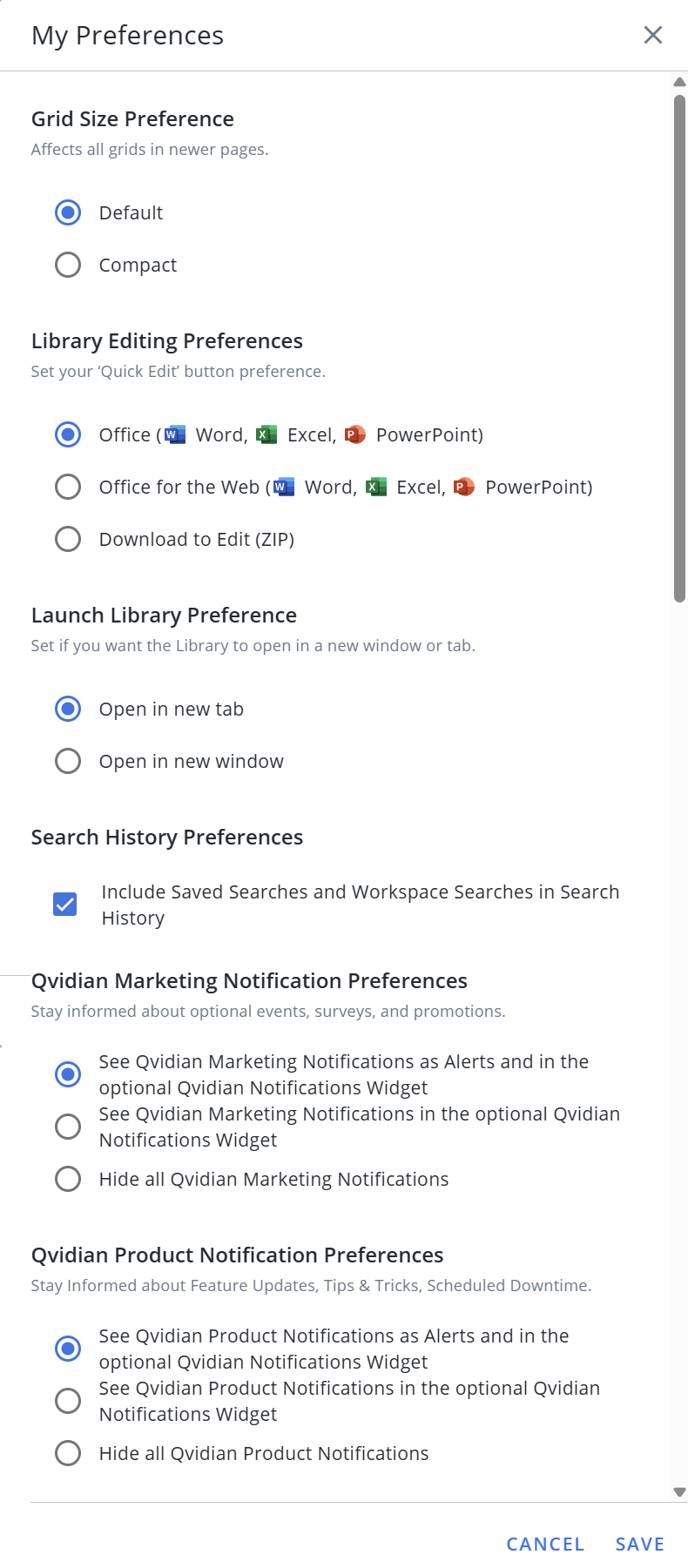
Set your preference for grid size, library editing, library launch, and search history.
- To access your preferences, click the Profile menu
 icon and select My Preferences from the dropdown menu. Update your preferences as desired and click Save or Cancel to exit.
Grid Size Preference
You can switch between the default and compact modes, which affects all grids in the newer pages (including the Home page). Unless updated, this preference will remain in default mode. Compact mode shortens the height of grid rows in newer pages and adjusts the height of widget headers and tabs on the Home page.
- Within the Grid Size Preference section, select one of the following radio buttons:
- Default
- Compact
- Click Save or Cancel to exit.
Library Editing Preferences
You can set the default editor icon for the single click edit button. This button displays when you hover over a record listed in the library search results. This button also displays under the search bar, when you select a record from the search results. When you click the icon the content record is opened in the appropriate editor for the content type. You can select from the following:
- Microsoft Office (Word, Excel, PowerPoint): Based on the content type of the selected record the appropriate editor icon displays.
- Office for the Web (Word, Excel, PowerPoint): The Office for the Web editor icon is the same for all content type, but will open the appropriate online office editor based on the content type.
- Download to Edit (ZIP): This option will allow you to download the content record and edit it on your local system. You can also share it with others outside the Qvidian product for edits and feedback.
Launch Library Preference
A new library instance can open in a new browser tab or window. You can specify you preference to launch the new library instance in this section.
- Open in a new tab: All the menu options, buttons, and actions will be configured to open the library in a new tab.
- Open in a new window: All the menu options, buttons, and actions will be configured to open the library in a new window.
Search History Preferences
Choose whether to include or exclude saved searches and workspaces in your search history using the Include Saved Searches and Workspace Searches in Search History checkbox.
Example: To declutter your search results and hide recent saved searches and workspaces from your search history, unselect the Include Saved Searches and Workspace Searches in Search History checkbox.
Note: To control this setting at the organizational level, use the "IncludeSavedAndWorkspaceSearchesInHistoryByDefault" Global Setting.
Qvidian Marketing Notification Preferences
Opt in or out of the Qvidian Marketing Notifications. Users will only receive the Marketing Notifications that they are permitted see via the Allow user to view Qvidian Marketing Notifications permission, which administrators can set at either the User or Role level. If enabled, then those users and/or users belonging to those roles can change their preference by selection one of the following radio buttons:
- See Qvidian Marketing Notifications along with your regular Alerts and in the optional Qvidian Notifications Widget:These notifications will be displayed on both the "Announcements" alert dialog and on the Qvidian Notifications home page panel (if displayed).
- See Qvidian Marketing Notifications on the optional Qvidian Notifications Widget: These notifications will only appear in the Qvidian Notifications home page panel.
- Hide all Qvidian Marketing Notifications: This is the default setting for Marketing Notifications when a user's preferences are reset.
Qvidian Product Notification Preferences
Opt in or out of the Qvidian Product Notifications. Users will only receive the Product Notifications that they are permitted see via the Allow user to view Qvidian Product Notifications permission, which administrators can set at either the User or Role level. If enabled, then those users and/or users belonging to those roles can change their preference by selection one of the following radio buttons:
- See Qvidian Product Notifications along with your regular Alerts and in the optional Qvidian Notifications Widget: This is the default setting for Product Notifications. These notifications will be displayed on both the "Announcements" alert dialog and on the Qvidian Notifications home page panel (if displayed).
- See Qvidian Product Notifications on the optional Qvidian Notifications Widget: These notifications will only appear in the Qvidian Notifications home page panel.
- Hide all Qvidian Product Notifications: Select this option to hide all Qvidian Product Notifications.