Administrator console login
To log into the Administrator Console:
- Enter the Administrator Console URL in your preferred browser. A typical URL for accessing the Administrator Console portal is: https://[CUSTOMER].rightanswers.com/portal/admin/login.
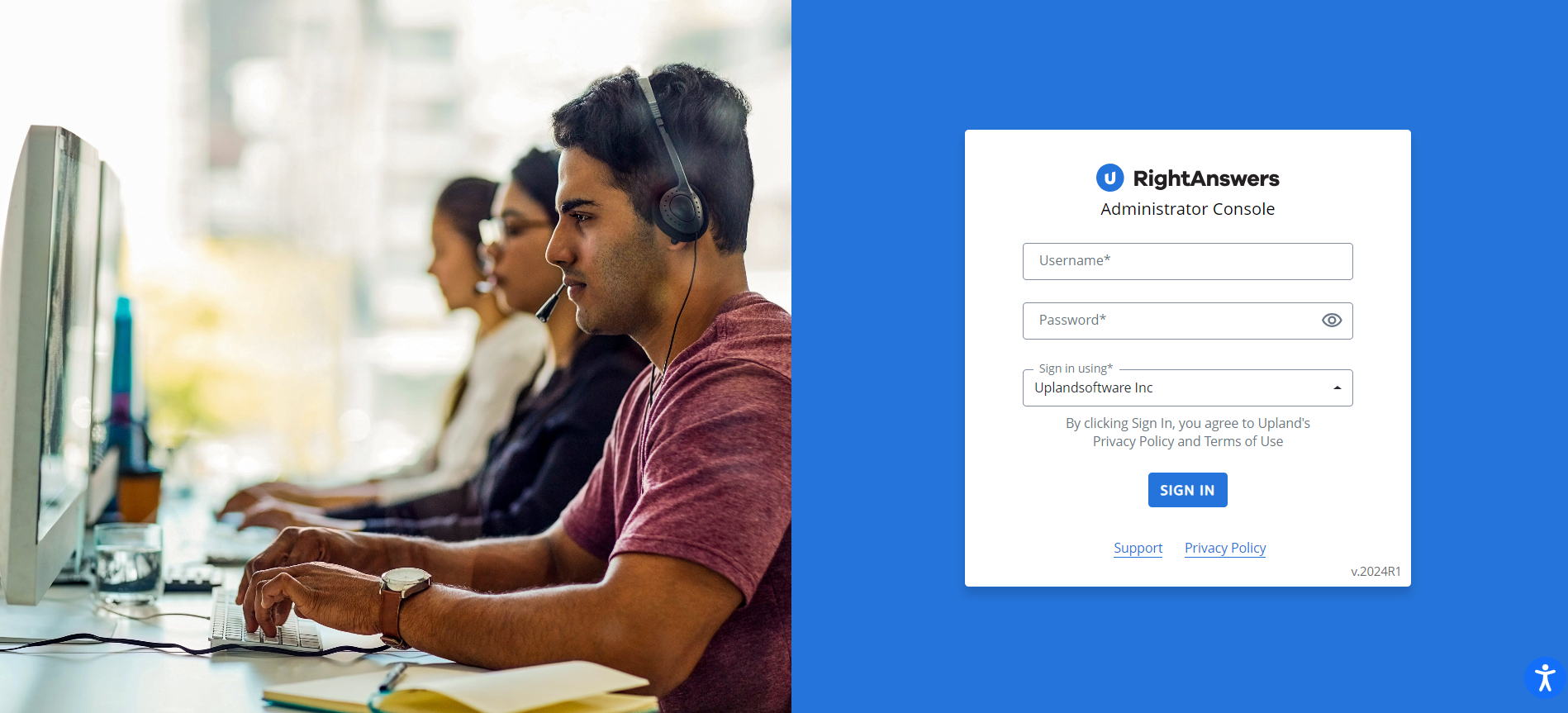
- To log into the portal, enter your login credentials:
- For SSO users:
- Enter your Username and Password.
- Select your organization from the Sign-in using list.
- Click Sign In.
- For non-SSO users:
- Enter your Username and Password.
- Click Sign In.
The Username and Password fields support auto-fill functionality provided the browser cookies are enabled.
The login page also displays the following links
- Support - Clicking this link opens the Upland Support page.
- Privacy Policy - Clicking this link opens the Upland Privacy Policy page that describes the customer data usage and protection.
Upon successful login, you will be redirected to the Home page of the Administrator Console.
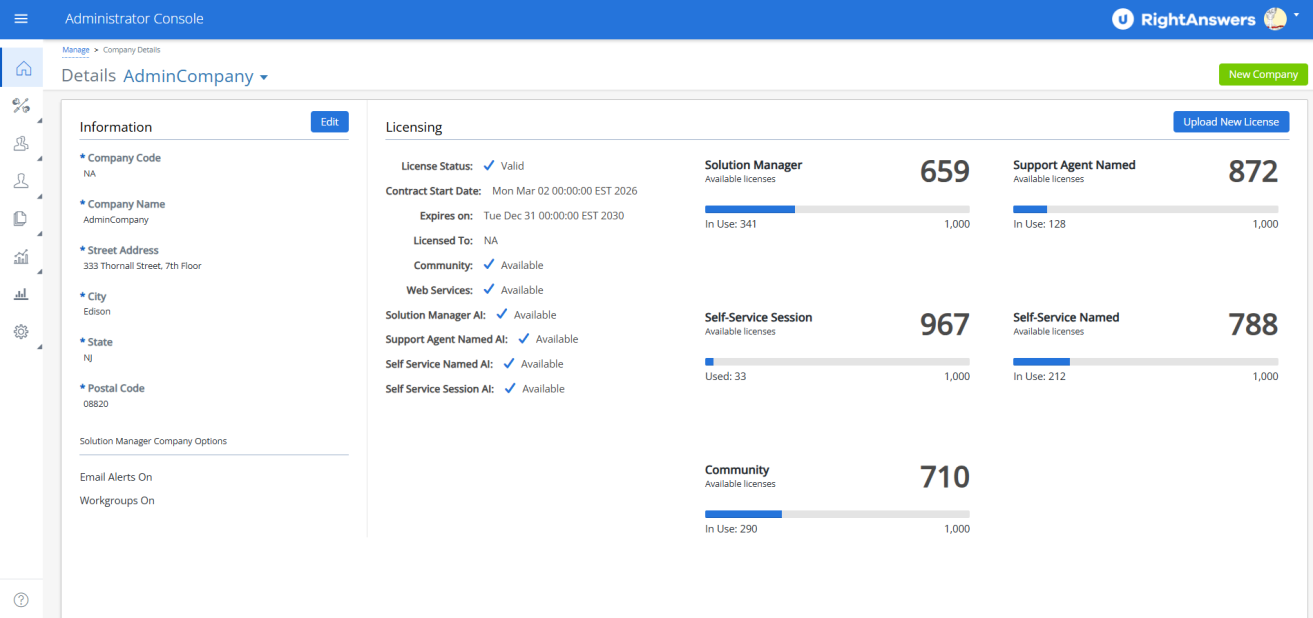
The Home page displays information about the company and licenses. For more information Manage Company.
It also displays the following option:
Hamburger menu - Click the Hamburger icon  to view and access the menu options in the console.
User Profile - Click the profile picture to view and change your profile picture, full name along with the email address and the group the user belongs to. It also has the following options:
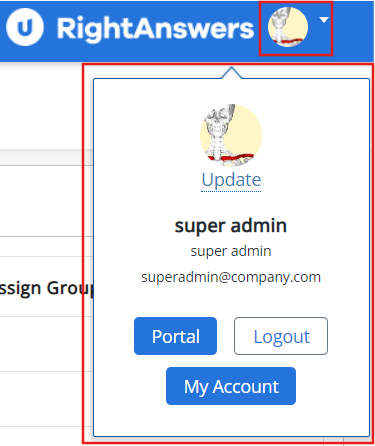
- My Account - This button lets you view and change your profile information like First Name, Last Name, Email Address and Password.
- Quick Access buttons - Based on the your role and permissions, the buttons to access the Portal and/or Solution Manager will be displayed. Clicking the Portal or Solution Manager button will automatically log you into the Self Service portal or Solution Manager, respectively.
- Logout - Clicking this button will log you out of the Administrator Console.
Help- Clicking the Help icon  opens the RightAnswers Help in a new browser window.
You will be automatically redirected to the login page in the following scenarios:
-
Session expiry: When your session expires, you will be redirected to the login page instead of the logout page, eliminating the need for manual sign-out. Before redirection, you will see the message stating, "Your session has expired due to inactivity. Please log in again to continue.".
The session timeout duration can be configured with the AllowedIdleMinutes setting, which defaults to two minutes. After this inactivity period, you will receive a warning: "You have been inactive for a while. For security reasons, we will automatically sign you out in 2 minutes. Tap the screen to stay signed in," before being redirected to the login page. - Logout: When you click the logout button, you will be logged out of the Administrator Console and redirected to the login page. A notification stating "You have been successfully logged out" will briefly appear on the login page and will automatically disappear after 3 seconds.