Adjust Inventory
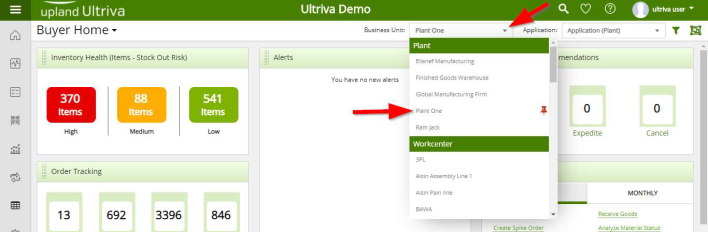
To navigate to “Adjust Inventory”, select the “Plant or Workcenter”
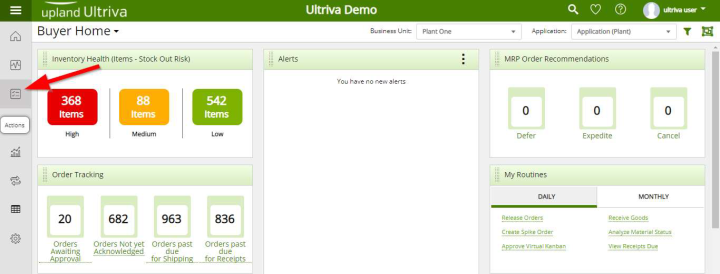
Click on “Actions”
Click on “Adjust Inventory”

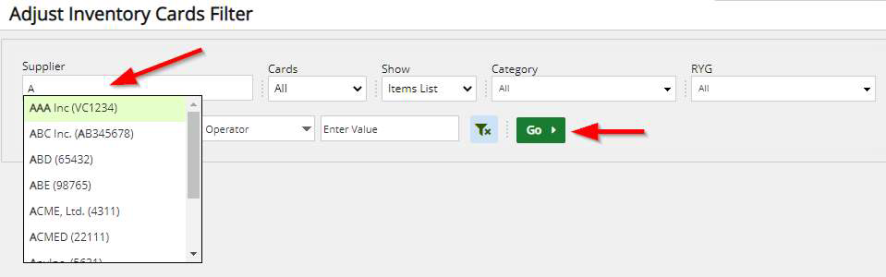
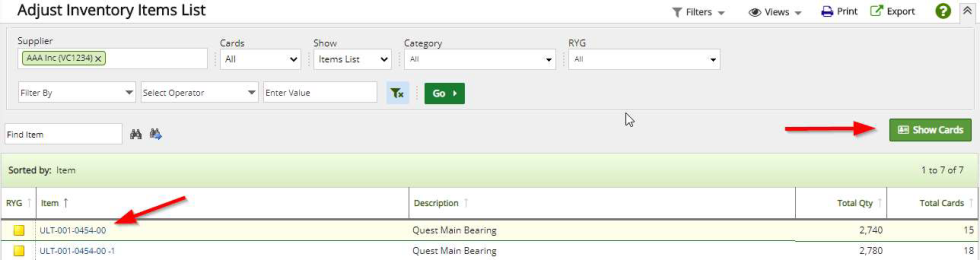
Click on the “Supplier” field and start typing the supplier name or hit Space, a list of the suppliers will appear. Select the “Supplier”. Click on the “Go” button.
The “Supplier” items appear. Click on the part number to advance to the next screen or click on the line item to highlight the line. If the line was highlighted, click on the “Show Cards” button. The user may not see this screen if Cards List is chosen in the “Show” field as a selected filter
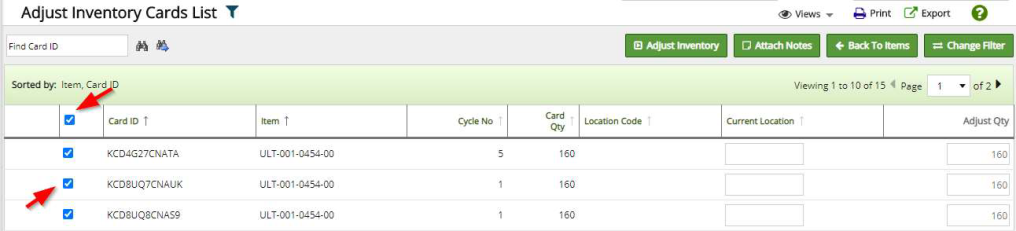
Click in the selection box at the column heading to select all cards or select the cards individually. A checkmark will appear.
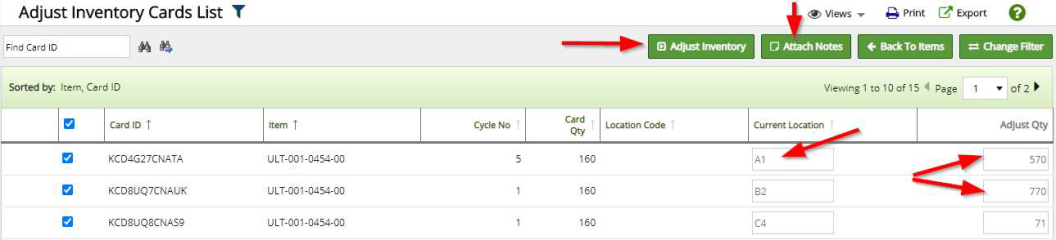
Enter the “New Quantities”. The location on the card can be changed also under the “Current Location” column. A note can be attached at this time by clicking on the “Attached Notes” button. Click on the “Adjust Inventory” button.
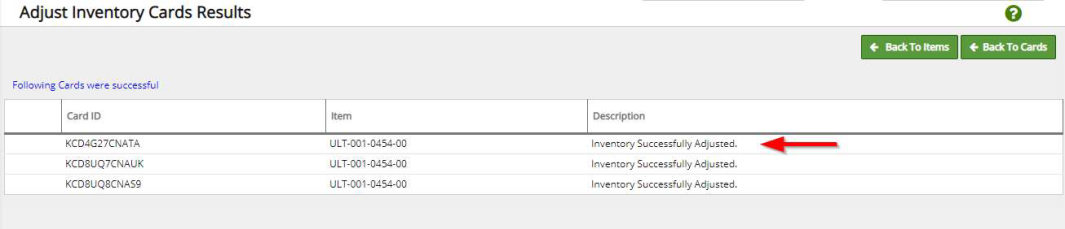
The "Inventory Successfully Adjusted" description should appear: