Accepting Orders
Orders can be accepted from the following pages:
Accepting an Order - Home page
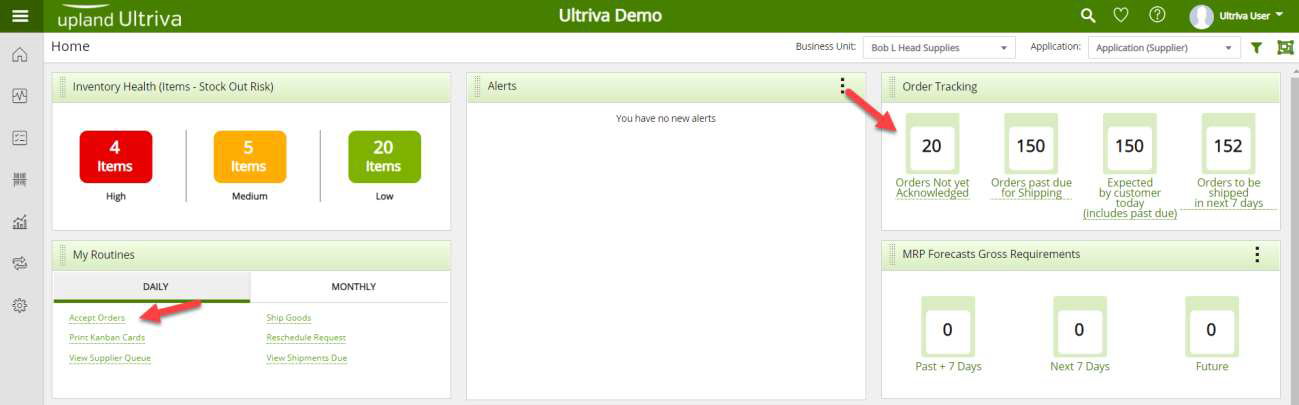
Tip: From the “Home” screen there are 2 ways to navigate to the “Accept Cards” screen. Click on the number under “Order Tracking” in the “Orders not yet Acknowledged” or click on “Accept Orders” under “My Routines. In this example we will use My Routines→Accept Orders. Orders must be accepted before a supplier can ship.
Note: Orders must be “Accepted” before a supplier can ship.
Click on “Accept Orders” under “My Routines”
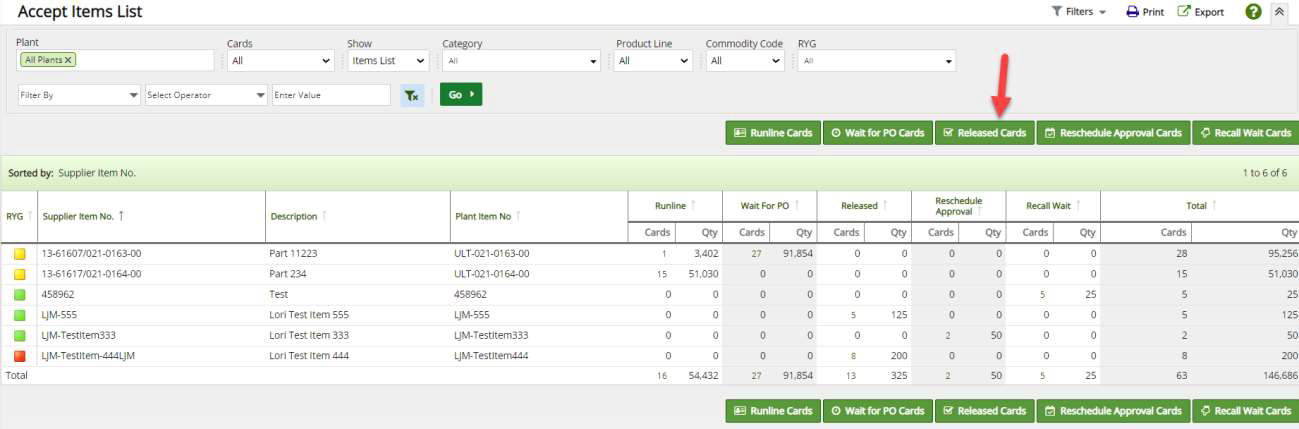
Tip: If you see the message “No cards found for the filter criteria” click “Change Filter.”
Click on the “Released Cards” button.
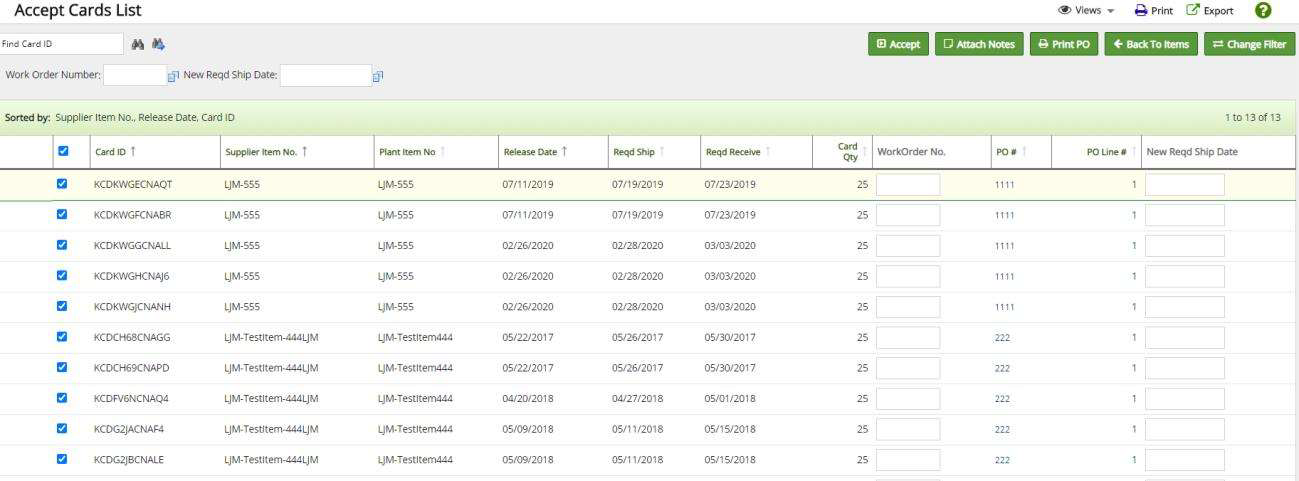
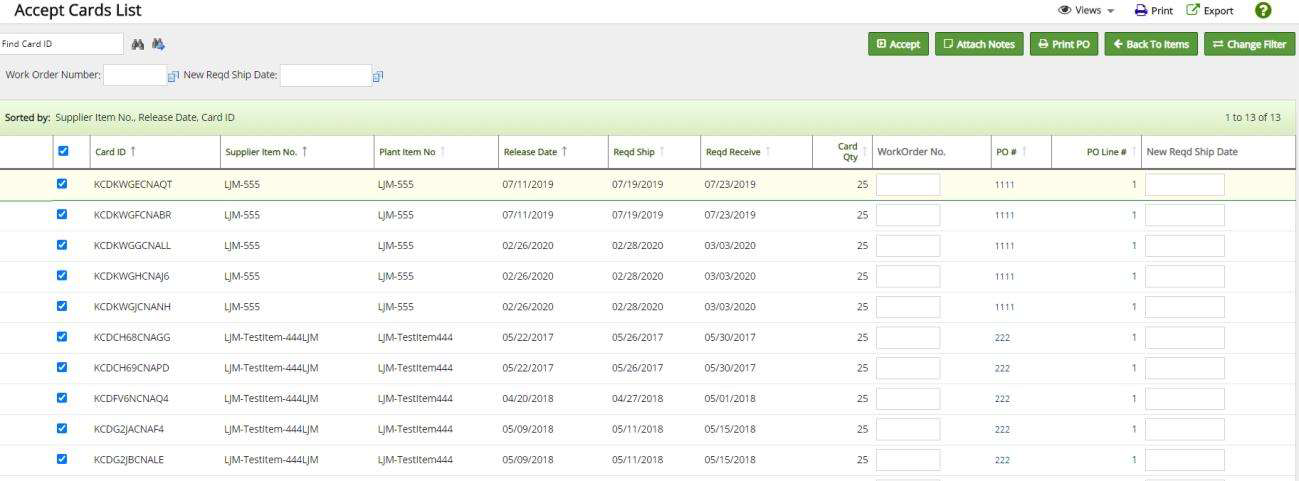
Click in the selection box next to the “Card ID” field and a checkmark will appear by all orders on the page. Click on the “Accept” button. Cards can also be selected individually.
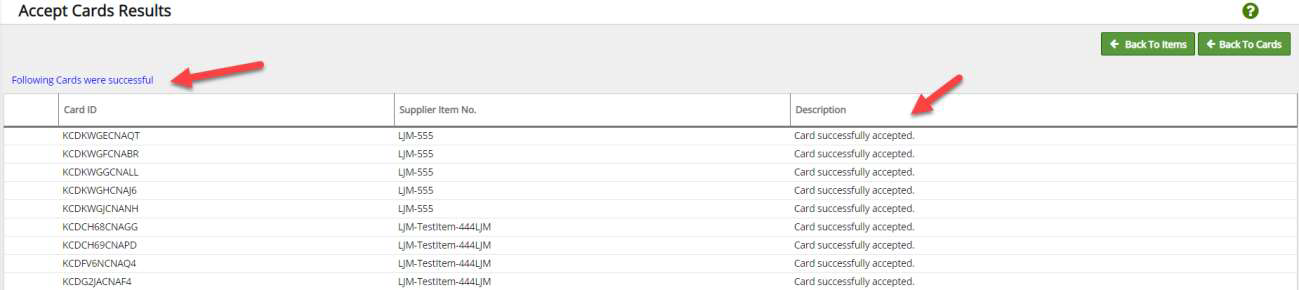
The “Cards were successfully accepted” message should appear.
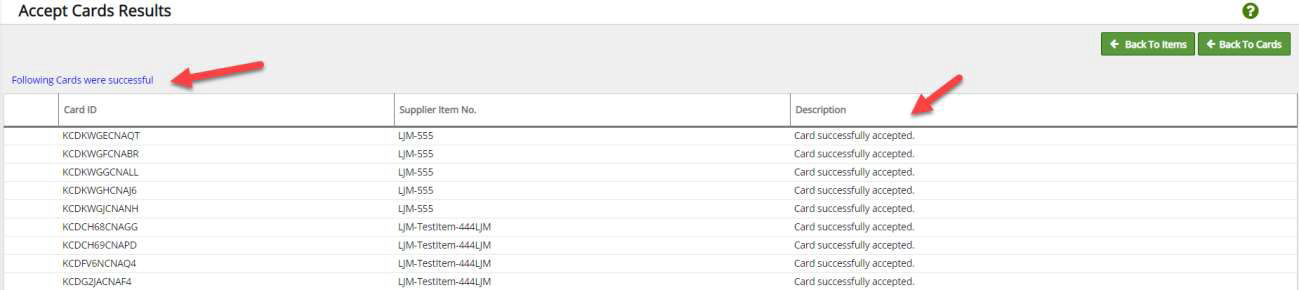
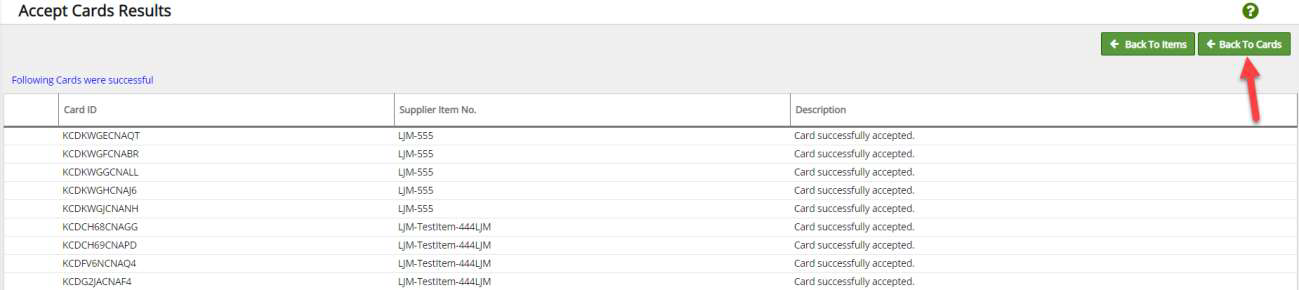
Click on “Back to Cards” to verify that you have “Accepted” all of the orders.
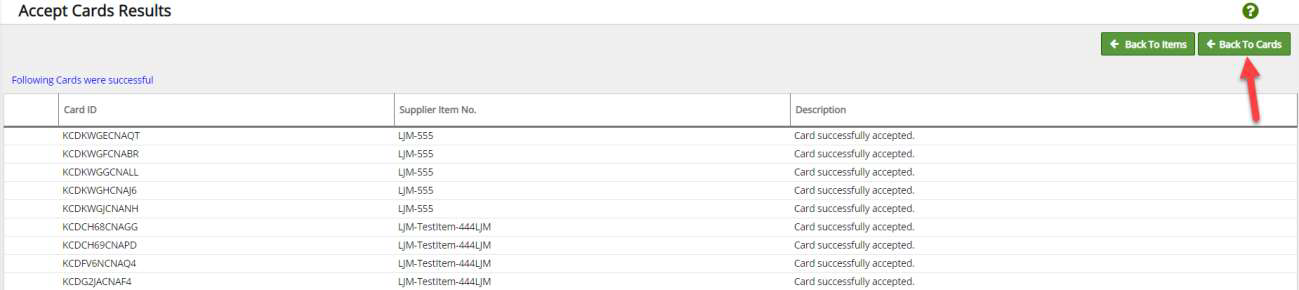
All orders have been “Accepted” when “Supplier does not have any cards from plants” appears.

Accepting an Order - Actions page
Note: Orders must be “Accepted” before a supplier can ship.
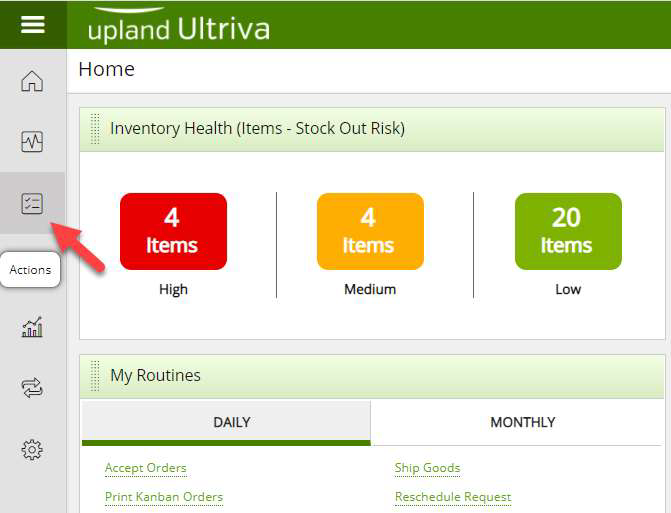
Click on “Actions”
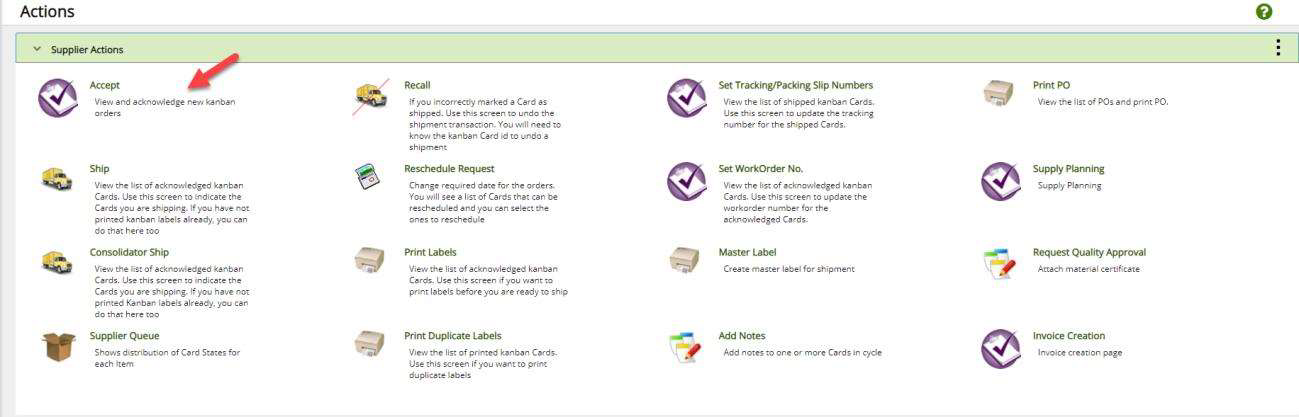
Click on “Accept”
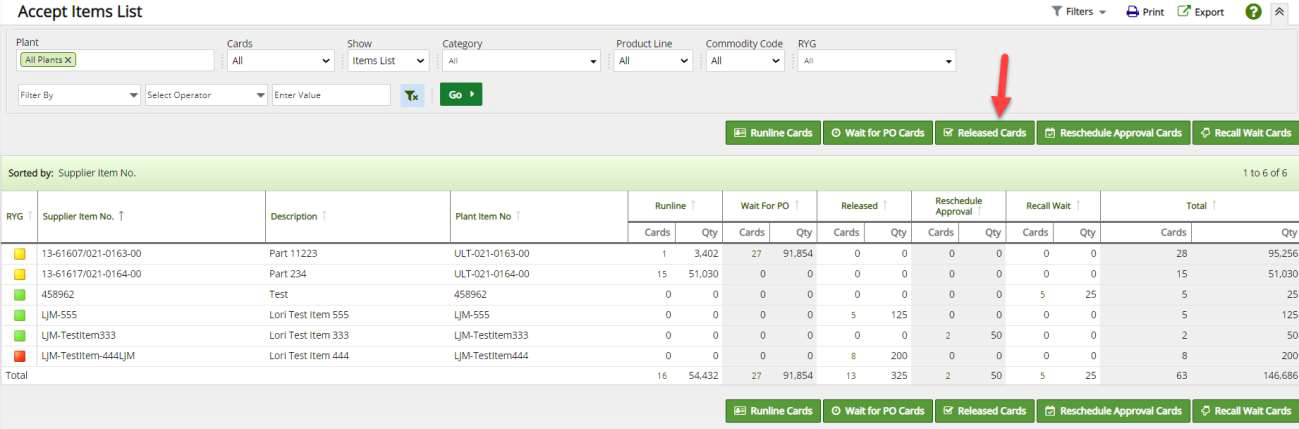
Tip: If you see the message “No cards found for the filter criteria” click “Change Filter.”
Click on the “Released Cards” button.
Click in the selection box next to the “Card ID” field and a checkmark will appear by all orders on the page. Click on the “Accept” button. Cards can also be selected individually.
The “Cards were successfully accepted”
Click on “Back to Cards” to verify that you have “Accepted” all of the orders.
All orders have been “Accepted” when “Supplier does not have any cards from plants” appears
