eBots Printer Services
eBots is a background utility that acts as a bridge between Ultriva and your local network and printers. When Ultriva is used to print something (such as labels, packing slips, shipping cards, etc.), eBots intercepts the request, converts the data into a format suitable for printing, and forwards it to a Windows printer for printing.
Note: If you are using an Apple product (MacBook, etc.), there is no need to install this software. Instead, you will need to speak to whoever supplied the product to you so they can change the configuration settings within Ultriva so you will be able to print the labels.
See the following for more information configuring eBots for Ultriva printing:
eBots Printer Services Overview
The following tutorial video outlines how to download, install, and configure eBots to allow you to use Ultriva for printing:
Here are the direct links to download eBots software for your organization:
Downloading and installing eBots Printer Services
Before printing with Ultriva, eBots will have to be properly installed and configured onto your device.
The following procedure outlines how to download, install, and configure eBots to allow you to use Ultriva for printing.
Tip: See above if you would rather watch a video tutorial than go through the procedure below.
To download, install, and configure eBots:
Before You Start: To properly download eBots, you will require a Windows operating system (2000, XP, Vista, etc.) and a Windows compatible printer.
If you are using an Apple device (MacBook, etc.), you do NOT need to install eBots. Speak to your Ultriva representative so they can change the label printing configuration settings to fit your needs.
-
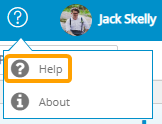
Select the Help
 icon in the top right-hand corner of Ultriva.
-
Select Help.
-
Select one of the Ultriva eBots Printer services links based on who you are supplying to.
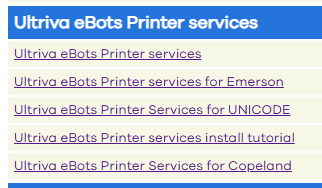
Note: There are special links for supplying to Emerson, UNICODE, and Copeland. If you are not supplying to any of these, select the generic Ultriva eBots Printer services link at the top.
-
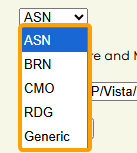
(If supplying to Emerson or Copeland) Use the drop-down menu to choose a division to supply to.
Note: If you are not supplying to Emerson or Copeland, skip this step.
Note: If none of the divisions are suitable, select Generic.
-
Ensure the "Software and Manual" checkbox is selected.

-
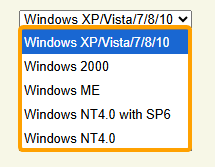
(If supplying to Emerson or Copeland) Use the drop-down menu to identify which Windows OS you are downloading the software onto.
Note: If you are not supplying to Emerson or Copeland, skip this step.
-
Select the Download button.

-
Right-click the eBizPrinter.zip folder that has been downloaded onto your computer.
Note: It should be located in your computer's "Downloads" folder.
-
Select Extract All... from the context menu.
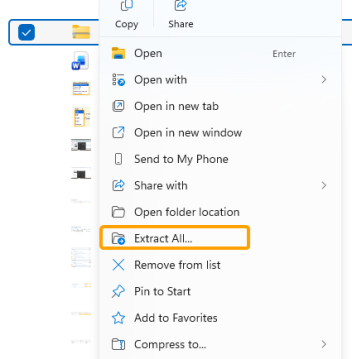
Note: The files MUST be extracted into a folder.
-
Select the Extract button.
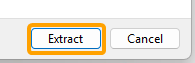
-
Double-click on the eBizPrinter folder TWICE.
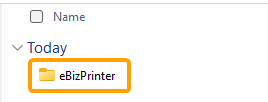
-
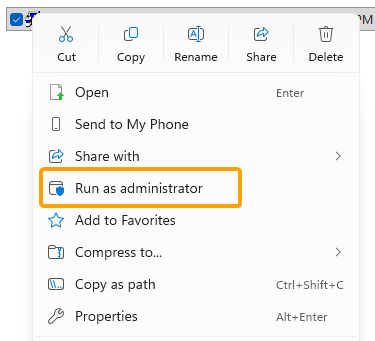
Right-click setup.
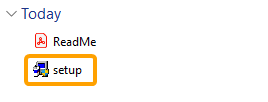
-
Select Run as administrator from the context menu.
-
Select the Next button.
-
Accept the terms and conditions and select the Next button again.
-
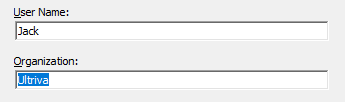
Enter your name (or a name you would like to go by) into the "User Name" field and the name of your organization into the "Organization" field.
-
Enter the serial number into the "Serial Number" field.
Note: The serial number can be found in the "ReadMe" file that was downloaded with the "eBizPrinter" folder.
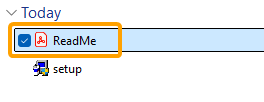
Open the file and scroll to this step to find the number. -
Select the Next button until you reach the end of the setup wizard.
-
Select the Install button.
-
Select the Finish button.
-
Select the Start button on your computer.

Note: If a search bar is already displayed, you can skip to Step 22.
-
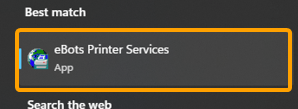
Type "eBots" into the search bar.
-
Select eBots Printer Services.
-
Select File → Printer Setup.
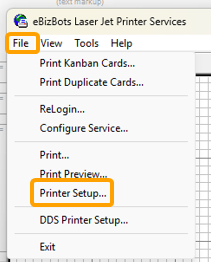
-
Select your preferred printer from the "Name" drop-down menu.
-
Ensure "Set this printer as my default printer" is selected.
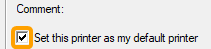
Note: This is not determining your computer's default printer, just the default printer for printing labels from Ultriva.
-
Ensure the "Paper" and "Orientation" settings are to your liking.
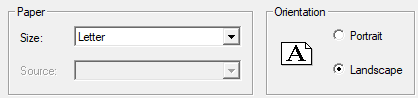
Tip: Most label printers use "Landscape" orientation.
-
Select the OK button.
-
Select File → Configure Service.
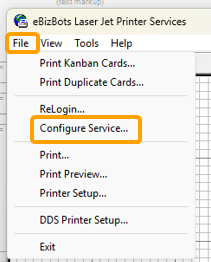
-
Enter some "dummy text" into the "WebServer URL" field.
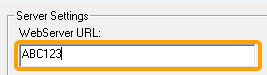
Note: This text does not need to be relevant; enter anything you like.
-
Ensure "Use default printer" is selected under "Printer Options".
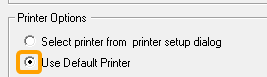
Note: Do not test the labels by selecting the "Print Test Page" button. This will not give you an accurate test. Label testing should always be done through Ultriva.
-
Select the OK button.
-
Close the "eBots Printer Services" window.
Note: eBots Printer Services must be closed in order to print labels.
Once you close the "eBots Printer Services" window, you are ready to configure your web browser for printing.
Making eBots the default program for .EBR files
In order to work properly, eBots must be the default program for opening .EBR files on your device. This allows eBots to automatically receive the printing job, convert it, and send it to your printer.
To make eBots the default program:
-
Select the Start button on your computer.
Note: If a search bar is already displayed, you can skip to Step 2.
-
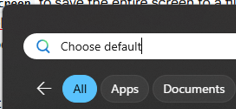
Type "Choose default" into the search bar.
-
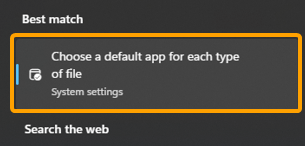
Select the Choose a default app for each type of file option.
-
Select the .ebr file type.
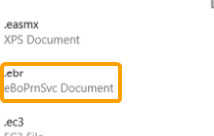
-
Select eBzPrintSvc - eBizBots Printer Services.
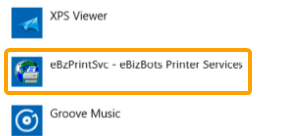
After selecting eBzPrintSvc, eBots will be the default application for opening .EBR files on your device.
If this process fails, follow this workaround:
-
Right-click on the downloaded .EBR file.
Note: This is the file that automatically downloads once you print from Ultriva. It should be located in your computer's "Downloads" folder.
-
Select Open with → eBzPrintSvc - eBizBots Printer Services.
Note: If eBzPrintSvc - eBizBots Printer Services is not listed immediately, you may need to select Choose another app (or equivalent) at the bottom of the context menu.
If you did not find the eBzPrintSvc option after selecting Open with and Choose another app, scroll down and select Choose an app on your PC. Use the "Open with..." window to navigate to the eBots application (which should be located in "C:\Program Files (x86)\eBots\Bin". Be sure to check "Always use this app" to open .EBR files before selecting Save or OK.
Configuring your web browser for printing
Once eBots is installed onto your device, you must configure your web browser so it is compatible with Ultriva printing. Specifically, your Ultriva site must be added as a trusted site.
Note: Depending on your organization's policies, you may have to be logged in as an administrator to perform the following actions. Check with your IT Administrator to see if you have the rights to perform these steps.
To configure Microsoft Edge for Ultriva printing:
-
Open Microsoft Edge.
-
Navigate to the Ultriva site that you will be printing from.
-
Open Settings and more from the top right-hand corner of Edge.
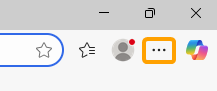
-
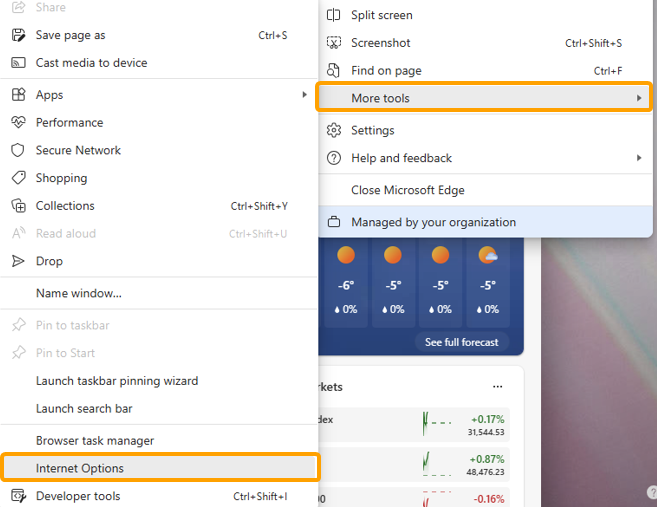
Select More tools → Internet Options.
-
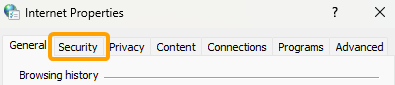
Select the Security tab.
-
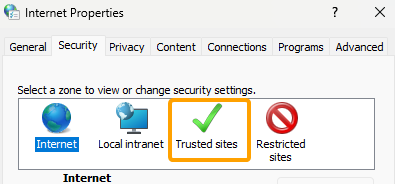
Select Trusted sites.
-
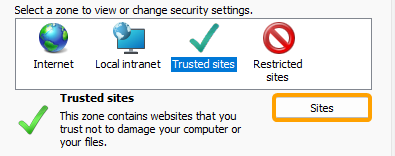
Select the Sites button.
-
Ensure the "Require server verification (https:) for all sites in this zone" checkbox is NOT selected if you are using an HTTP site.
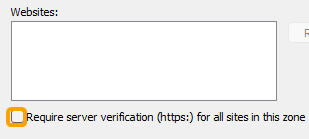
Note: If you are adding an HTTPS site, you can leave this box checked.
-
Ensure the correct URL is entered into the "Add this website to the zone" field.

Note: The URL of your current webpage should already populate the field. If you navigated to the correct site in Step 2, you should not have to make any changes.
-
Select the Add button.
-
Select the Close button once the site is added to the "Websites" field.
-
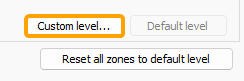
Select Custom level... from the "Internet Properties" window.
-
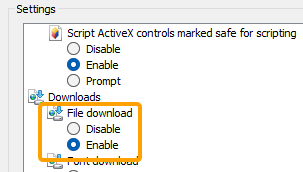
Scroll to the "Downloads" group and ensure that "File download" is enabled.
-
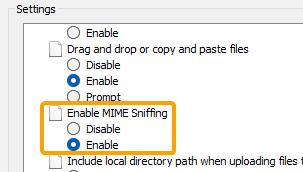
Scroll to "Enable MIME Sniffing" (under the "Miscellaneous" group" and ensure it is enabled.
-
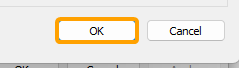
Select the OK button.
-
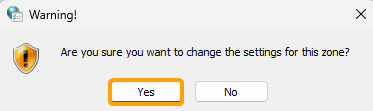
Select Yes from the confirmation window.
-
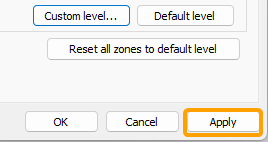
Select the Apply button.
-
Select the OK button.
After selecting OK, your Ultriva site will be a trusted site in Microsoft Edge.