WebApps Queue Redaction
The use of redaction helps protect the privacy of personal information, minimizes the risk of data breaches, and ensures compliance according to your company’s data protection regulations and policies. With redaction designated Queue users can obscure content from any document for legal and security purposes.
Administrators must enable redaction for Queue users. Contact your System Administrator if the Redact button is not available in the Queue toolbar.
Using Queue Redaction
Queue users can use the Redact button to obscure content in a document.
To redact
-
Open
-
Select Queue.
-
Select a new item. The document appears in the Preview pane.
-
Select the Redact button.
See the Queue > Redact button example below.

-
Press and drag the Crosshair (+ ) icon to select the appropriate content for redaction.
See the Crosshair icon example below.
Before

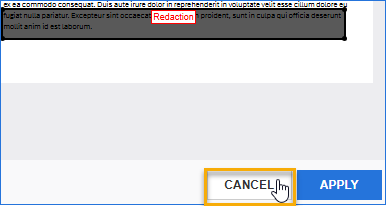
See the selected content for redaction example below.
After

-
Select Apply to apply the redaction to the document. The "Options being applied, please wait" message appears. The selected content is redacted.
See the redacted content example below.
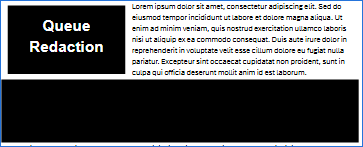
Note: Redacted content is permanent and cannot be moved, resized, or canceled.
Moving, resizing, and canceling content selected for redaction
Queue users can also move, resize, and cancel any content selected before redaction is applied.
-
Use the Move icon to move the Redaction box to another location in the document.

-
Use the Resize icon to resize the Redaction box.

-
Use the Close icon or Cancel button at the bottom of the Preview pane to cancel any content selected for redaction and start over if necessary.
Close icon

Cancel button