Adding and Styling Media
Media elements allow you to add images to your campaign content.
To add images:
-
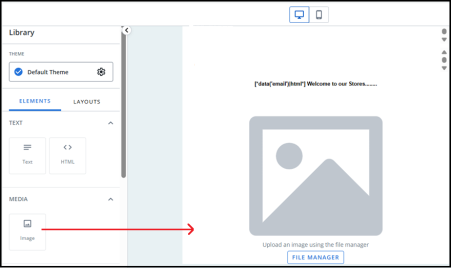
Drag an image element from the library into your layout.
-
In the image element, press the File Manager button.
-
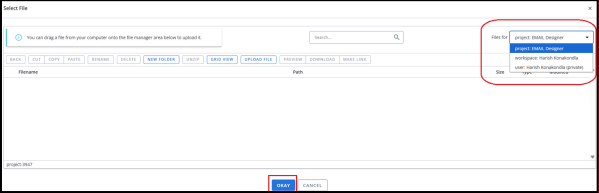
In the Select File window, use the Files for dropdown menu to toggle between files at the Project, Workspace, User, and Account level.
-
Locate and select your image from the file list.
-
If you are using folders, select the folder name to navigate through folders.
-
Use the search bar at the top of the window to search for file names.
-
If your image is not present in the file manager, drag and drop it into the file manager.
Note: ensure you have selected the correct level and folder for the file first.
-
- Press the Okay button.
-
Apply styling using the image design settings.
Image design settings
The image design settings become available when you select an image on the canvas.
Image cropping
To crop an image:
-
Go to the Design settings tab.
-
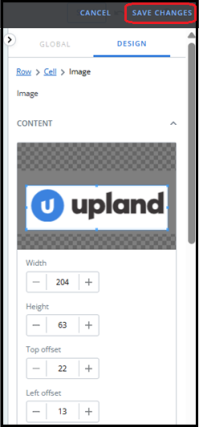
Under Content, press the Crop Image button to open Edit Mode.
-
Either:
-
Drag the crop bars in the image preview, or
-
enter values into the Width, Height, and Offset fields to define the cropped image edges.
Tip: when using the crop bars, your cursor will change to indicate if you are:
-
Cropping the image (bi-directional arrow indicating the direction of cropping) or
-
Dragging the crop window (four-directional arrow).
-
-
Press the Save Changes button to crop the image and exit Edit Mode, or
Press the Cancel button to discard your changes and exit Edit Mode.
Alt text
To add alt text to an image:
-
Go to the Design settings tab.
-
Under Content, enter your alt text into the Alt Text field.
Link URL
To make your image a link to a website:
-
Go to the Design settings tab.
-
Under Content, enter your link URL into the Link URL field.
Image width
To alter the width of your image:
-
Go to the Design settings tab.
-
Under Content, drag the pixel width slider to your desired image width. Height will also adjust to keep the image in scale.
Note: images are capped to a maximum width that fits the element/layout width settings.
Alignment
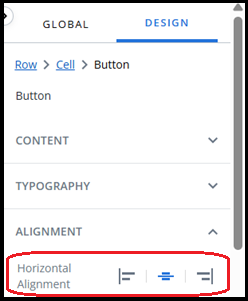
To change the horizontal alignment of your image:
-
Go to the Design settings tab.
-
Under Alignment, press one of the three buttons to position the image to the Left, Centre, or Right of your Media element.
Border
To add a border to your image:
-
Go to the Design settings tab.
-
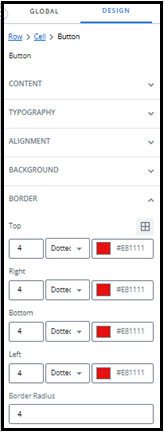
Under Border:
-
Enter a number for your border thickness.
-
Choose a border style from the dropdown menu, e.g. dotted.
-
Use the color picker to select a text color by:
-
Adjusting the slider and selecting from the color chart, or
-
Entering values in the fields.
Tip: use the up/down arrows to choose between RGB, HSL, or HEX.
-
-
-
By default, the border settings are applied to the entire border. Press the custom border icon
 to enable editing of top, right, bottom, and left borders separately.