How to Upgrade AutoClassifier
Upgrade Steps
Password Encryption
If you are upgrading from version 6.0.1.0-17704 or earlier, read How to Secure Passwords to safeguard passwords using encryption.
- Optional: Uninstall BA Insight AutoClassifier SharePoint app from your SharePoint Site collection (this is required only when upgrading from a version that is equal or older than 5.0.2-9146)
- Uninstall AutoClassifier Engine
- Uninstall AutoClassifier Add-in
- Reinstall AutoClassifier Engine
- Reinstall AutoClassifier Add-in
- Optional:Reinstall BA Insight AutoClassifier SharePoint apps
- Optional: Reconfigure your Scheduled Annotation Jobs and Tagging Settings (this is required only when upgrading from a version that is equal or older than 5.0.2-9146)
Prerequisites Before Upgrade
- BA Insight recommends you save a copy of both Engine and Add-in web configuration files (found in C:\Program Files\BA Insight\BA Insight AutoClassifier).
- Copy the configuration files back into your installation directory after upgrading AutoClassifier.
- Copy the configuration files back into your installation directory after upgrading AutoClassifier.
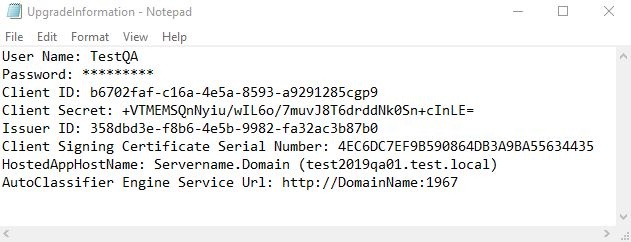
- Alternatively, use the following method to save the required AutoClassifier information for your specific environment:
- Create a text file (see the graphic below) to store the information required to install the AutoClassifier Engine and Add-in:
- Both Engine and Add-in configuration files are found in the default installation location: C:\Program Files\BA Insight\BA Insight AutoClassifier
- Create a text file (see the graphic below) to store the information required to install the AutoClassifier Engine and Add-in:
-
- User Name / Password
- Client ID
- Client Secret (Applicable only for O365)
- Issuer ID (Applicable only for On-Premise)
- Client Signing Certificate Serial Number (applicable only for On-Premise)
- AutoClassifier Engine Service Url
- Domains for Engine and Add-in (information is found in IIS Server)
- SQL server connection
2. Copy the AppRepackager configuration file that was used for installation.
3. Proceed to IIS Manager and save the domain host name for Engine and Add-in from bindings.
AutoClassifier Database Upgrade
When accessing the AutoClassifier Engine a check is performed to ensure the installed database is up-to-date.
If your installed database version does not match the latest database version you are automatically redirected to the Database Configuration page.
- Upgrade: upgrades the database to the latest version
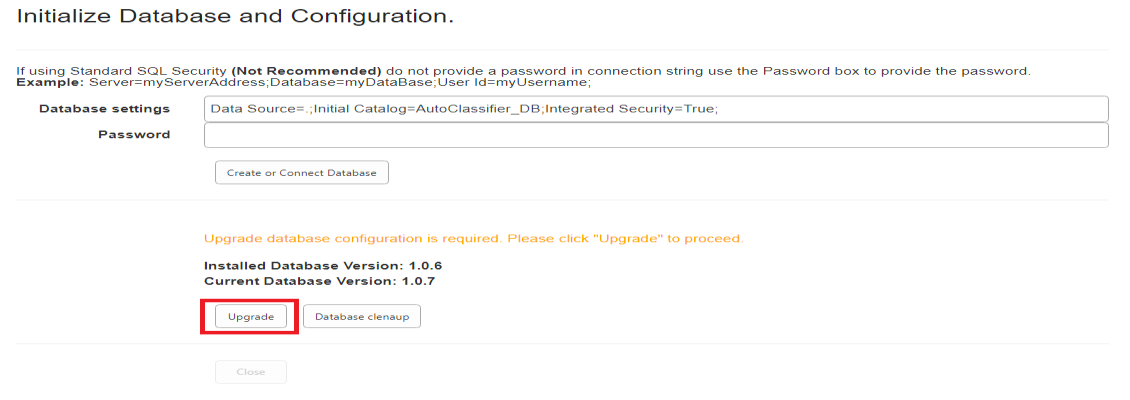
Before installing BA Insight AutoClassifier SharePoint apps ensure the AutoClassifier database is up-to-date
SharePoint App Upgrade
If upgrading from AutoClassifier version 5.0.2-9146 or earlier it is mandatory to uninstall and reinstall the BA Insight AutoClassifier SharePoint apps.
Reconfigure your Scheduled Annotation Jobs and Tagging Settings. See Optional step 7 at the top of this page.
When installing or uninstalling the BA Insight AutoClassifier SharePoint apps on multiple sites we recommend that you use the SideLoader tool for greater efficiency.
This tool was designed to install/uninstall an app on multiple sites at the same time.
How to Uninstall AutoClassifier
- Open the Windows Control Panel.
- Under "Programs," select uninstall a program.
- Uninstall "BA Insight Autoclassifier" and "BA Insight AutoClassifier SharePoint Add-in".
- Optional: Use the "Everything" search tool and ensure that after uninstalling AutoClassifier that no DLL files related to AutoClassifier remain on your computer.
For installation help, use the information in the following topics: