Working with data syncs
Note: You must have Administrator access to work with data syncs in Mobile Commons. For assistance, contact Technical Support.
To work with data syncs:
-
Select
 Home in the left pane, and then select Data Sync.
The home page for your CRM sync opens.
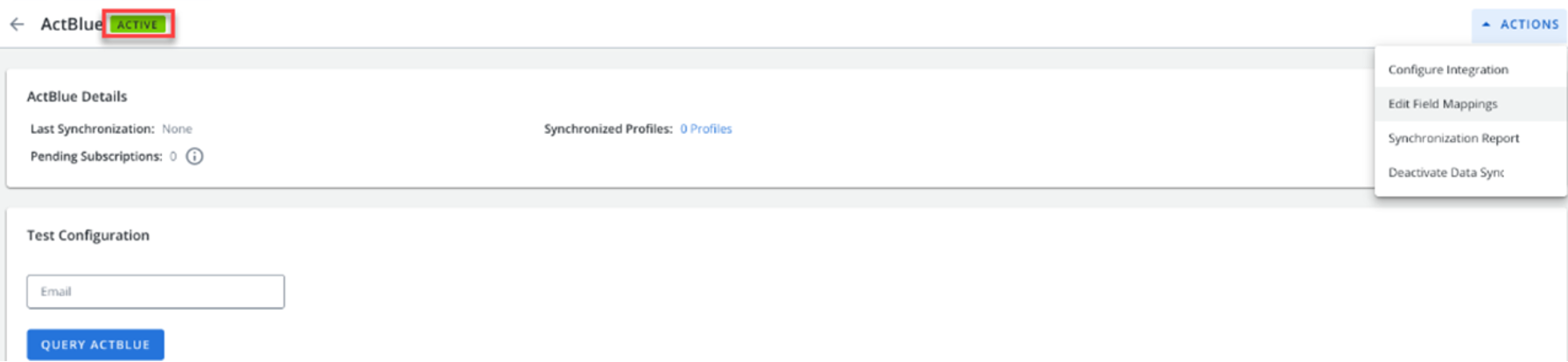
If your CRM sync has been activated, you see
 Active in the upper-right corner. To view the pending subscriptions tool tip information, select
  information available next to the Pending Subscriptions.
From the Data Sync page:
Updating your CRM configuration
If your CRM integration is Active, you must deactivate it while you update your configuration. When you are done, you can reactivate it. For more information, see Deactivating the integration.
To update your CRM configuration:
-
Select
Home in the left pane, and then select Data Sync.The home page for your CRM sync opens.
-
From the actions drop-down list on the right, select Configure Integration.
-
Make your changes to the configuration form. For more information, see Setting up data syncs and select the link for your CRM system.
-
When you are done, select Update.
Opening the Synchronization report
To open a detailed report of the daily overnight sync for the last seven days:
-
Select
Home in the left pane, and then select Data Sync.The home page for your CRM sync opens.
-
From the actions drop-down list on the right, select Synchronization Report.
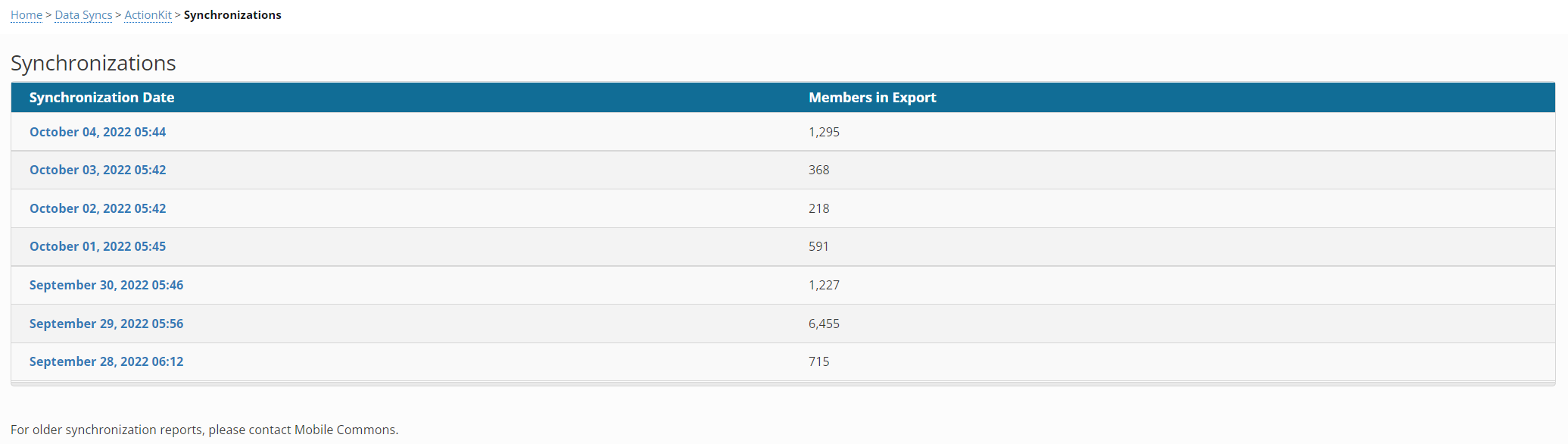
For more information, see Working with the Synchronization report.
Deactivating the integration
If you need to shut off the data sync with your CRM system, whether temporarily or permanently, you can deactivate it.
To deactivate a data sync:
-
Select
Home in the left pane, and then select Data Sync.The home page for your CRM sync opens.
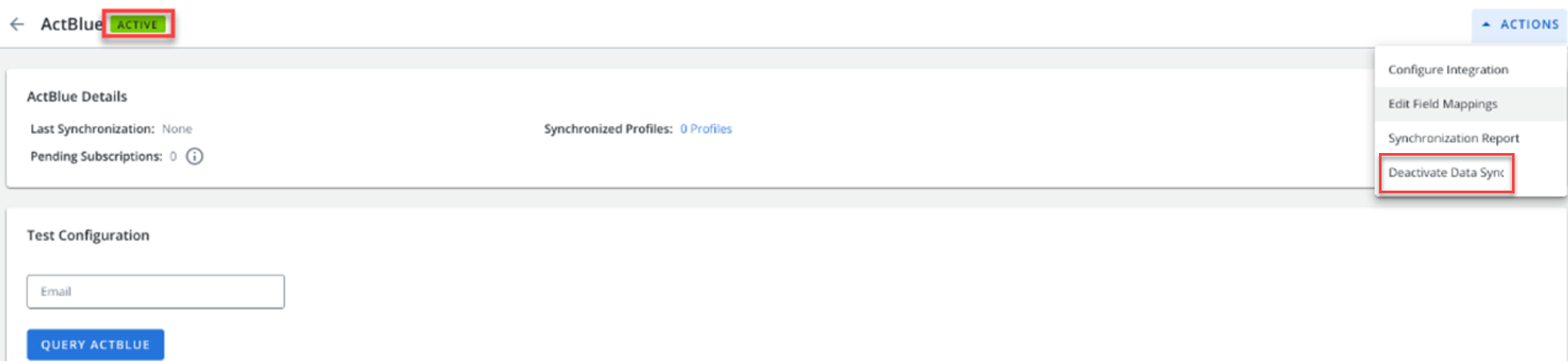
If your CRM sync has been activated, you see
Active in the upper-right corner. -
From the actions drop-down list on the right, select Deactivate Data Sync.
The indicator in the upper-right corner is Inactive.