Setting up A/B testing groups
Note: There is a lot of nuance to effective A/B testing within text messaging. When you are ready to get started with A/B testing, contact your mobile strategist or Technical Support so we can set it up for you.
First, determine the metric of engagement you’ll use for your text. If you are testing web clicks, be sure to create two different shortened URLs to accurately track clicks unique to each message. Additional points of engagement could be a response to a multiple-choice question or response to a request for an email address.
After you’ve determined the sets of content you want to test, you're ready to set up your testing groups.
To set up A/B testing groups:
-
Select a group of subscribers to test, for example, all of your active subscribers, just those who subscribe to a specific campaign, or any other filtered group.
If the group does not currently exist, you can create one. For more information, see Organizing profile groups.
Tip: Select a test group that contains a statistically relevant number of subscribers, so that each segment will contain at least 50 to 100 subscribers.
-
Select
 Home in the left pane, and then select Groups.
 -
Locate the group to use for testing in the Groups table, and then select the group name link.
-
In the Group Actions panel on the right, select
 A/B Test.
The A/B Test modal opens.
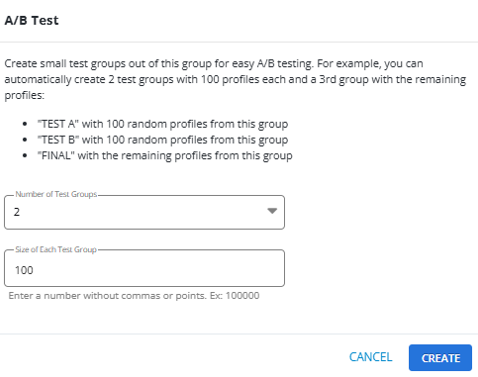
You can segment the users in this group into randomly selected test groups of the selected size.
When you open the A/B Test modal, the "Size of Each Test Group" field will be highlighted in blue when clicked, indicating it is ready for input.
Note: You must enter a number without commas, hyphens, or decimal points (for example, 100000). If you enter a value that includes commas, hyphens, or decimal points, the field will be highlighted in red, and a validation message appears. The CREATE button will remain disabled until a correctly formatted number is entered. Once you provide a valid input without commas, hyphens, or decimal points, the field will return to its normal state, and the CREATE button will be enabled.
-
Select the number of test groups from the dropdown list. The default value is 2.
-
Select the size of each test group from the stopdown list.
Tip: Be sure to select statistically significant sizes (in comparison with your total subscriber size), usually at least 50 to 100 subscribers per segment.
-
When you are done, select CREATE. A message appears “Your group is being segmented. This may take a few minutes for large or complex groups. Refresh this page for updates.”
You return to the Groups table, which is filtered to include the original group only.
-
After a few minutes, select
 Refresh in your browser to reload the page.
 The test groups, which are segments of the original group, are added to the table.

When you compose messages for a campaign, set up different messages to send to each of your test groups (TEST A, TEST B, etc.) and evaluate the responses in the broadcast report. For more information, see Adding a new broadcast message.