Contacting a user
Sending a text message
To send a single text message directly to this user only:
-
Select
 Home in the left pane, and then select Profiles.
 -
Locate the profile in the table, and then select the phone number link.
-
Select Actions at the top of the page, and then select Text This Profile.
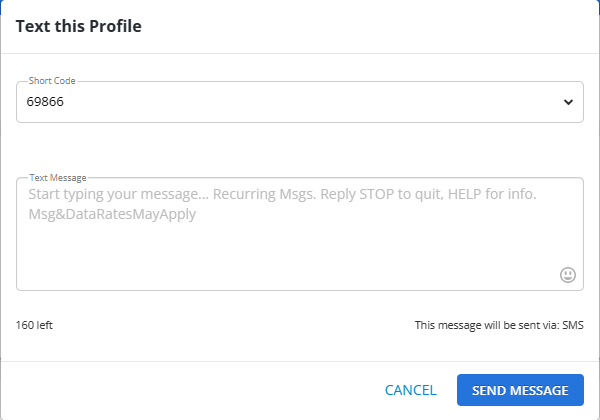
The message form opens.
-
Verify the short code at the top of the form. To change the short code select an available short code from the drop-down list.
-
Enter your message in the text box.
As you type, the number of characters remaining for SMS messaging is updated below the text box, on the left. If you exceed 160 characters, the message will be sent via multipart SMS.
Special characters, including emojis, add extra characters to the character count for your SMS message.
-
To add an emoji, select
 Emoji. Scroll through the emoji library and select an emoji image to use.
Tip: If you know the name of the emoji, you can enter it directly into the message, with beginning and ending colons, for example, :emoji:
-
-
When you are done, select Send Message.
The message is sent to the mobile user via the master campaign.
Chatting directly with the user
You can have a one-on-one conversation with an active user.
Note: You can also chat directly with a user through the Inbox and Agent View.
To exchange chat messages directly with the user:
-
Select
Home in the left pane, and then select Profiles. -
Locate the profile in the table, and then select
 CHAT at the end of the row.
Note: If the Chat option is not displayed in the Profiles table, then the Chat feature is not available for this user.
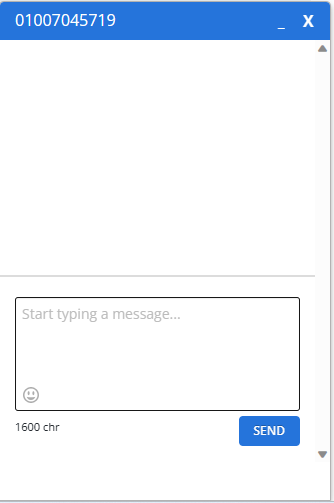
The pop-up Chat window opens on the right.
-
Type your message in the text box.
The remaining character count displays in the lower-left corner of the Chat window.
Special characters, including emojis, add extra characters to the character count for your SMS message.
-
To add an emoji, select
Emoji. Scroll through the emoji library and select an emoji image to use.Tip: If you know the name of the emoji, you can enter it directly into the message, with beginning and ending colons, for example, :emoji:
-
-
When the message is ready, select Send or press ENTER.
If the user responds to your message, you can converse back and forth.
-
When the conversation is done, select x Close in the upper-right corner of the Chat window.