Assisting users
From the Inbox:
Chatting directly with a user
You can have a one-on-one conversation with the user.
Note: You can also chat directly with a user through their profile and Agent View.
-
Select
 Text Messaging in the left pane, and then select Inbox.
 -
Locate the message in the Inbox table, select
 Menu at the end of the row, and then select Start chat.
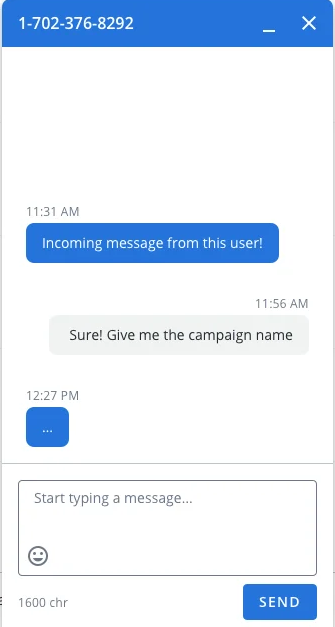
The pop-up Chat window opens on the right.
-
Type your message in the text box.
The remaining character count displays in the lower-left corner of the Chat window.
Special characters, including emojis, add extra characters to the character count for your SMS message.
-
To add an emoji, select
 Emoji. Scroll through the emoji library and select an emoji image to use.
Tip: If you know the name of the emoji, you can enter it directly into the message, with beginning and ending colons, for example, :emoji:
-
-
When the message is ready, select Send or press ENTER.
If the user responds to your message, you can converse back and forth.
-
When the conversation is done, select x Close in the upper-right corner of the Chat window.
Sending a reply to a user
You can send a reply directly to an individual user.
To send a reply:
-
Select
Text Messaging in the left pane, and then select Inbox. -
Locate the message in the Text Message Inbox, select
Menu at the end of the row, and then select Message this profile. The Response form opens.
-
Type a response in the text box, and then select Send.
Your response is sent to the user.
Opting a subscriber out of a campaign
You can opt a single user out from a single campaign.
 About opt-outs
Just as a user can text a keyword to your short code to opt-in to subscribe to a campaign, they can also unsubscribe from the campaign by testing a STOP term (for example, stop, cancel, unsubscribe, end, quit) to the same short code. By opting out, users will no longer receive any text messages from you, including broadcasts, and post-call follow-up texts, but they can still make calls using VoIP numbers or click-to-call forms.
Note: If a user opts out unintentionally, they can resubscribe by texting OOPS or any of your keywords to the same short code.
Tip: Be respectful of the mobile user’s wishes and act promptly on opt-out requests.
To opt a subscriber out of a single campaign:
-
Select
Text Messaging in the left pane, and then select Inbox. -
Locate a message from the user in the Inbox table.
Note: The user will be opted out of the campaign listed in the Campaign column.
-
Select
Menu at the end of the row, and then select Opt out profile. -
Select OK to confirm.
Opting subscribers out of one or all campaigns
You can manually opt out a list of subscribers from a selected campaign or from all campaigns for your company.
To opt out a list of users:
-
Before you begin, prepare a list of user's phone numbers to opt out.
-
If you only have a few rows of messages, you can add them manually.
-
If you have a lot of messages, save them in a CSV (comma-separated values) file. The CSV file must contain one column named phone. Add the users' phone numbers that you want to opt-out, one phone number per row, under the phone header.
Tip: Be sure to save the file in CSV format; other file types will not be accepted.
-
-
Select
Text Messaging in the left pane, and then select Inbox. -
Above the Inbox table, select Actions and then select Manual Opt-Out.
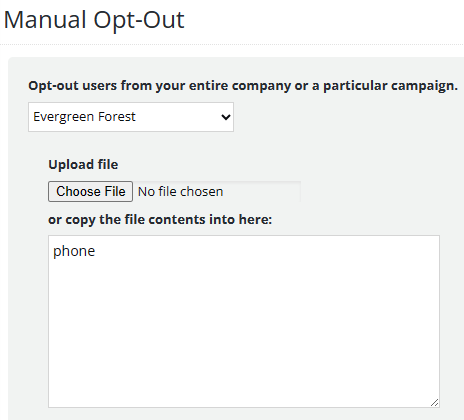
The Manual Opt-Out form opens.
-
In the Opt-out users field:
-
If you are opting users out from all campaigns for your company, retain the default setting, your company name.
-
If you are opting users out of one campaign, select the campaign from the drop-down list.
-
-
Upload the list of user's phone numbers to opt-opt:
-
To upload a CSV file, select Choose File, navigate to the CSV file to upload, and then select Open.
-
To upload a few phone numbers, under the phone header in the text box, paste the phone numbers, one per row.
-
-
When you are done, select Opt-Out these Numbers.
Mobile Commons processes the opt-out requests and displays the results.