Working with agent view
An agent is a user in your company with access to respond to unanswered messages from mobile users. An agent can choose to work on the next message in the unanswered message queue or to select any message from the list of available unanswered messages. The agent can also return a message to the queue for the next agent.
There are two levels of agent access:
-
Agent View only can read messages but cannot send responses.
-
Agent View plus Editor can send responses.
Note: Agent View is an add-on feature. To add Agent View to your company account, contact your mobile strategist or Technical Support.
To work with Agent View:
-
Select
 Text Messaging in the left pane, and then select Agent View.
Tip: If you have messages available, you can point to the
 Messages icon on the right of the title bar, and then select Dashboard.
The Agent View dashboard opens.
-
The Profiles in the Queue panel displays the number of response messages from mobile users that have not been answered. In the upper-right corner of the panel, you see the date and time when the list was last updated .
The count is updated automatically every 30 seconds.
-
On the left side of the Currently panel, you see the number of response messages from mobile users that are being reviewed by other agents in your company.
-
On the right side of the Currently panel, you see the link to the next message in the queue. For more information, see Responding to the next message in the queue.
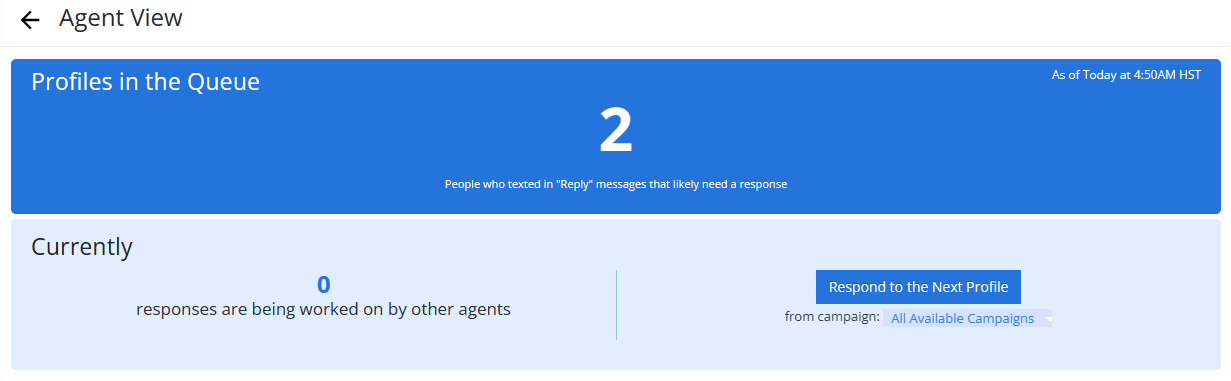
 About the Agent View dashboard
The Agent View dashboard contains three panels:
From the Agent View dashboard
-
Edit the Agent View fields (Administrator access only)
For more information, see Managing messages in Agent View and Responding to messages in Agent View.
Working with the Agent View menu
To access shortcuts to the Agent View from the title bar:
-
Point to the
Messages icon on the right of the title bar.The Agent View drop-down menu opens.
-
Select an option from the drop-down menu, which lists the number of items for each option.
Option Description 
Dashboard Opens the Agent View dashboard. 
All Unanswered Opens the messaging queue of messages to be answered. 
Questions Opens a list of messages that appear to be questions, usually ending in a ? (question mark). 
Crisis Opens a list of messages that contain text that has been flagged as requiring special attention, for example, pleas for help against violence or abuse.
Note: For a list of crisis words and phrases, contact your customer success manager. To add words or phrases to the crisis list, contact Technical Support.

Flagged Opens a list of messages that an agent is reviewing or is in the process of responding to. The Messages icon on the right side of the title bar provides the following information:
-
indicates that there are messages in need of a reply in Agent View.
-
 indicates that there is at least one message in need of immediate attention.
-
Editing the Agent View fields (Administrator access only)
When an agent selects Respond to the next profile on the Agent View dashboard, the agent response page opens. For more information, see Responding to the next message in the queue.
By default, the mobile user's name and mobile number appear in the Profile panel on the right side of the agent response page, but an agent with Administrator access can add or remove profile fields from the page.
Note: Only agents with Administrator access can edit the profile fields that display on the right side of the agent response page.
To edit profile fields on the agent response page:
-
Select
Text Messaging in the left pane, and then select Agent View. -
In the Agent View Actions panel on the right, select
 Settings.
The Editing Agent View form opens.
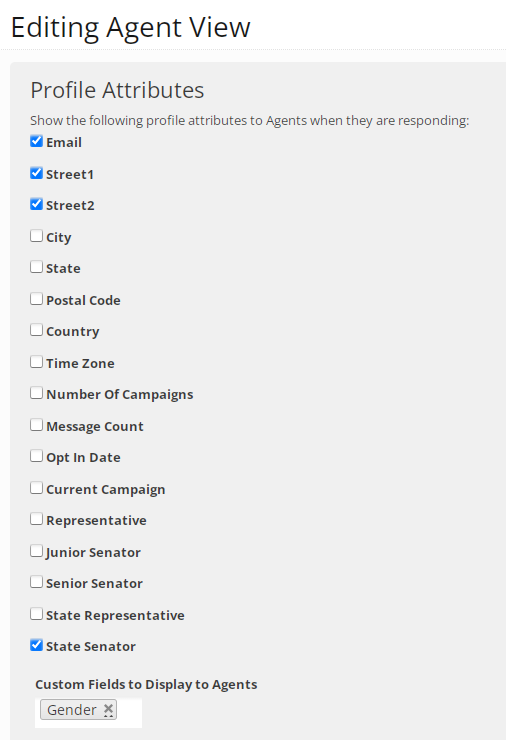
The Help pane on the right provides additional information.
-
In the Profile Attributes section, select one or more checkboxes to add fields to the profiles shown in Agent View; clear one or more checkboxes to remove fields.
-
To display one or more custom fields, select the Custom Fields to Display to Agents field and then select one or more custom fields from the drop-down list.
-
To remove a custom field from the list, select x next to the field name.
-
-
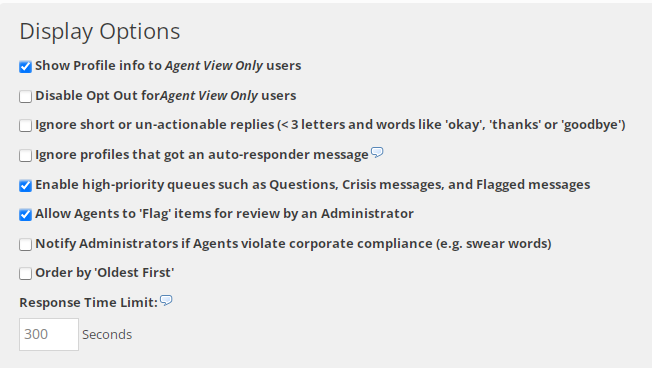
In the Display Options section, select one or more of the following options to add them to Agent View; clear the checkbox to remove an option from Agent View:
-
Show profile info to Agent View Only users.
-
Disable opt-out for Agent View Only users.
-
Ignore short or unactionable replies.
Unactionable replies
A nonstandard message response may appear in the message queue without requiring followup action for the following reasons:
-
The message is fewer than three characters long.
-
The message contains common words, such as OKAY, THANKS, GOODBYE, that are not recognized in the conversation flow.
For example, any of the following replies would be unactionable: it's ok, awesome thanks, bye, cool, good bye, goodbye, goodnight, great, great thanks, its ok, k thanks, k, kk thanks, lol ok, lol okay, oh ok, oh okay, ok bye, ok cool, ok good, ok thanks, ok, okay awesome, okay cool, okay thank u, okay thank you, okay thanks, okay, okayy, thank u, thank you so much, thank you, thanks, thx, um ok.
-
-
Ignore profiles that got an auto-responder message.
-
Enable high-priority queues, such as Questions, Crisis messages, and Flagged messages.
-
Allow Agents to flag items for review by an Administrator.
-
Notify Administrators if Agents violate corporate compliance.
-
Order by Oldest First.
-
-
In the Response Time Limit field, enter the number of seconds to reply. If a response if not made within this time limit, the message will be returned to the queue.
-
When you are done, select Update.
Reviewing response statistics by agent
To review response statistics by agent:
-
Select
Text Messaging in the left pane, and then select Agent View. -
In the Agent View Actions panel on the right, select
 Agent Stats.
For each response, the Agent Stats table lists the agent's name, the response type (Answered or No answer needed), and the total number of responses.

If the table is longer than one page, use the page-navigation options above and below the table to navigate to the
 next or
  previous page.
 -
To filter the Agent Stats table, in the When field above the table, select a time filter: All, Today, This Week, Last Week, This Month, Last Month, or This Year.
Exporting agent response statistics
To export the agent response statistics to a CSV (comma-separated values) file:
-
Select
Text Messaging in the left pane, and then select Agent View. -
In the Agent View Actions panel on the right, select
Agent Stats.The Agent Stats table opens.
-
Above the Agent Stats table, on the right, select Save as CSV.
The message records in the Messages table are saved in a CSV file containing the following columns:
Column Description Agent The name of the Mobile Commons agent. Answered The number of messages the agent has answered. Flagged The number of messages the agent has flagged. No answer The number of messages the agent has marked No response needed. Opened The number of messages the agent has opened. Opted out The number of mobile users the agent has opted out of campaigns. Unanswered The number of messages the agent has not answered. Total The total number of messages managed by the agent. -
To download the CSV file, select
 Home in the left pane, and then select Reports.
 -
Locate the CSV file in the Exports table, select the link in the Name column, and then open the downloaded file.
Opening the Agent View report
The Agent View report displays statistics on chats with users in Agent View.
To open the Agent View report:
-
Select
Text Messaging in the left pane, and then select Agent View. -
From the Agent View Actions panel on the right, select
 Report.
 The Agent View report opens.
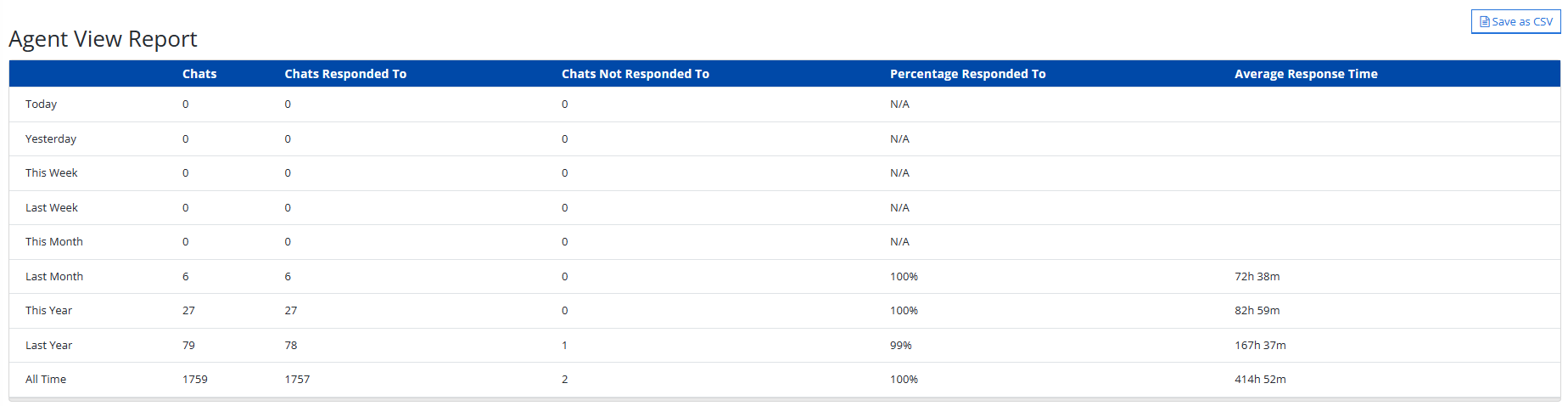
For more information, see Working with the Agent View report.