Adding an attachment file
Note: If a subscriber's mobile phone does not support MMS, your opt-in or broadcast message will failover to SMS (short message service) format with a link to the attachment file unless the Suppress SMS failover option is selected.
For attachments:
For more information, see Working with attachments.
Uploading an attachment file
You can attach images and other media in the following file formats to your messages:
-
3GP
- GIF
- JPG
- JPEG
- MP4
- PNG
To upload an attachment file to your Mobile Commons account:
-
Select
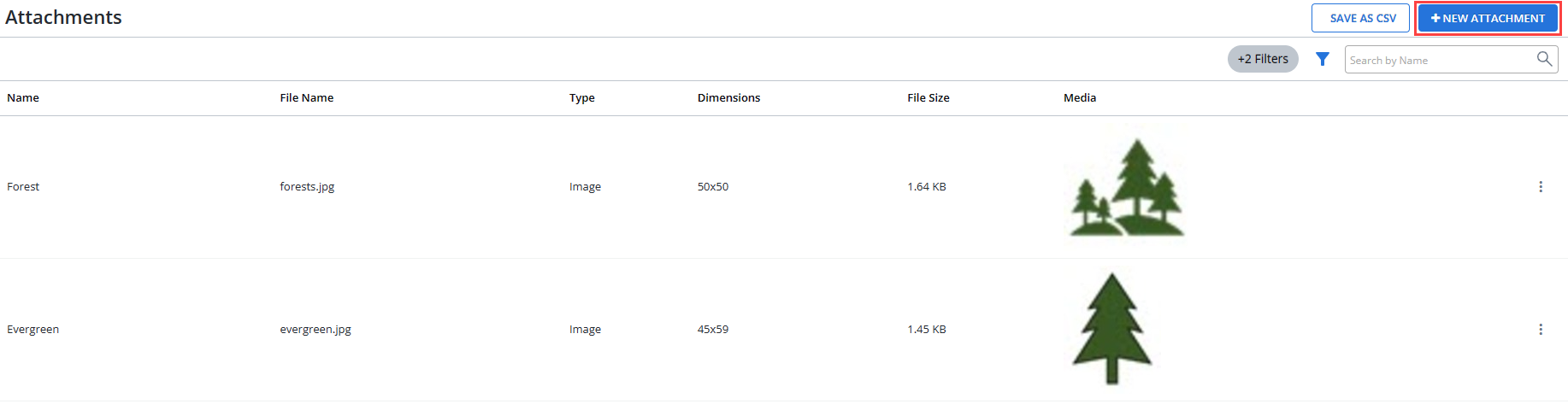
 Text Messaging in the left pane, and then select Attachments.
The Attachments table opens.
-
Above the Attachments table, on the right, select + New Attachment.
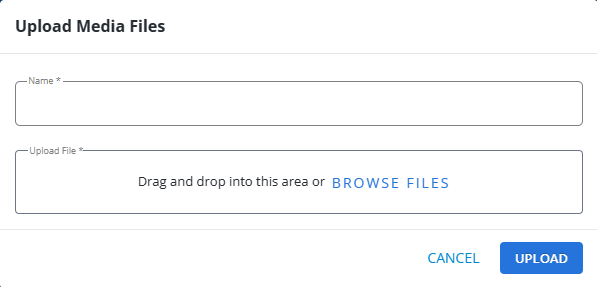
The Upload Media Files page opens.
-
(Required) Enter a name for your attachment.
-
To select the attachment file:
-
Locate the file on your computer, and then drag and drop it into the Upload File box.
-
Select Browse Files, navigate to the attachment file location, and then select Open.
To remove an upload file, select x Remove next to the file name.
-
-
When you are done, select Upload.
Testing an attachment
You can test how an attachment will appear in your text message.
To send a test message containing an attachment:
-
Select
Text Messaging in the left pane, and then select Attachments. -
Locate the attachment in the Attachments table, and select the image link in the Media column.
The attachment page opens.
-
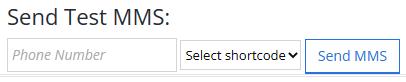
In the Send Test MMS section at the bottom of the form, enter a test mobile number.
The test mobile number must be available in a profile from the Mobile Commons database.
Tip: To send test messages to your mobile phone, create a static profile group containing your mobile phone number. For more information, see Creating a static (uploaded) group and create the group by adding your mobile phone number in the Upload Profiles text box.
-
If more than one short code is available to your company, select the short code from the drop-down list.
-
Select Send MMS.
Editing an attachment name
You can change the required name assigned to an attachment.
To edit an attachment name:
-
Select
Text Messaging in the left pane, and then select Attachments. -
Locate the attachment in the Attachments table, select
 Menu at the end of the row, and then select Edit.
 -
Edit the entry in the Name field.
-
When you are done, select Update.
Archiving an attachment
If you no longer need an attachment, you can archive it.
To archive an attachment:
-
Select
Text Messaging in the left pane, and then select Attachments. -
Above the Attachments table, on the right, select
 Filter.
 -
In the Status list, select Active, and then select Apply.
The Attachments table lists active files only.
-
Locate the attachment in the Attachments table, select
Menu at the end of the row, and then select Delete. The image is removed from the Attachments table but still available from the Archive filter.
Restoring an archived attachment
If you need to use an archived attachment, you can restore it.
To restore an attachment:
-
Select
Text Messaging in the left pane, and then select Attachments. -
Above the Attachments table, on the right, select
Filter. -
In the Status list, select Archived and then select Apply.
The Attachments table lists archived files only.
-
Locate the attachment in the Attachments table, select
Menu at the end of the row, and then select Restore.