Working with attachments
Note: If a subscriber's mobile phone does not support MMS, your opt-in or broadcast message will failover to SMS (short message service) format with a link to the attachment file unless the Suppress SMS failover option is selected.
Mobile Commons also supports MMS responses from subscribers. For more information, see Working with the Inbox.
To work with attachments:
-
Select
 Text Messaging in the left pane, and then select Attachments.
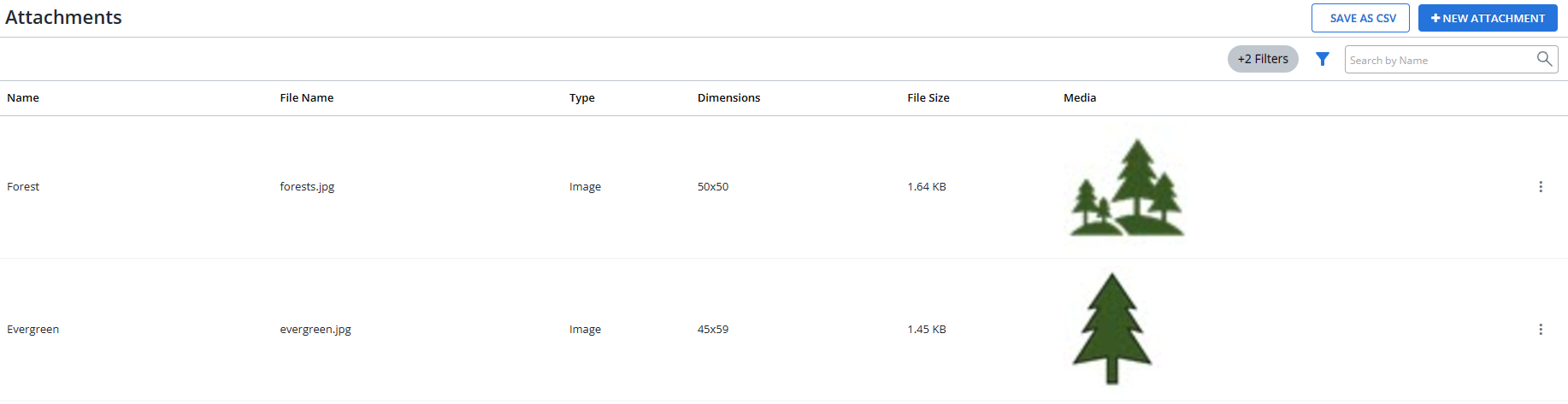
The Attachments table displays the images available in your account.
 About the Attachments table
The Attachments table contains the following information for the images in your account:
Column Description Name (Required) Name of the image.
Note: If an older image does not include a name, Mobile Commons will assign a name based on the file name.
File name The image file name.
File type The image file type, for example, BMP, GIF, JPG, JPEG, PNG. Dimensions The file dimensions, width x height, in pixels. File size The file size in KB. Media The image or other graphic from the media file. Actions The following actions are available for attachment files:
-
Edit
-
Delete
-
Restore
If the table is longer than one page, use the page-navigation options on the lower-right to select the number of rows per page and to navigate to the
 next or
  previous page.
Tip: To navigate directly to a specific page, select the page field, enter the page number, and then press ENTER.
-
From the Attachments table:
For more information, see Adding an attachment file.
Searching the Attachments table
To search the image files by name:
-
Select
 Text Messaging in the left pane, and then select Attachments.
 -
Above the Attachments table, on the right, enter a search term in the Search box, and then select
 Search.
The Profiles table displays the records that match the image name.
Filtering attachments
You can limit the display to all attachments or image files and/or active or archived files.
To filter attachments:
-
Select
Text Messaging in the left pane, and then select Attachments. -
Above the Attachments table, on the right, select
 Filter.
 -
Select one or more filters in the Filters pane on the right:
-
In the Type list, select All or Images (to display image files only).
-
In the Status list, select Active (to display active files only) or Archived (to display archived files only).
-
-
When you are done, select Apply.
The Attachments table displays only those image files that match the selected filter(s). The filter indicator above the table
 displays the number of filters that have been applied. Hover your cursor over the filter indicator to display a list of applied filters.
Exporting attachments
You can export attachment file information to a CSV (comma-separated values) file.
To export attachments:
-
Select
Text Messaging in the left pane, and then select Attachments.The Attachments table lists all of the attachment files in your account.
-
Arrange the Attachments table to display the attachment files to export. For more information, see Searching the Attachments table and Filtering attachments.
-
Above the Attachments table, on the right, select Save as CSV.
The attachment records in the Attachments table are saved in a CSV file containing the following columns:
Column Description name The name of the image or other media. filename The file name of the image or other media file. show_url The url where the attachment file was uploaded. width The width (in pixels) of the image. height The height (in pixels) of the image. created_at The date and time when the attachment file was uploaded to your Mobile Commons account. updated_at The date and time when the attachment file was last updated. -
To download the CSV file, select
Home in the left pane, and then select Reports. -
Locate the CSV file in the Exports table, select the link in the Name column, and then open the downloaded file.