Setting up message templates
Tip: Use message templates to add a promotional message, a coupon, or a contest to your messages. For more information, see the Conversation section of Creating an opt-in path message and Creating a broadcast message.
Note: Message Templates is an add-on feature. To add message templates to your company account, contact your mobile strategist or Technical Support.
To add message templates:
-
Select
 Text Messaging in the left pane, and then select Message Templates.
The Message Templates table displays the templates available for your company.

-
 Active
 -
 Ended
Ended
 About the Message Templates table
The Message Templates table contains the following information:
| Column | Description |
|---|---|
| Name | The name of the message template. |
| Behavior | Indicates how the template is added to your message: Sequence or Random. |
| Group | Indicates whether you are adding a series of templates: Yes or No. |
| Associated messages |
The message to add to your opt-in or broadcast message. Tip: To see a long message, hover your cursor over the message body entry. |
| Status |
The status of the message: |
If the table is longer than one page, use the page-navigation options on the lower-right to select the number of rows per page and to navigate to the  next or
  previous page.
Tip: To navigate directly to a specific page, select the page field, enter the page number, and then press ENTER.
From the Message Template table:
Searching the Message Templates table
To search the Message Templates table:
-
Select
Text Messaging in the left pane, and then select Message Templates. -
Above the Message Templates table, on the right, enter a search term in the Search field and then select
 Search.
The Message Templates table displays the matching records.
Filtering the Message Templates table
You can display all of the message templates or narrow the list by status.
To filter the Message Templates table:
-
Select
Text Messaging in the left pane, and then select Message Templates. -
Above the Inbox table, on the right, select Filter. Select a filter from the Styles options in the Filter pane on the right:
-
All: show all of the message templates.
-
Active: show message templates marked Active.
-
Ended: show deactivated message templates marked Ended.
The Message Templates table displays only those records that match the selected filter(s).
Adding a new single message template
To add a new message template for a single message that is not part of a group:
-
Select
Text Messaging in the left pane, and then select Message Templates. -
At the top of the page, on the right, select + New Message Template.
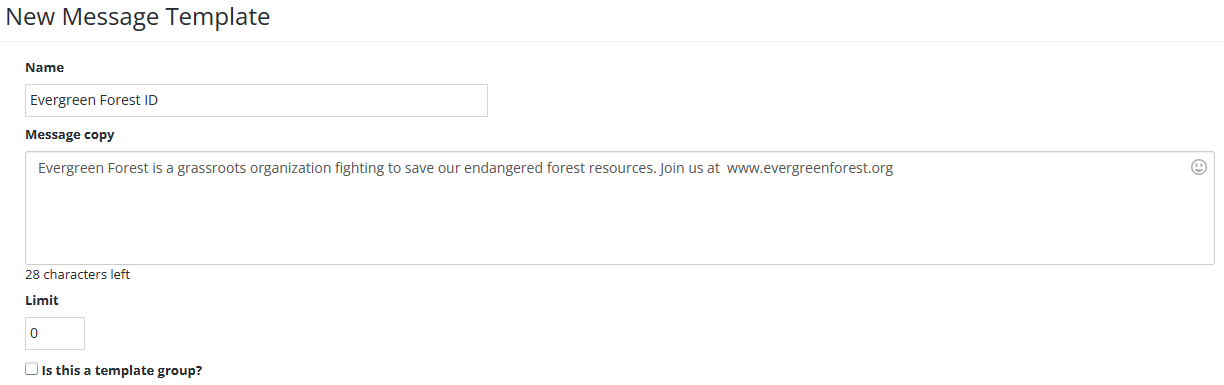
The new message template form opens.
-
In the Name field, enter a descriptive name.
Note: Even though this name is available to internal users only, take the opportunity to assign a descriptive name that is meaningful to your organization.
-
In the Message copy field, enter the message to add to your messages.
-
(Optional) In the Limit field, select a number greater than 0 (zero).
- Leave the Is this a template group? checkbox unselected. To create a series of templates, see Adding a new message template to a group.
- When you are done, select Create.
The new message template is added to the Message Templates table with
Active status.
Adding a new message template to a group
To add a new message template to a group:
-
Select
Text Messaging in the left pane, and then select Message Templates. -
At the top of the page, on the right, select + New Message Template.
-
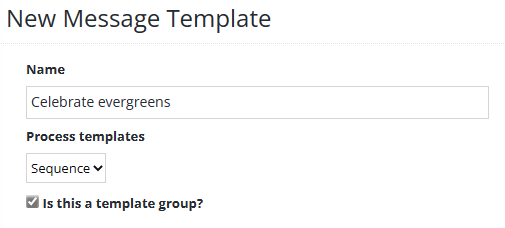
In the Name field, enter a descriptive name.
Note: Even though this name is available to internal users only, take the opportunity to assign a descriptive name that is meaningful to your organization.
-
Select the Is this a template group? checkbox to add your message to a series of templates.
New fields appear on the form.
-
In the Process templates field, select Random or Sequence.
The group templates section opens at the bottom of the page.

-
In the lower-right, select Add Template.
A new row is added to the group messages table.
-
Select the Message copy field and enter the message to add to your opt-in or broadcast messages.
-
(Optional) To set a limit, select the Limit field and enter a number greater than 0 (zero).
-
To continue to add messages to the group, select Add Template and enter a new message and (optionally) limit.
-
To remove a message from the group, select
 Remove at the end of the row on the right.
 -
To change the order of the messages in the group, select
 Move up or
  Move down at the end of the row.
 - When you are done, select Create.
The new message template is added to the Message Templates table with
Active status.
The new message template form opens.
Adding a new contest message template
To add a new contest message template:
-
Select
Text Messaging in the left pane, and then select Message Templates. -
At the top of the page, on the right, select + New Contest Message Template.
-
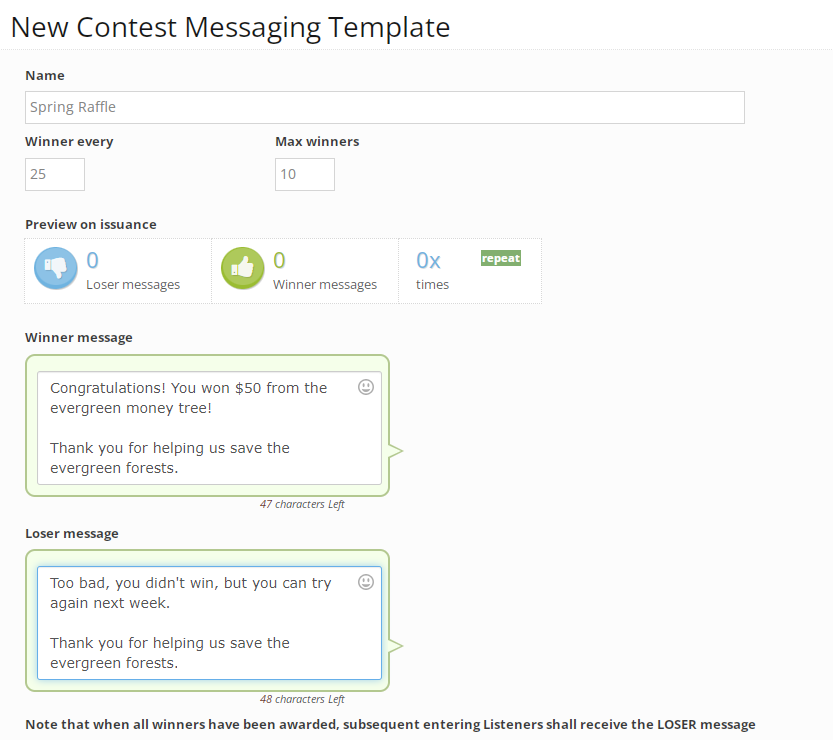
In the Name field, enter a descriptive name.
Note: Even though this name is available to internal users only, take the opportunity to assign a descriptive name that is meaningful to your organization.
-
In the Winner every field, enter the cadence of the prize awards, for example, enter 100 to award a prize to every 100th response.
-
In the Max winners field, enter the maximum number of prizes to be awarded.
Tip: Be sure to match your entry in this field with the number of available prizes.
-
In the Winner message field, enter the message to send to contest winners.
Special characters, including emojis, add extra characters to the character count for your SMS message.
-
To add an emoji, select
 Emoji. Scroll through the emoji library and select an emoji image to use.
Tip: If you know the name of the emoji, you can enter it directly into the message, with beginning and ending colons, for example, :emoji:
Note: If the character count exceeds 160 characters, the message is sent as a multi-part SMS message.
-
-
In the Loser message field, enter the message to send to non-winners, including entries that arrive after the contest has ended.
- When you are done, select Create.
The new message template is added to the Message Templates table with
Active status.
The new contest messaging template form opens.
Editing a message template
To edit a message template:
-
Select
Text Messaging in the left pane, and then select Message Templates. -
Locate the message template in the Message Templates table, and then select the template name link.
The Edit message template form opens.
- Make your changes to the form. For more information, see:
- When you are done, select Save.
Deactivating a message template
To deactivate an active message template:
-
Select
Text Messaging in the left pane, and then select Message Templates. - Locate the message template in the Message Templates table, and then select the template name link.
- In the Message Template Setup panel on the right, select
 Deactivate message template.
 - Select OK to confirm.
The message template is removed from the Message Templates table.
Tip: To view deactivated message templates, filter the Message Templates table by All or Ended templates. For more information, see Filtering the Message Templates table.