Editing mData searches
To edit an mData search:
Editing mData details
To edit the mData details:
-
Select
 Text Messaging in the left pane, and then select mData.
 -
Locate the mData name in the Active mDatas table or Inactive mDatas table, and then select the mData name link.
The mData page opens.
-
Select Actions at the top of the page, and then select Edit Details.
The mData Details form opens.
-
Make your changes to the form. For more information, see Setting up a location-based mData, Setting up a non-location mData, or Setting up mData on a web service.
-
When you are done, select Update.
Adding rows
After you have uploaded the data for the mData database, you can expand it by adding rows.
Note: You can also expand the mData database by uploading a CSV file with a complete set of entries. For more information, see "Creating and uploading an mData spreadsheet" for location or non-location mData searches.
To add rows to an mData database:
-
Select
Text Messaging in the left pane, and then select mData. -
Locate the mData in the Active mDatas table or Inactive mDatas table, and then select the mData name link.
The mData page opens.
-
Select Actions at the top of the page, and then select Add New Row.
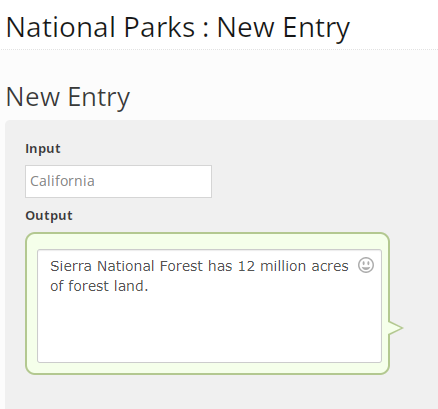
The New Entry form opens.
-
Enter the Input term and Output response, using the following guidelines:
-
For random response, unique, and search term types, enter search terms in the Input column and add the corresponding response in the Output column.
-
For the keyword as a search type: enter keywords in the Input column and add the corresponding response in the Output column.
Pay attention to the length of the output response. Messages over 160 characters will automatically be broken up into two text messages.
-
-
When you are done, select Create.
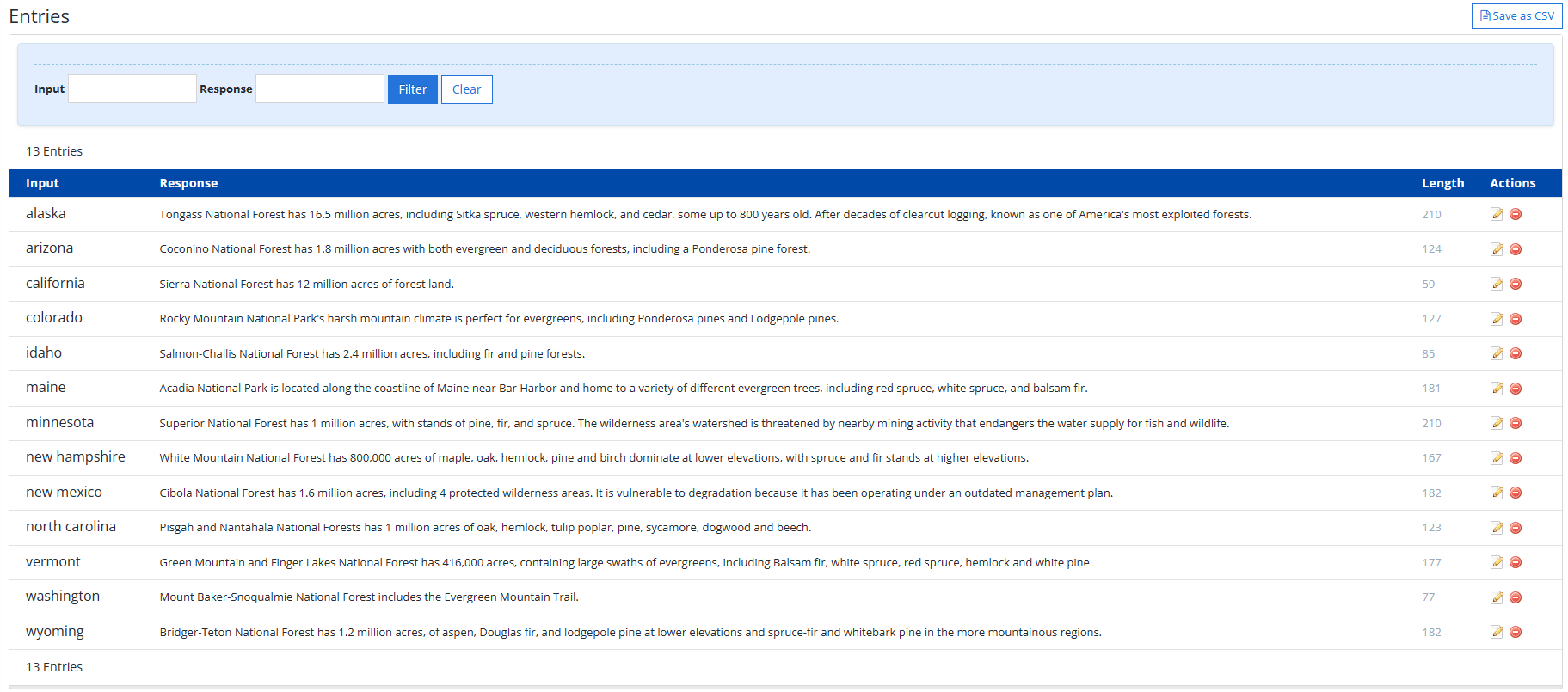
The Entries page lists the input and response values for each row in the mData database. You can also see the length of the response.
-
Locate the new entry in the Entries table.
Tip: If the database is large, enter a value in the Input or Response field above the Entries table. Select Filter to locate matching entries.
-
Review the contents to make sure it is correct. If you want to change the entry, you can edit or delete it:
-
To make changes to the entry, select
 Edit at the end of the row and then select Update.
 -
To remove the entry from the mData database, select
 Delete at the end of the row and then select OK to confirm.
-
Cloning an mData
You can make an exact copy of an mData search to use as the basis for a new search.
To clone an mData search:
-
Select
Text Messaging in the left pane, and then select mData. -
Locate the mData in the Active mDatas table or Inactive mDatas table, and then select the mData name link.
The mData page opens.
-
Select Actions at the top of the page, and then select Clone.
Note: When you clone an mData search, you do not also clone the keywords associated with the mData.
-
Select OK to confirm.
A copy of the mData page opens.
-
Select Actions at the top of the page, and then select Edit Details.
The Edit mData form opens.
-
Make your changes to the form. For field-by-field instructions, see Setting up a location-based mData, Setting up a non-location mData, or Setting up mData on a web service.
Tip: Be sure to change the mData name and add keywords.
-
When you are done, select Update.
Deactivating an mData
If you want to remove an active mData search, you must deactivate it.
-
Select
Text Messaging in the left pane, and then select mData. -
Locate the mData in the Active mDatas table, and then select the mData name link.
The mData page opens.
-
Select Actions at the top of the page, and then select Deactivate.
The mData search moves to the Inactive mDatas table.
Note: To reactivate an inactive mData, locate the mData in the Inactive mDatas table and select the mData name link. Select Actions at the top of the page, and then select Activate.
Exporting mData records
To save all the of active or inactive mData records in a CSV file:
-
Select
Text Messaging in the left pane, and then select mData.The Active mDatas page opens.
-
To export inactive records, select the Inactive mDatas tab.
-
Select Actions at the top of the page, and then select Save as CSV.
The contents of the selected mDatas table, Active or Inactive, are saved in a CSV file containing the following columns:
Column Description name The name of the mData campaign. shortcode The shortcode for the mData search. created_at The date and time when the message was sent by the user. campaign The mData campaign identifier. type The mData type: - database: location or nonlocation
- web: web service
details The number of records in the database or the URL for a web service. active Yes/No, indicating whether the campaign is active. -
To download the CSV file, select
 Home in the left pane, and then select Reports.
 -
Locate the CSV file in the Exports table, select the link in the Name column, and then open the downloaded file.
Opening the mData report
-
Select
Text Messaging in the left pane, and then select mData. -
Locate the mData name in the Active mDatas table or Inactive mDatas table, and then select the mData name link.
The mData page opens.
-
Select Actions at the top of the page, and then select Report.
The mData report opens.