Edit a Custom Field
Custom Fields are user-defined data fields that are designed to capture information that cannot be captured by PowerSteering's standard fields. They can be applied to various different entities throughout the application (work items, Status Reports, users, etc.).
Once created, Custom Fields can be edited at any time.
Tip: This page will help you edit the general details of a Custom Field. To configure how a Custom Field appears and behaves on specific work types and entities, see Edit Fields in Field Management.
To edit a Custom Field:
Before You Start: Users require the "Custom Field Administration" Context permission to edit Custom Fields for which they have been assigned as an administrator. Users in the Admin Group can edit all Custom Fields.
-
Select Admin
 → Configuration → Custom Fields from the Navigation Menu.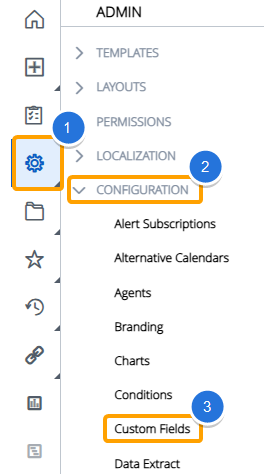
-
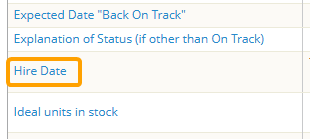
Select the name of the Custom Field you would like to edit.
-
Edit the Custom Field's details.
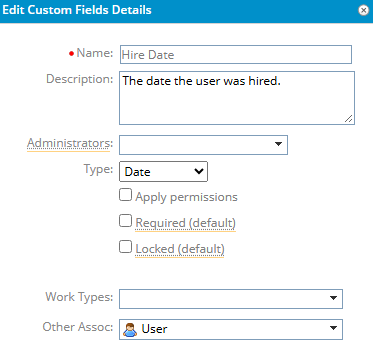
 Click here for more information on each field
-
Name: The name of the Custom Field. This will also be the displayed name of the field once it is attached to PowerSteering entities.
-
Description: A brief description of the information that the Custom Field is used to capture. Users will be able to see descriptions as tooltips when they hover their cursors over the Custom Field.
-
Administrators: Search for and select users or groups that will have permissions to edit your Custom Field.
Note: Only users or groups with the "Custom Field Administration" Context permission can be selected for this field.
Note: Users in the Admin Group will be able to edit all Custom Fields regardless of whether they are selected as administrators for the Custom Field.
-
Type: Select which type of Custom Field you would like to create.
Click here for more information on each Custom Field type
-
Yes/No: Users will either select either a "Yes" or "No" for the Custom Field.
-
Date: Users will use a date picker to select a date for the Custom Field.
-
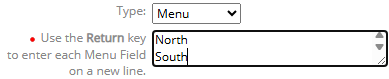
Menu: Users will select an option from a drop-down menu.
Note: Once this option is selected, a textfield for menu options will appear. Type in a menu option and then select Enter or Return on your keyboard to add another until you have entered all of your desired options.
-
Number: Users will enter a number for the Custom Field. Use the fields that appear to determine how many digits will be permitted before and after the decimal point.
-
Percentage: Users will enter a number that will serve as a percentage for the Custom Field. Use the fields that appear to determine how many digits will be permitted before and after the decimal point.
-
Monetery: Users will enter a number that will serve as a monetary value for the Custom Field. Use the fields that appear to determine how many digits will be permitted before and after the decimal point.
-
Textfield: Users will enter their own text for the Custom Field. Use the field that appears to determine a maximum number of characters that can be entered.
-
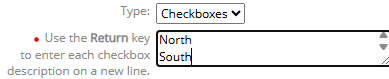
Checkboxes: Users will select one or more options for the Custom Field using checkboxes.
Note: Once this option is selected, a textfield for menu options will appear. Type in a menu option and then select Enter or Return on your keyboard to add another until you have entered all of your desired options.
-
URL: Users will enter a URL link for the Custom Field.
-
-
Apply permissions: If selected, users will require the "Edit Custom Fields" User permission to update the field while editing a user or the "Edit Custom Fields" Group permission to update the field while editing a Group.
Note: This checkbox is only applicable when the Custom Field is associated to Users or Groups.
-
Required (default): If selected, a value will have to be selected for the Custom Field before the work item can be created or saved.
Note: This can be changed for specific work types through Edit Fields in Field Management.
-
Locked (default): If selected, users will not be able to update the Custom Field.
Note: This can be changed for specific work types through Edit Fields in Field Management.
-
Work Types: Select which work type(s) the Custom Field will be associated with. Users will be able to edit the value for this Custom Field while creating or editing a work item created from the work type(s).
Note: Use Edit Fields in Field Management to customize how the Custom Field will appear and behave on each specific work type.
-
Other Assoc: Select any other PowerSteering entities that the Custom Field will be associated with.
Note: Use Edit Fields in Field Management to customize how the Custom Field will appear and behave on each specific entity.
-
-
Select the Save button.

After selecting Save, the your changes will be saved to the Custom Field.