Enable / Disable Time Entry for Work
Users have the option either enable or disable work items for time entry. When a work item is enabled for time entry, users can enter time against it while filling out their Timesheets.
Example: A Project Manager might not want employees entering time against projects that have been completed or canceled. To make sure this does not happen, the Project Manager can disable a project for time entry once it has finished.
Once a work item has been disabled for time entry, no additional time can be entered against it. If a user has already saved or submitted a Timesheet against the work item before it was disabled, the Timesheet can still be viewed on the Manage Time page where it can be approved or rejected. However, users will not be able to edit any Timesheets saved against work items that are disabled for time entry.
Note: By default, this configuration only applies to the work item being edited. It will not affect any time entry settings of the work item's Descendants (i.e. any Tasks created for the work item). If you would like this option to apply to a work item's Descendants as well, contact your PowerSteering representative.
To enable / disable time entry for a work item:
Before You Start: Users will require the "Project Time Control" Project permission to change time entry settings for a work item.
-
Navigate to the work item.
-
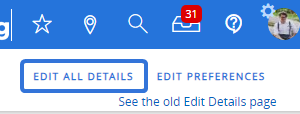
Select the Edit All Details button in the top right-hand corner of the page:
-
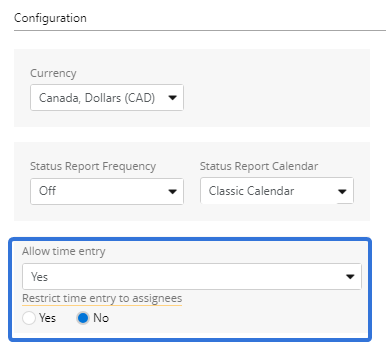
Scroll down to the "Allow time entry" section of the "Configuration" menu:
-
Use the "Allow time entry" drop-down menu to determine when users are allowed to enter time against the work item:
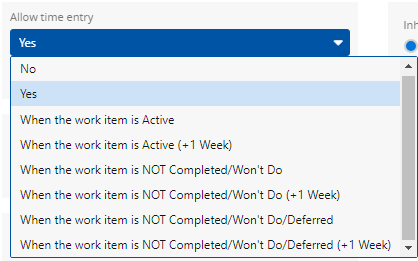
- No: Time entries cannot be made toward the work item at any time.
-
Yes: Time entries can be made toward the work item at any time.
-
When the work item is Active: Time entries can be made to the work item as long as the work item currently has an "Active" status type.
Note: See the Work Status Names page to see which statuses are considered "Active".
-
When the work item is Active (+1 Week): Time entries can be made to the work item if the work item has an "Active" status type or had an "Active" status type less than a week ago.
Note: See the Work Status Names page to see which statuses are considered "Active".
-
When the work item is NOT Completed /Canceled: Time entries can be made to the work item as long as the work item does not have a "Completed" or "Canceled" status.
Note: Status names can be changed in PowerSteering. Check the Work Status Names page to see if any new names have been entered for "Completed" or "Canceled".
-
When the work item is NOT Completed /Canceled (+1 Week): Time entries can be made to the work item if the work item does not have a "Completed" or "Canceled" status or if it has only had one of these statuses for less than a week.
Note: Status names can be changed in PowerSteering. Check the Work Status Names page to see if any new names have been entered for "Completed" or "Canceled".
-
When the work item is NOT Completed /Canceled /Deferred: Time entries can be made to the work item as long as the work item does not have a "Completed", "Canceled", or "Deferred" status.
Note: Status names can be changed in PowerSteering. Check the Work Status Names page to see if any new names have been entered for "Completed", "Canceled", or "Deferred".
-
When the work item is NOT Completed /Canceled /Deferred (+1 Week): Time entries can be made to the work item if the work item does not have a "Completed", "Canceled", or "Deferred" status or if it has only had one of these statuses for less than a week.
Note: Status names can be changed in PowerSteering. Check the Work Status Names page to see if any new names have been entered for "Completed" or "Canceled".
-
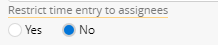
Use the "Restrict time entry to assignees" selection to determine which users can enter time against the work item:
-
Yes: Only users assigned to the work item as Team Members can enter time against it.
-
No: Any users can enter time against the work item (assuming the selection from "Allow time entry" is satisfied).
-
-
Select the Save All button in the bottom right-hand corner of the window:
After selecting Save All, the time entry settings will be saved for the work item.