Time Conversion Agent
The Time Conversion agent converts Resource Timesheet entries into Actual Costs on work items. When this agent runs, it scans PowerSteering for any outstanding Timesheet entries and converts the entered hours into Actual Costs on the work items that they have been entered against.
Note: Time must be both entered and approved to be included in Actual Costs.
Example: Sandra has been assigned to work as an Analyst on the "Digital Built Government of Canada" project. Her Personal Rate as an Analyst is $45 an hour.
She enters the time she worked on the project during the week of January 19th-23rd, which is 40 hours across 5 working days. The Timesheet is approved almost immediately.
The Time Conversion Agent is scheduled to run every Friday evening after close of business. When the Project Manager for "Digital Built Government of Canada" opens the Actual Costs page on Monday, she sees that Sandra's working hours have been accounted for.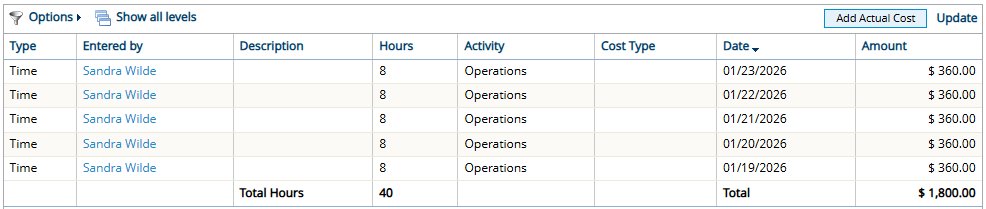
At $45 per hour and 8 hours per day, Sandra's time costs the Project $360 per day and $1,800 for the week.
Note: Time entries that have been imported into PowerSteering will automatically be applied to the Actual Costs of their associated work items. They do not need to wait for the Time Conversion Agent to run.
To configure and enable the Time Conversion Agent:
Before You Start: Only PowerSteering administrators can work with agents. If you are not an administrator, reach out to one if you are interested in this agent.
-
Select Admin
 → Configuration → Agents from the Navigation Menu.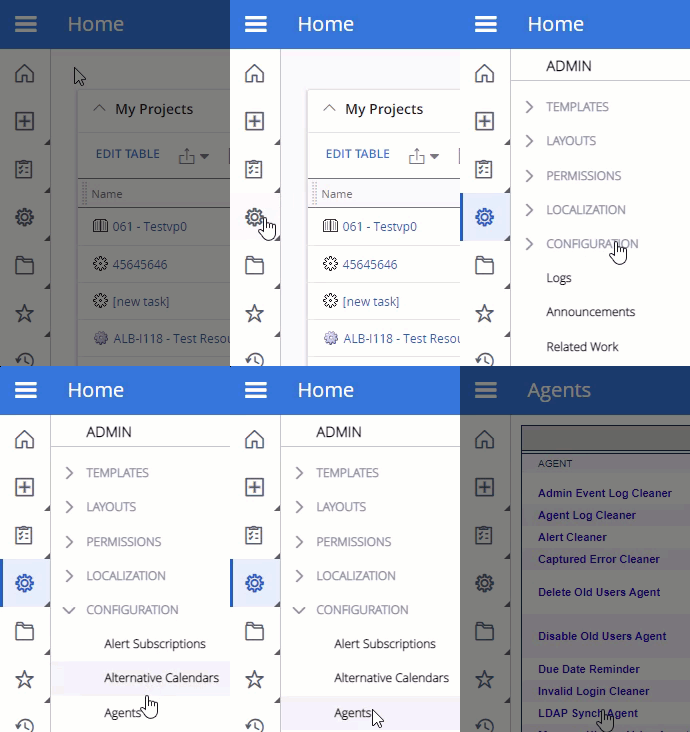
-
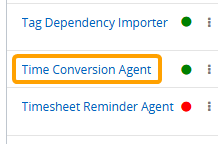
Select the Time Conversion Agent from the list of agents.
-
(Optional) Review any of the agent's details and / or run logs.
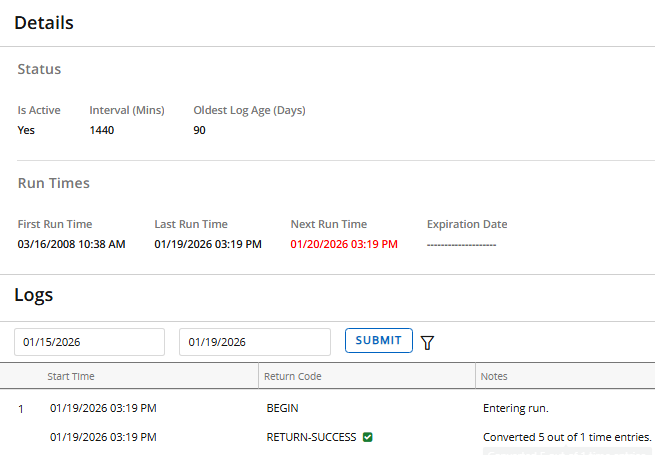
Tip: From here, you can also select the Run Agent button to run the agent manually.

-
Select the Edit button:

-
Edit the agent's details.
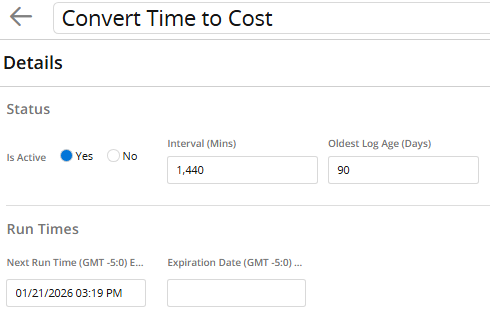
-
Title: Rename the agent task.
-
Is Active: Determine whether the task is currently running or not.
-
Interval: Determine how often the task will run (in minutes). For example, entering "1440" will cause the task to search for Timesheets to convert every 1440 minutes (24 hours).
-
Oldest Log Age: Determine how long log entries will be retained.
Tip: Log entries can be seen on the main agent page (during Step 3).
-
Next Run Time: Displays the next time the task will run. Enter in a custom time if you would like to change it.
Note: Be sure to follow the same format (mm/dd/yyy 00:00 AM/PM).
-
Expiration Date: Enter in a date for the task to discontinue.
Note: Be sure to follow the same format as other dates (mm/dd/yyy 00:00 AM/PM).
-
-
Select the Save button.

After selecting Save, your changes to the Time Conversion Agent will be finalized. They can be edited again at any time.