Add Estimated Costs
Estimated Costs are the projected future expenses of a Project. They help Project Managers forecast the funding necessary for each step of the Project, which can result in fewer delays and cancellations once the Project begins.
In PowerSteering, Estimated Costs can be added for a work item through the Summary page.
To add an Estimated Cost to a work item:
Before You Start: PowerSteering users will require the "Edit Estimated Costs" Project permission to add an Estimated Cost to a work item. Also, see the Estimated Costs Overview for criteria required to enable Estimated Costs for a work item.
-
Navigate to a work item.
-
Select Project → Costs → Estimated Costs from the Navigation Menu:
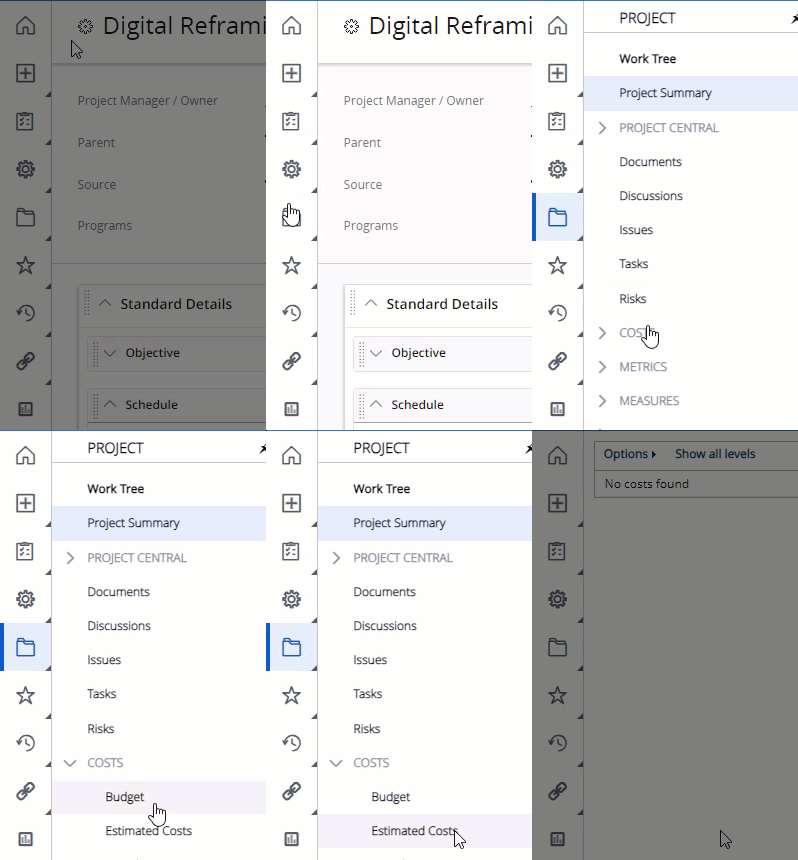
Note: If Costs is not available from the Navigation Menu, see the Estimated Costs Overview for the criteria required to enable it. You may need to contact someone with permissions to do so.
-
Select the Add Estimated Cost button:
-
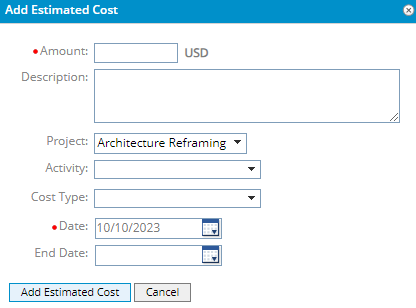
Enter the details for your new Estimated Cost:
-
Amount: Enter the estimated monetary amount of the Estimated Cost.
Note: The currency label will reflect the work item's current currency.
-
Description: Describe what the Estimated Cost will be required for.
Tip: You should also include the why you think the cost may be necessary, the likelihood of it happening, and any other action required.
-
Project: Use this field to change the work item that you are adding the Estimated Cost to. You can use it to switch to any of the work item's Descendants.
Note: Only do this if you do NOT want to add an Estimated Cost to the current work item.
-
Activity: Select an Activity to attribute the Estimated Cost to.
-
User Cost Tag: Select any values for the User Cost Tag (like the "Cost Type" Tag in the example above) that has been added to the Estimated Cost. Speak to a Project Manager or PowerSteering administrator for information on the Tag.
Note: PowerSteering administrators can determine which Tag will serve as the User Cost Tag.
-
Date: Select the calendar icon
 to determine an estimated date that the cost will begin.
 -
End Date: Select the calendar icon
to determine an estimated date that the cost will come to an end.Tip: PowerSteering administrators can make the "End Date" field mandatory on Estimated Costs based on the selection made for the "Activity" field. To do this, administrators can update the values of the "Activity" Tag and select the "Require Cost End Date" checkmark next to the values they would like to require "End Date" selections for:
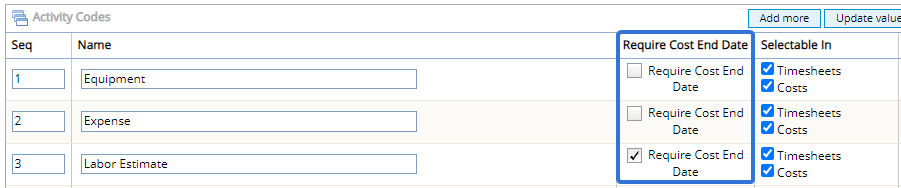
If the "Require Cost End Date" column is not available while editing the "Activity" Tag values, it may not be enabled for your PowerSteering environment. Speak to a PowerSteering representative to turn it on for you.
When one of these values is selected from the "Activity" field above, the user will be required to add an End Date: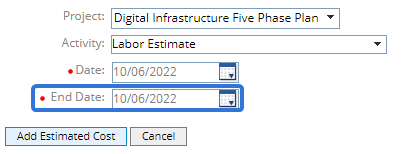
-
-
Select the Add Estimated Cost button:
-
(Optional) Repeat Steps 4-5 to add any additional Estimated Costs before saving.
-
Select the Submit Costs button:
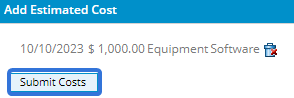
After selecting Submit Costs, the new Estimated Cost(s) will be saved to the work item. All saved Estimated Costs can be seen on the Estimated Costs page:
