The Quick Links widget in the Homepage Template Designer provides end users with one-click access to frequently used areas, without the need to navigate through menus.
Administrators can configure the widget with up to ten links in total—internal, external, or a combination of both—allowing users to quickly reach important pages, tools, or resources directly from their homepage.
This article explains how to set up and manage the Quick Links widget. It also describes the End User Experience, showing how users interact with the widget once it’s published on their homepage.
Configuration
This section describes how to configure the Quick Links widget:
Note: A maximum of 10 links is allowed. The warning message You can select a maximum of 10 links.appears if the combined total of Predefined Internal Links and Custom External Links exceeds this limit.
Predefined Internal Links
- From the right-hand sidebar, drag the Quick Links Widget into the design area.
Note: When the widget is added to the canvas, it is placed in the first available empty space in the top-left corner. You can resize and reposition the widget as needed to fine-tune the layout.
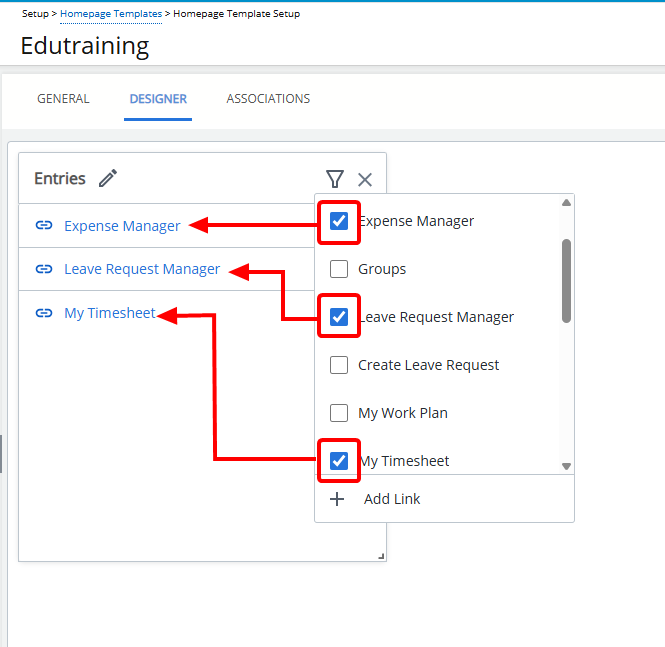
- Use the Filter icon to select predefined PSA pages to include in the widget:
Name PSA Path Charge Approval Entries > Charges > Approval Clients Setup > Work > Clients Expense Manager Entries > Expense Manager > Last visited View Groups Setup > Organization > Groups Leave Request Manager Entries > Leave Request Manager > Last visited Tab Leave Request Entries > Leave Request Manager > My Requests tab My Work Plan Entries > My Work Plan > My Work Plan View My Timesheets Entries > My Timesheet Product Approval Entries > Products > Approval Projects Project List > Last visited View Project Scheduling Entries > Project Scheduling Resource Scheduling Entries > Resource Scheduling Sites Setup > Organization > Sites Tasks Setup > Work > Tasks Timesheet Manager Entries > Timesheet Manager > Last visited View Users Setup > Organization > Users > All Users View Work Item Manager Entries > Work Items Manager > Last visited View - Select the checkboxes in the Filter
 panel to add them.
Note: Predefined internal links are marked with a chain icon (
 ).
). - Selected links will appear in the widget.
Tip: Clear a checkbox to remove a link.
Custom External Links
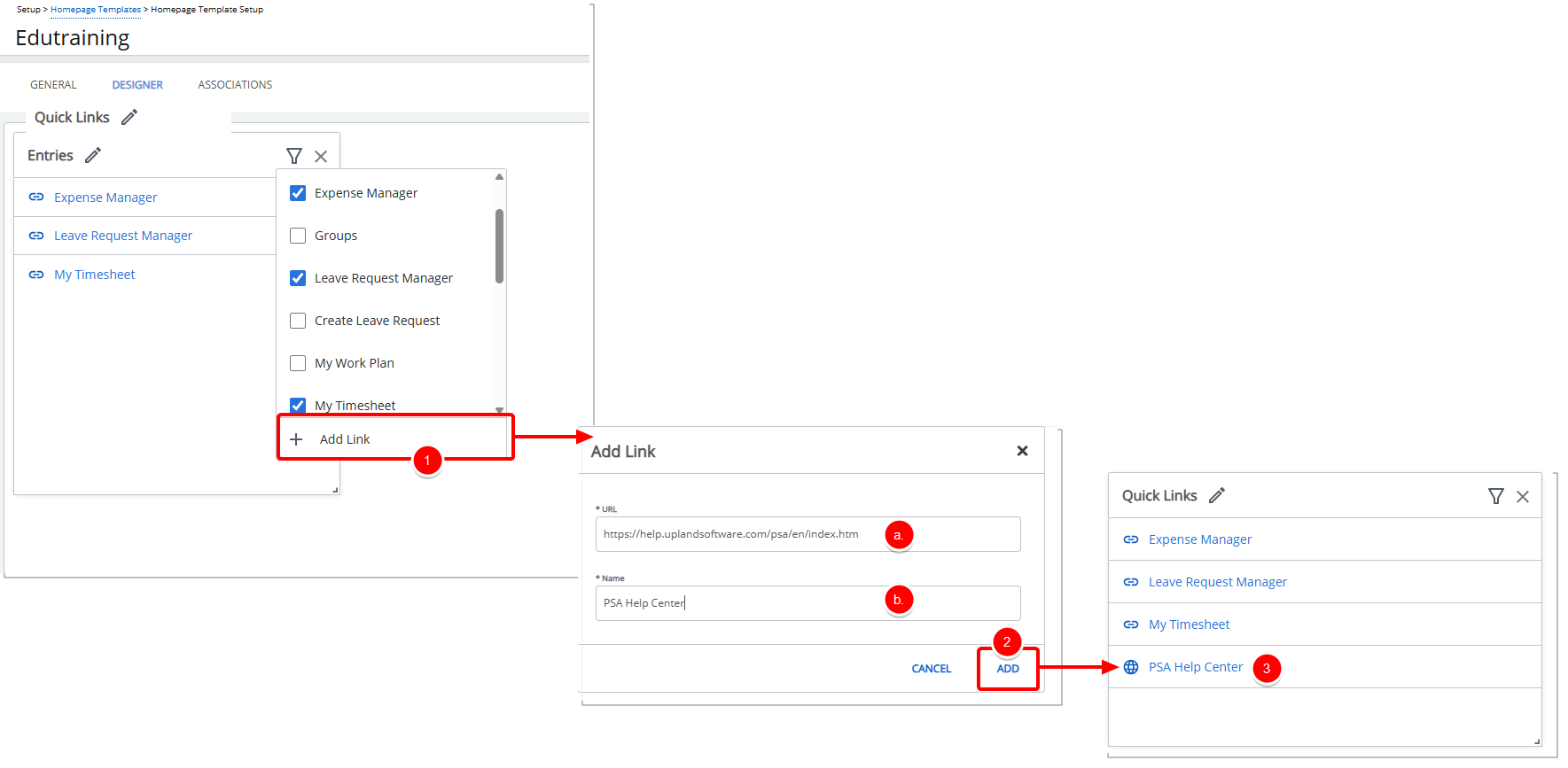
- From the Filter panel click Add Link to open a dialog box where you can define:
- URL: The destination link.
- Name: The display name shown in the widget.
- Click ADD.
Note: Custom external links are marked with a globe icon (
 ).
). - Note that the link appears in the widget.
Tip: To remove it, use the Delete
 button in the Filter panel.
Rename Widget
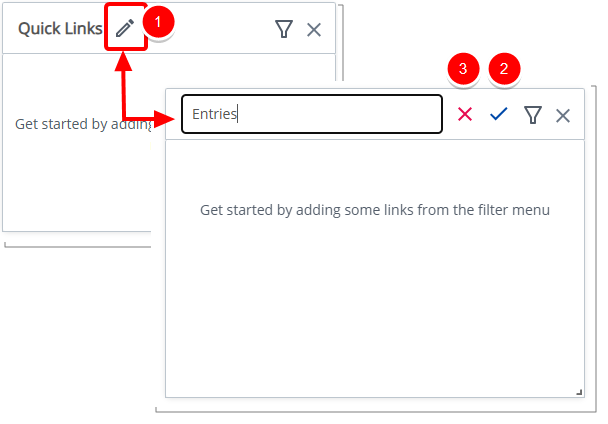
- Click the pencil icon (
 ) to rename the widget title.
 - Click the checkmark (
 ) to confirm the name and save the template automatically.
 - Click the X icon (
 ) to cancel.
Delete Widget
- Click the Delete
 icon. The widget is removed from the Homepage.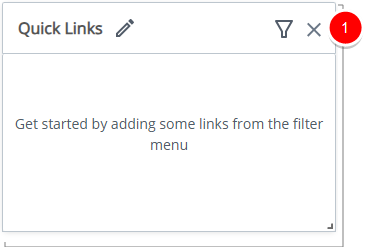
End User Experience
The Quick Links Tile gives you one-click access to frequently used areas of the system—without navigating through menus.
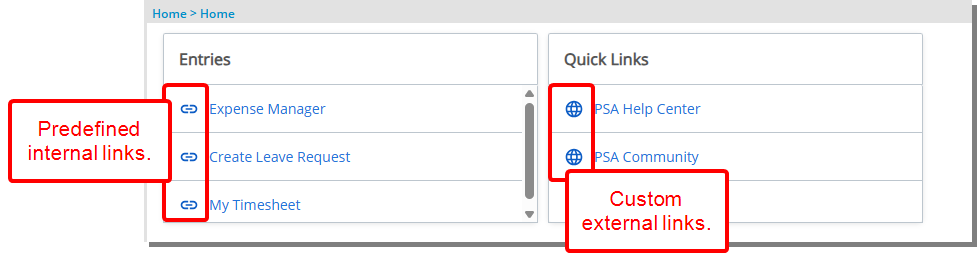
Note: Predefined internal links are marked with a chain icon (). Custom external links are marked with a globe icon ().
You will see up to 10 links in the widget.
- Links can include both system pages (such as Timesheets, My Work Plan, or Projects) and external sites (marked with a globe icon).
- Click any link to open it directly.
- If no links are available, the widget will appear empty until your administrator configures it.