The Homepage Templates page provides a centralized workspace for creating, managing, and maintaining all homepage templates in your system. From this page, you can view existing templates, create new ones, customize columns, and perform key actions such as exporting, filtering, and sorting. With the proper security permissions, this page gives you full control over how homepage experiences are built and delivered across your organization.
Overview
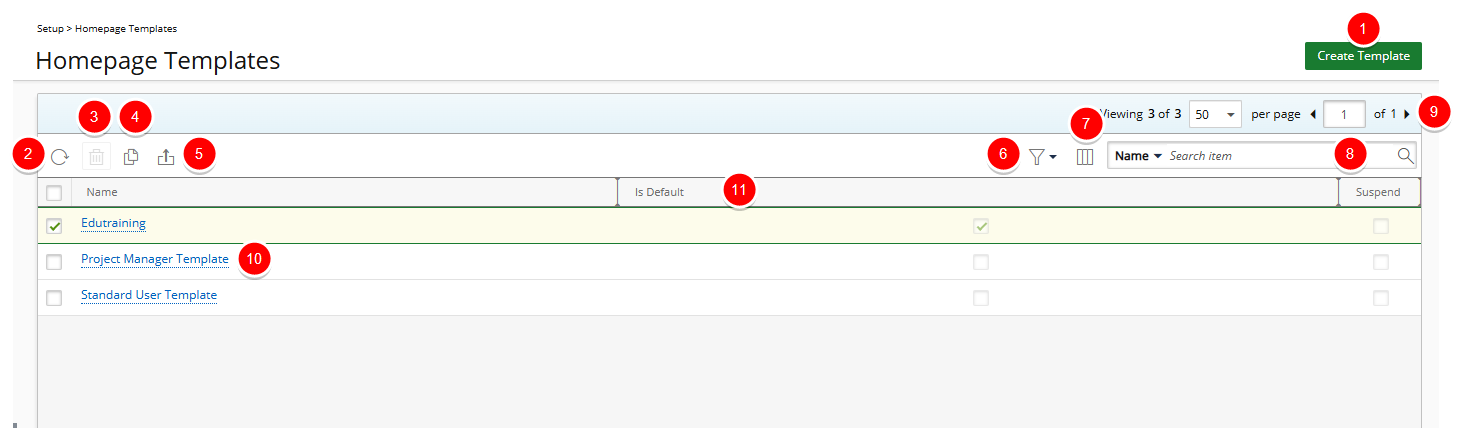
From Homepage Templates page you can:
- Create Template.
- Click the Refresh
 button to refresh the list.
 - Click the Delete
 button to delete selected Homepage(s).
 - Click the Copy
 button to copy selected Homepage.
 - Click the Export
 button to export the list to Excel.
 - Filter the list based on Active or Suspended items.
- Manage Columns from Column Selection
 . By default the following columns are displayed: Name, Is Default and Suspend.
 - Search
 for Homepages based on Name.
 - Pagination is available at the top right corner to facilitate easy navigation across pages.
- Click a Template Name to access the edit page.
- From the table header:
- Sort the columns by ascending or descending order simply by clicking a column header. Note that an arrow indicates the descending (
 ) or ascending (
 ) order applied to the column.
 - Dynamically resize column(s), to your preferred width. Simply move your cursor to the column boundary (
 ) you want to resize. When the cursor becomes a resize cursor, click and drag the column accordingly
- Sort the columns by ascending or descending order simply by clicking a column header. Note that an arrow indicates the descending (