The Upland Analytics widget embeds real-time reports directly into the Homepage. Administrators can search and select from existing reports so that end users can view key metrics and insights without leaving the page.
This article explains how to set up and manage the Upland Analytics Widget, including Configuration options such as:
It also describes the End User Experience, showing how users interact with the widget once it’s published on their homepage.
Configuration
Include Widget
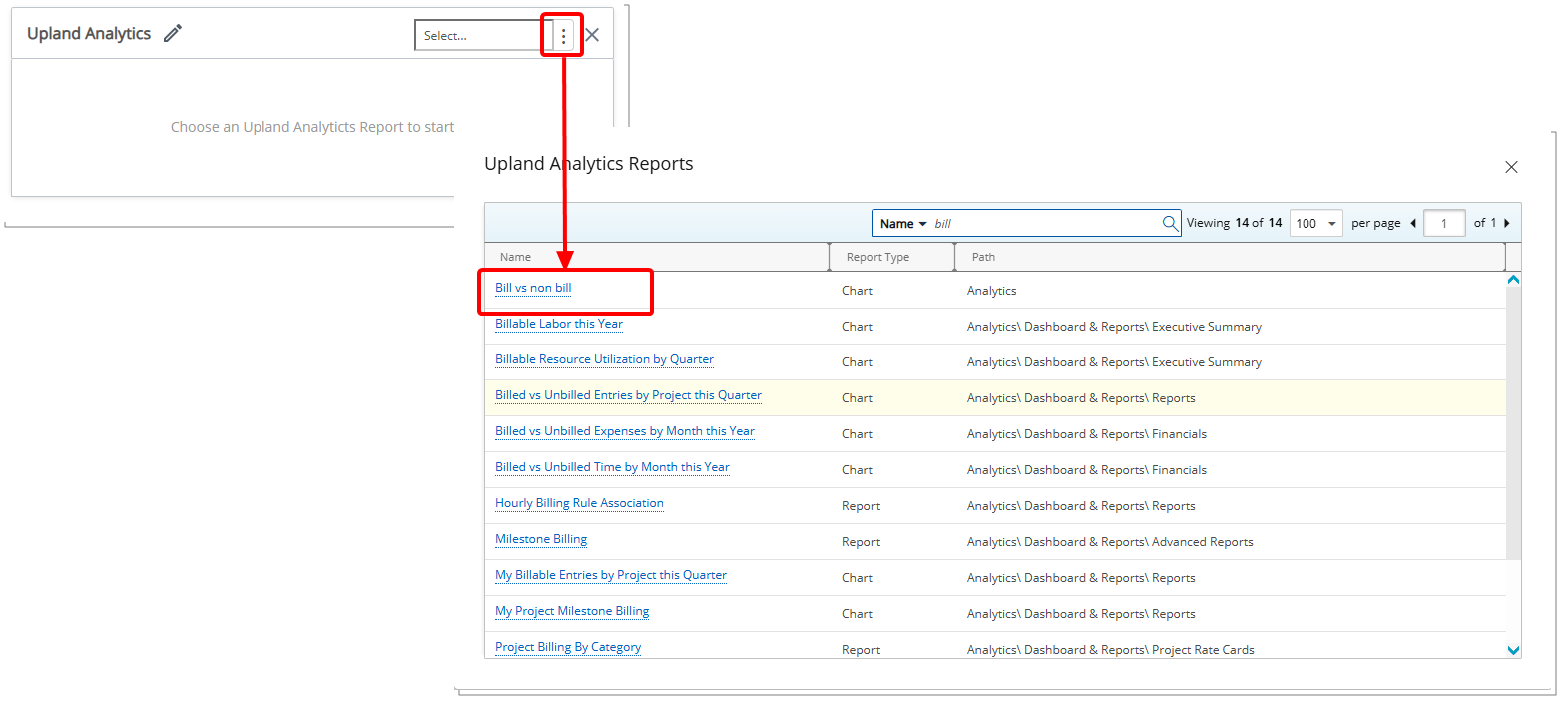
You can control which Upland Analytics Report appears in the widget using the browse button in the Widget Designer.
- From the right-hand sidebar, drag the Upland Analytics Widget into the design area.
Note: When the widget is added to the canvas, it is placed in the first available empty space in the top-left corner. You can resize and reposition the widget as needed to fine-tune the layout.
- Select an existing report to add it.
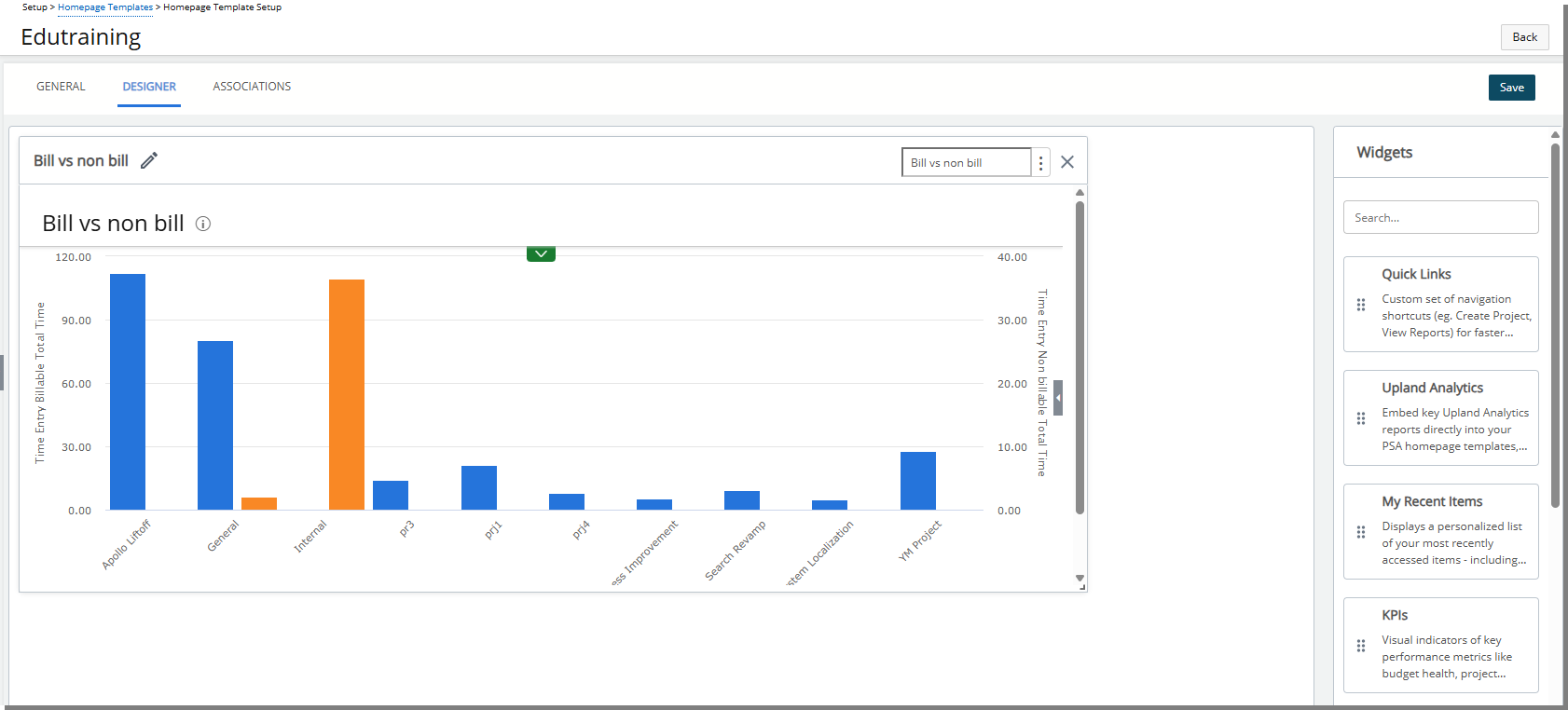
- Selected report will appear in the widget.
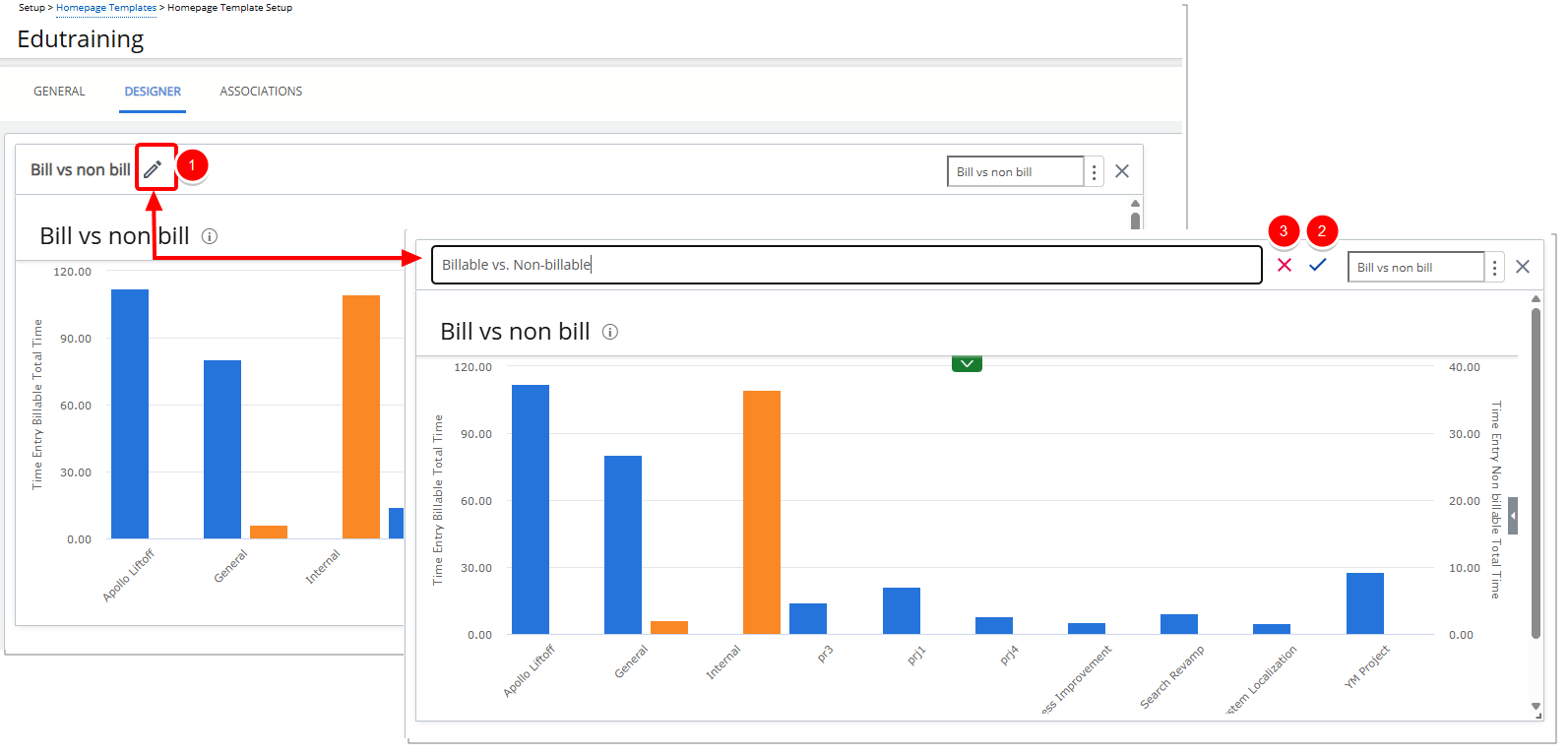
Rename Widget
- Click the pencil icon (
 ) to rename the widget title.
 - Click the checkmark (
 ) to confirm the name and save the template automatically.
 - Click the X icon (
 ) to cancel.
Delete Widget
- Click the Delete
 icon. The widget is removed from the Homepage.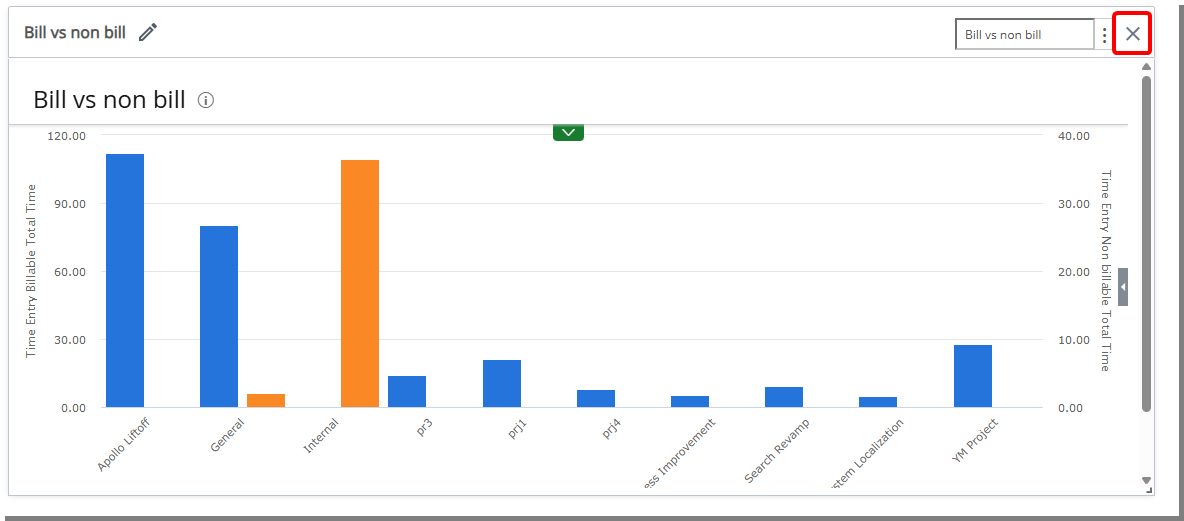
End User Experience
The Upland Analytics Tile embeds reports directly on your homepage.
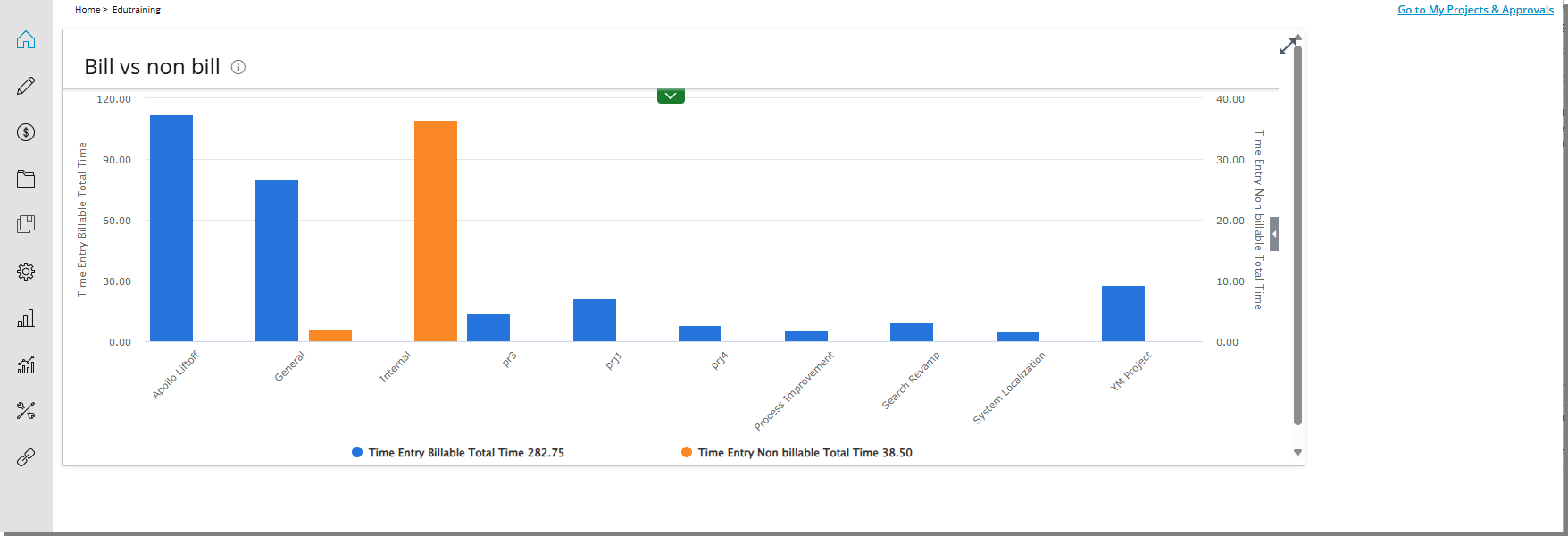
- You can view real-time reports without leaving the page.
- The widget automatically displays the report your administrator selected for you.
- Reports are interactive—drilldowns and filters remain available.
This widget keeps key business insights visible while you work.