The My Recent Items Widget provides quick access to the most recently viewed Projects, Tasks, Users, and Work Items records, displaying up to 10 items automatically to help users return to their work quickly.
Administrators can add multiple instances of the widget to a Homepage, configure each one independently to show specific item types, and rename each widget in the Homepage Designer.
This article explains how to set up and manage the My Recent Items widget, including Configuration options such as:
It also describes the End User Experience, showing how users interact with the widget once it’s published on their homepage.
Configuration
Include Widget
Administrators can control which types of items appear in the My Recent Items widget using the Filter icon in the Widget Designer. Predefined item types include:
- Projects: Recently accessed projects.
- Tasks: Recently accessed tasks.
- Users: Recently accessed user records.
- Work Items: Recently accessed work items.
- From the right-hand sidebar, drag the KPIs Widget into the design area.
Note: When the widget is added to the canvas, it is placed in the first available empty space in the top-left corner. You can resize and reposition the widget as needed to fine-tune the layout.
- Select the checkboxes in the Filter panel to add them.
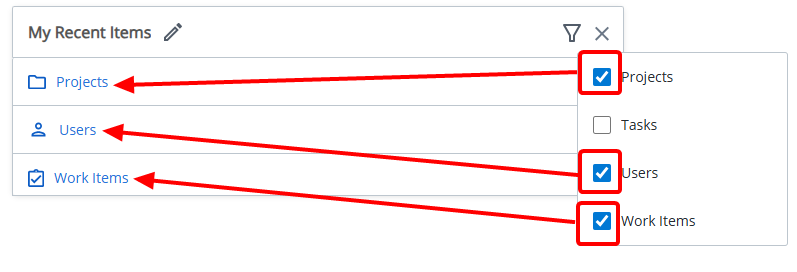
- Selected items will appear in the widget.
Tip: Clear a checkbox to remove an item.
Multiple My Recent Items Widgets
Each instance of the My Recent Items Widget operates independently based on its own configuration. Administrators can add multiple Widgets to a Homepage, configuring each one to display Projects, Tasks, Work Items, Users, or any supported combination. Each widget displays up to 10 of the most recently viewed items that match its configuration.
When a widget is configured for multiple item types, it displays a combined list of up to 10 items, sorted by most recent activity. Widgets do not share state or data. Each widget consistently displays results based solely on its own filter settings.
Example Scenario
An administrator creates a Homepage Template and adds two separate My Recent Items widgets.
- The first widget is renamed My Recent Projects and configured to display Projects only.
- The second widget is renamed My Recent Tasks and configured to display Tasks only.
The template is then assigned to User A.
Later, User A works on several records—editing 8 projects and 9 tasks throughout the day. When User A logs in and views their Homepage:
- My Recent Projects correctly displays the 8 most recently updated projects based on the latest activity.
- My Recent Tasks correctly displays the 9 most recently updated tasks based on the latest activity.
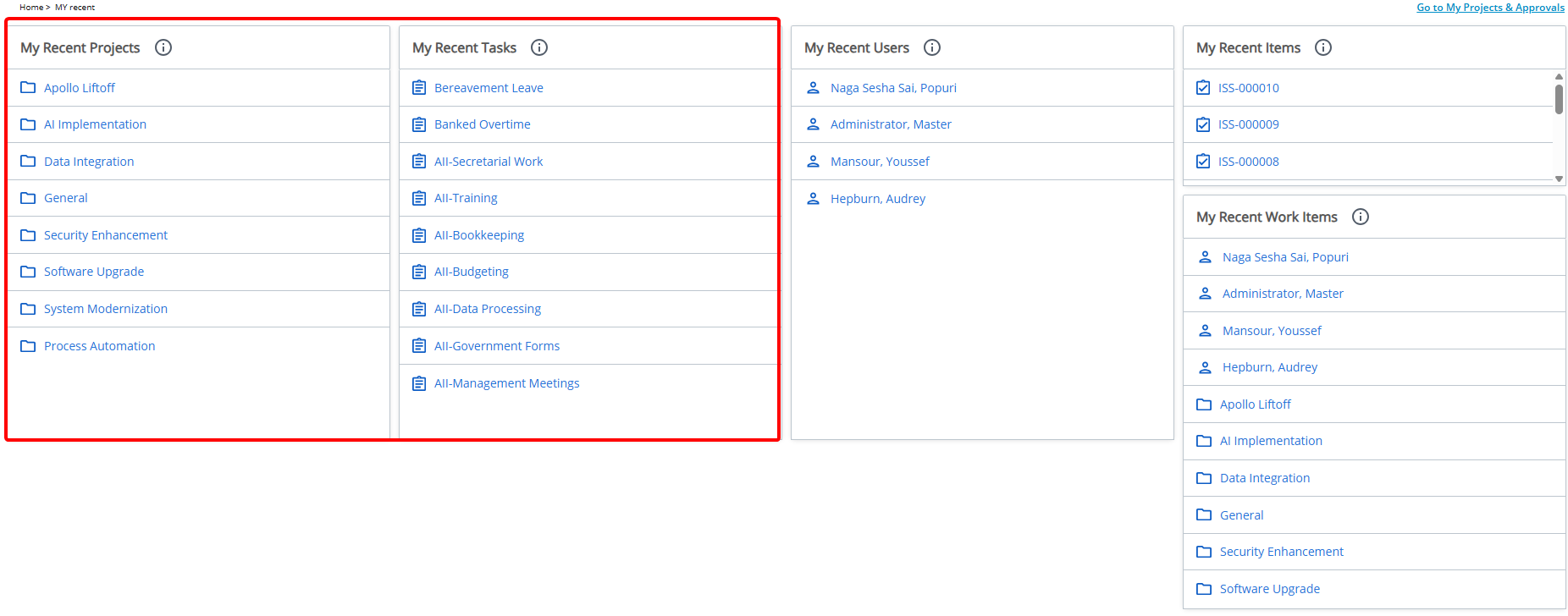
Each tile displays its own data independently, with no overlap or missing results. The limit of 10 items applies separately to each tile, ensuring the user can track different types of recent activity at a glance.
Rename Widget
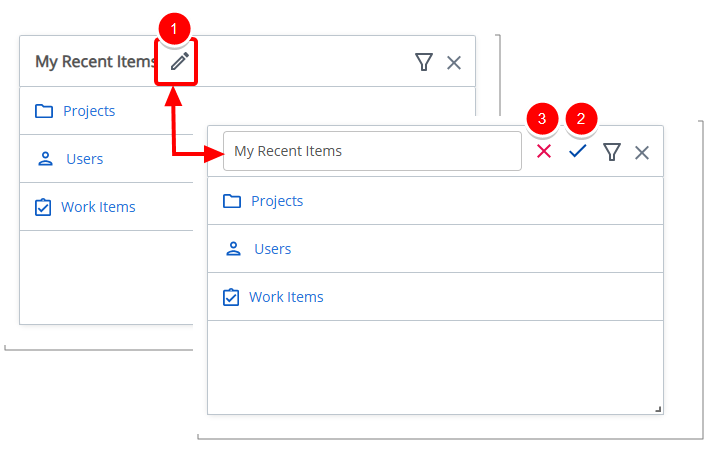
- Click the pencil icon (
 ) to rename the widget title.
 - Click the checkmark (
 ) to confirm the name and save the template automatically.
 - Click the X icon (
 ) to cancel.
Delete Widget
- Click the Delete
 icon. The widget is removed from the Homepage.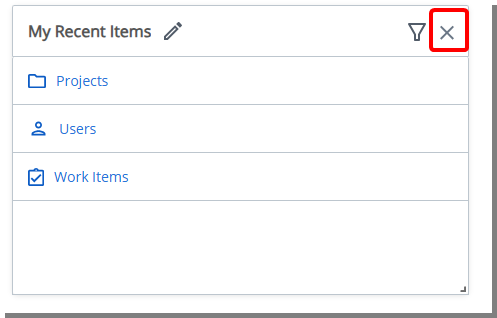
End User Experience
The My Recent Items Tile allows you to quickly access up to 10 recent items, each with a recognizable icon (Project  , Task
  , Work Item
  , or User
  ). Clicking a link opens the edit page of the specific item:
- Projects: Homepage > User > Project: Edit Page
- Tasks: Project List > Project: Edit > Manage > Task: Edit Page
- Work Items: Work Items Manager > Specific Work Item: Edit Page
- Users: Setup > Organization > Users > Specific User: Edit Page
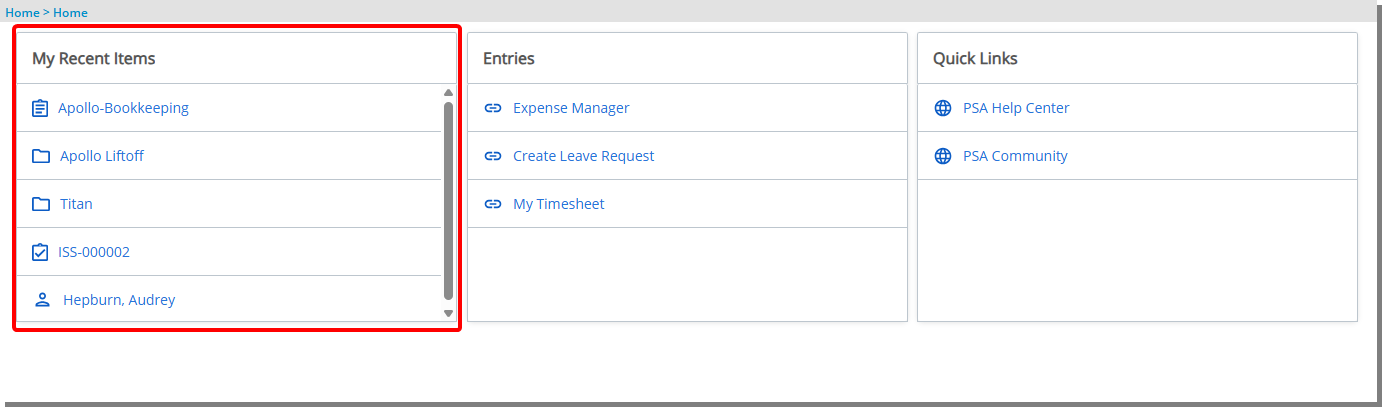
This Tile improves efficiency by providing quick, role-specific access to recent work.