The KPIs Widget displays key Project and User performance metrics directly on the homepage. Administrators use the Homepage Designer to select which KPIs to show and configure labels, colors, formatting, and threshold conditions.
This widget allows project managers, team leads, and stakeholders to track metrics such as budget status, project progress, utilization, or overdue tasks without navigating through multiple pages. Each KPI is displayed as a card with the metric value, a customizable color bar for visual status, and an optional description accessible through an info icon.
When configuring the widget, administrators can choose a Project or User data source. The available KPI options and configuration fields will adjust based on this selection, enabling either traditional project-based metrics or user- and team-specific performance metrics.
This article explains how administrators can set up and manage the KPIs Widget, including configuration options such as:
- Include Widget
- Project-Based KPIs
- User-Based KPIs
- Display Numbers in K/M/B Format Scenarios
- Best Practices
- Delete Widget
It also describes the End User Experience, showing how users interact with the widget once it’s published on their homepage.
Configuration
Administrators can configure KPI widgets to show Project or User metrics at a glance. From the setup dialog box, you can define KPI details, select a data source, and apply color rules to highlight key values.
Include Widget
Administrators can configure KPI widgets to show project metrics at a glance. From the setup dialog box, you can define KPI details, select a project view, and apply color rules to highlight key values.
- From the right-hand sidebar, drag the KPIs Widget into the design area.
Note: When the widget is added to the canvas, it is placed in the first available empty space in the top-left corner. You can resize and reposition the widget as needed to fine-tune the layout.
- Click the Setup icon on the widget to open the KPI setup dialog box.
-
From the Details tab, select the Source to define where the KPI data is calculated from. The available configuration options and KPIs update automatically based on the selected source.
- Project: Select Project to display KPIs calculated from project data. Project-based KPIs aggregate values across one or more projects using a selected Public Project View and calculation function (such as Sum, Average, or Count). These KPIs are commonly used to track budgets, costs, hours, progress, and other project-level performance indicators.
For more information, see Project-Based KPIs
- User: Select User to display KPIs calculated from user and team member data. User-based KPIs provide visibility into individual or group performance metrics such as utilization, billable hours, open timesheets, and overdue tasks. When this option is selected, additional fields appear to define the user scope and time range used for calculations.
For more information, see User-Based KPIs.
- Project: Select Project to display KPIs calculated from project data. Project-based KPIs aggregate values across one or more projects using a selected Public Project View and calculation function (such as Sum, Average, or Count). These KPIs are commonly used to track budgets, costs, hours, progress, and other project-level performance indicators.
Project-Based KPIs
Project-based KPIs display aggregated performance metrics derived from project data. These KPIs use a selected Public Project View as the data source and calculate values across all projects included in that view. Administrators can apply functions such as Sum, Average, Minimum, Maximum, or Count to measure financial, schedule, and effort-based metrics, making project-based KPIs ideal for tracking overall project health, budgets, timelines, and progress.
- Project View: Choose a Public Project View to use as the data source. All projects in the selected View will be included when calculating KPI values.
- Function: Select how the KPI value is calculated, based on the Projects in the selected View:
- Sum: Adds all values.
- Average: Calculates the mean value.
- Minimum: Shows the lowest value.
- Maximum: Shows the highest value.
- Count: Shows the number of projects.
- KPI: Select a KPI from the list. Each KPI includes a Name, Description, and calculation formula.
Note: The KPIs Widget can display User Defined Fields and Advanced User Defined Fields associated with the Project object, enabling real-time visibility of custom project metrics directly on homepages. This includes numeric, integer, currency, and percentage fields. Use these fields alongside standard Out-Of-The-Box KPIs for a more comprehensive project overview.
For available options refer to Available Out-Of-The-Box Project KPIs.
- Name: Enter a display name for the KPI. By default, the KPI’s system name is shown.
- Description: Provide a short description for the KPI. This description appears when users hover over the info icon in the widget.
- Navigate to the Format tab to create rules to apply color formatting to the KPI bar.
- If required select Display numbers in K/M/B format. When selected:
- KPI values automatically convert to concise units such as 1K, 1.23M, or 1.31B, following Upland’s UI standards for rounding and decimal placement.
Note: For more information see Display Numbers in K/M/B Format Scenarios
- The Include Decimal Values checkbox is automatically checked and grayed out.
Note: For clarity, an information tooltip explains that decimal values are automatically applied for numbers over 1,000, and the Include Decimal Points option becomes pre-selected and disabled to ensure consistent behavior.
- KPI values automatically convert to concise units such as 1K, 1.23M, or 1.31B, following Upland’s UI standards for rounding and decimal placement.
- If required select Include Decimal Values. The Include Decimal Values option controls how KPI values are displayed. When selected, values show two decimal places. When cleared, values are rounded to the nearest whole number using standard rounding rules (≥ 0.50 rounds up, < 0.50 rounds down).
Note: For Sum and Average functions, the full calculation is performed first, and then rounding is applied.
- Click New Rule. For each rule, set:
- Condition: Select an operator (>, <, ≥, ≤, =, <>).
- Value: Enter a value. If you select “<>,” enter two values.
- Color: Select the color to display when the condition is met.
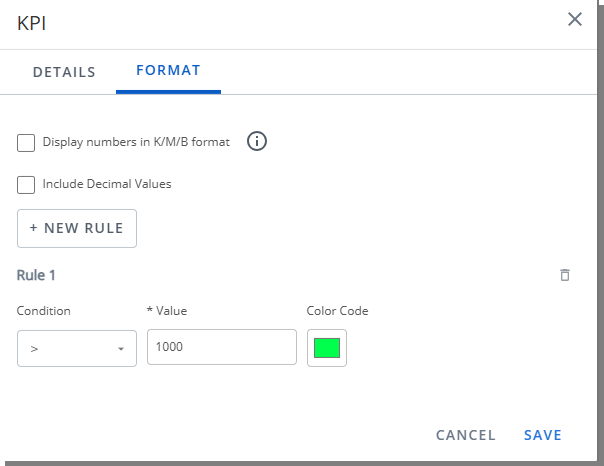
- Save your changes. The widget updates with the selected KPI and color rules.
Available Out-Of-The-Box Project KPIs
The KPIs Widget can display User Defined Fields (UDFs) and Advanced UDFs associated with the Project object, enabling real-time visibility of custom project metrics directly on homepages. This includes numeric, integer, currency, and percentage fields. Use these fields alongside standard KPIs for a more comprehensive project overview.
| Name | Description |
|---|---|
| Actual Non-billable in Base Curr. | Sum of all Non-Billable Amounts on the Project in Base Currency. |
| Baseline Billable Budget in Base Curr. | Sum of Baseline Billable Budgets of the Project in Base Currency. |
| Baseline Cost Budget in Base Curr. | Sum of Baseline Cost Budgets of the Project in Base Curr. |
| Baseline Non-billable Budget in Base Curr. | Sum of Baseline Non-Billable Budgets of the Project in Base Curr. |
| Baseline Time Budget | Sum of Baseline Time Budgets of the Project. |
| Billable Charges in Base Curr. | Sum of all Billable Charge Amounts on the Project in Base Curr. |
| Billable Expenses in Base Curr. | Sum of all Billable Expense Amounts on the Project in Base Curr. |
| Billable Hard Booked Hours | Sum of all Billable Hard Booked Hours on the Project. |
| Billable Products in Base Curr. | Sum of all Billable Product Amounts on the Project. in Base Curr. |
| Billable Soft Booked Hours | Sum of all Billable Soft Booked Hours on the Project. |
| Billable Time Amount in Base Curr. | Sum of all Billable Time Amounts on the Project in Base Curr. |
| Current Billable Budget in Base Curr. | Sum of Current Billable Budgets of the Project in Base Curr. |
| Current Billable Time Budget | Sum of Current Billable Time Budgets of the Project |
| Current Cost Budget in Base Curr. | Sum of Current Cost Budgets of the Project in Base Curr. |
| Current Non-billable Budget in Base Curr. | Sum of Current Non-Billable Budgets of the Project in Base Curr. |
| Current Time Budget | Sum of Current Time Budgets of the Project. |
| Forecasted Cost | Sum of all Forecasted Cost Amounts on the Project. |
| Non-billable Time | Sum of all Non-Billable Time Entries on the Project. |
| Payable Charges in Base Curr. | Sum of all Payable Charge Amounts on the Projected Cost Amounts on the Project in Base Curr. |
| Payable Expenses in Base Curr. | Sum of all Payable Expense Amounts on the Project in Base Curr. |
| Payable Products in Base Curr. | Sum of all Payable Product Amounts on the Project. |
| Payable Time | Sum of all Payable Time Entries on the Project. |
| Payable Time Amount in Base Curr. | Sum of all Payable Time Amounts on the Project in Base Curr. |
| Reimbursable Expenses in Base Curr. | Sum of all Reimbursable Expense Amounts on the Project in Base Curr. |
| Soft Booked Hours | Sum of all Soft Booked Hours on the Project. |
| Total Allocated Hours | Sum of all allocated Hours on the Project |
| Total Billable Allocated Hours | Sum of all Billable allocated Hours on the Project. |
| Total Charges in Base Curr. | Sum of all Charge Amounts on the Project in Base Curr. |
| Total Expenses in Base Curr. | Sum of all Expense Amounts on the Project in Base Curr. |
| Total Invoiced in Base Curr. | Sum of all Invoiced Amounts on the Project in Base Curr. |
| Total Non-billable Allocated Hours | Sum of all Non-Billable allocated Hours on the Project. |
| Δ Baseline Billable Budget in Base Curr. | Difference between Baseline Billable Budget and Actual Billable |
| Δ Baseline Non-billable Budget in Base Curr. | Difference between Baseline Non-Billable Budget and Actual Non-Billable in Base Curr. |
| Δ Baseline Time Budget | Difference between Baseline Time Budget and Actual Time. |
| Δ Current Billable Budget in Base Curr. | Difference between Current Billable Budget and Actual Billable in Base Curr. |
| Δ Current Billable Time Budget | Difference between Baseline Billable Time Budget and Actual Billable Time. |
| Δ Current Cost Budget in Base Curr. | Difference between Current Cost Budget and Actual Cost in Base Curr. |
| Δ Current Non-billable Budget in Base Curr. | Difference between Current Non-Billable Budget and Actual Non-Billable in Base Curr. |
User-Based KPIs
User-based KPIs display performance metrics calculated from project team member data. These KPIs focus on individual or group activity and capacity, enabling administrators to monitor utilization, billable effort, task completion, and timesheet status. User-based KPIs can be scoped to the logged-in user, direct reports, or broader reporting hierarchies, providing flexible, role-specific visibility into resource performance and workload.
- User Source: Specify which users are included when calculating and displaying User-based KPIs. Select an option to define the scope of users based on the logged-in user’s role, reporting relationships, or organizational structure. Available options are:
- Logged User
- All Users
- Everyone who reports to me as a (Functional) Manager
- Everyone who reports to me as a (Approval)
- Everyone who reports to me as a (Resource)
- My Direct Reports (Functional)
- My Direct Reports (Approval)
- My Direct Reports (Resource)
- Function: Select how the KPI value is calculated, based on the Projects in the selected View:
- Sum: Adds all values.
- Average: Calculates the mean value.
- Minimum: Shows the lowest value.
- Maximum: Shows the highest value.
- Count: Shows the number of projects.
- Time Range: Select the reporting period used to calculate User-based KPIs. The selected time range determines which metrics are included in KPI calculations, based on the applicable date logic for each KPI. Available options are: Current Week, Current Month, Current Quarter, Current Year, Next Week, Next Month, Next Quarter, Next Year, Last Week, Last Quarter, Last Year or YTD - Year to Date.
- KPI: Select a KPI from the list. Each KPI includes a Name, Description, and calculation formula. For available options refer to Available Out-Of-The-Box User KPIs.
- Name: Enter a display name for the KPI. By default, the KPI’s system name is shown.
- Description: Provide a short description for the KPI. This description appears when users hover over the info icon in the widget.
- Navigate to the Format tab to create rules to apply color formatting to the KPI bar.
- If required select Display numbers in K/M/B format. When selected:
- KPI values automatically convert to concise units such as 1K, 1.23M, or 1.31B, following Upland’s UI standards for rounding and decimal placement.
Note: For more information see Display Numbers in K/M/B Format Scenarios
- The Include Decimal Values checkbox is automatically checked and grayed out.
Note: For clarity, an information tooltip explains that decimal values are automatically applied for numbers over 1,000, and the Include Decimal Points option becomes pre-selected and disabled to ensure consistent behavior.
- KPI values automatically convert to concise units such as 1K, 1.23M, or 1.31B, following Upland’s UI standards for rounding and decimal placement.
- If required select Include Decimal Values. The Include Decimal Values option controls how KPI values are displayed. When selected, values show two decimal places. When cleared, values are rounded to the nearest whole number using standard rounding rules (≥ 0.50 rounds up, < 0.50 rounds down).
Note: For Sum and Average functions, the full calculation is performed first, and then rounding is applied.
- Click New Rule. For each rule, set:
- Condition: Select an operator (>, <, ≥, ≤, =, <>).
- Value: Enter a value. If you select “<>,” enter two values.
- Color: Select the color to display when the condition is met.
- Save your changes. The widget updates with the selected KPI and color rules.
Available Out-Of-The-Box User KPIs
| KPI Name | Description | Formula | Notes |
|---|---|---|---|
| Billable Utilization % | Indicates the percentage of working hours spent specifically on billable work. | (Timesheet Billable Hours + Forecast Billable Hours) / Total Working Hours | • Uses Financial Planner status dates to distinguish actual vs. planned hours. • Total Working Hours are based on calendar hours. |
| Open Timesheets (Count) | Shows the total number of timesheets that are open or partially rejected for the current period. | Count of applicable timesheets | • Includes Timesheets in the current period that are not submitted or have partial rejection. |
| Overdue Tasks (Assignments) (Count) | Indicates the number of tasks past their due date that remain incomplete. | Count of overdue incomplete assignments | • End date has passed. • Assignment is not marked complete . |
| Target Utilization % | Displays the expected or planned utilization goal for a user or their group. | No formula (value pulled from User or Group Target Utilization) | Priority order:
1. Valid for the end date. 2. User-level target. 3. Group-level target. 4. If none exist then default = 0. Additional rules: • Uses current functional group. • Date logic: Current = today; Past/Future based on period end dates. |
| Utilization (Overall) % | Measures the percentage of total working hours spent on all logged and forecasted activities. | (Total Timesheet Hours + Forecast Hours) / Total Working Hours | Timesheet Hours:
• Includes all timesheet entries (any state). • Excludes non-working time. • Includes Overtime, Double Overtime, Adjustments. • Follows system default logic. Forecast Hours: • Includes Work Plan (Soft + Hard bookings). • Uses Financial Planner status dates. • Uses UA views and default templates. Total Working Hours: • Based on calendar hours regardless of availability . |
Display Numbers in K/M/B Format Scenarios
An Administrator is configuring the Actual Billable in Base Curr. KPI on the Homepage Template. The underlying KPI value in our example is $33,176.31 (USD).
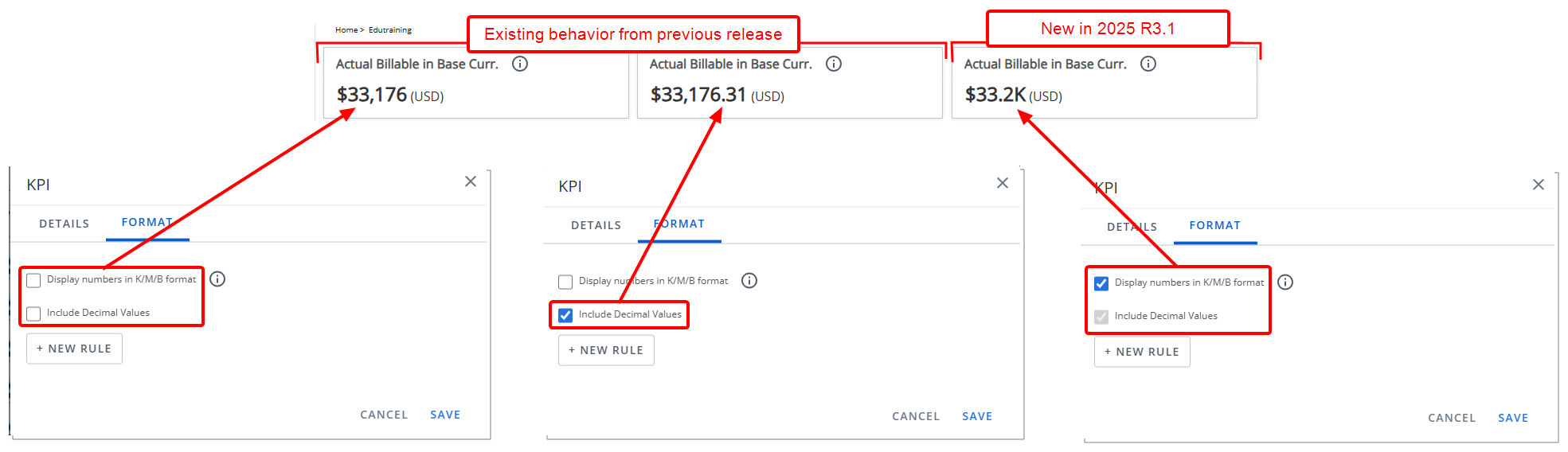
Example 1: KPI Displays $33,176 (USD)
- Display numbers in K/M/B format → Unchecked
- Include Decimal Values → Unchecked
Full number format is used. Decimals are removed and the value is rounded to the nearest whole dollar.
Note: This reflects existing behavior from previous release.
Example 2: KPI Displays $33,176.31 (USD)
- Display numbers in K/M/B format → Unchecked
- Include Decimal Values → Checked
Because K/M/B format is not enabled, the KPI uses standard numbering. Since Include Decimal Values is checked, the widget shows the full number including decimals, exactly as provided. No rounding or short format is applied.
Note: This reflects existing behavior from previous release.
Example 3: KPI Displays $33.2K (USD)
- Display numbers in K/M/B format → Checked
- Include Decimal Values becomes auto-selected and disabled
K format applies (value is between 1,000 and 999,999). One decimal is required by K/M/B rules. Rounds to the nearest tenth
Best Practices
- Keep color rules simple. Too many conditions can make the KPI harder to read.
- Use consistent colors across KPIs (for example, red for at risk, green for on track).
- Ensure colors meet accessibility standards so all users can distinguish them.
- Test your rules with sample data to confirm the colors highlight the right values.
Delete Widget
- Click the Delete
 icon. The widget is removed from the Homepage.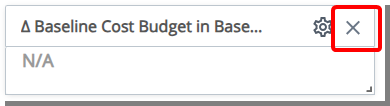
End User Experience
The KPI Tile provides a real-time view of project performance indicators.
- Each KPI appears as a card showing the metric name, value, and a color bar for quick status checks.
- Hover over the info icon to see a short description of the metric.
- Colors are applied based on performance rules (for example, green = on track, red = at risk).
- Values display in full or K/M/B format depending on configuration.
- The information updates dynamically, so you always see the latest numbers.
- Users see project-based or user-based metrics together for a comprehensive, role-specific view.
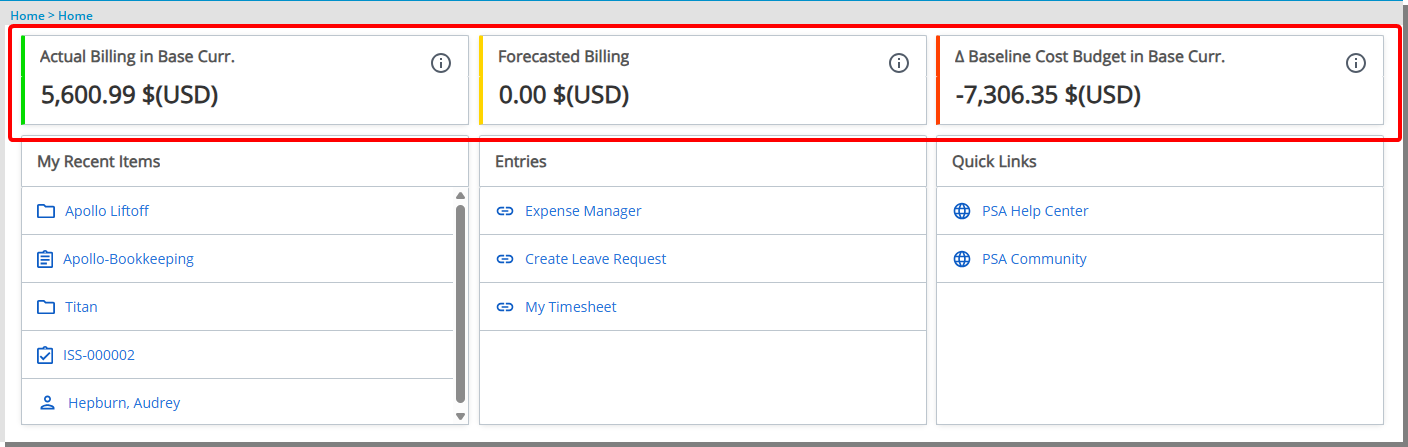
This Tile gives project managers and stakeholders an at-a-glance way to monitor budgets, progress, utilization, and other key measures without navigating through multiple pages.