The My Work Widget provides a customizable view of key Project, Task and Timesheet information directly on the homepage. It allows users to quickly see the status of their projects, tasks and timesheets enabling timely decisions and actions.
This article explains how to set up and manage the My Work Widget widget, including Configuration options such as:
It also describes the End User Experience, showing how users interact with the widget once it’s published on their homepage.
Configuration
Include Widget
- From the right-hand sidebar, drag the My Work Widget into the design area.
Note: When the widget is added to the canvas, it is placed in the first available empty space in the top-left corner. You can resize and reposition the widget as needed to fine-tune the layout.
- Click the Setup icon on the widget to open the setup dialog box.
- Select the Projects checkbox to include this tab in the tile. It displays only the projects where the logged-in user is a team member.
- From the Filters sub tab, you can refine which projects appear in the Tile:
- Time Range: Show only Projects where the logged-in user’s Onboarding date falls within the selected time range. Available options include:
- Next 7 days (Default selection)
- Next 30 days
- Next 60 days
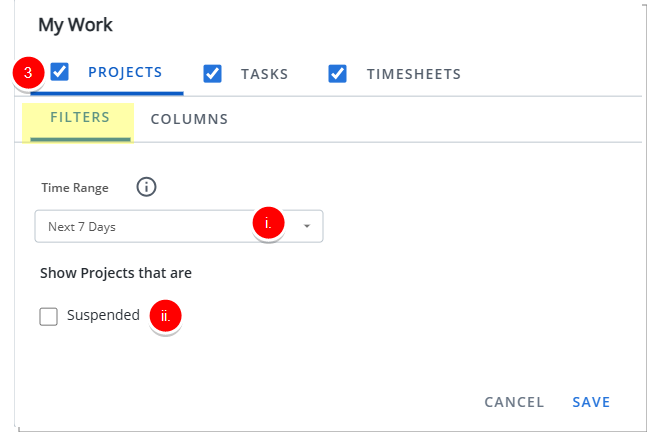
- If required choose the Suspended option to include suspended Projects.
- Time Range: Show only Projects where the logged-in user’s Onboarding date falls within the selected time range. Available options include:
- Navigate to the Columns sub tab and choose which columns to display. The available options are: Name, Is Active, Health, Project Manager, Start , End , Priority, Client, Alternate Project Manager, Onboarding Date, Offboarding Date, Total Actual Hours, Total Hard Booked Hours and Total Soft Booked Hours.
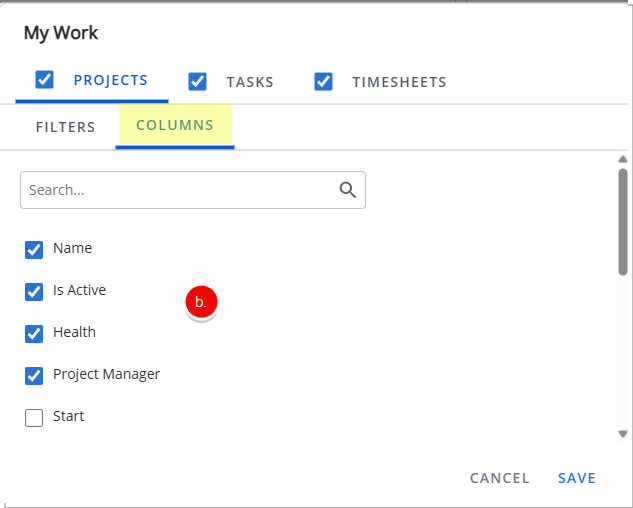
Note: Name, Is Active, Health, Project Manager, Onboarding Date, Offboarding Date are selected by default.
- From the Filters sub tab, you can refine which projects appear in the Tile:
- Select the Tasks checkbox to include this tab in the tile. It displays only the Tasks that are assigned to logged User, regardless of the Projects listed in the Projects tab.
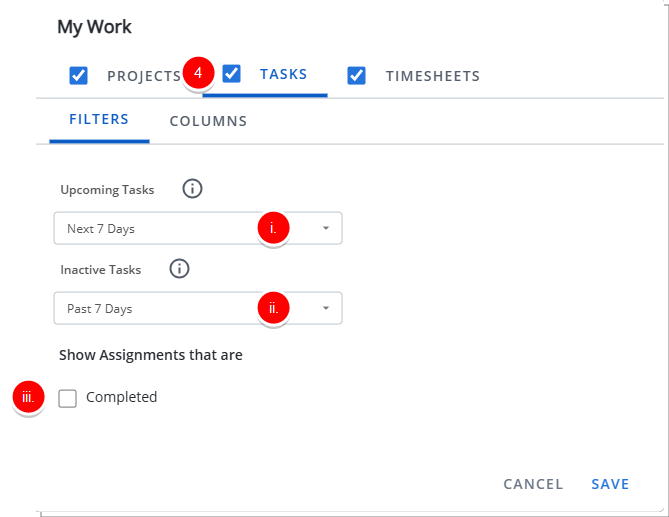
- From the Filters sub tab, you can refine which tasks appear in the Tile:
- Upcoming Tasks: Include Tasks with start date within
- Next 7 Days
- Next 30 Days
- Next 60 Days
- Inactive Tasks: Exclude Tasks With No Time Entries In
- Past 7 Days
- Past 30 Days
- Past 60 Days
- If required choose the Completed option to include completed Assignments.
- Upcoming Tasks: Include Tasks with start date within
- Navigate to the Columns sub tab and choose which columns to display. The available options are: Name, State, Start, End, Project, Project Manager, Alternate Project Manager, ETC and Completed.
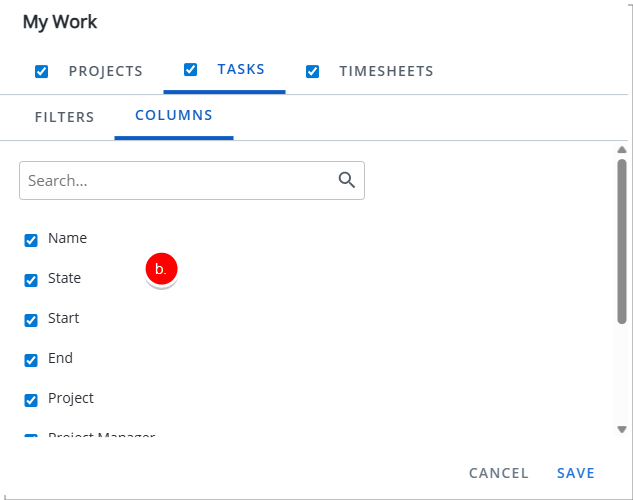
Note: Name, State, Start, End, Project, Project Manager, Alternate Project Manager are selected by default.
- From the Filters sub tab, you can refine which tasks appear in the Tile:
- Select the Timesheets checkbox to include this tab in the tile. It displays the last 10 Timesheets opened and/or submitted by the logged User, regardless of which Projects appear in the Projects tab.
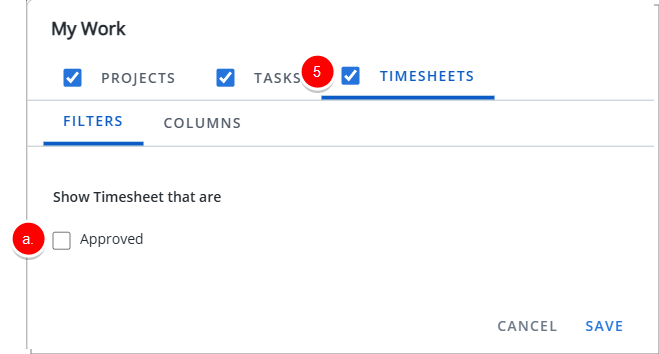
- From the Filters choose to include Timesheets that are Approved.
- Navigate to the Columns sub tab and choose which columns to display. The available options are: Start, End, Total Hours, State and Rejection Note.
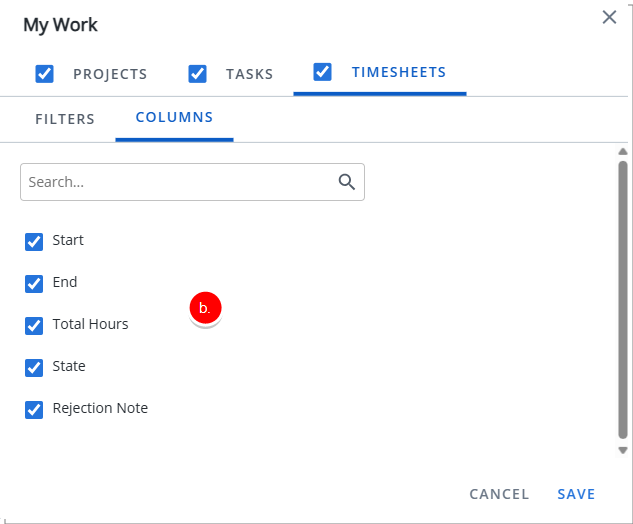
Note: Start, End, Total Hours, State and Rejection Note are selected by default.
- From the Filters choose to include Timesheets that are Approved.
- Click Save.
Resize Column Widths
Administrators can set and save column widths in the My Work widget. This ensures the layout configured in Projects, Tasks, and My Timesheets tabs is preserved and rendered consistently for end users.
- Hover your mouse over the right border of the column header you want to resize.
- When the resize cursor appears
 , click and drag the border left or right to adjust the width.
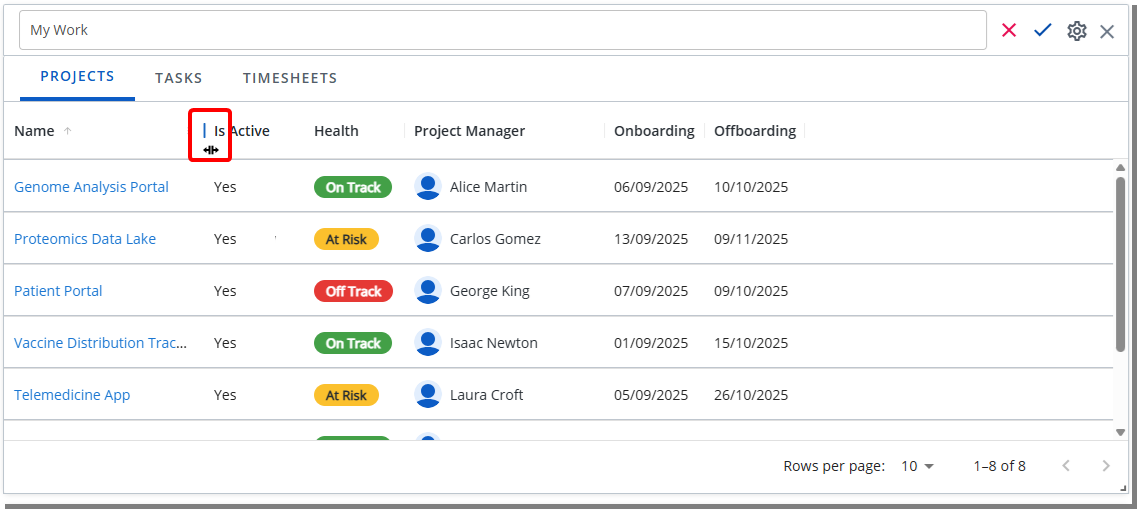
- Release the mouse button to apply the new column width.
- Repeat for any other columns as needed.
- The resized widths are saved automatically at the template level and will be rendered for end users.
Rename Widget
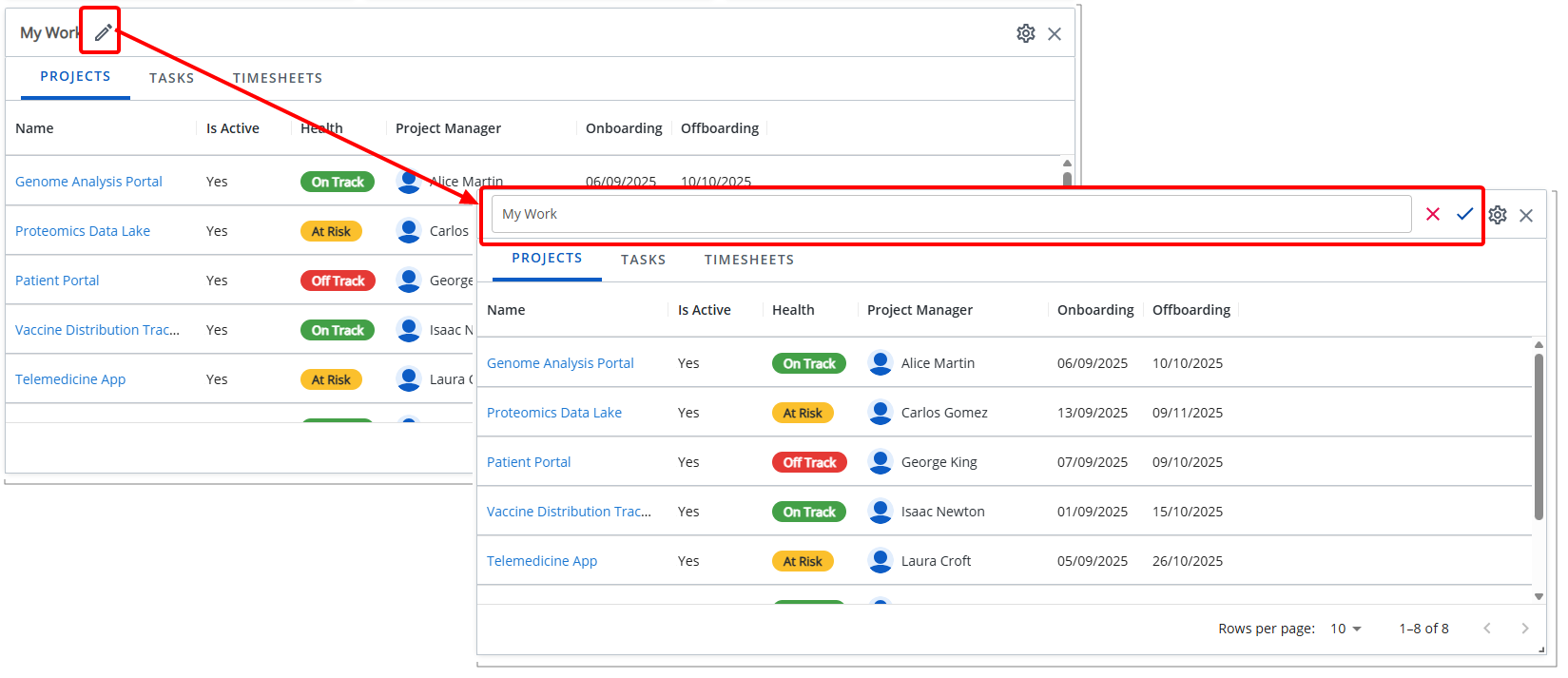
- Click the pencil icon (
 ) to rename the widget title.
 - Click the checkmark (
 ) to confirm the name and save the template automatically.
 - Click the X icon (
 ) to cancel.
Delete Widget
-
Click the Delete
 icon. The widget is removed from the Homepage.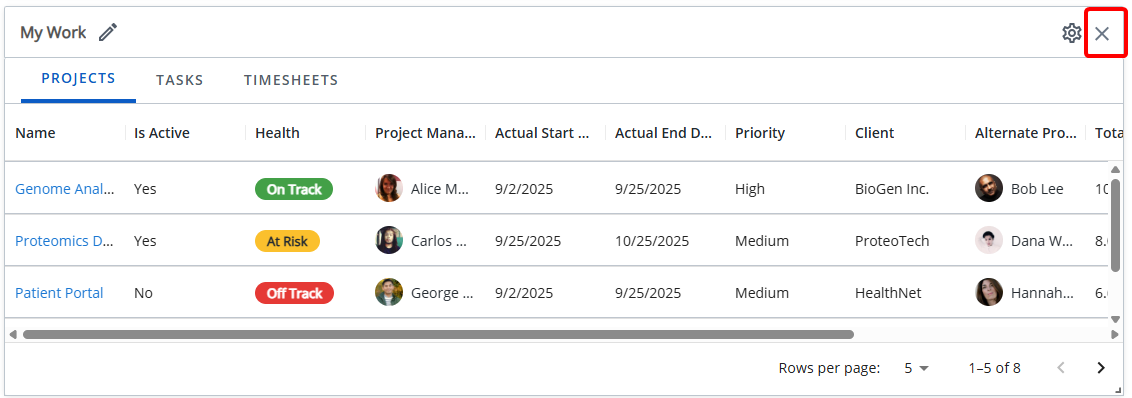
End User Experience
The My Work widget gives you a personalized view of your Projects, Tasks, and Timesheets in one place. Information is displayed in three tabs:
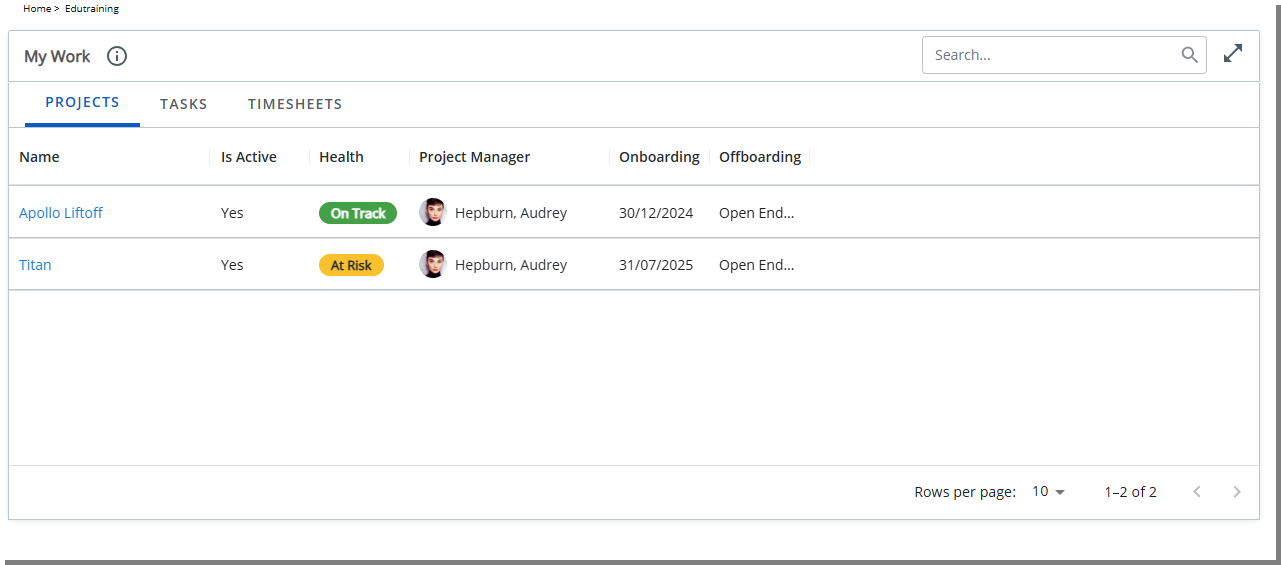
Projects:
Shows only the projects where you are a Team Member. Filters and columns set by your administrator determine what details appear, such as project health, dates, or priority.
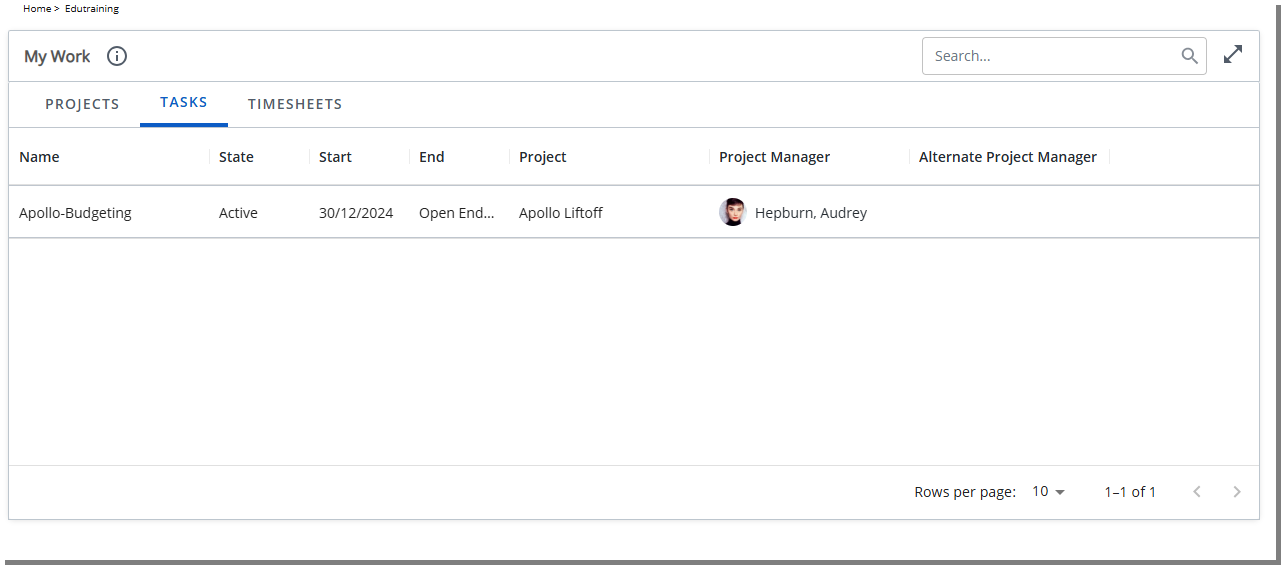
Tasks:
Displays only tasks assigned to you. Filters set by your system administrator mayb limit the list to upcoming tasks or exclude inactive or completed Assignments.
Timesheets:
Displays the last 10 timesheets you opened or submitted. Filters set by your system administrator may exclude approved timesheets.
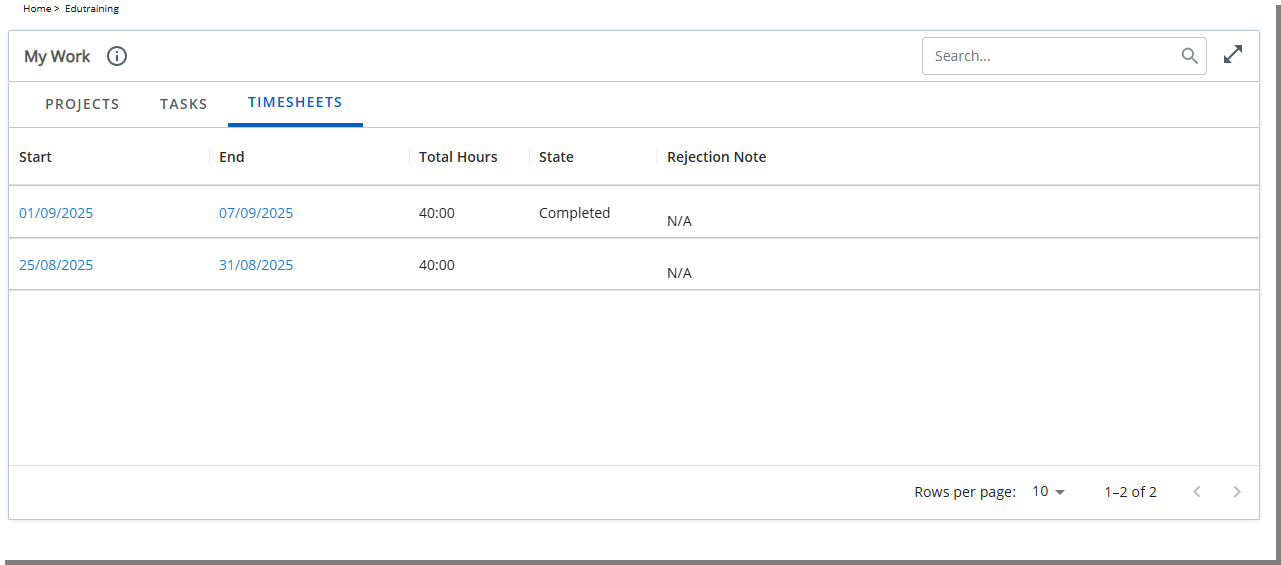
The content in each tab is tailored to your role and recent activity, so you see only the work relevant to you. Columns, filters, and layout are defined by your administrator, allowing you to manage your Projects, stay on top of assigned Tasks, and keep your Timesheets up to date without extra navigation
Context-Aware Search
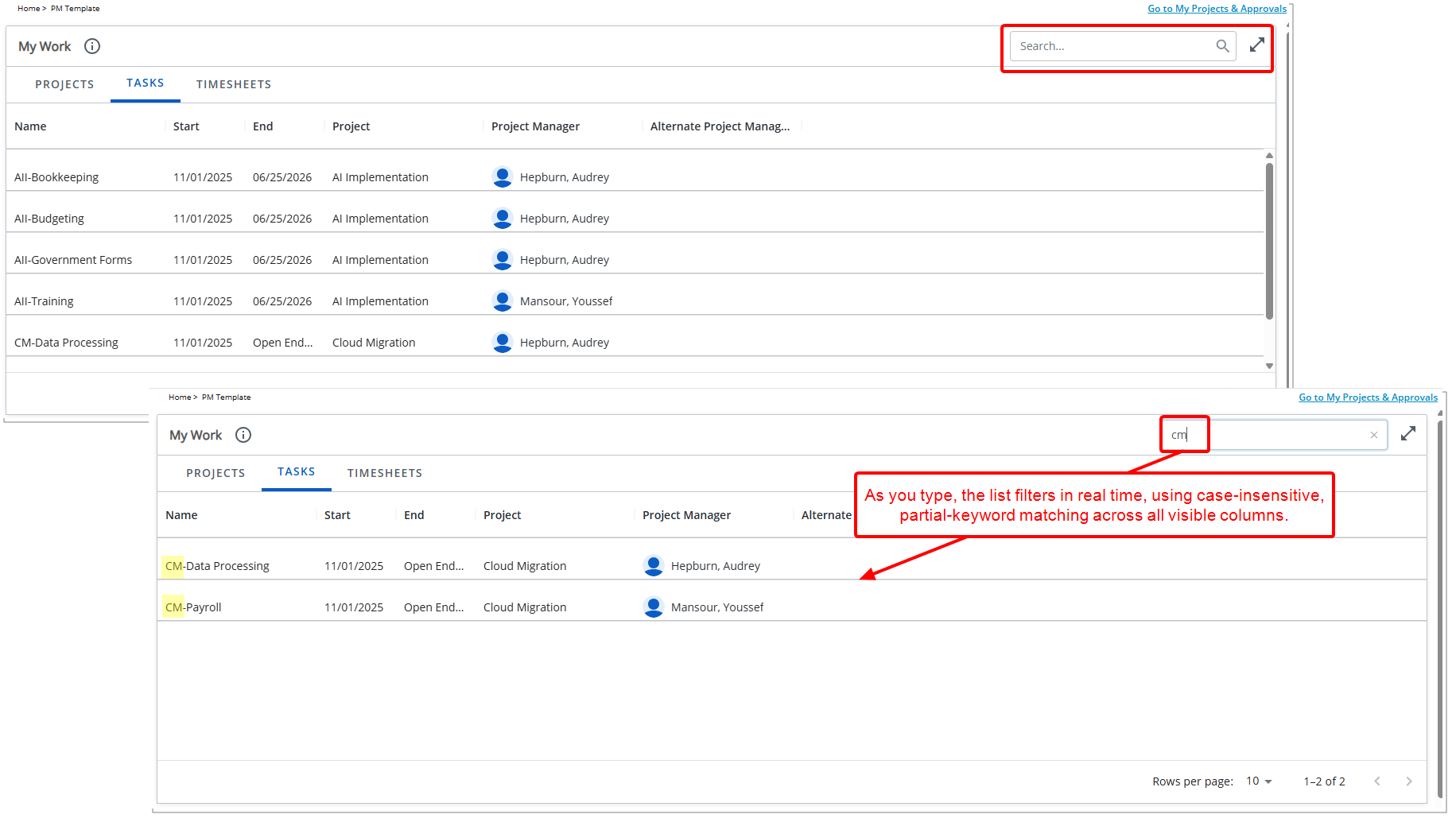
The context-sensitive search bar helps users quickly find specific items within the My Work tile, even when there are many projects, tasks, or timesheets to browse.
When viewing Projects, Tasks, or Timesheets, the search applies only to items in that category, ensuring results are relevant.
As you type, the list updates in real time using case-insensitive, partial-keyword matching across all visible columns. A clear (x) button resets the list instantly, and an empty-state message appears if no items match the search criteria, helping users quickly find and focus on the work that matters.