The My Projects Widget provides project managers with a personalized, at-a-glance view of the projects they manage, directly on the Homepage. Each project is presented as a Tile that highlights key information such as project health, budget utilization, and selected key performance indicators (KPIs). This enables project managers to quickly assess project status, identify risks, and take timely action without leaving the Homepage.
The widget is highly configurable, allowing administrators to control which budget metrics and KPIs are displayed, how projects are filtered, and how large project lists are organized. Pagination and flexible layout behavior ensure the widget remains responsive and easy to navigate, even for users managing many projects.
This article explains how to configure and manage the My Projects widget and describes the End User Experience once the widget is published to the Homepage
Configuration
Administrators use the configuration options to control the behavior, content, and presentation of the My Projects Widget on the Homepage. These settings allow you to tailor the information displayed on each Project Tile to meet organizational reporting needs and user expectations.
Include Widget
- From the right-hand sidebar, drag the My Projects Widget into the design area.
Note: When the Widget is added to the canvas, it is placed in the first available empty space in the top-left corner. You can resize and reposition the Widget as needed to fine-tune the layout.
- After placing the widget, click the Configure Widget
 icon to open the setup dialog box
Configure Budget Display and Time Range
- From the Details tab, select the Budget Bar Type to determine which budget metric is displayed on the Project Tiles. This setting defines the financial or effort-based context used for the budget bar and its associated calculations, ensuring users see the most relevant budget information at a glance.Available options include:
- Cost Budget (default) – Displays project cost performance by comparing actual costs against the current cost budget.
Format: Actual Cost (Base Currency) / Current Cost Budget (Base Currency)
- Time Budget – Displays time-based performance by comparing total time logged against the current time budget.
Format: Total Time / Current Time Budget
- Billable Budget – Displays billable performance by comparing actual billable amounts against the current billable budget.
Format: Actual Billable / Current Billable Budget
- Non-Billable Budget – Displays non-billable performance by comparing actual non-billable amounts against the current non-billable budget.
Format: Actual Non-Billable / Current Non-Billable Budget
- Cost Budget (default) – Displays project cost performance by comparing actual costs against the current cost budget.
- You can further control which projects appear in the Widget by using the Time Range filter. This filter limits results to projects with end dates that fall within the selected period. Available options include:
- None
- Next 7 days (Default selection)
- Next 30 days
- Next 60 days
- Select Suspended to include suspended Projects.
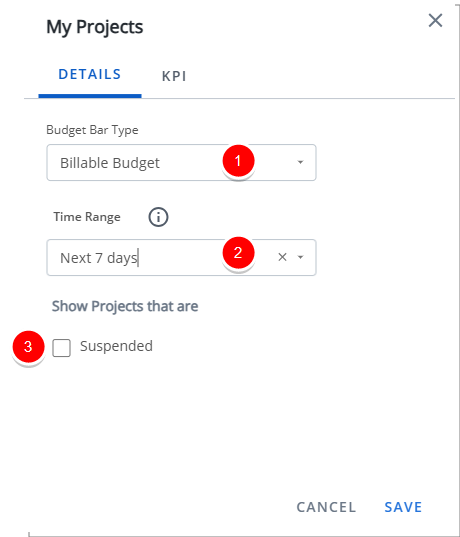
- Click Save to apply your changes.
- Click the Close
 button to exit the dialog box.
Configure Project KPIs
- Navigate to the KPI tab to select and arrange the KPIs displayed on each Project Tile. You can select up to five KPIs. Available KPIs include:
- Hours Consumed - Shows actual hours consumed compared to the forecasted work plan hours up to the forecast cutoff date. Calculated as
(Actual Hours/Time Forecast, WP hours - Until FP template cutoff date) x 100. - Profit Margin - Shows project profitability as a percentage of revenue after deducting total costs. Calculated as
[(Revenue-Cost)/Revenue] x 100. When the calculated value is negative, the Profit Margin is displayed in red to clearly indicate a loss. - Work Items Completed - Shows the percentage of work items completed out of the total planned work items. Calculated as
(Completed Work Items/Total Work Items) x 100. - Cost Consumed - Shows actual project cost compared to the forecasted project cost. Calculated as
(Actual Cost/Cost Forecast) x 100. - Milestones Completed - Displays the number of completed billing and non-billing milestones relative to the total number of milestones, shown as a fraction. The value is calculated as
Completed Milestones / Total Milestones(for example, 2/6). - EAC - Shows the estimated total hours at completion. Calculated as
Actual hours + remaining Forecasted hours.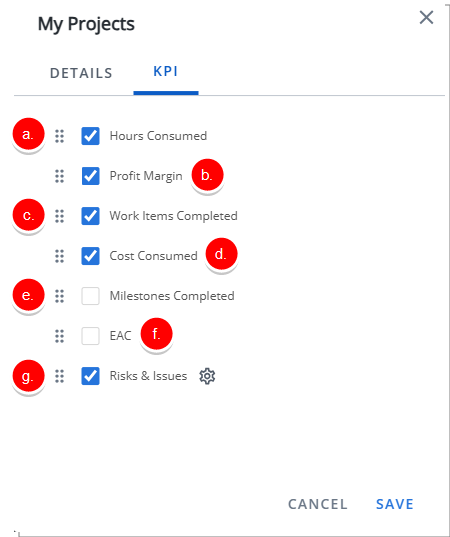
- Risks & Issues - Displays the count of Risks and Issues on the project that require attention.
When Risks & Issues is selected, click the Settings
icon to configure the KPI filter. Choose the applicable filter type—such as Priority, Probability, or Severity—and then select the desired values:- Priority: Low, Medium, High, Critical, and/or Blocker.
- Probability: Rare, Unlikely, Possible, Likely, and/or Almost Certain.
- Severity: Insignificant, Minor, Moderate, Major, and/or Catastrophic.
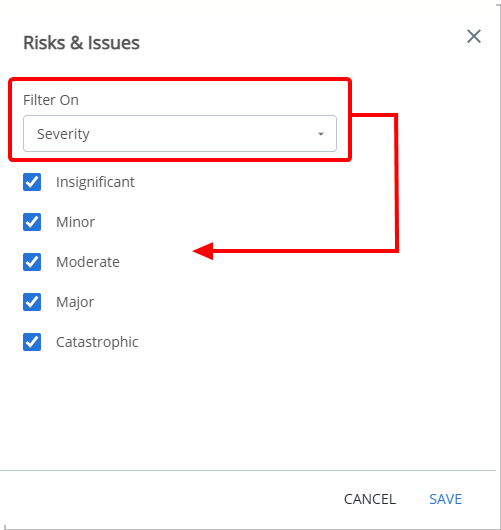
- Click Save to apply your changes.
- Click the Close button to exit the dialog box.
- Hours Consumed - Shows actual hours consumed compared to the forecasted work plan hours up to the forecast cutoff date. Calculated as
- To reorder KPIs:
- Hover over the drag handle (
 ) next to the KPI you want to move.
 - Click and hold the drag handle, then drag the KPI to the desired position in the list.
- Release the mouse button to drop the KPI in its new position.
- Hover over the drag handle (
- Click Save to apply your changes.
- Click the Close button to exit the dialog box.
Rename Widget
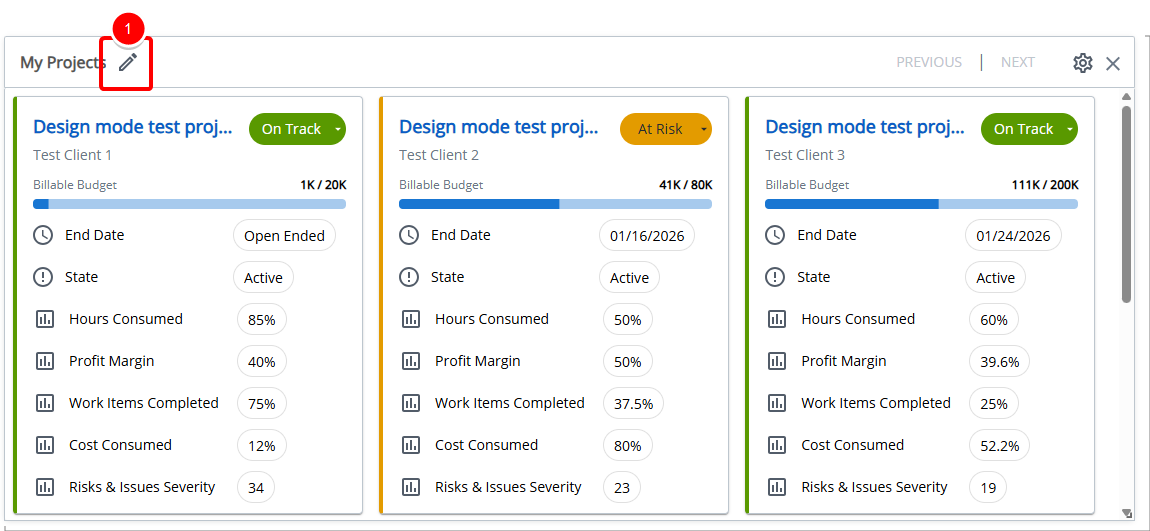
- Click the pencil icon (
 ) to rename the Widget title.
 - Click the checkmark (
 ) to confirm the name and save the template automatically.
 - Click the X icon (
 ) to cancel.
Delete Widget
- Click the Delete
 icon. The Widget is removed from the Homepage.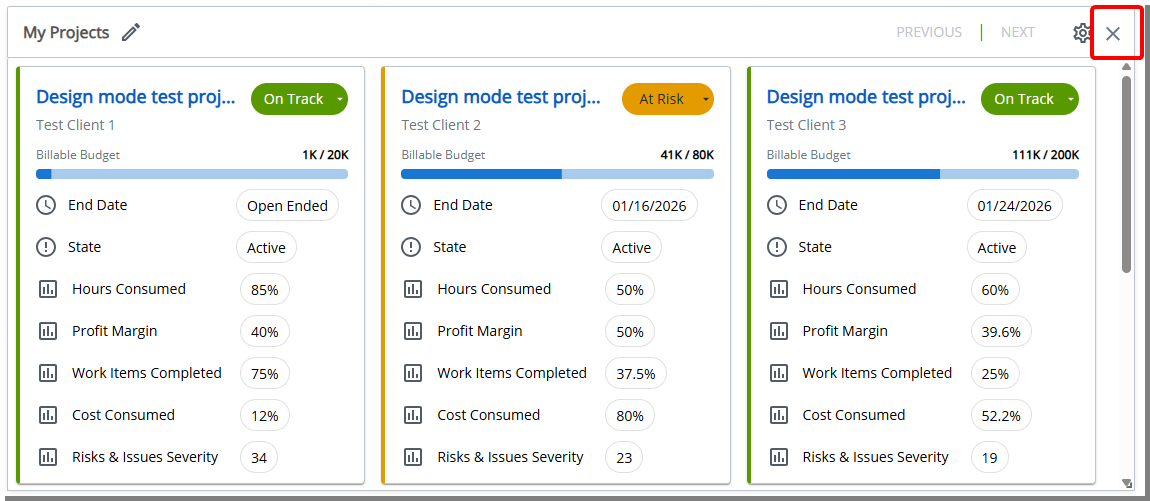
End User Experience
When added to the Homepage, the My Projects Tile displays all projects where the logged-in user is the Project Manager. This Tile gives project managers a centralized, role-specific dashboard, allowing them to monitor project status, identify risks, and act quickly.
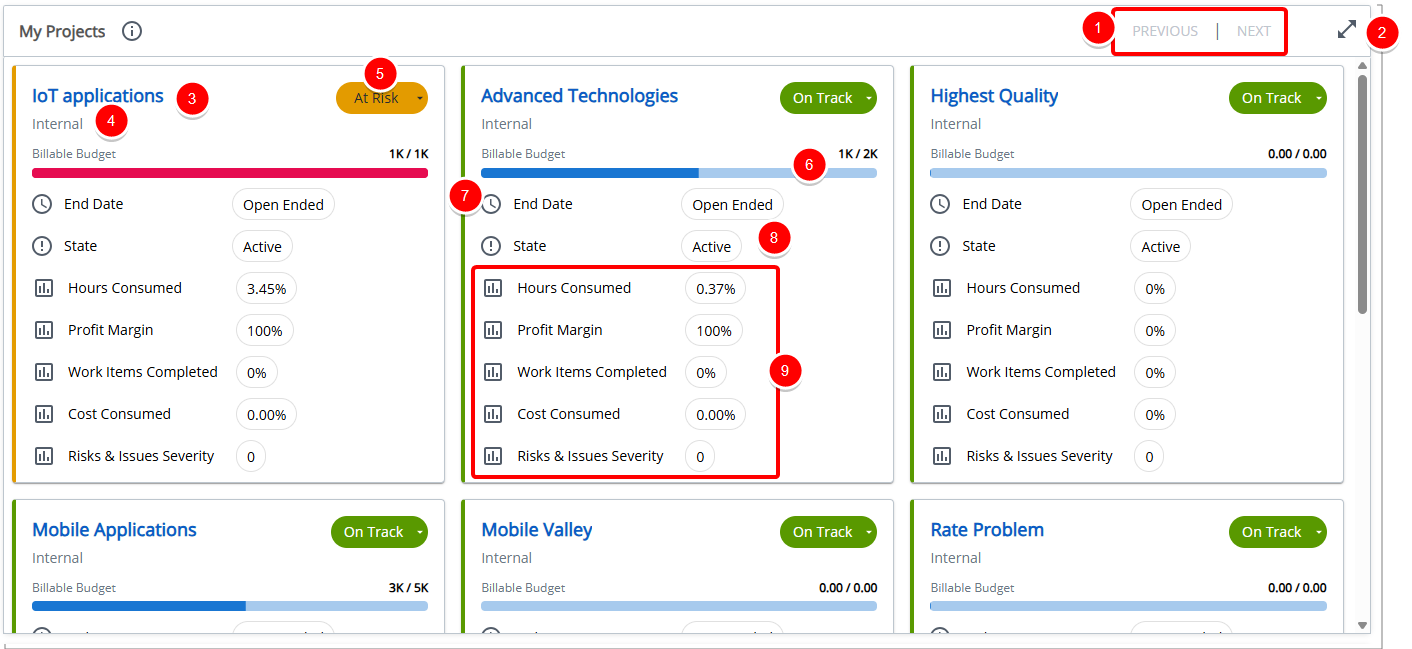
Each project is shown as a card with the following details:
- Pagination: Up to 25 projects are displayed per page.
- Next is enabled when more than 25 projects are available.
- Previous is enabled when viewing pages beyond the first.
- Both buttons are disabled when fewer than 25 projects are available.
- Expand: Click Expand
 to open My Projects Tile in full-screen view. To return to the Homepage, click Close (X).
 - Project Name: Click to open the Project Edit page.
- Client Name: Displays the associated Client Name.
- Project Health: Visual indicator of project Health status. Can be edited for each project card:
- Green: On Track
- Yellow: At Risk
- Red: Off Track
- Budget Bar: Displays budget utilization as a progress bar and links to the project’s Budget page. The metric displayed (Cost, Time, Billable, or Non-Billable) reflects the Widget configuration and selected time range.
Hover over the Budget Bar to view detailed calculation values:
- Cost Budget – Actual Cost in Base Currency / Current Cost Budget in Base Currency
- Time Budget – Total Time / Current Time Budget
- Billable Budget – Actual Billable / Current Billable Budget
- Non-Billable Budget – Actual Non-Billable / Current Non-Billable Budget
- Blue indicates the project is within budget.
- Red indicates the project has exceeded the budget.
- End Date (Due Date): Displays the project End date.
- Project State: Displays the current project Workflow State.
- KPIs: The tile layout automatically adjusts to display the selected KPIs. All KPI calculations follow the project template and Financial Planner logic to ensure consistency with forecasting and budgeting behavior.
Note: Budget bars are color-coded: