The My Assigned Items Widget consolidates all items that require review or approval by the logged in User into a single location on the Homepage.
It provides visibility into pending Timesheets, Expense Reports, Invoices, Leave Requests, Work Items, Charges, and Product Entries, helping you manage approvals more efficiently.
This article explains how to set up and manage the My Assigned Items widget, including Configuration options such as:
It also describes the End User Experience, showing how users interact with the widget once it’s published on their homepage.
Configuration
Include Widget
- From the right-hand sidebar, drag the My Assigned Items Widget into the design area.
Note: When the widget is added to the canvas, it is placed in the first available empty space in the top-left corner. You can resize and reposition the widget as needed to fine-tune the layout.
- You can resize, reposition, and rename the widget title, but no additional settings are available.
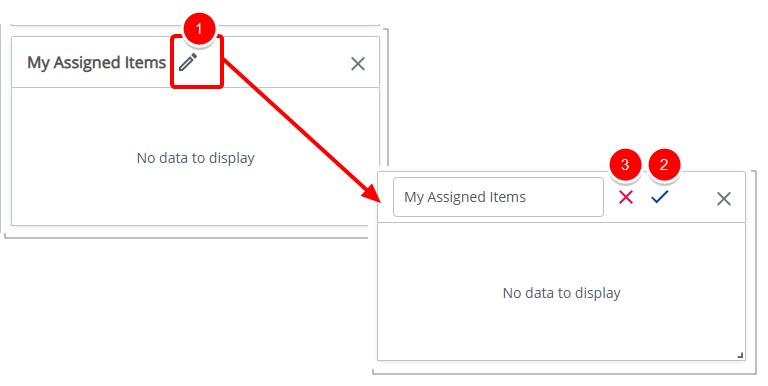
Rename Widget
- Click the pencil icon (
 ) to rename the widget title.
 - Click the checkmark (
 ) to confirm the name and save the template automatically.
 - Click the X icon (
 ) to cancel.
Delete Widget
- Click the Delete
 icon. The widget is removed from the Homepage.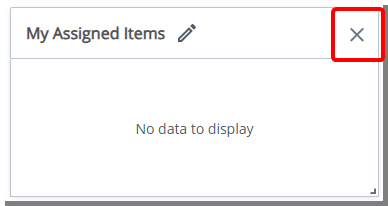
End User Experience
The My Assigned Items tile provides a consolidated view of all items that require your review or approval. Each category displays the number of pending items, and overdue Timesheets are clearly flagged when applicable. A Timesheet is considered overdue when its Period End date is before the current date and it has not yet been approved.
Click any label to open the corresponding manager view.
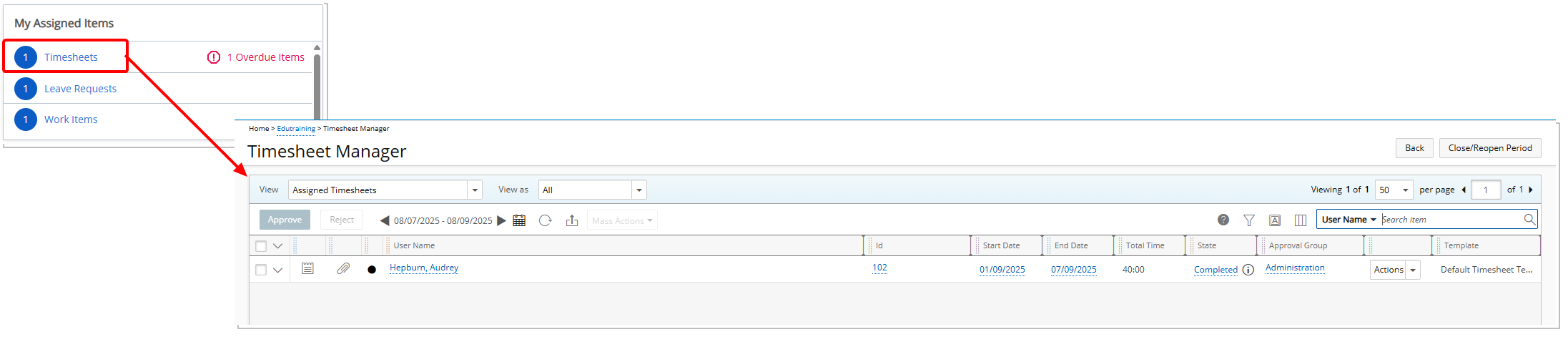
- Timesheets: Shows the number of assigned timesheets. Links to Entries > Timesheet Manager > View > My Assigned Timesheets. Overdue timesheets are flagged.
- Expense Reports: Shows the number of assigned expense reports. Links to Entries > Expense Manager > All Expense Reports.
- Invoices: Shows the number of assigned invoices. Links to Financials > Invoice Manager > Invoices > View (Manager).
- Leave Requests: Shows the number of assigned leave requests. Links to Entries > Leave Request Manager > Assigned Requests.
- Work Items: Shows the number of assigned work items. Links to Entries > Work Items Manager > View: Assigned Work Items. Overdue work items are flagged.
- Charge Entries: Shows the number of assigned charge entries. Links to Entries > Charges > Approval > Work List View.
- Product Entries: Shows the number of assigned product entries. Links to Entries > Products > Approval > Work List View.
By presenting all assigned items in one place, the My Assigned Items tile helps you stay organized and respond promptly to pending approvals