From the Resource Request Details dialog box, you can view the Fulfillment Details and Action on it.
This article details how to access and view the Resource Request Details.
Depending on your organizational role and rights granted to you, you can access the Work Plan through one of any or one of the following avenues, each of which are illustrated in the Accessing the Work Plans article.
For this article, the steps are demonstrated using the Project Work Plan as the example.
Note: The pages and formats shown in this article may differ from what you see in your environment. Your organization’s configuration or the rights assigned to you may result in a different experience.
- From the Icon Bar click Project List
 .
. - From the Project List page, select the Project you wish to edit by following one of these steps:
- Click the Project context menu button
 to expand it. From the available options click Edit.
OR - Click the name of the Project you wish to access.
Tip: Use the search capability for an efficient way of finding the specific project. For further details refer to Searching for a Project within the Project List page.
- Click the Project context menu button
- From the Project Edit page, hover your mouse over the Planners tab and select Work Plan from the available options.
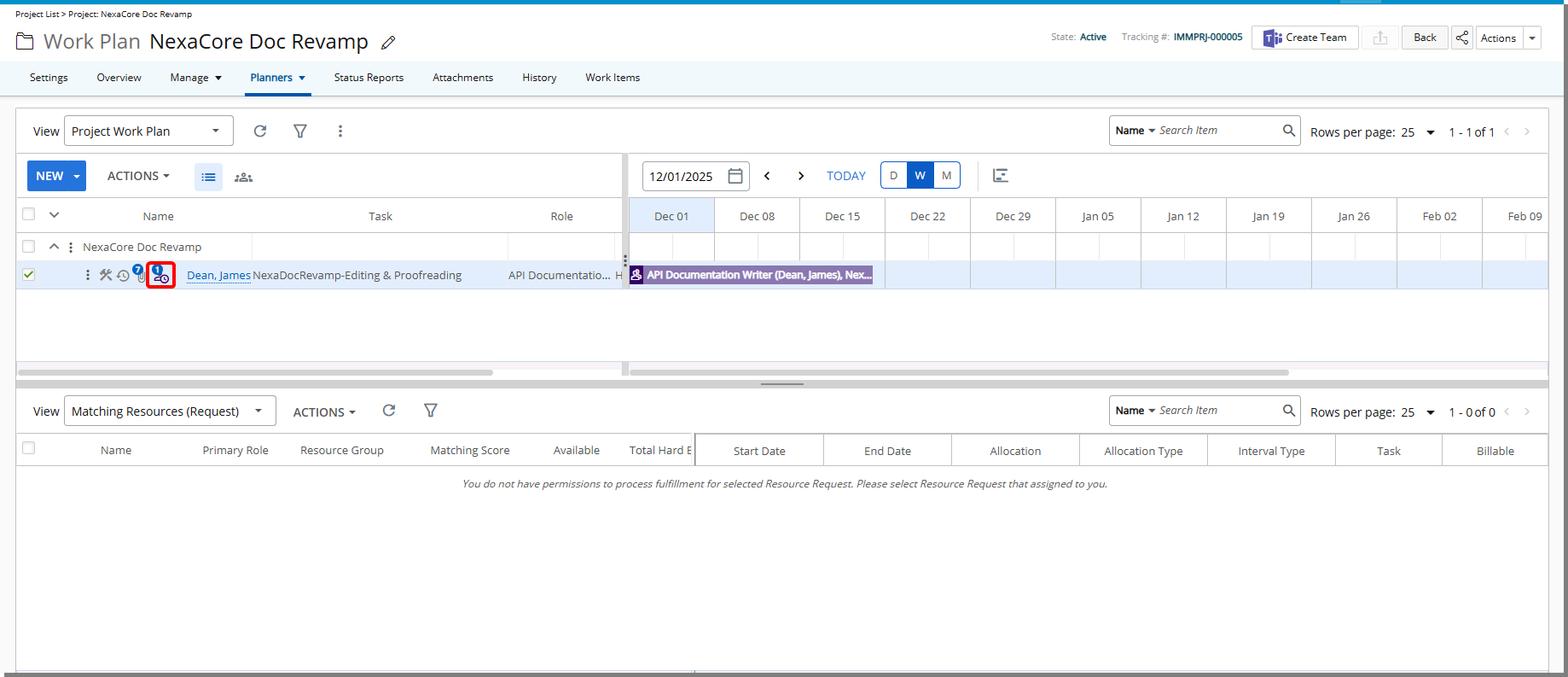
- A counter is now visible on the Resource Request button indicating the number of allocated resources. Click the icon to access view the Resource Request Details.
- View the Resource Request Details which
- If you are assigned to action on the request, you may see the following options to select from:
- Cancel: Select to Cancel the Request
- Reject Fulfillment: You have the possibility to reject the Fulfillment and enter a Rejection Note. The Request will be re-routed to be fulfilled.
- Accept Fulfillment: The Booking is created.
- Recall: Select to recall the Request.
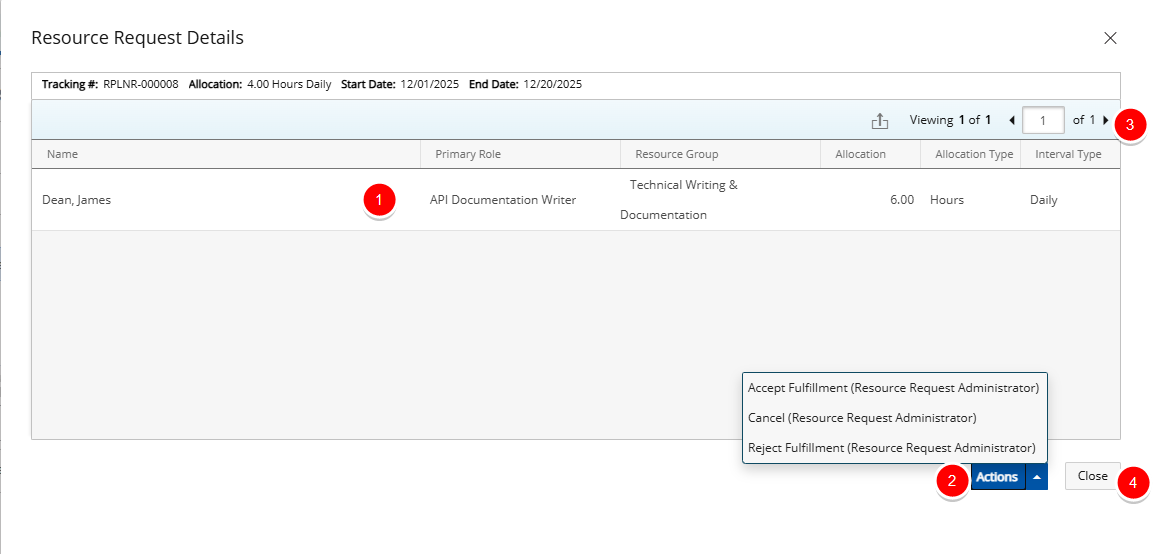
- The Pagination facilitates moving to a new list page and to view the number of list items and pages. For further details refer to Pagination.
- Click Close to close the dialog box.