How do I setup segmentation at the global level?
Assuming that all invoices created for the Tenrox group Administration and the site Organizations headquarters are sent to the Great Plains G/L account Cash Operating Account that has a defined segmentation code of 000-1100-00 with each segment code representing the following structure:
- 000 = Account
- 1100 = Client
- 00 = Site
Note: This serves only as an example of a segmentation code in Great Plains. The user is not required to set up a segmentation code using the same structure.
1. Import the Accounts
- Import the accounts. Click here to view the article on importing objects from Great Plains to Tenrox.
2. Access the System page within Financial Setup

- Click Setup from the Icon Bar.
- Click Financial from the Navigation Menu.
- Select System
3. Click the Chart of Accounts button

- Click the Chart of Accounts button to open the Chart of Accounts page that lists all the chart of accounts that have been imported from Great Plains.
4. Click the Segmentation link
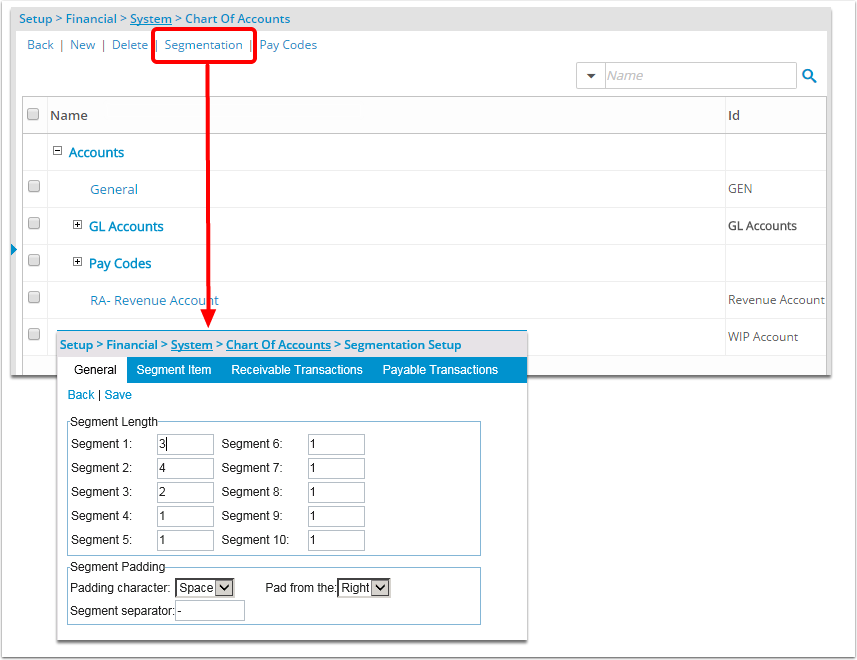
- Click the Segmentation link to open the Segmentation Setup page and set up the following:
4.2. Specify the following under Segment Padding

Specify the following under Segment Padding:
- Select either Space or 0 from the Padding character list to specify the padding character
- Select either Left or Right from the Pad from the list to specify in which direction the padding starts
Note: The Segment Padding option is used to override the AR/AP segment codes of any Tenrox object. TheAP/AR segment codes can be overridden by clicking the Accounting button from any Tenrox objects edit page. Click here to view the article on overriding Segment Codes. - Enter a character to separate the segments in the Segment separator box; by default, the dash (-) is specified; however, the dash can be replaced by an other character.
Note: If the Segment separator box is left empty, then the segments are displayed without a separator character.
5. Click the Segment Item Tab
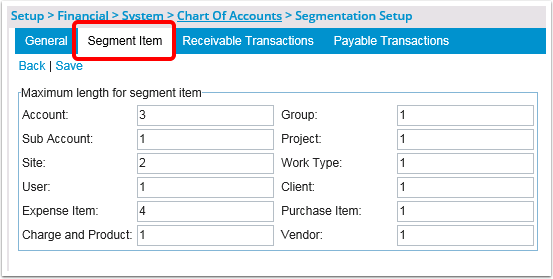
Click the Segment Item tab and then under Maximum length for segment item map the Tenrox objects to the specific segment codes; for example
- In the Account box, enter 3 for the Account (000)
- In the Client box, enter 4 for the Client (1100)
- In the Site box, enter 2 for the Site (00)
Note: If the length of Segment 1 is set to 4 (Account) under the General tab, but the Maximum length for segment item for the Account segment is set to 3, then one of the characters from the right or left is assigned either a zero or space. For example, if the account number is equal to 123 but the Segment Length is set to 4, then the account number is displayed as 0123 (if the padding is set to 0 from left).
6. Click the Receivable Transactions Tab

Click the Receivable Transactions tab to set up the accounts receivable and then from the Time Entry subtab specify to which Tenrox object the entries will be mapped. For example, to send all invoices with time entries to the Great Plains account Cash Operating Account (000-1100-00), set the following:
- Select Account from the Segment 1 list and then enter 000 in the corresponding box
- Select the Segment 2 option and then select Client from list and enter 1100 in the corresponding box
- Select the Segment 3 option and then select Site from the list and enter 00 in the corresponding box
Note: The Receivable Transactions tab contains the Time Entry, Expense Entry and Charge and Product Entry subtabs. Perform the same setup for the expense and the charge and product entries from the Expense Entry and Charge and Product Entry subtabs. Since only three segment codes are used in this example, do not use segments 4 to 10.
7. Click the Payable Transactions Tab
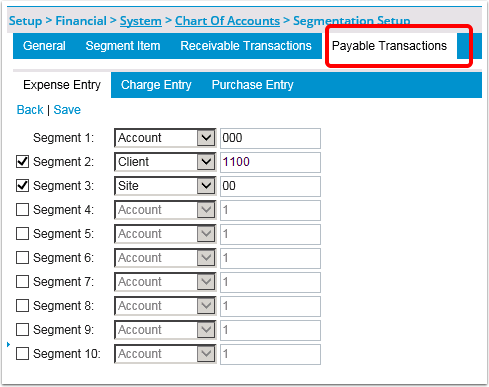
Click the Payable Transactions tab to set up the account payables and then from the Expense Entry subtab specify to which Tenrox object the entries will be mapped. For example, to send any expenses to the Great Plains account Cash Operating Account (000-1100-00), set the following:
- Select Account from the Segment 1 list and then enter 000 in the corresponding box
- Select the Segment 2 option and then select Client from list and enter 1100 in the corresponding box
- Select the Segment 3 option and then select Site from the list and enter 00 in the corresponding box
Note: The Payable Transactions tab contains the Expense Entry, Charge Entry and Purchase Entry subtabs. Perform the same setup for the charge and purchase entries from the Charge Entry and Purchase Entry subtabs. Since only three segment codes are used in this example, do not use segments 4 to 10.
8. Click the Save Link
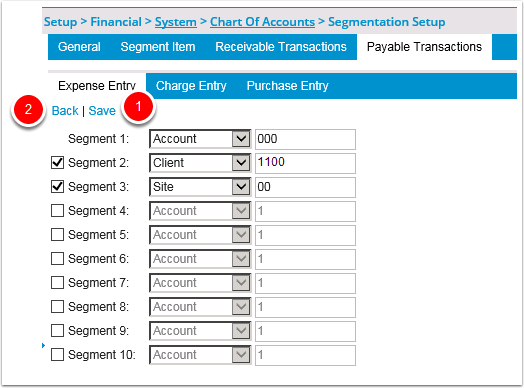
- Click the Save link
- Click the Back link to return to the Chart of Accounts page.