Adding and Styling Headings
Email Designer heading variants allow you to segment your email with different headings, e.g. h1, h2, etc.
To add a heading:
-
Drag a heading variant from the library into your layout.
-
Replace the default text by highlighting and typing over the default text with your own text.
-
Apply settings using the heading design settings.
Heading design settings
The heading design settings become available when you select a heading on the canvas.
Heading Type
To change your heading level, e.g. from h1 to h3:
-
Go to the Design settings tab.
-
Under Content, use the Heading Type dropdown menu to select a heading level.
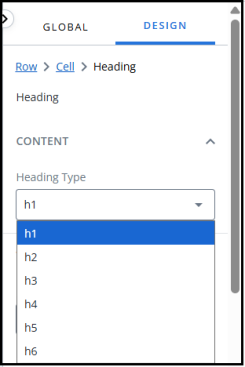
Note: the default styling for the heading levels is controlled using the global settings.
Typography
To edit the formatting of your heading text:
-
Go to the Design settings tab.
-
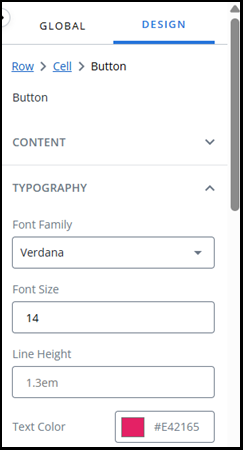
Under Typography:
-
Select a Font Family from the dropdown menu, e.g. Verdana.
-
Type a number into the Font Size field, e.g. 14.
-
Enter a value for the line height in the Line Height field, e.g. 1.3em.
-
Use the color picker to select a text color by:
-
Adjusting the slider and selecting from the color chart, or
-
Entering values in the fields.
Tip: use the up/down arrows to choose between RGB, HSL, or HEX.
-
-
Alignment
To change the horizontal alignment of your heading:
-
Go to the Design settings tab.
-
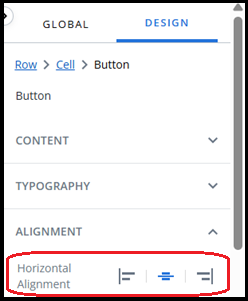
Under Alignment, press one of the three buttons to position the heading to the Left, Centre, or Right of your heading element.
Background
To change the background color of your heading bar:
-
Go to the Design settings tab.
-
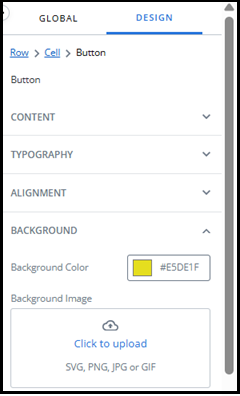
Under Background, use the color picker to select a background color by:
-
Adjusting the slider and selecting from the color chart, or
-
Entering values in the fields.
Tip: use the up/down arrows to choose between RGB, HSL, or HEX.
-
To set an image as your heading background:
-
Go to the Design settings tab.
-
Under Background, press the Click to Upload button to open the file manager.
-
In the Select File window, use the Files for dropdown menu to toggle between files at the Project, Workspace, User, and Account level.
-
Locate and select your image from the file list.
-
If you are using folders, select the folder name to navigate through folders.
-
Use the search bar at the top of the window to search for file names.
-
If your image is not present in the file manager, drag and drop it into the file manager.
Note: ensure you have selected the correct level and folder for the file first.
-
-
Press the Okay button.
Border
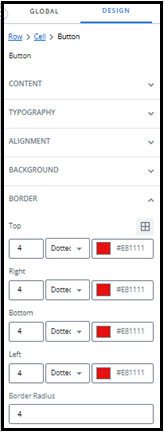
To add a border to your heading bar:
-
Go to the Design settings tab.
-
Under Border:
-
Enter a number for your border thickness.
-
Choose a border style from the dropdown menu, e.g. dotted.
-
Use the color picker to select a text color by:
-
Adjusting the slider and selecting from the color chart, or
-
Entering values in the fields.
Tip: use the up/down arrows to choose between RGB, HSL, or HEX.
-
-
-
By default, the border settings are applied to the entire border. Press the custom border icon
 to enable editing of top, right, bottom, and left borders separately.
Spacing
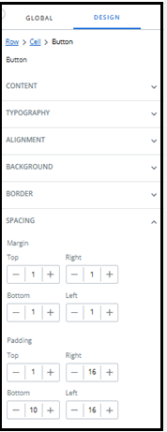
To add margins to your heading:
-
Go to the Design settings tab.
-
Under Spacing:
-
Enter a number for your Top margin.
-
Enter a number for your Right margin.
-
Enter a number for your Bottom margin.
-
Enter a number for your Left margin.
-