Create Client Settings
Note: This section is not applicable to Service Cloud Voice users.
Client settings are a group of InGenius user interface settings. You can assign these client settings to a group of users (managed group).
Note: It is recommended to create a client settings profile and complete the Initial Setup part of this guide first before you configure each of the individual settings in the profile.
The settings you can configure within a client settings profile include:
- Support
- Support Information
- Branding
- Speed Dials
- Call Log Settings
- Screen Transfer
- Call Log Templates
- Call Results
- Object Creation
- Search Configuration
- Omni-Channel
- Transcription Control
To create a client settings profile:
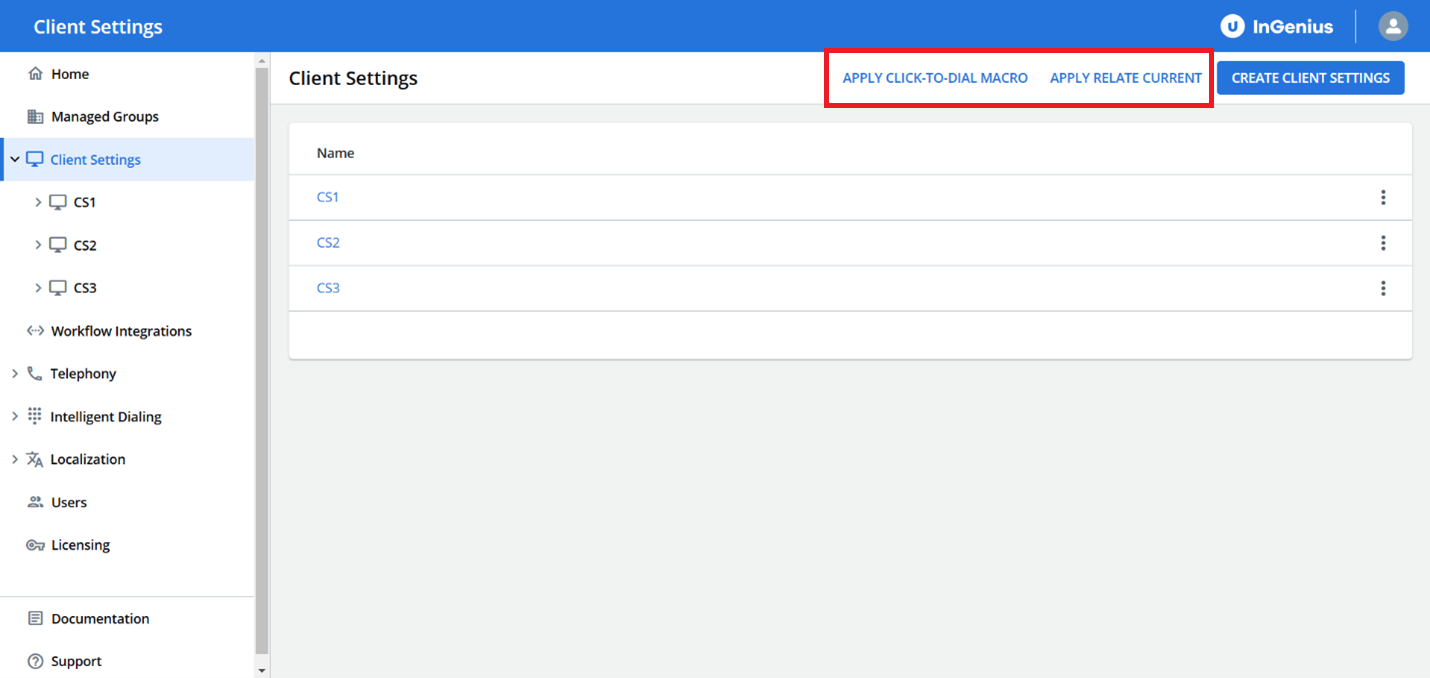
- Select Client Settings from the sidebar in the Admin App.
- Click CREATE CLIENT SETTINGS.
- Name the client settings profile and click CREATE.
- You are now able to click on the profile (from the sidebar or from the Client Settings page) and configure each of the settings accordingly.
.PNG)
Apply Relate Current and Click-to-Dial Macros
InGenius allows for the seamless application of Relate Current functionality and Click-to-Dial across your ServiceNow environment. Before applying, ensure you have completed all of the steps in pre-deployment as well as the add relate current functionality page. The macro will apply the Relate Current button to all relevant record types, and the Click-to-Dial icon across all applicable phone fields within your ServiceNow environment.