Adding trackable links
Mobile Commons creates shortened URLs to allow users to automatically track all clicks coming from text messages. These short domains can be used without any configuration and are available to all users.
Trackable links vary in length depending on the length of a profile's unique hash, but shortened trackable links will generally require between 24 and 27 characters.
Tip: If you are working on a set of messages and want to allow for the length of unique URLs, allow for 27 characters total.
To set up trackable links:
-
Create your own vanity URL to use with Mobile Commons. For more information, see Configuring a vanity short domain.
-
Use the bit.ly online service to create short URLs in conjunction with Mobile Commons. For more information, see Creating short links using bit.ly.
From the Trackable Links table:
Note: This feature may require some back-end coding. For assistance, contact your customer success manager.
Setting up a trackable link
To add trackable links to your campaign:
-
Select
 Mobile Web in the left pane, and then select Links.
The Links page opens.
-
In the upper-right corner, select
 .
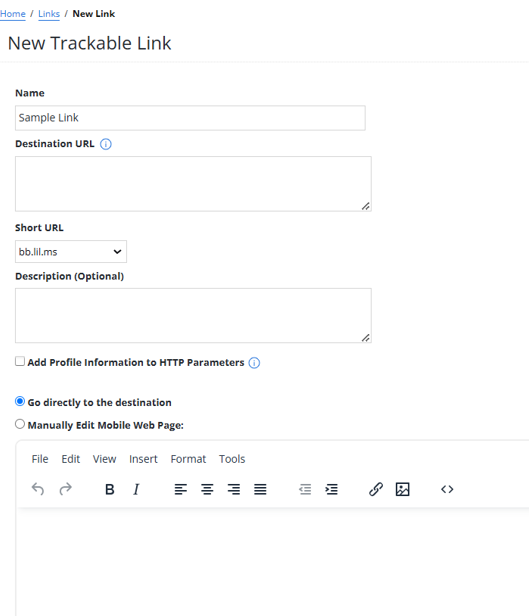
.The New Trackable Link form opens.
-
Enter a name for the link.
Note: Even though this name is available to internal users only, take the opportunity to assign a descriptive name that is meaningful to your organization.
-
Enter the destination URL address.
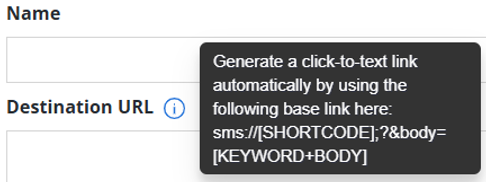
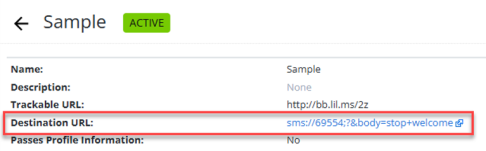
You can generate a click-to-text link automatically by using the following base link: sms://[SHORTCODE];?&body=[KEYWORD+BODY]
-
In the Short URL field, select a prefix for the link from the drop-down list, and then enter a descriptive suffix.
Tip: If an Administrator has set up a short domain for your company, you can select it from the Short URL drop-down list.
-
(Optional) Add a description.
-
If your URL directs the user to a form that you want to pre-populate with user data, select the Add profile information to HTTP parameters checkbox. To pass a parameter, in the Remote Name field, add a name that maps to the form field name.
-
Select the destination type:
-
To direct users to an existing web address, select Go directly to destination.
-
To set up a web page, select Manually edit mobile web page and then enter HTML code for the web page.
-
-
When you are done, select Create.
Tip: To distribute the URL, paste it into your messaging conversations. Alternatively, you can automatically create a lil.ms URL by adding the full URL in double curly brackets {{ ... }} to the conversation. For more information, see Adding a new opt-in path message and Adding a new broadcast message.
Testing a trackable link
After you add a trackable link, you can test it to ensure that the destination URL opens as expected.
To test the trackable link:
-
Select
Mobile Web in the left pane, and then select Links. -
Locate the new link in the Trackable Links table.
The link record includes the shortened link and the full URL.
-
To test the link, select the full URL.
The web page opens.
Note: If the web page does not open as expected, edit the link to correct it. For more information, see Editing a trackable link.
Editing a trackable link
To edit a trackable link:
-
Select
Mobile Web in the left pane, and then select Links. -
Locate the link in the Links table, select
 Menu at the end of the row, and then select Edit.
The Trackable Link form opens.
-
Make your changes to the form. For more information, see Setting up a trackable link.
-
When you are done, select Update.
Cloning a trackable link
To clone a trackable link:
-
Select
Mobile Web in the left pane, and then select Links. -
Locate the link in the Links table, select
 Menu at the end of the row, and then select Clone.
A copy of the link is added to the Trackable Links table.
-
To change the link name and customize the link settings, select
Menu at the end of the row, and then select Edit.The Trackable Link form opens.
-
Make your changes to the form. For more information, see Setting up a trackable link.
-
When you are done, select Update.