Setting up Salesforce
The Salesforce data sync allows for flexibility in sync type for new and updated records. In all cases, the user records must include a listed mobile number.
Note: You must have Administrator access to work with data syncs in Mobile Commons. For assistance, contact Technical Support.
To set up the Salesforce data sync:
Preparing for setup
Before you begin, gather the log-in credentials and set up any other key connection settings for your Salesforce CRM system.
-
In Mobile Commons, create or designate a web opt-in path, which will serve as the default opt-in path for any new users pulled from the Salesforce data set. For more information, see Adding a new web opt-in path.
New subscribers will receive the Welcome message associated with the selected opt-in path. For more information, see Data sync paths.
Tip: Work with your mobile strategist to organize your synced subscribers by mapping specific Salesforce groups to different opt-in paths.
-
In Salesforce, set up a custom Boolean (true/false) mobile opt-in field named Mobile_Subscriber_c (case sensitive) for use with a custom export. For more information, see Setting up a custom export.
-
Make a note of the following credentials from your Salesforce system:
-
Existing Salesforce login or API user name and password
Tip: Create a new set of credentials exclusively for use with Mobile Commons (recommended).
-
API security token. To generate a security token, go to salesforce.com.
-
API host name, which is usually the URL of your Salesforce account. Be sure to leave off the http:// or https:// at the beginning of the URL. It is automatically added in the API call and may cause sync errors.
-
Full URL for the Salesforce custom export, which should end in "=CSV". For more information, see Setting up a custom export.
-
Setting up a custom export
In order to sync user opt-ins and out-outs, set up a custom export URL in Salesforce. Without it, Mobile Commons cannot sync updated records with a mobile phone field.
When setting up your custom export:
-
Add a Contact ID column containing the Salesforce ID for the contact.
-
Confirm that the export URL is set up to export as a CSV from Salesforce. The URL should end in "=CSV".
-
Make a note of the custom export URL, so you can add it to the Salesforce configuration.
-
(Recommended) Set up a custom report in Salesforce that provides the Constituent ID, which identifies synced reports across both systems. This report also helps to minimize the number of API calls, so you are less likely to exceed the daily API quota limit.
Configuring the Salesforce integration
To sync data between your Salesforce database and Mobile Commons:
-
Select
 Home in the left pane, and then select Data Sync.
 -
From the Integration Type drop-down list, select Salesforce.
-
Select Create.
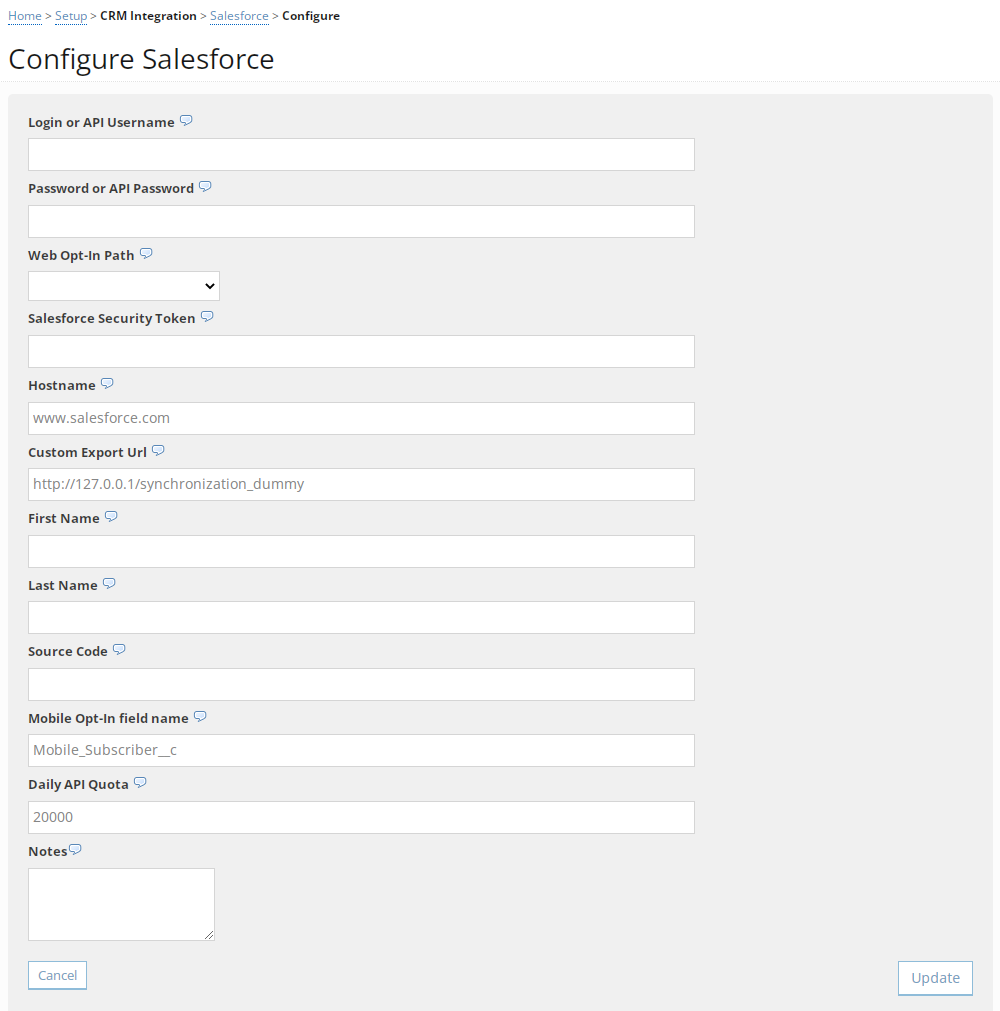
The Salesforce configuration form opens.
For assistance, select
 Help next to the field label.
 -
In the Login field, enter your user name for your Salesforce system, and then enter your password in the Password field.
-
(Optional) If users from Salesforce will opt-in to your campaign via a web path opt-in, select the Mobile Commons web opt-in path from the drop-down list. All mobile users from Salesforce will receive opt-in messages from the opt-in path you specify.
-
Enter the security token for your Salesforce account.
-
Enter the host name for API requests.
-
In the Custom Export URL field, enter the full URL for the Salesforce custom report.
-
For users who do not have a value in their name fields, enter a default first name and last name. If you leave these fields blank, the first name will be Contact and the last name will remain blank.
-
Enter the source code identifying Mobile Commons to your Salesforce system. The default entry is Mobile Commons.
-
In the Mobile opt-in field name field, enter the custom Boolean (true/false) Salesforce field names for mobile opt-ins. The default entry is Mobile_Subscriber_c (case sensitive). This field is used with a custom export.
-
In the Daily API Quota field, enter a maximum number of API calls per day. To accept API calls without a limit, leave the field blank.
Your Salesforce account has an API quota limit, counting one record as one API request. To calculate your usage, consider the number of vendors and the average number of records synced. Once the daily limit is reached, no additional records will be synced.
-
(Optional) Enter your notes for internal use only.
-
When you are done, select Update.
Logging in to Salesforce
After you set up your Salesforce integration, you can log in to Salesforce directly from Mobile Commons.
To log in to Salesforce:
-
Select
Home in the left pane, and then select Data Sync.The home page for your Salesforce sync opens.
-
In the Integration Actions panel on the right, select
 Login to Salesforce.
The Salesforce page opens.
Reviewing required and supported fields
The Salesforce data sync supports all standard profile fields. After you configure your Salesforce integration with Mobile Commons, review your Salesforce system and Mobile Commons user records (profiles) to ensure required and supported fields are available in both data sets.
The following fields are required:
-
Phone number
-
Email
-
Opt-in status (for Conservative syncs)
 Supported fields
| Category | Field | Default field name |
|---|---|---|
| Subscription status | Opt-in (required for Conservative syncs) |
"opt_in_status" |
| Demographic | Phone number (required) | "phone_number" |
| First name | "profile_first_name" | |
| Last name | "profile_last_name" | |
| Email (required) | "profile_email" | |
| Address/Location | Street address | "address_street_1" |
| Street address 2 | "address_street_2" | |
| City | "address_city" | |
| State | "state" | |
| Zip Code | "address_postal_code" | |
| Country | "address_country" | |
| Other | Constituent ID |
The field names differ by data set:
|
If you are not using the default field names, use custom field mappings to specify field names in Salesforce.
To set up custom field mappings:
-
Select
Home in the left pane, and then select Data Sync.The home page for your Salesforce sync opens.
-
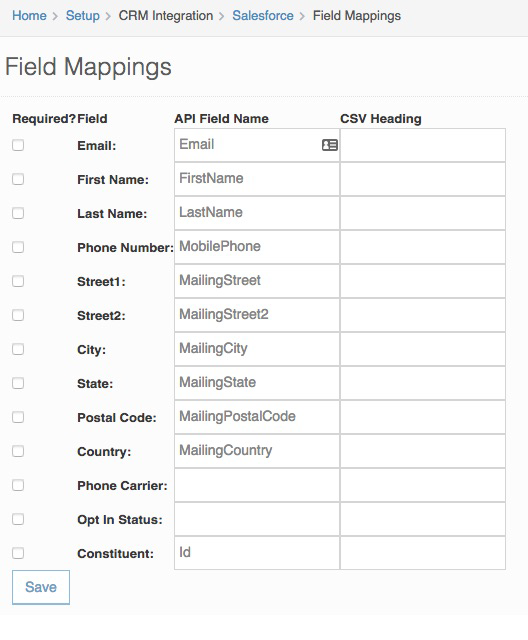
In the Integration Actions panel on the right, select Edit Field Mappings.
-
Review the field names to ensure that they are correct.
-
The Field column contains the Mobile Commons field name.
-
The API Field Name column contains the API field name in Salesforce.
-
The CSV Heading column contains the heading in the CSV export file.
-
-
To limit the sync to records that contain data in specific fields, select the Required? checkbox next to the field name. When a field is required, it must contain a value in order to be synced. Empty fields are not synced.
Caution: Do not select Required for Phone number, Email, or Opt-in status fields, which must by default exist in both databases in order to sync data. Use caution if you change the field name for any of these three fields; if the custom field name is incorrect, the data sync will fail.
Caution: Do not select Required for Constituent as this ID is provided by Salesforce. If it is set to Required, Mobile Commons profiles will not have this ID, causing the sync from Mobile Commons to Salesforce to fail.
-
When you are done, select Save.
Activating the Salesforce sync
Before you begin, review the configuration settings for your sync:
-
Select
Home in the left pane, and then select Data Sync.The home page for your Salesforce sync opens.
-
In the Integration Actions panel on the right, select
 Configure Integration.
 -
Review the configuration settings, making adjustments as needed.
-
When you are done, select Update.
-
To activate the integration sync, in the Integration Actions panel on the right, select
 Activate Integration.
 The indicator in the upper-right corner is
 Active. The first data sync will run the following morning.
Data sync updates
After activation, the Mobile Commons data set and your Salesforce database are both updated on a regular basis:
- Mobile Commons checks for updates nightly, processing all recent updates from Salesforce during overnight hours.
-
Any new opt-ins or opt-outs from Mobile Commons are synced to Salesforce every five minutes during the day.
-
For users whose profile records contain an email address, new opt-ins are added to Salesforce as a new record with an opt-in status of true.
-
For users with a matching record in Salesforce, new opt-outs update their opt-in status to false.
Note: Once user records are synced, the record number from the Salesforce system is added to the Constituent ID field in Mobile Commons user profile and serves to identify records across both of your systems.
-
After your data sync runs, you can open the Synchronization report. For more information, see Working with the Synchronization report.
Tip: If you need to shut off the data sync with your CRM system, whether temporarily or permanently, you can deactivate it. For more information, see Deactivating the integration.