Working with the master campaign
Tip: As a best practice, the Master Campaign should be used for reporting, not for messaging, unless you are switching short codes or have another administrative reason to send a message to all of your subscribers. For assistance, contact your customer success manager.
To work with the master campaign:
-
Select
 Text Messaging in the left pane, and then select Campaigns.
The Campaigns page displays the Master Campaign table for your company or organization.

The Master Campaign table displays the master campaign name and the total number of unique (cleared of all duplicates) active subscribers for all campaigns. You see the time when the subscriber count was last updated in the lower-right corner of the table.
For information about individual campaigns, see Working with campaigns.
From the Master Campaign table:
Sending a new broadcast to all subscribers
You can send a message to all active subscribers to all campaigns for your company or organization. The message will be sent according to its schedule options.
To send a scheduled broadcast message to all active subscribers:
-
Select
Text Messaging in the left pane, and then select Campaigns.The Master Campaign table is located at the top of the page.
-
Select
 Menu at the end of the row, and then select New Broadcast.
Note: To send a message immediately, and not by schedule, select Quick Blast. For more information, select Sending a quick blast.
The broadcast builder steps opens to the first step, Details. For more information, see the instructions for each step in creating a broadcast message in adding a new broadcast message.
When you are done, you return to the Broadcast Conversation page, which summarizes the broadcast message.
Sending a quick blast to all subscribers
You can send a quick message to all active subscribers to all campaigns for your company or organization. The message will be sent immediately.
To send a quick blast to all active subscribers:
-
Select
Text Messaging in the left pane, and then select Campaigns.The Master Campaign table is located at the top of the page.
-
Select
Menu at the end of the row, and then select Quick Blast.Note: To send a scheduled message, select New Broadcast. For more information, select Sending a new broadcast message.
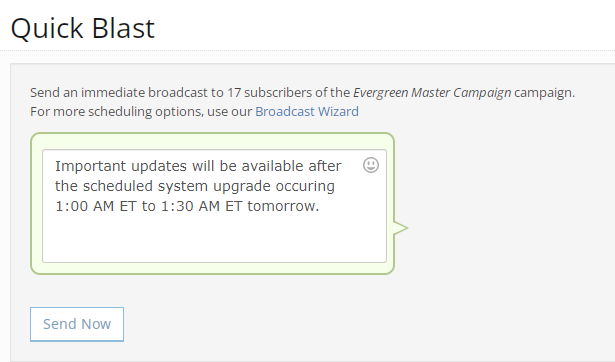
The Quick Blast form opens.
-
Add your message to the text box.
The remaining character count displays in the lower-right corner of the form.
-
Review your message carefully.
-
When you are done, select Send Now.
-
Select OK to confirm.
Note: The message will be sent immediately after you confirm and cannot be stopped.
You return to the Broadcast Conversation page, which summarizes the quick blast message.
Opening the Campaign report for the master campaign
To open the Campaign report for the master campaign:
-
Select
Text Messaging in the left pane, and then select Campaigns. -
Select
Menu at the end of the row, and then select Report.The Campaign report for the master campaign opens.
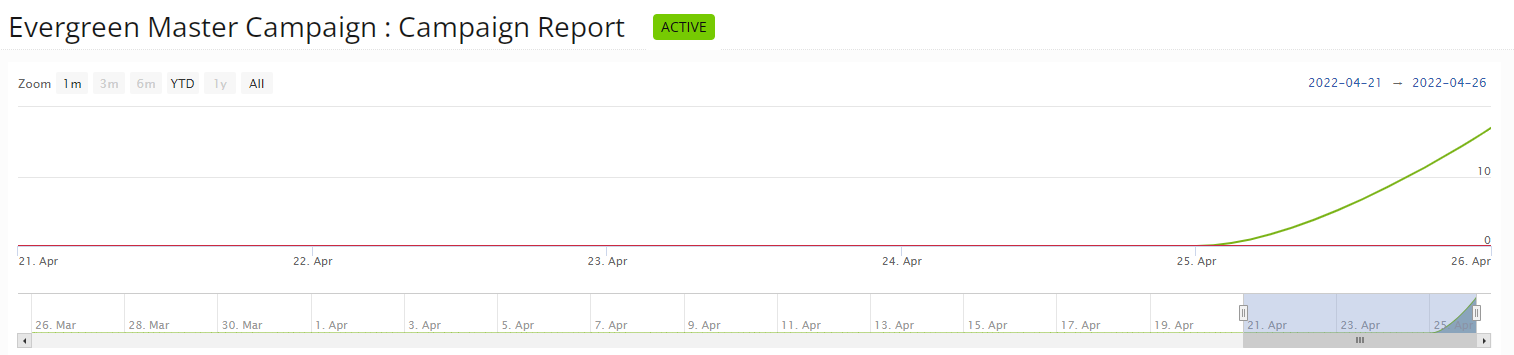
For more information, see Working with the Campaign report.