Working with campaigns
To work with campaigns:
-
Select
 Text Messaging in the left pane, and then select Campaigns.
The Campaigns page displays the Campaigns table with all of the campaigns for your company or organization.
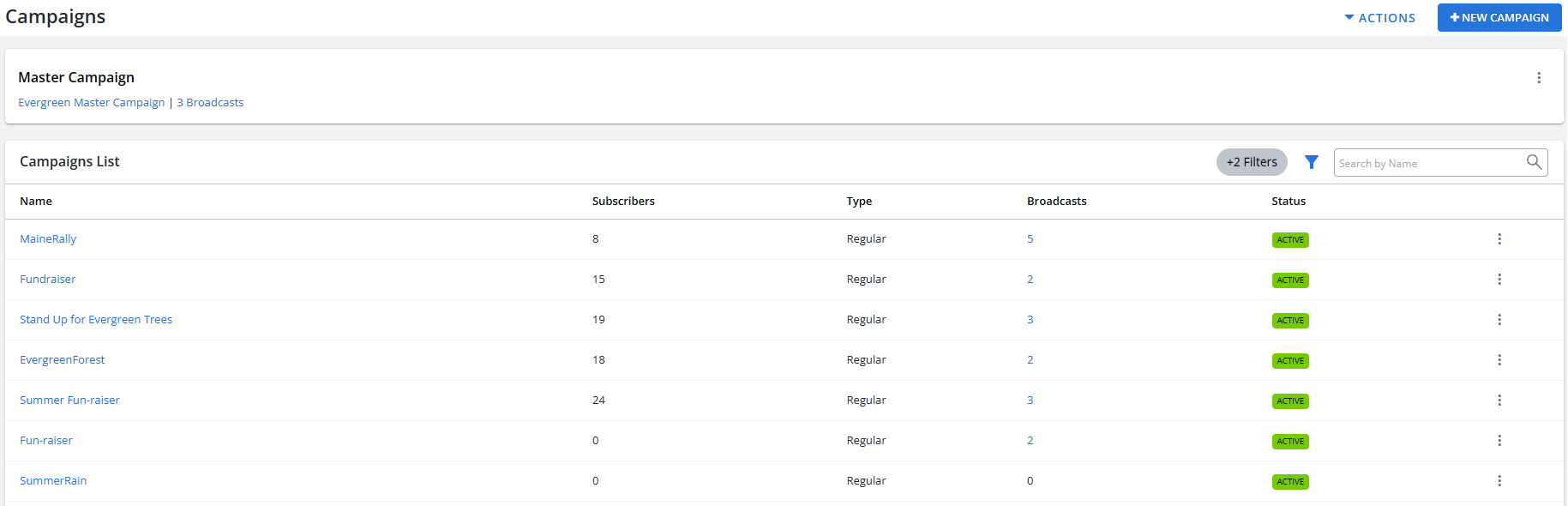
 About the Campaigns table
The Campaigns table contains the following information for each campaign:
Column Description Name The name of the campaign. Subscribers The total number of subscribers for all campaigns.
The subscribers count updates every 30 minutes.
Type The campaign type:
-
Regular (any campaign other than a Smart Campaign)
-
Smart
Status The campaign status:
Broadcasts The number of broadcasts in the campaign. Actions Available actions for a campaign:
-
Report
-
New broadcast
-
Quick Blast
If the table is longer than one page, use the page-navigation options on the lower-right to select the number of rows per page and to navigate to the
 next or
  previous page.
Tip: To navigate directly to a specific page, select the page field, enter the page number, and then press ENTER.
For information about the master campaign, see Working with the master campaign .
-

From the Campaigns table:
For more information on working with campaigns, see Setting up a new campaign.
Searching the Campaigns table
To search the Campaigns table by campaign name:
-
Select
Text Messaging in the left pane, and then select Campaigns. -
Above the Campaigns table, on the right, enter a search term in the Search box, and then select
 Search.
The Campaigns table displays the matching records.
Filtering campaigns
You can limit the display regular or smart campaigns and/or active or deactivated campaigns.
To filter campaigns:
-
Select
Text Messaging in the left pane, and then select Campaigns. -
Above the Campaigns table, on the right, select
 Filter.
 -
Select one or more filters in the Filters pane:
-
In the Type list, select All, Regular (to display all campaigns other than Smart Campaigns), or Smart (to display Smart Campaigns only).
-
In the Status list, select All, Active (to display active campaigns only), or Ended (to display deactivated campaigns only).
-
-
When you are done, select Apply.
The Campaigns table displays only those campaigns that match the selected filter(s). The filter indicator above the table
 displays the number of filters that have been applied. Hover your cursor over the filter indicator to display a list of applied filters.
Exporting campaign data
You can export the full set of campaign records to a CSV (comma-separated values) file.
To export campaign records:
-
Select
Text Messaging in the left pane, and then select Campaigns. -
Select Actions at the top of the page, and then select Save as CSV.
The campaign records in the Campaigns table are saved in a CSV file containing the following columns:
Column Description name The name of the campaign. created_at The date and time when the campaign was created. active Yes/No indicating whether the campaign is active. subscriptions The number of users who have subscribed to the campaign. tags One or more organizing labels applied to the campaign.
Note: All tag label sets contain the email address of the user who created the tag.
The numbers displayed in the Campaigns table may be slightly different than in the CSV export file, as the export file's subscription count is real-time as of the moment the records were downloaded and the UI displays are refreshed every 30 minutes.
-
To download the CSV file, select
 Home in the left pane, and then select Reports.
 -
Locate the CSV file in the Exports table, select the link in the Name column, and then open the downloaded file.
Sending a new broadcast message
You can send a new broadcast message to the subscribers of a campaign. The message will be sent according to its schedule options.
To send a broadcast message:
-
Select
Text Messaging in the left pane, and then select Campaigns. -
Locate the campaign in the Campaigns table.
-
Select
 Menu at the end of the row, and then select New Broadcast.
 Note: To send a message immediately, and not by schedule, select Quick Blast. For more information, select Sending a quick blast.
The broadcast builder steps open to the first step, Details. The full list of steps (1. Details, 2. Conversation, 3. Recipients, 4. Schedule and 5. Review) appears at the top of the page.
When you are done, you return to the Broadcast Conversation page, which summarizes the broadcast message.
Sending a quick blast
You can send a quick message to all subscribers of a campaign. The message will be sent immediately.
To send a quick blast:
-
Select
Text Messaging in the left pane, and then select Campaigns. -
Locate the campaign in the Campaigns table.
-
Select
Menu at the end of the row, and then select Quick Blast. Note: To send a scheduled message, select New Broadcast. For more information, select Sending a new broadcast message.
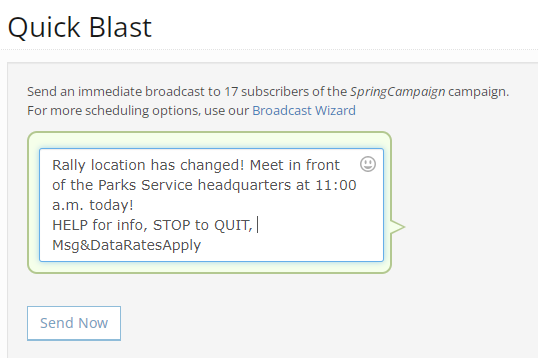
The Quick Blast form opens.
-
Add your message to the text box.
The remaining character count displays in the lower-right corner of the form.
-
Review your message carefully.
-
When you are done, select Send Now.
Note: The message will be sent immediately after you confirm and cannot be stopped.
-
Select OK to confirm.
You return to the Broadcast Conversation page, which summarizes the quick blast message.
Opting out subscribers manually
You can opt out subscribers from all campaigns for your company or organization or from an individual campaign.
Tip: Be respectful of the mobile user’s wishes and act promptly on opt-out requests.
To opt out a user:
-
Select
Text Messaging in the left pane, and then select Campaigns. -
Locate the campaign in the Campaigns table and then select the campaign name link.
The Campaign Details page opens.
-
Select Actions at the top of the page, and then select Manual Opt-out.
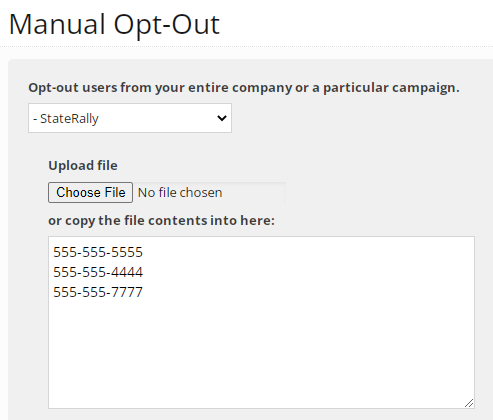
The Manual Opt-Out page opens.
-
Select the company name or the name of a campaign from the drop-down list.
Caution: When you select the company name, the selected user(s) is opted out of all campaigns in your company account.
-
To specify the numbers to unsubscribe:
-
Enter the phone number(s) to unsubscribe into the text box.
-
Upload a CSV file listing the numbers. Select Choose file, locate the CSV file to upload, and then select Open.
Tip: Create a group containing profiles to unsubscribe and save it as a CSV file. For more information, see Creating a static (uploaded) group.
-
-
Select Opt-Out These Numbers.
Mobile Commons processes the opt-out request and displays the number of profiles opt-ed out, the date, and the campaign(s) from which users were successfully opted out.
Reviewing ended campaigns
You can review a list of campaigns that have ended and are no longer active.
To review ended campaigns:
-
Select
Text Messaging in the left pane, and then select Campaigns.The Campaigns page opens.
-
Above the Campaigns table, on the right, select
Filter. -
In the Status list, select Ended (to display deactivated campaigns only), and then select Apply.
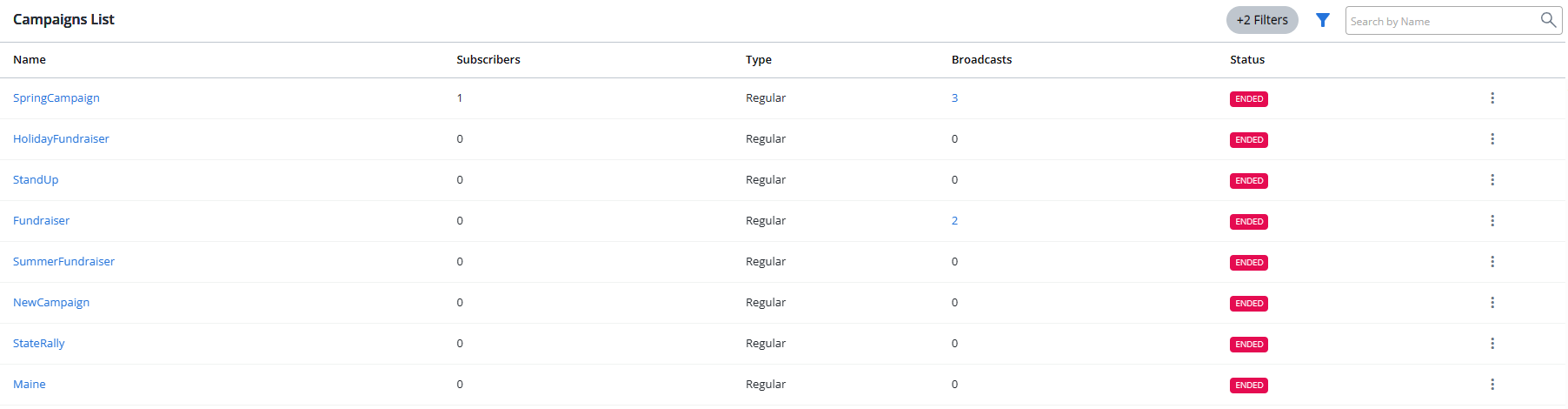
The Campaigns List table lists the deactivated campaigns for your company or organization, with a status of
 .
.
For more information, see Deactivating a campaign.
-
To view an ended campaign, locate the campaign in the Campaigns List table and then select the campaign name.
The campaign page opens.
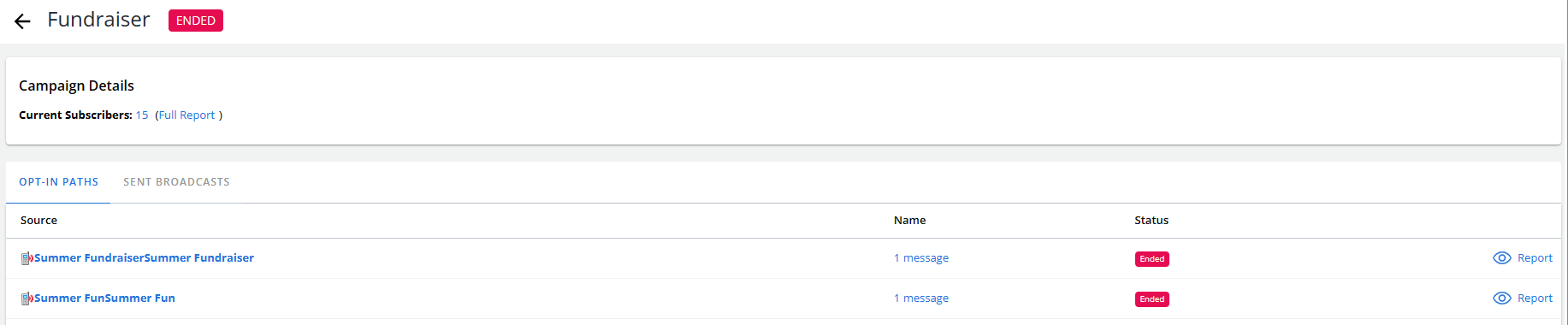
At the top of the page, the Campaign Details section displays the number of current subscribers.
-
To see the Campaign report, select Full Report next to the Current Subscribers field. For more information, see Working with the Campaign Report.
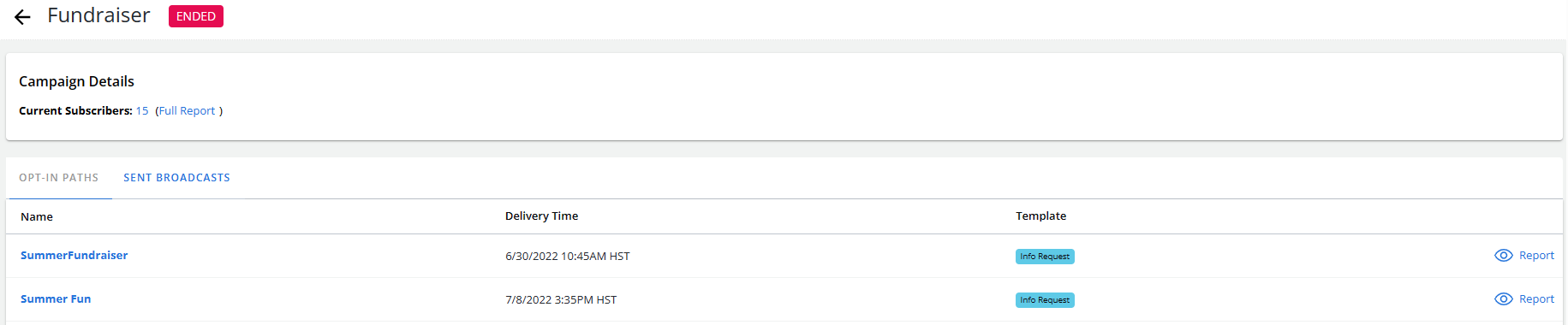
At the bottom of the page, the Opt-in paths table lists the opt-in paths for the ended campaign.
-
To see a list of broadcasts sent for the ended campaign, select the Sent Broadcasts tab.
Opening the Campaign report
To open the Campaign report:
-
Select
Text Messaging in the left pane, and then select Campaigns. -
Locate the campaign in the Campaigns table.
-
Select
Menu at the end of the row, and then select Report. The Campaign report opens.
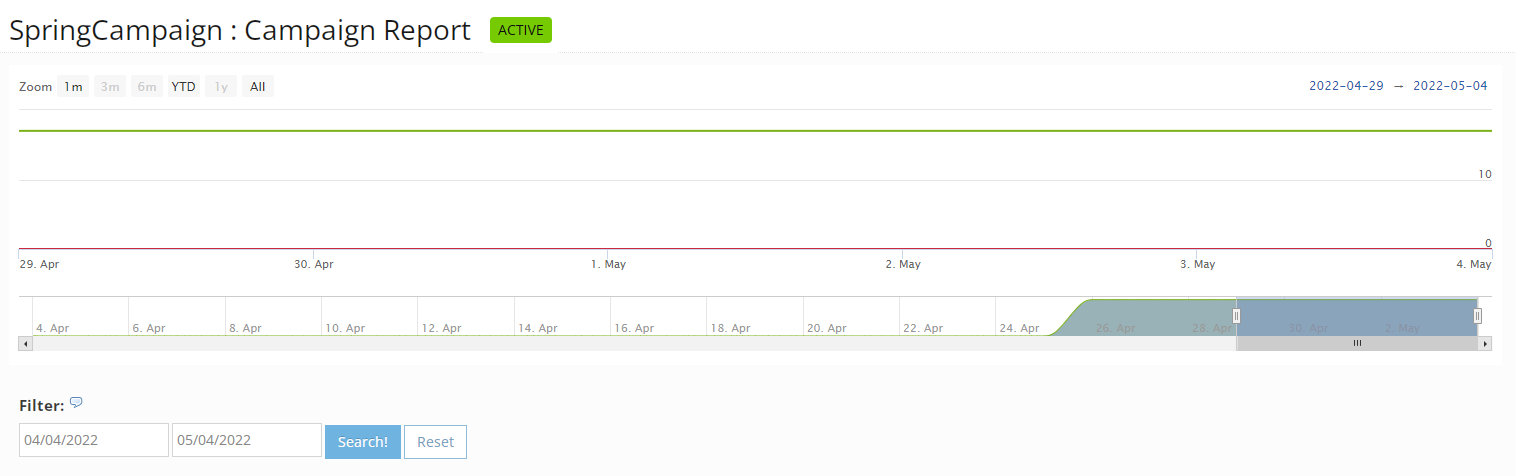
For more information, see Working with the Campaign report.