Working with the Outbox
To open the Outbox:
-
Select
 Text Messaging in the left pane, and then select Outbox.
The Text Message Outbox displays messages sent from Mobile Commons within the last 30 days.

 About the Outbox table
The Outbox table contains the following information:
Column Description Profile Displays the mobile phone number, username, and email of the mobile user to whom the message was sent, which links to their profile. If the username and email are unavailable, it displays "No Name" and "No Email." For more information, see Accessing user data.
Message body The content of the message. Originator It displays the short code, 10DLC long code, or RCS agent used to send the message. Campaign A link to the campaign and a link to the message. Received date The date and time when the message was sent to the user by Mobile Commons, as well as the message type:
-
MMS: MMS (multimedia message service) text messages containing multimedia content, including images, animated gifs, and video.
-
RCS: Messages sent as RCS (rich communication service). When the recipient reads the message, the status updates to Read (RCS).
-
Multi-part SMS: SMS (short message service) text messages longer than 160 characters, which are separated into multiple parts for sending and then reconstructed as a single message on the recipient's mobile phone.
-
Single-part SMS: SMS (short message service) text messages no longer than 160 characters.
Status The status of the message:
-
Failed: For failed message.
-
Sent: For sent message.
-
Read: For RCS message only where the recipient has opened and read the message.
Filter options are located above the table. For more information, see Filtering Outbox messages.
If the table is longer than one page, use the page-navigation options on the lower-right to select the number of rows per page and to navigate to the
 next or
  previous page.To navigate directly to a specific page, select the page field, enter the page number, and then press ENTER.
 -
From the Outbox:
You can select Go to Inbox in the upper-right corner, to access inbound messages in the Inbox. For more information, see Working with the Inbox.
Searching the Outbox table
You can search the messages in the Outbox by phone number.
To search the Outbox:
-
Select
Text Messaging in the left pane, and then select Outbox. -
Above the Outbox table, on the right, enter a phone number and then select
 Search.
Tip: Enter the entire phone number. Search will not match a partial phone number.
The Outbox table displays the matching messages for the phone number.
Filtering Outbox messages
You can display all of the messages or narrow the list by selecting the preset filters:
-
Select
Text Messaging in the left pane, and then select Outbox. -
Above the Outbox table, on the right, select
 Filter.
 -
Select Campaign and either then select one or All campaigns from the drop-down list.
-
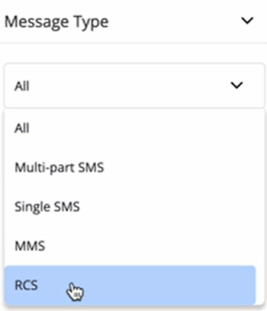
Select Message Type and then select one of the following from the drop-down list:
-
Select All to display all message types.
-
Select Multi-part SMS to display SMS (short message service) text messages longer than 160 characters, which are separated into multiple parts for sending and then reconstructed as a single message on the recipient's mobile phone.
-
Select Single-part SMS to display SMS (short message service) text messages no longer than 160 characters.
-
Select MMS to display MMS (multimedia message service) text messages containing multimedia content, including images, animated gifs, and video.
-
Select RCS to display RCS (rich communication services) messages. For more information, see Using Rich Communication Services (RCS) Messaging Function.
-
-
Select Status and then select a checkbox for the following:
-
Select Sent to display all sent messages.
-
Select Read to display all read messages. Applicable for RCS messages only.
-
Select Failed to display all failed messages.
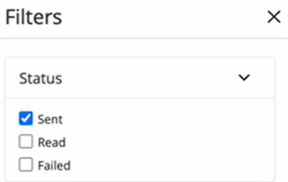
You can select either one status or all of the above-mentioned status options.
-
-
Select Date Range then specify a date/time range:
-
Select the From field, and then select a date and time from the calendar selector. The search results will contain results received after this date/time.
-
Select the To field, and enter a date and time from the calendar selector. The search results will contain results received before this date/time.
-
-
When you are done, select Apply.
The Text Message Outbox table displays the filtered results.
Exporting messaging records
You can export the messaging records, including the profile records of subscribers who received messages from the campaign, to a CSV (comma-separated values) file.
To export messages to a CSV file:
-
Select
Text Messaging in the left pane, and then select Outbox. -
(Optional) Arrange the Outbox table to display to messages to export. For more information, see Searching the Outbox and Filtering Outbox messages.
-
Above the Outbox table, on the right, select Save as CSV.
The contents of the Outbox, filtered or all data, plus the subscriber's profile data, are saved in a CSV file containing the following columns:
Column Description phone_number The user's mobile phone number. direction Outgoing: The message was sent to the user from Mobile Commons. when The date and time when the message was sent by Mobile Commons. body The content of the message. message_type The message type:
-
direct message: sent directly to a mobile user, for example, as a scheduled message, direct text to the user, or test message.
-
help_response
-
info_request
-
opt_in_confirmation
-
opt_out_confirmation
-
opt_out_receipt
-
question
-
regular_text
sms_parts The number of parts to the message.
If a message is longer than the 160 character limit, it is broken into parts that are reassembled upon delivery.
This column is not applicable when exporting RCS messages.
status The delivery status of the message:
-
queued - awaiting processing, not yet sent.
-
sent
-
failed_permanently
originator The shortcode on which the message was sent (applies to messages other than RCS). For RCS messages, it shows the agent's name. id The identifier for the user. message_id The identifier for the message. campaign_name The name of the campaign. For more information on the profile fields, see Exporting profile records.
-
-
To download the CSV file, select
 Home in the left pane, and then select Reports.
 -
Locate the CSV file in the Exports table, select the link in the Name column, and then open the downloaded file.