Accessing user data
Phone numbers can enter your company's data set from the web, via uploaded CSV files, and through CRM software. As a result, invalid phone numbers, such as landlines and phone numbers from other countries, are sometimes added to your company's account.
Tip: To ensure that your data set is as usable as possible, be sure to explain to your potential subscribers that you need mobile phone numbers in order to send text messages to them. This is especially important for users who subscribe to your campaigns via web form opt-ins, CRM syncs, or written sign ups.
To access an individual profile:
-
Select
 Home in the left pane, and then select Profiles.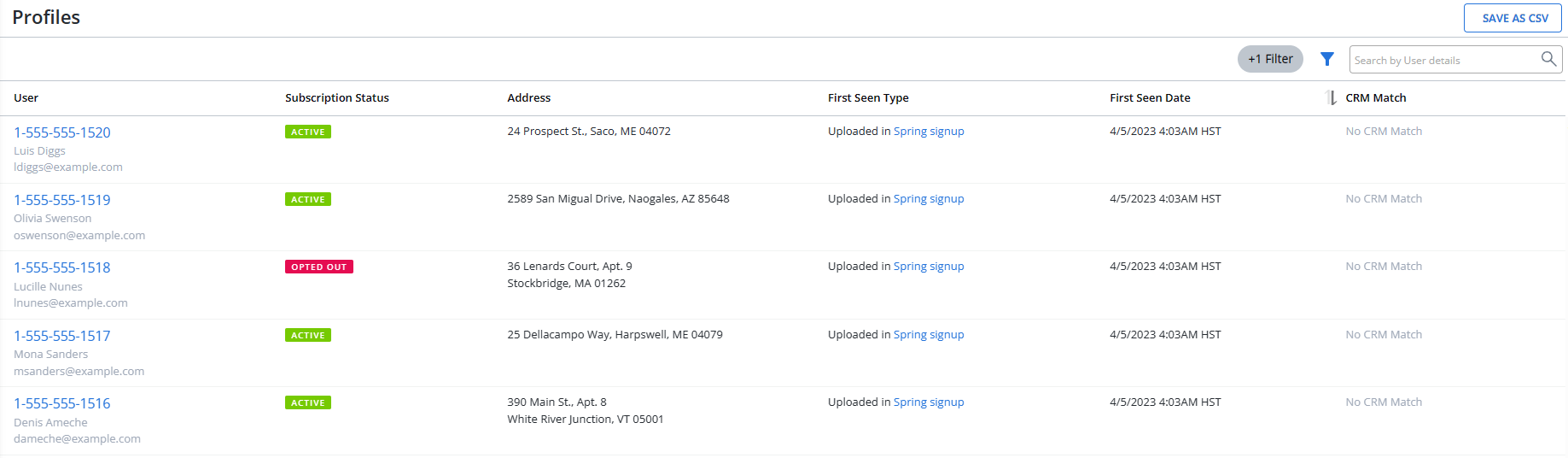
Note: The key identifier in a user profile is the mobile phone number.
-
Locate the user in the Profiles table, and then select the phone number link.
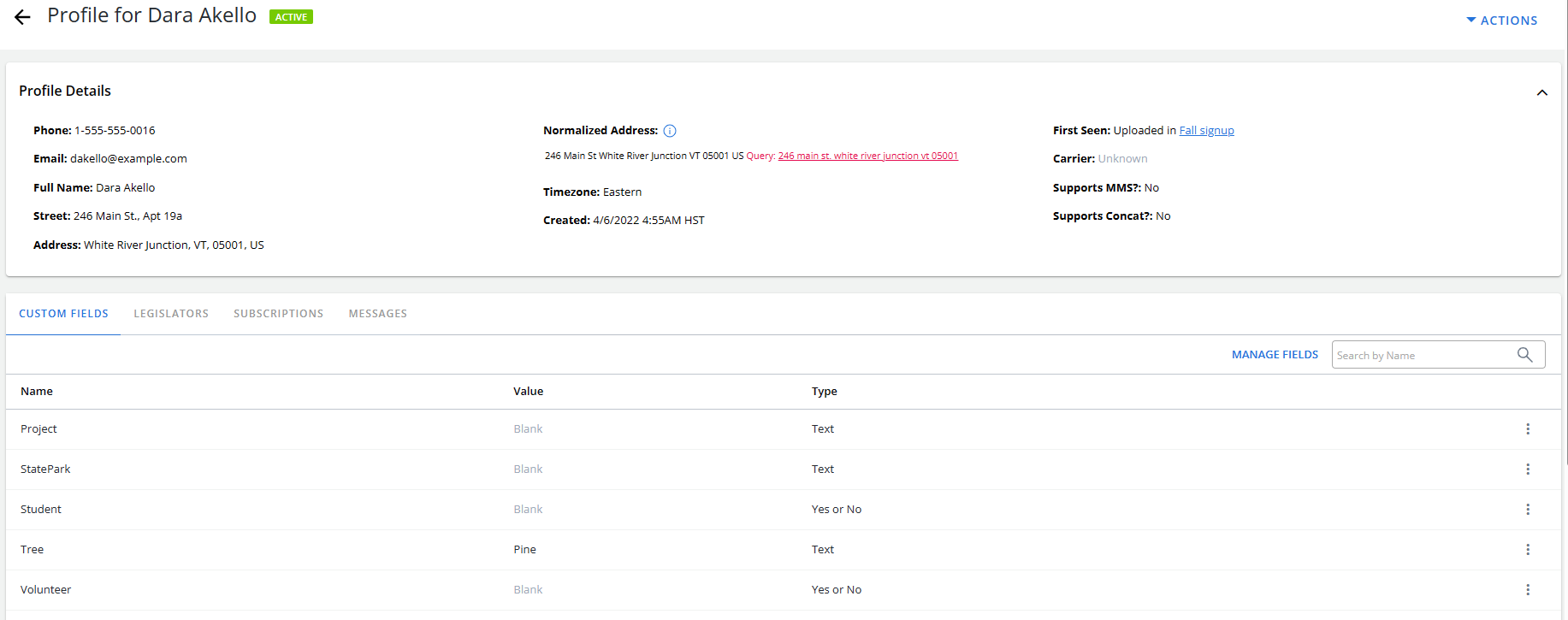
The user profile contains all of the information about the user that is stored in your company's data set.
The following general information is available at the top of the user profile:
-
mobile phone number
- name
- address
- profile creation date
- cleaned reason (applicable for cleaned profiles only): Soft Bounce or Hard Bounce. When a profile is cleaned, a cleaned reason and a cleaned tag additionally appears in the "Profile Details". For more information, see Cleaned Profiles
- method by which the profile was added to the data set
- mobile phone carrier and attributes
- mobile phone number
- subscription status
The tabbed sections display additional sections in the profile:
-
Custom Fields
The Custom Fields table includes the following information:
| Column | Description |
|---|---|
| Name | The name of the custom field. |
| Value | The entry in the field for this user. |
| Type |
One of the following data type values:
|
| Actions |
Available action for custom fields:
|
Note: To make changes to custom fields, select Manage Fields above the Custom Fields table, on the right. For more information, see Setting up custom fields.
You can search the Custom Fields table by field name.
-
Above the Custom Fields table, on the right, enter a search term in the Search box, and then select
 Search.
 The Custom Fields table displays the records that match the field name.
For more information on working with custom field in a user's profile, see Editing a user profile.
Legislators
If your account has the advocacy feature enabled, the Legislators table lists the legislators who represent the user's location:
-
Senators
-
Congressperson
-
State Senators
-
State Representative
-
Governor
For additional information, select the legislator name link.
Tip: The more address information available on a profile, the more complete the legislative information will be.
Subscriptions
The Subscriptions table includes the following information about current subscriptions that the user has added or canceled:
| Column | Description |
|---|---|
| Status |
The user's current status for the subscription:
|
| Campaign | A link to the campaign. |
| Opt-in source |
A link to the user or opt-in method by which the the profile was added to Mobile Commons, for example by keyword opt-in or by administrator, if the opt-in was done manually. You also see information about scheduled messages for the user.
|
| Opt-in date | The data and time when the user opted in to the campaign. |
| Actions |
Tip: Use care in adding or removing subscriptions for the user. |
 The user has opted in to the campaign and can receive messages.
  The user has opted out of an active campaign and can no longer receive messages.
  The user is not currently subscribed to any campaigns.
You can search the Subscriptions table by campaign name:
-
Above the Subscriptions table, on the right, enter a search term in the Search box, and then select
Search. The Subscriptions table displays the records that match the campaign name.
For information about working with the user's subscriptions, see Editing a user profile.
Messages
The Messages table includes the following information for every text conversation the user has had with your company:
| Column | Description |
|---|---|
| Type |
Hover your cursor over the icon to view the message type:
If a message is queued, it is ready to sent but has not yet been sent. |
| Message body |
The content of the message. Tip: To see a long message, hover your cursor over the message body entry. |
| Media | A preview of the image file, if available. |
| Campaign | Links to the campaign and to the broadcast message. |
| Originator | It displays the short code, 10DLC long code, or RCS agent used to send the message. |
| Date | The date and time when the message was sent. |
| Status |
The message type and current status (queued, sent, etc.):
|
Above the table, select Save as CSV. The records for all the messages in the table are saved in a .CSV file.

You can also text or chat with the user directly from their profile. For more information, see Contacting a user.
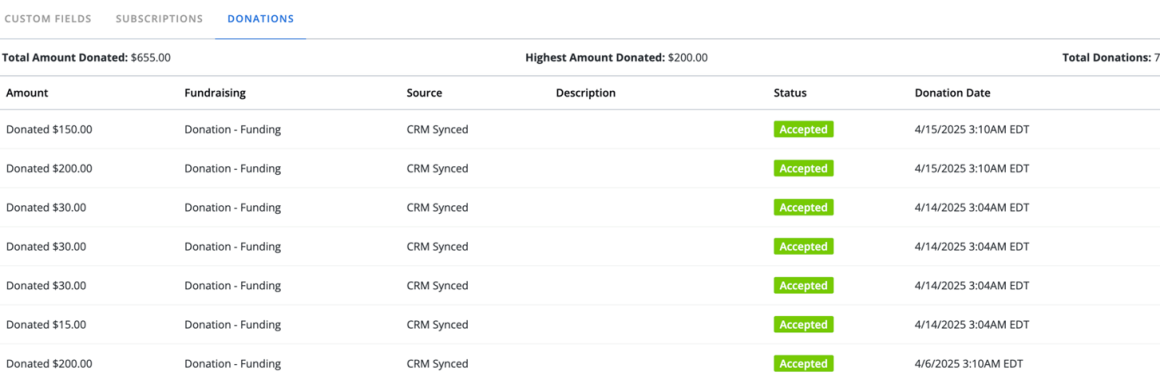
Donations
The Donations table includes the following information:
| Column | Description |
|---|---|
| Amount |
The amount of a donation. |
| Fundraising |
The fundraising campaign associated with the donation. |
| Description | The description about the donation. |
| Status | The current state of the donation (for example, pending, accepted and others). |
| Donation Date | The date and time when the donation was made, including the time zone. |
| Total Amount Donated |
The total amount of all donations made by the donor. |
| Highest Amount Donated | Displays the highest amount the donor has donated in a single donation. |
| Total Donations | The number of donations successfully completed. |