OLRP Mail merge to personalize documents
This tutorial demonstrates an OL Remote Print (OLRP) solution that uses OL Connect to personalize documents. This is the second of three tutorials that show how to Use OL Connect Automate with OL Remote Print , and we recommend completing them in order.
Overview
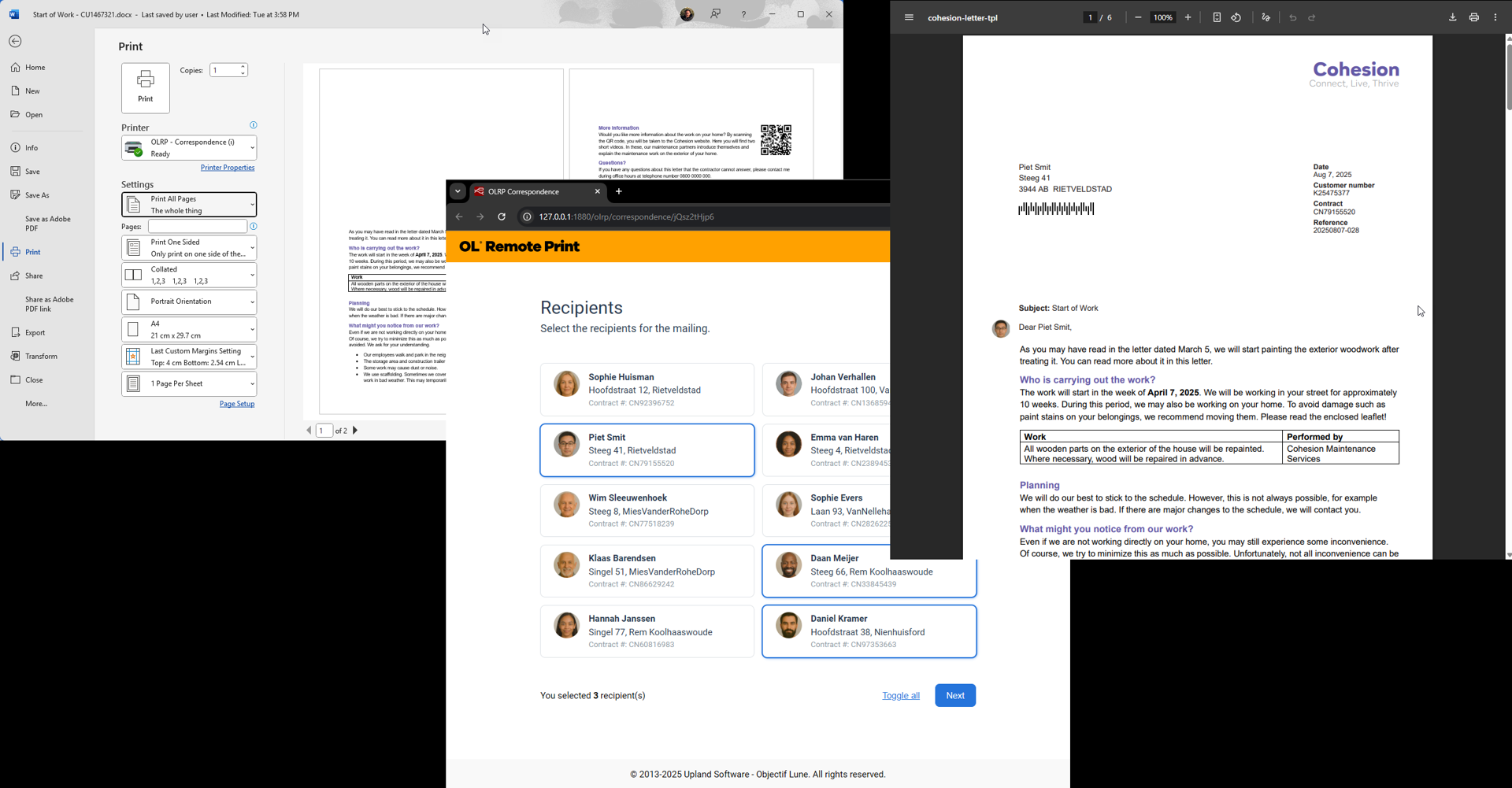
A standard Word document is printed using the OLRP Client (printer driver), and enhanced in OL Connect with dynamic content such as an address block, subject line, reference numbers, customer/contract details, and a stationery background image.
The sample includes a basic web page, served by OL Connect Automate. This page lists recipients and provides a web form to input a subject and reference fields. These inputs, along with customer information, are used to dynamically personalize the document.
The web page is launched using the URL redirect option in the Basic Interaction flow. Once the user selects a recipient and submits the form, the information is combined with the OLRP print job (initiated from Word) to generate a fully personalized document using OL Connect.
These flows are included as examples with the olrp nodes and can be imported using the Import option in the upper right menu. The required OL Connect resources can be downloaded from the OL Resource Center using the following link: mail-merge.zip.
Flow components
The Mail Merge sample package includes a set of OL Connect Automate flows that manage user-facing interactions (by serving web pages) and background processing (via endpoints). Each flow is responsible for a specific part of the solution.
Check Job Status
The first flow group handles checking the status of the OLRP job, using the same functionality as in the standalone OLRP check job status.
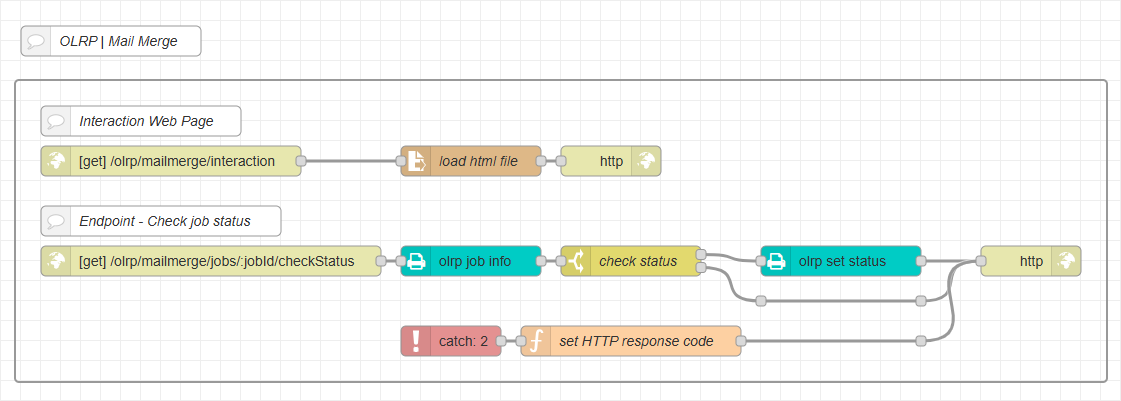
Once the job is fully received, the browser is redirected to a page where the user can select recipients or tenants.
Resources endpoint
The second flow is an endpoint that serves the static assets required by the various web pages. These files are stored in the example’s assets folder and include the JavaScript files that provide front end functionality, as well as the CSS stylesheets that define the appearance of the pages.
![Flow consisting of the following nodes: [get] /olrp/mailmerge/assets/resource, load resource, set content type, http.](../../../Resources/Images/tutorial/olrp-mail-endpoint-job-25-1.png)
Core function
The third flow group contains the core functionality of the example. It serves the web pages with sample-specific features, provides endpoints for delivering data, and runs the flows that generate and download the final output.
Web Page flow
Serves the main landing page where users can:
-
Select one or more recipients/tenants.
-
Provide job-specific parameters (e.g., subject line, reference numbers) via a web form.
-
Submit the job to trigger output generation.
Recipient Data endpoint
Provides a list of recipient records via a REST API in JSON format.
-
In this example, recipient data is static or mocked.
-
In a real-world implementation, this would typically query a database or backend system to retrieve dynamic recipient information.
-
This data is loaded by the
solution.jsfile and used to populate the web page.
Output Creation endpoint
This flow handles the creation of personalized output by:
-
Receiving data submitted by the web page, includes the selected recipients, subject, and reference fields.
-
Downloading the OLRP job from the OLRP server and converts the PostScript file to a PDF:
-
Using a creative workaround to convert PostScript to PDF via OL Connect's data mapping and output creation steps. This approach will be replaced by a direct PS-to-PDF conversion in a future version.
-
The output preset stores the resulting PDF in a job under
workspace/olrp/mail-merge/jobs/.
-
-
Mapping the submitted JSON data and merging the data with an OL Connect template, where the OLRP job (converted to PDF) acts as a dynamic background. Overlay content is added using standard OL Connect composition techniques.
-
Writing the final PDF output to the job folder in the workspace, as defined by the Output Preset.
Download endpoint
Allows the web page to retrieve the final merged document for download.

Installing the sample
Prerequisites
Before installing the sample, ensure the following components are installed and properly licensed:
-
OL Connect Automate.
-
OL Connect software.
-
OL Remote Print server.
-
An OL Remote Print client (printer driver).
The printer driver must be installed with interactive mode enabled, and the URL set to:
olrp/mailmerge/interaction
For example, on the machine hosting OL Connect:
http://127.0.0.1:1880/olrp/mailmerge/interaction
Installation steps
-
Set the Workspace Environment Variable:
Create an environment variable namedENV_WORKSPACEand point it to the root folder of your solution workspace.You can set this through the User Settings interface in the menu. However, the preferred method is to configure this variable during the installation of OL Connect Automate, or by editing the
olca.environments.jsonfile, as described in Use environment variables in flows. -
Create the olrp subfolder:
Inside your workspace folder, create a new folder namedolrp. -
Download and extract the sample package:
-
Download the mail-merge.zip file from the OL Resource Center.
-
Unzip the contents and place them in the olrp folder.
The resulting structure should look like this:
-
	   workspace/
		└── olrp/
		    └── mail-merge/
		        ├── 02 - Mail Merge.json
		        ├── Sample letter.dotx
		        └── jobs/
		        └── resources/
		            ├── <OL Connect resources>
		            └── ...
		        └── site/
		            ├── interaction.html
		            ├── solution.html
		            └── assets/
		                ├── interaction.js
		                ├── solution.js
		                ├── styles.css
		                └── variables.css
-
Load OL Connect Resources
In OL Connect Designer you’ll need to send all OL Connect resources to the OL Connect Server.
-
In OL Connect Designer, go to File → Send to Server…
-
Click the Browse icon and select all files from the
resources/folder. -
Click Send.
-
-
Import the Flow
In the Node-RED editor:
-
Open the menu, go to Import → Examples, and select the
02 - Mail Merge.jsonfile from the mail-merge folder. -
Or, go to Import → Clipboard and load the
02 - Mail Merge.jsonfile from the unzipped package.
-
-
Update the server configuration for all OL Remote Print nodes:
-
Set the URL to your OLRP server (e.g.,
http://localhost:9180/) -
Enter your OLRP Username and Password
-
-
Update the server configuration for all OL Connect nodes:
-
Set the URL to your OL Connect Server (e.g., http://localhost:9340).
-
Enter your OL Connect Server Username and Password.
-
-
Click Deploy to activate the flow.
Run the Mail Merge sample
-
Open the Sample Letter file from the
olrp/mail-mergefolder in Microsoft Word. -
Go to File → Print.
-
Select the OLRP printer configured for
olrp/mailmerge/interaction. -
If everything is correctly installed, licensed, and configured, a browser window will open showing a busy indicator.
-
Once the OLRP server has fully received the print job, the page will update to allow the user to select one or more tenants.
-
Click Next, then enter a Subject for the letter.
-
Click Submit to start the merge process.
-
When processing is complete, a download link will appear. Click the link to open the generated output in a new browser tab.