OLRP Client Notifier
When an OL Remote Print Client is installed, an application called OLRP Client Notifier is also installed. It displays information concerning the preparation and transfer of each print job.
The OLRP Client Notifier resides in the Windows taskbar, in the notification area (also called "system tray" or "status area"). It shows with the OLRP Client Notifier icon.
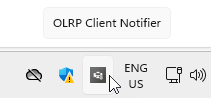
The OLRP Client Notifier will briefly show each OLRP Client message as a standard Windows notification.
Logged messages
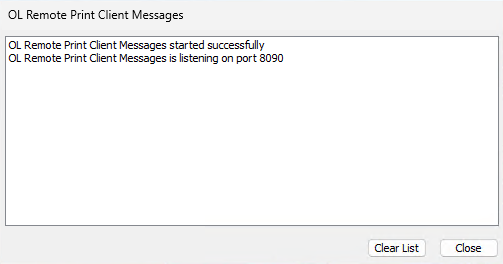
To view the messages logged by the OLRP Client Notifier, right-click the OLRP Client Notifier icon in the task bar area and select Show.
This brings up the OLRP Client Messages window with all the notifications since installation or since the list was last cleared (using the Clear List button).
Additional print job information is available in the Print Jobs log.
Stop and restart the OLRP Notifier
To stop the OLRP Notifier, right-click the icon in the notification area and select Exit.
To restart it, either click Taskbar Notifier in the Start menu (under Objectif Lune), or run it from the folder: Program Files\Objectif Lune\OLRPC\App
Change the UDP communication port
Each OLRP printer driver sends its messages to the OLRP Notifier via UDP. By default, port 8090 is used, but it can be modified by selecting a different port when the printer is installed, or you can Modify an installed printer. Restart the OLRP Notifier to use the new port.