Actionable notifications for Timesheet approvals in Microsoft Teams make it easier for managers and team leads to review and act on submissions directly within MS Teams. This reduces the need to switch between systems and helps ensure faster approvals, improved compliance with time-tracking policies, and a smoother workflow for everyone involved.
When the Send Notification to MS Teams option is selected for a Timesheet Workflow State or Transition Notification, the notification is delivered to the designated Recipient(s) via Microsoft Teams. For further details see Configure Workflow Notifications for Microsoft Teams in PSA.
Important: To use this functionality, you must download the latest version of the PSA Workflow Notification Bot (V3.0). For assistance, please contact PSA Support.Upon completion of backend configurations, you will be provided with a link to download the updated .zip file. For more information see Install and Connect the Microsoft Teams PSA Workflow Notification Bot.
Note: It is important to note that the language of the Microsoft Teams bot's confirmation messages is based on your Microsoft Teams settings, whereas the PSA-generated content will continue to follow the language preferences set within PSA.
Available Actions in Microsoft Teams
Within the Teams notification, you can:
- View in PSA - Opens the Timesheet directly in Upland for detailed review.
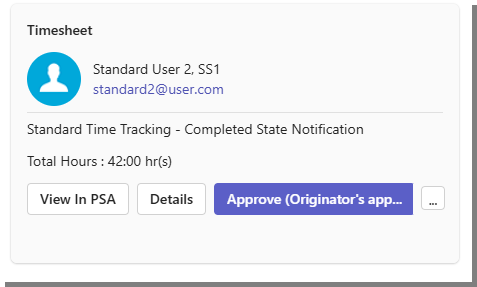
- Details - Opens a dialog box with additional time entry information, including:
- Task names
- Relevant Attributes
- Entry dates
- Recorded Time, Overtime, and Double Overtime
- Non-working time
- Any applicable Adjustments
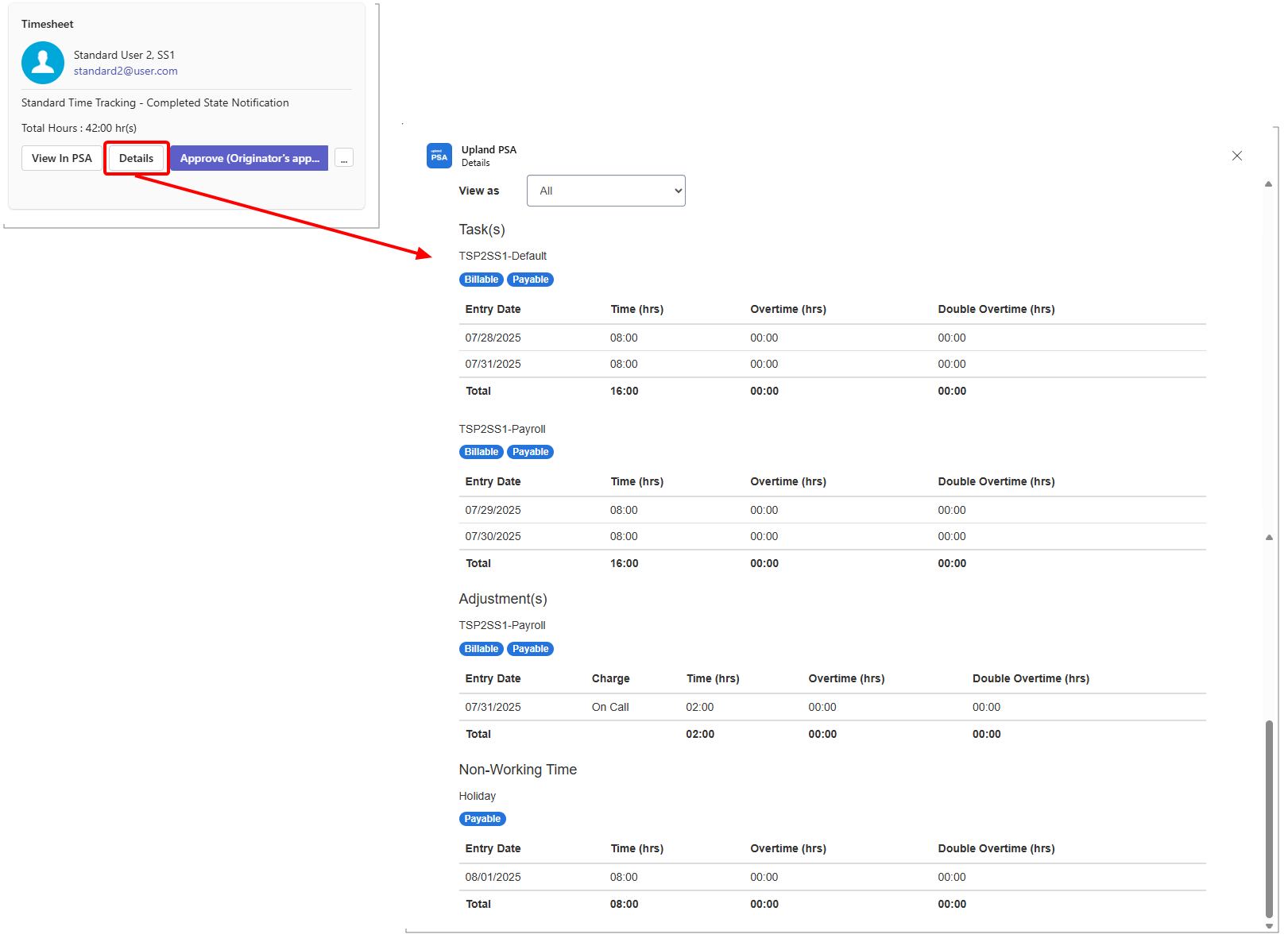
- The Adjustments section appears only if adjustments exist and the feature is enabled.
- If the Timesheet contains no time entries (for example, a blank Timesheet), the message “There are no Time Entries” appears.
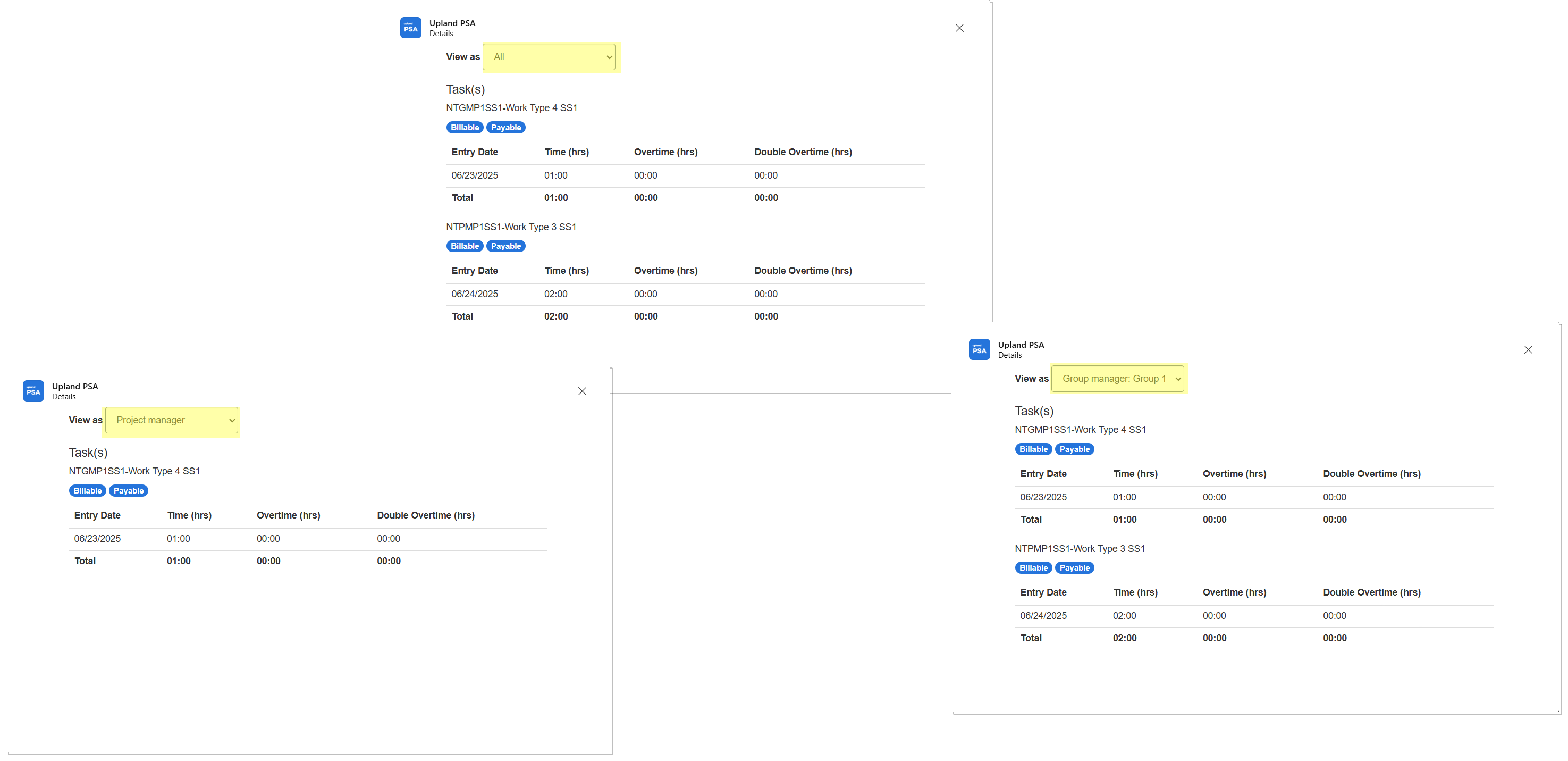
- The View as selection list located within the Details dialog box, lets you choose one of the Roles that you (the recipient of the notification) hold in PSA—such as Project Manager, Resource Manager, or Approver. By selecting a Role from the selection list, the system filters and displays the timesheet information from that specific role's perspective.
Note:
- Actions such as:
- Approve - Approves the submitted Timesheet, confirming that the time entries are accurate and complete.
- Reject - Rejects the submitted Timesheet. You may be prompted to provide a reason or comment, which the submitter can review and correct.
Note: When you transition a Timesheet from Microsoft Teams, the system validates whether the Timesheet Period is closed. If the Period is closed, transitions such as Submit, Resubmit, Approve, Reject, or Reopen are blocked, and you receive a clear error message stating that Time Entries cannot be created, updated or deleted because the Timesheet Period is closed.
Example Scenario
You receive a Timesheet Notification in MS Teams because you are both a Project Manager and a Resource Manager. In the View as dropdown, you will see both roles. If you select Project Manager, the time entries shown will match what you are allowed to see as a Project Manager—perhaps only for the Projects you manage. Switch to Resource Manager, and the view might broaden to include more Tasks across various Projects for the Resource you are managing.